Managing document reviews across multiple PDFs can become repetitive when you have to manually place the same stamp on every file. Bluebeam Revu 21 simplifies this process with the Batch Stamp feature, allowing you to apply stamps to multiple documents and pages in one operation.
This is especially useful for review workflows involving statuses such as Approved, Reviewed, Issued, Rejected, or other custom project validations.
In this guide, you will learn how to:
- Use Batch Stamps in Bluebeam Revu 21
- Customise stamps
- Define page ranges
- Control stamp placement
- Apply stamps across multiple documents at once
Let's get started.
Step-by-Step Guide to Batch Stamps in Bluebeam Revu 21
Follow the process below to apply stamps to multiple PDF files in a single batch workflow.
Step 01: Open your PDF documents in Revu
01 A: Open Bluebeam Revu 21 on your desktop.
01 B: Go to the File menu and open the PDF drawings or documents you want to process.
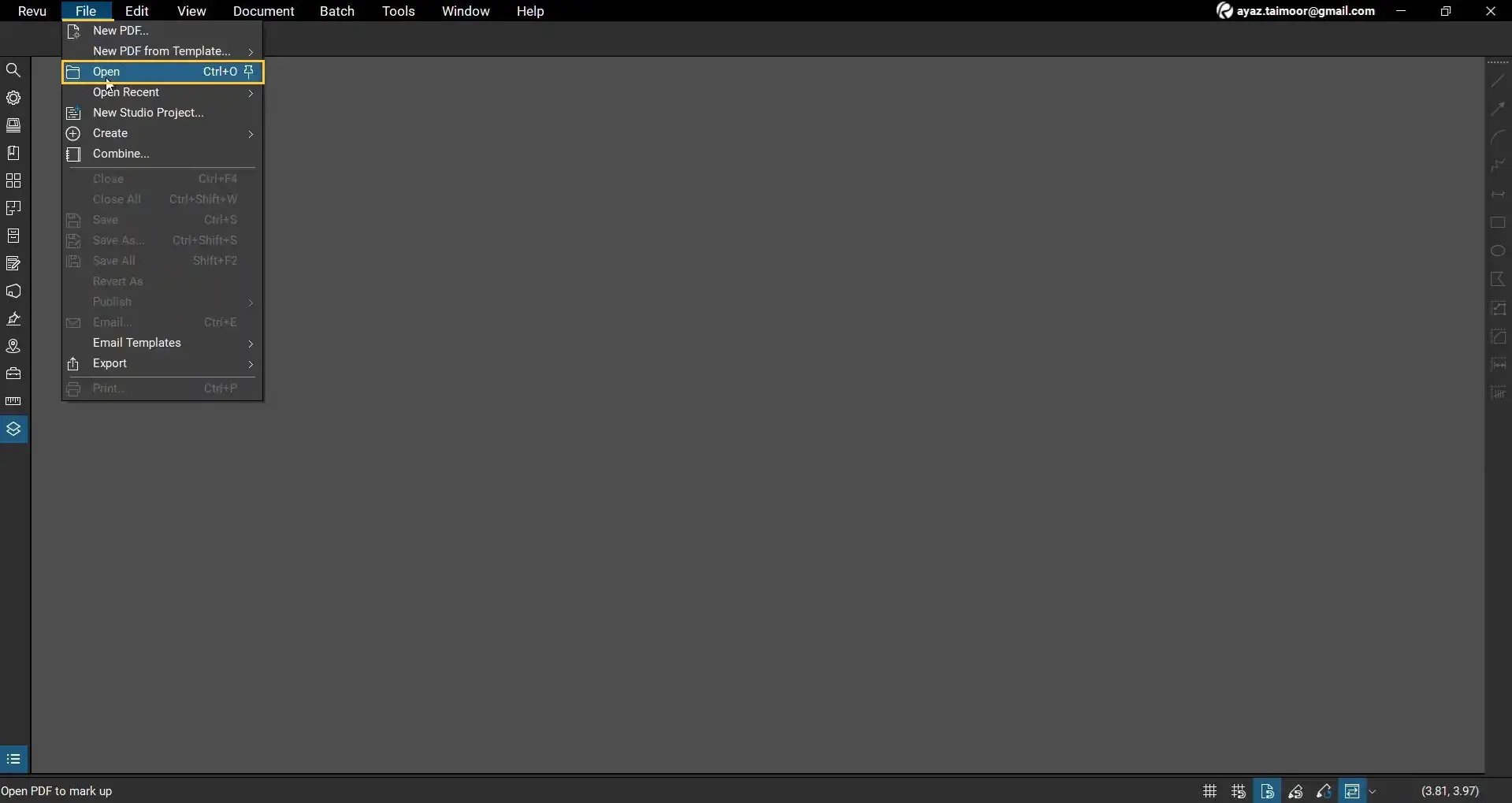
In this example, we open multiple PDF files in Revu to apply review stamps simultaneously.
Step 02: Open the Batch Stamp feature
02 A: Go to the Batch menu from the top menu bar.
02 B: Click Apply Stamp.
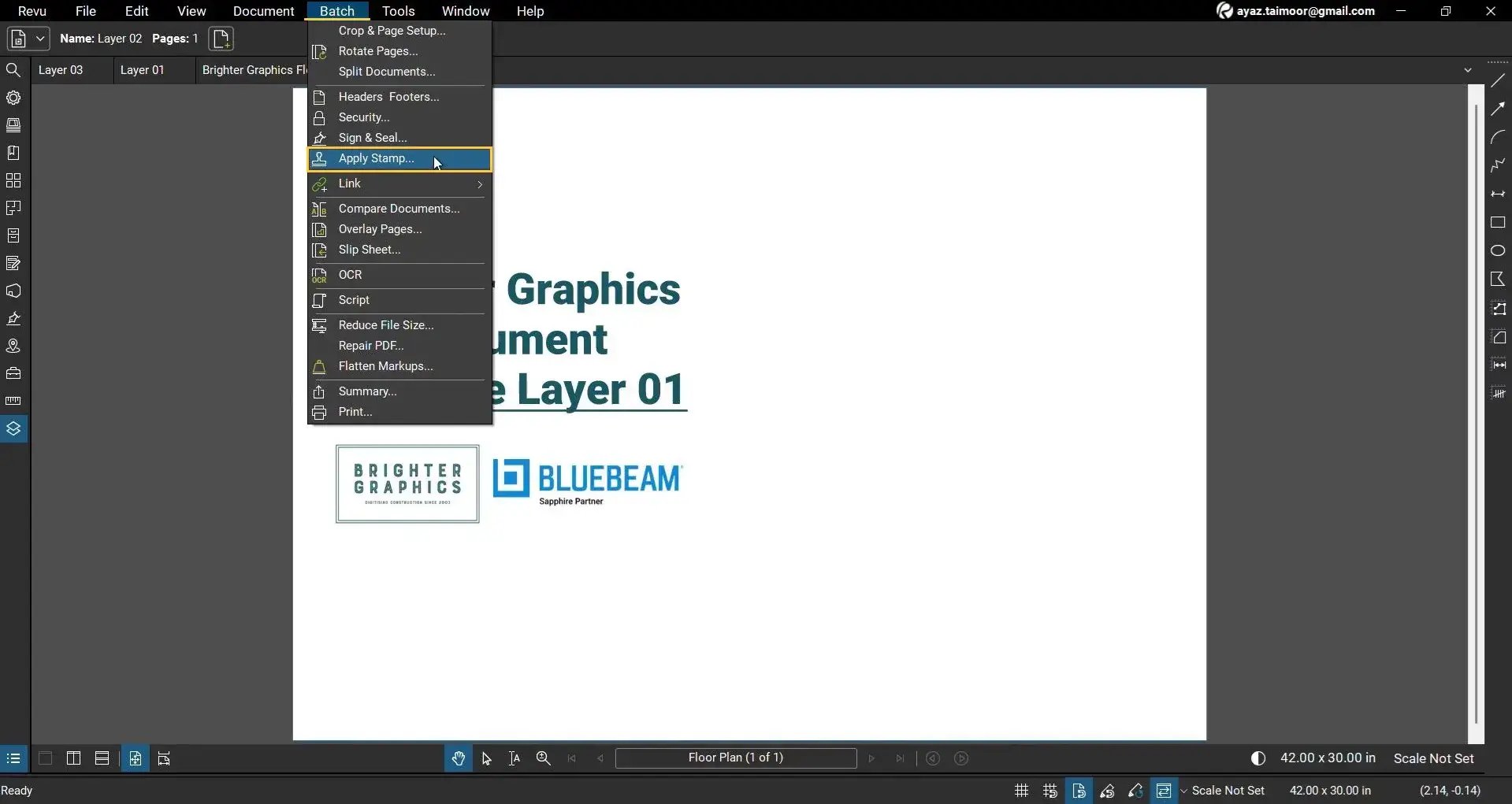
This opens the Apply Stamp dialogue box, where you can configure your batch stamping workflow.
Select and Customise Your Stamp
Under the Stamp section, Revu allows you to:
- Use built-in stamp templates
- Import custom stamp files
- Edit existing stamps
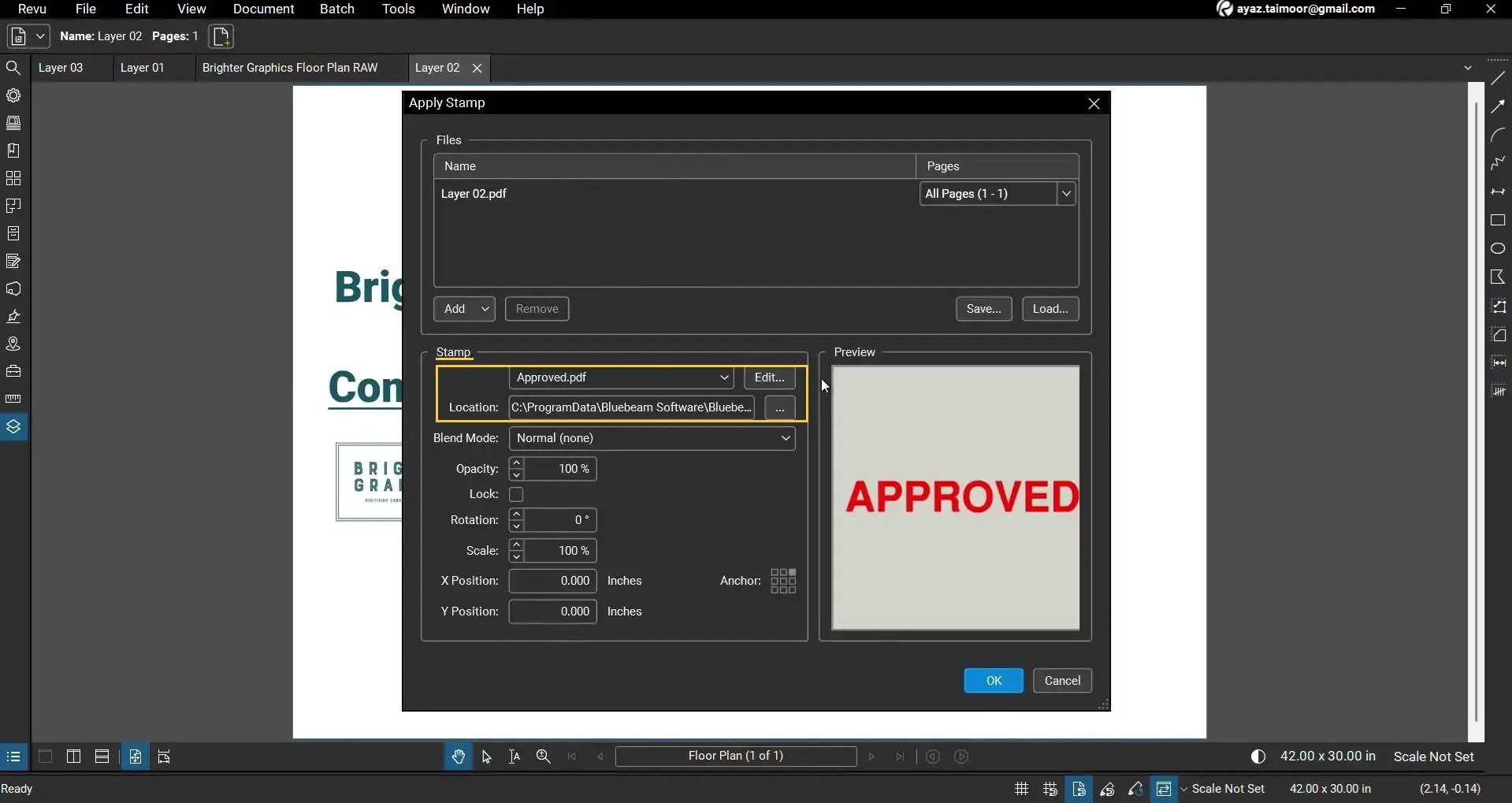
The selected stamp appears in the preview section before processing begins.
To edit and customise your built-in stamps further, let’s select the For Review built-in stamp and edit it.
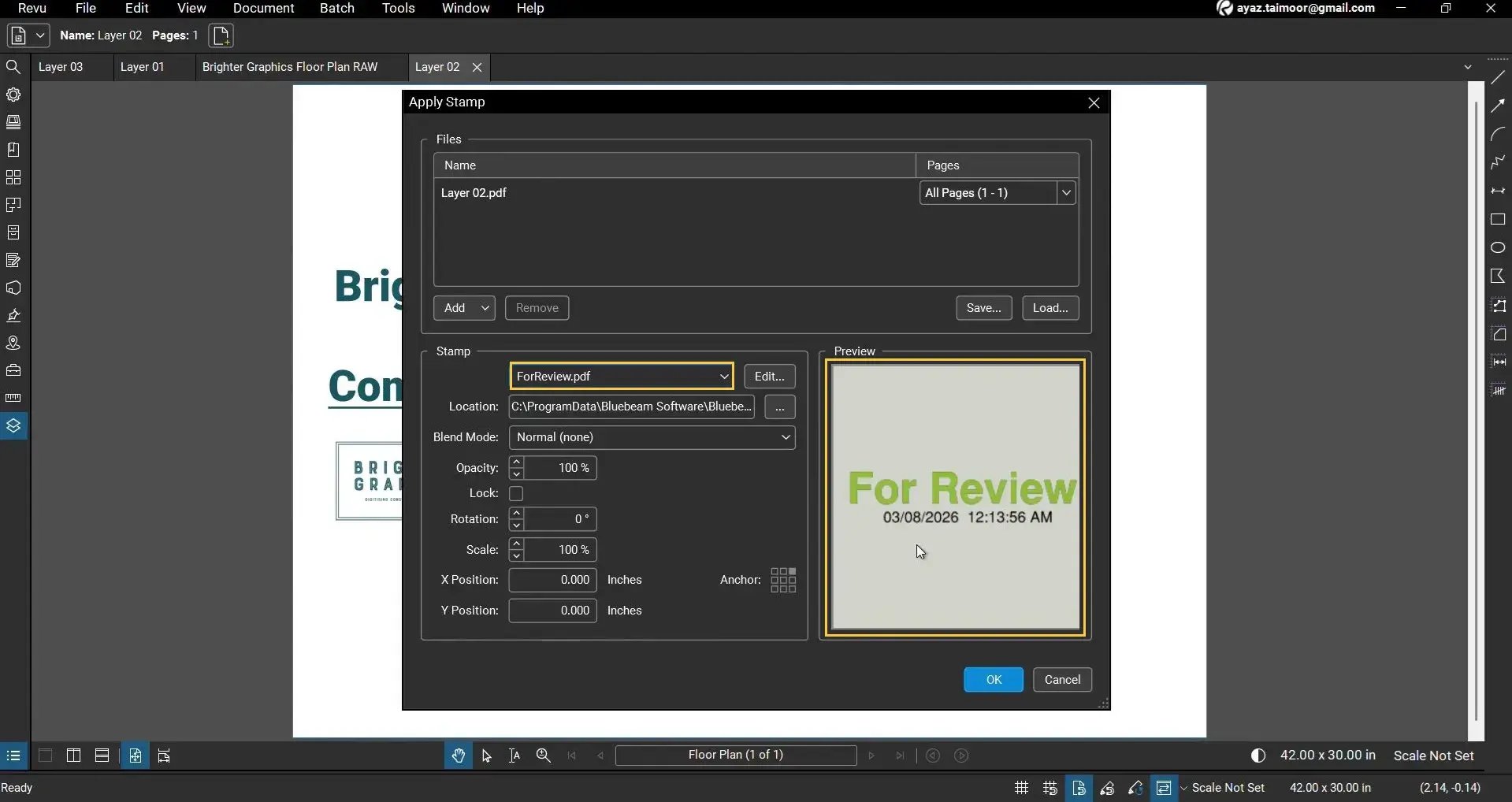
Step 03: Edit and Customise a Stamp
03 A: Click the Edit button, and it will open the selected stamp in a separate Revu tab.
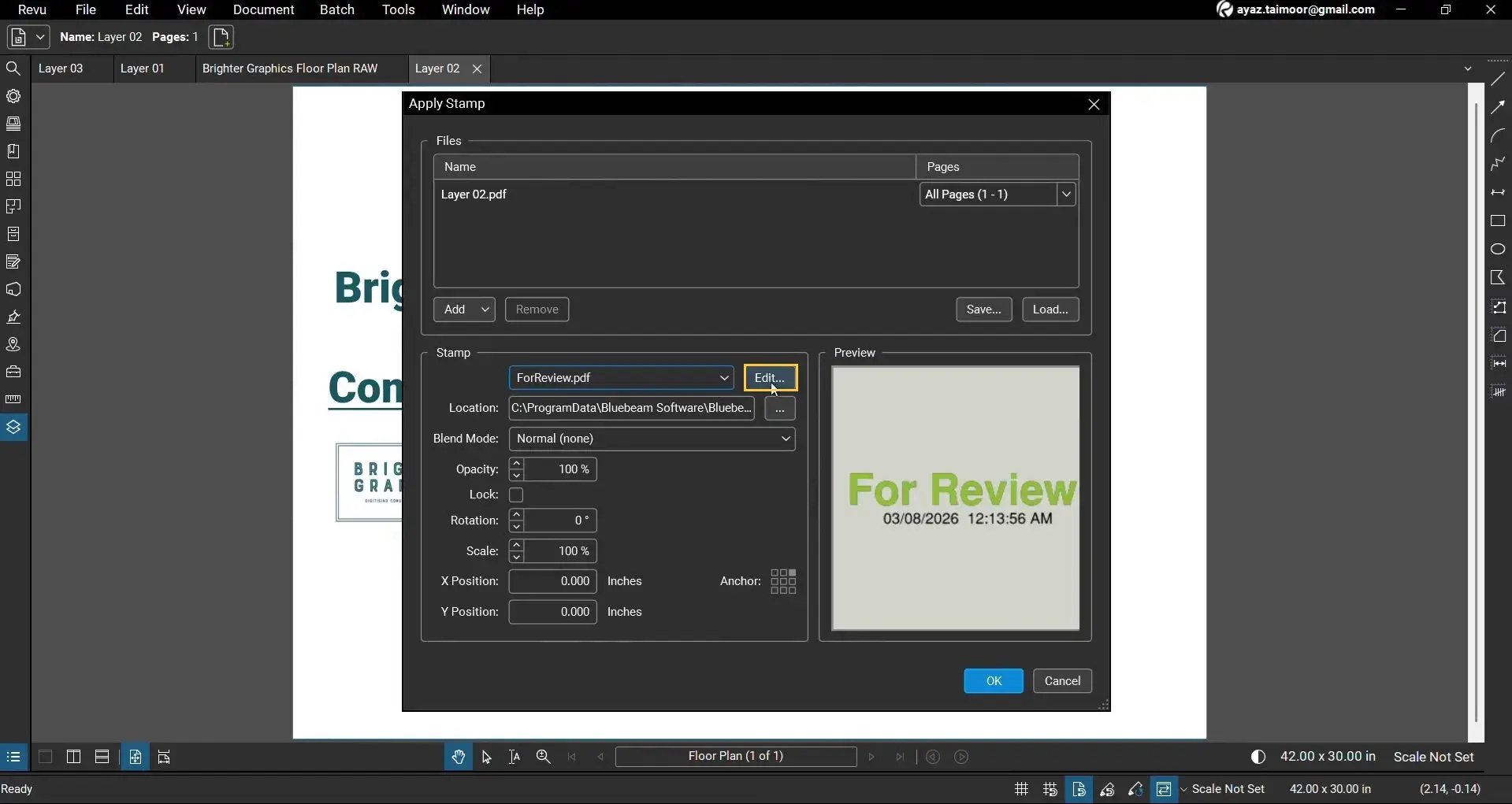
The visible white region defines the actual stamp area. Anything outside this boundary will not appear when the stamp is applied.
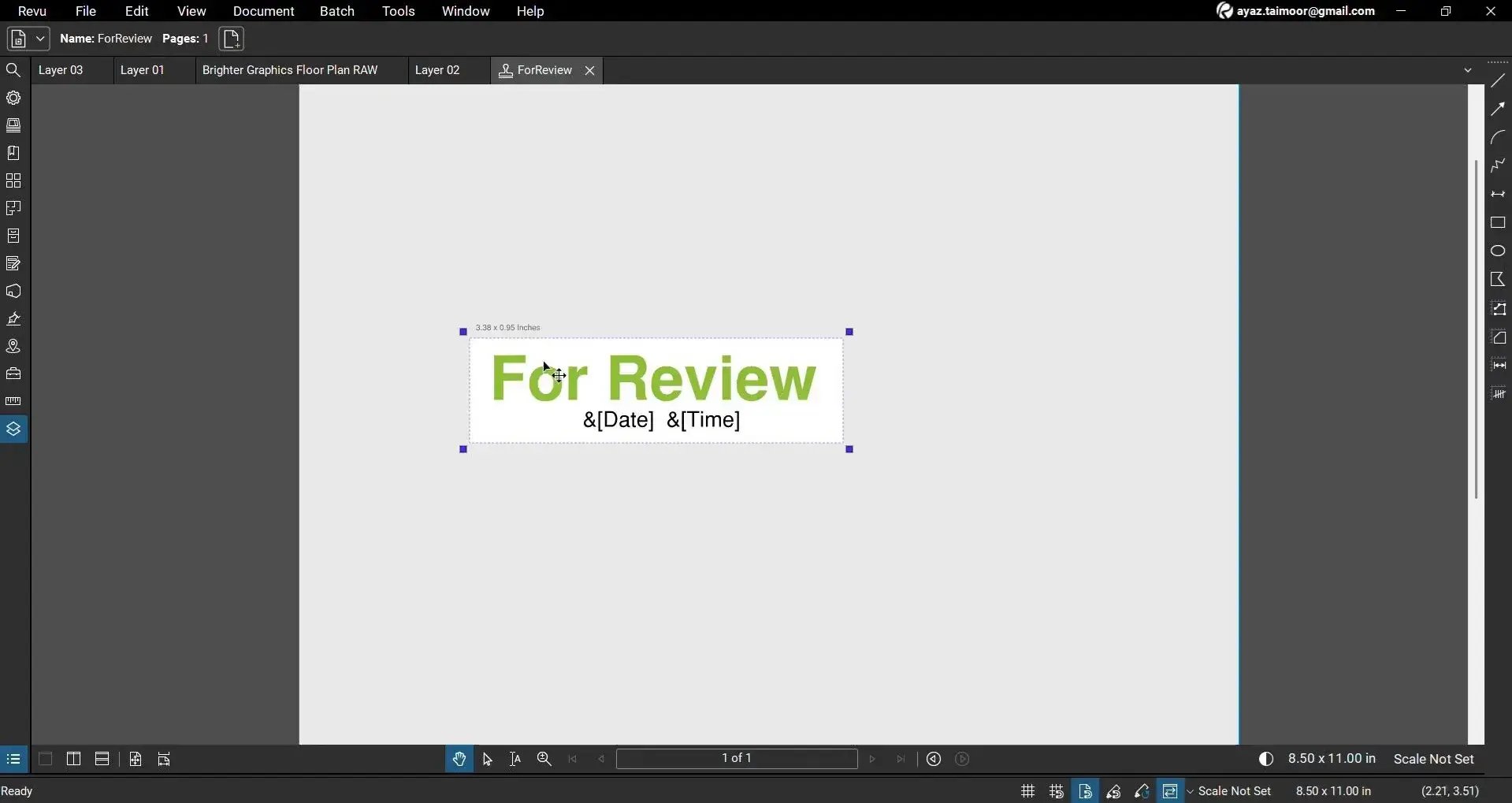
03 B: Resize the visible region if required by clicking and dragging the boundaries.
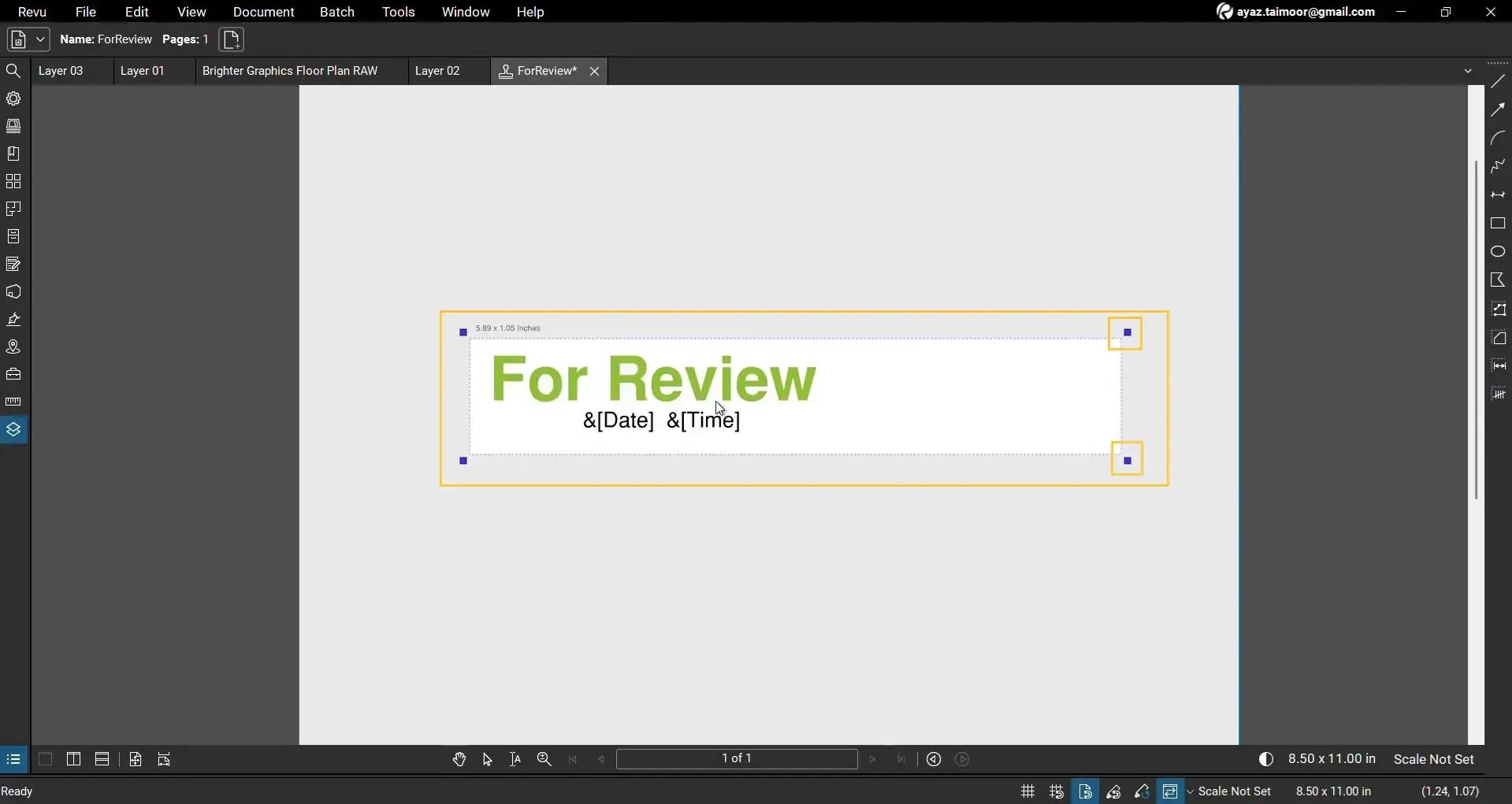
03 C: To insert an image into the stamp:
- Go to Tools
- Select Markups
- Click Image
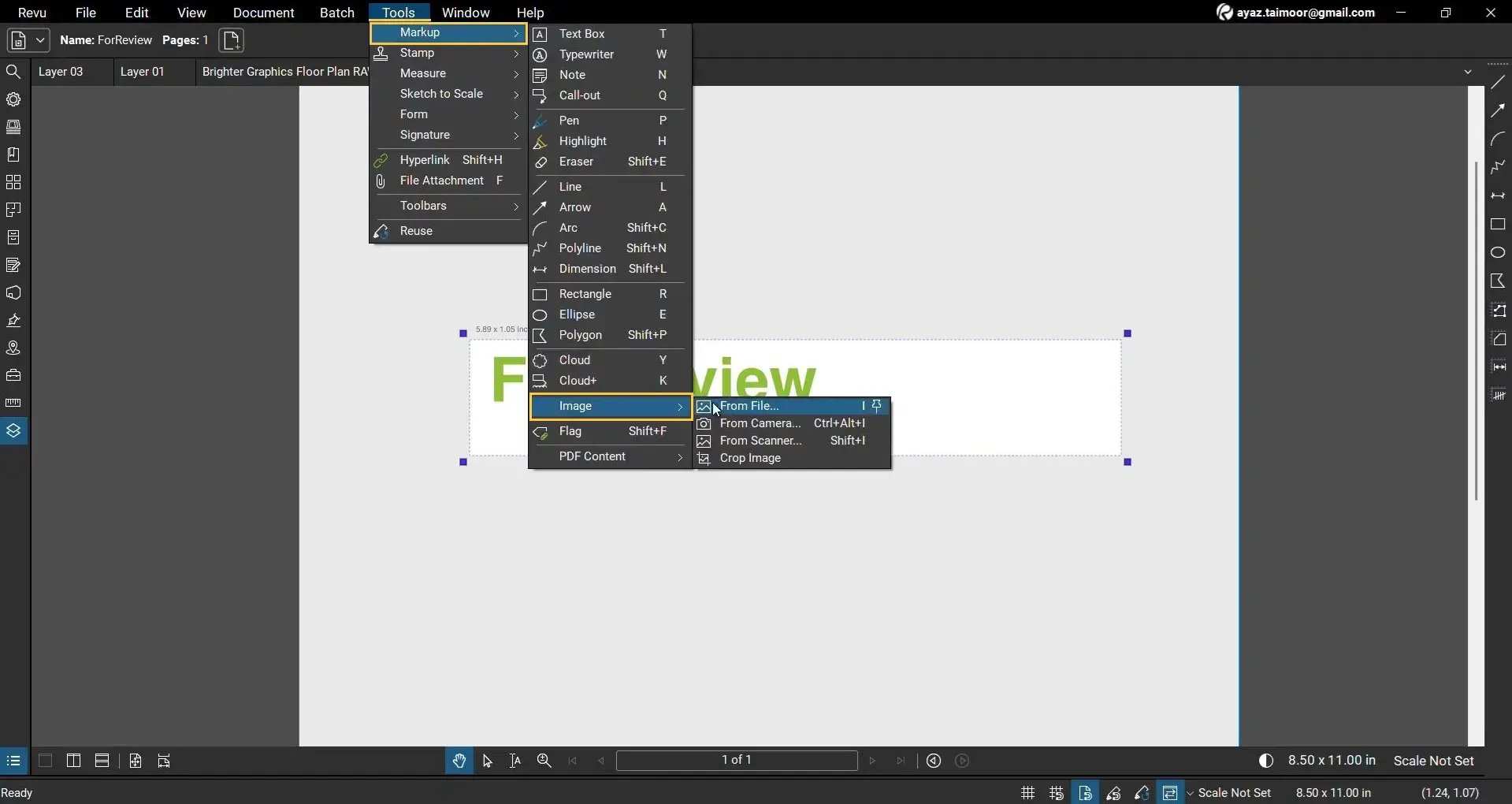
03 D: Choose the image from your device and place it inside the stamp layout.
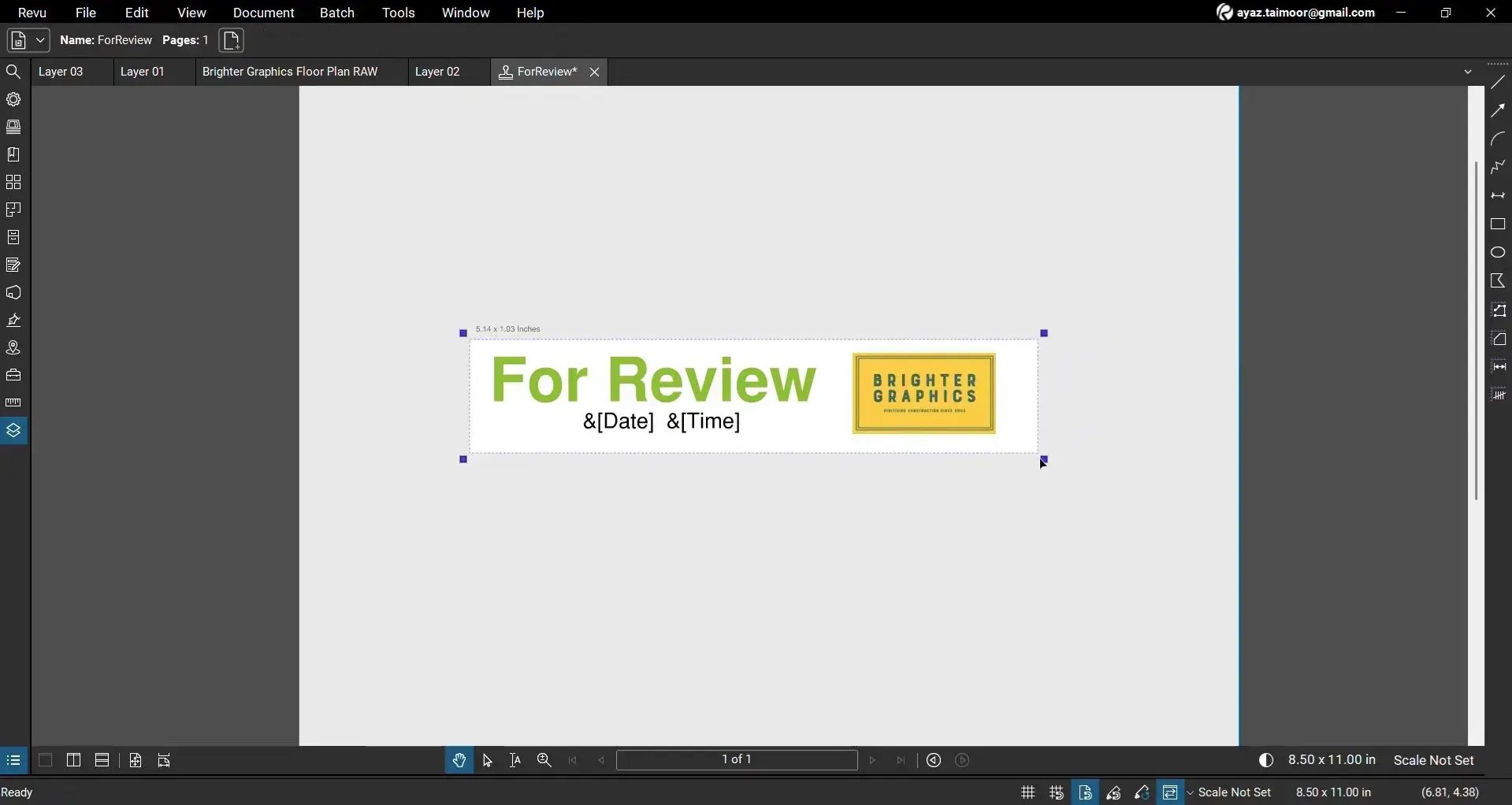
03 E: Adjust the image and reduce any unwanted blank space.
03 F: Press Ctrl + S to save your customised stamp.
Step 04: Add Documents to the Batch Process
Return to: Batch > Apply Stamp
04 A: Select the custom stamp from the Stamp section.
04 B: Click the Add button to include files in the batch.
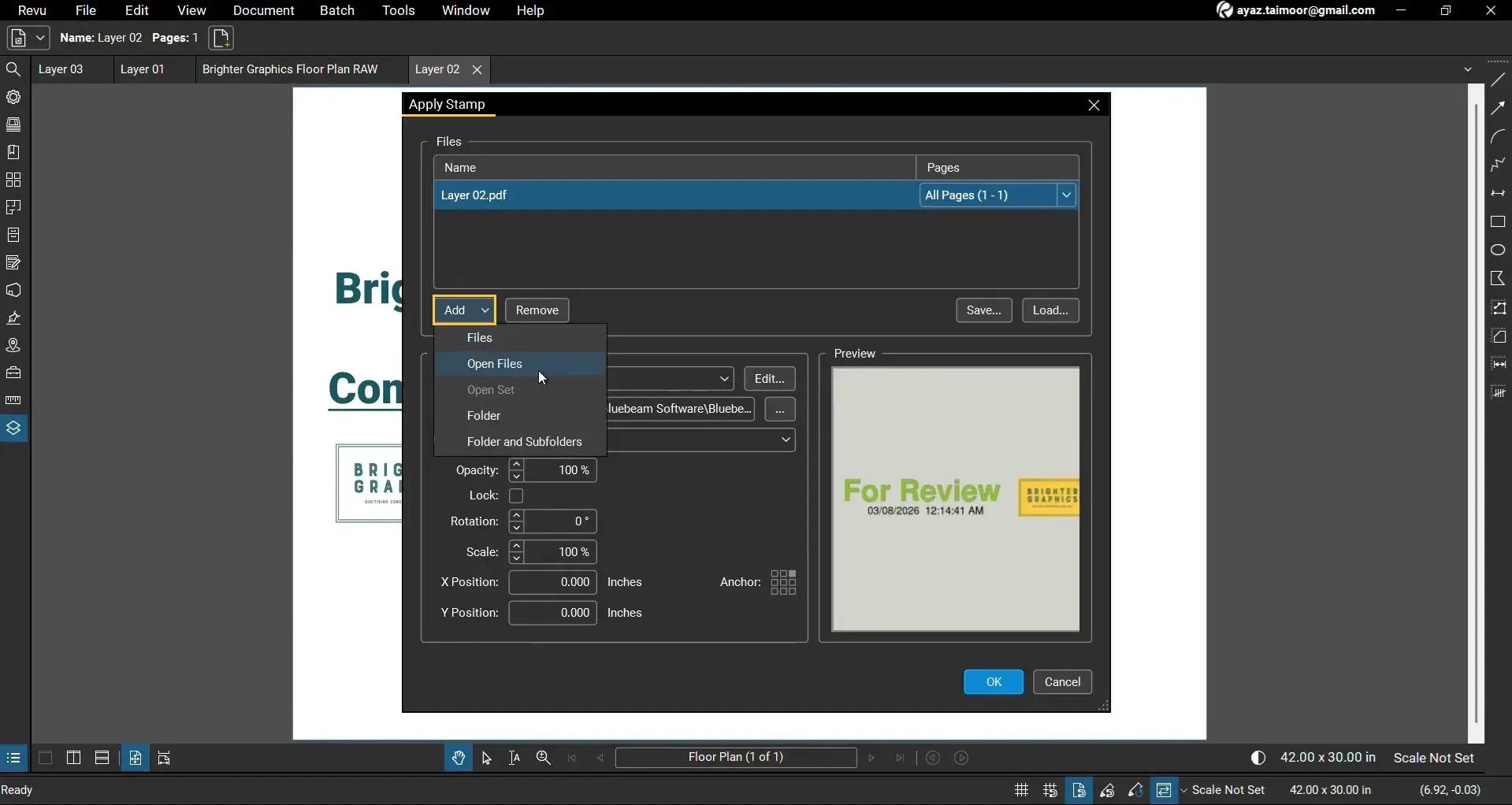
You can add:
- Open Files currently loaded in Revu
- Open Set
- Individual Files from your device
- Entire Folders and Subfolders
Selecting Open Files automatically includes all PDFs currently opened in Revu.
You can also click Remove to exclude documents from the batch.
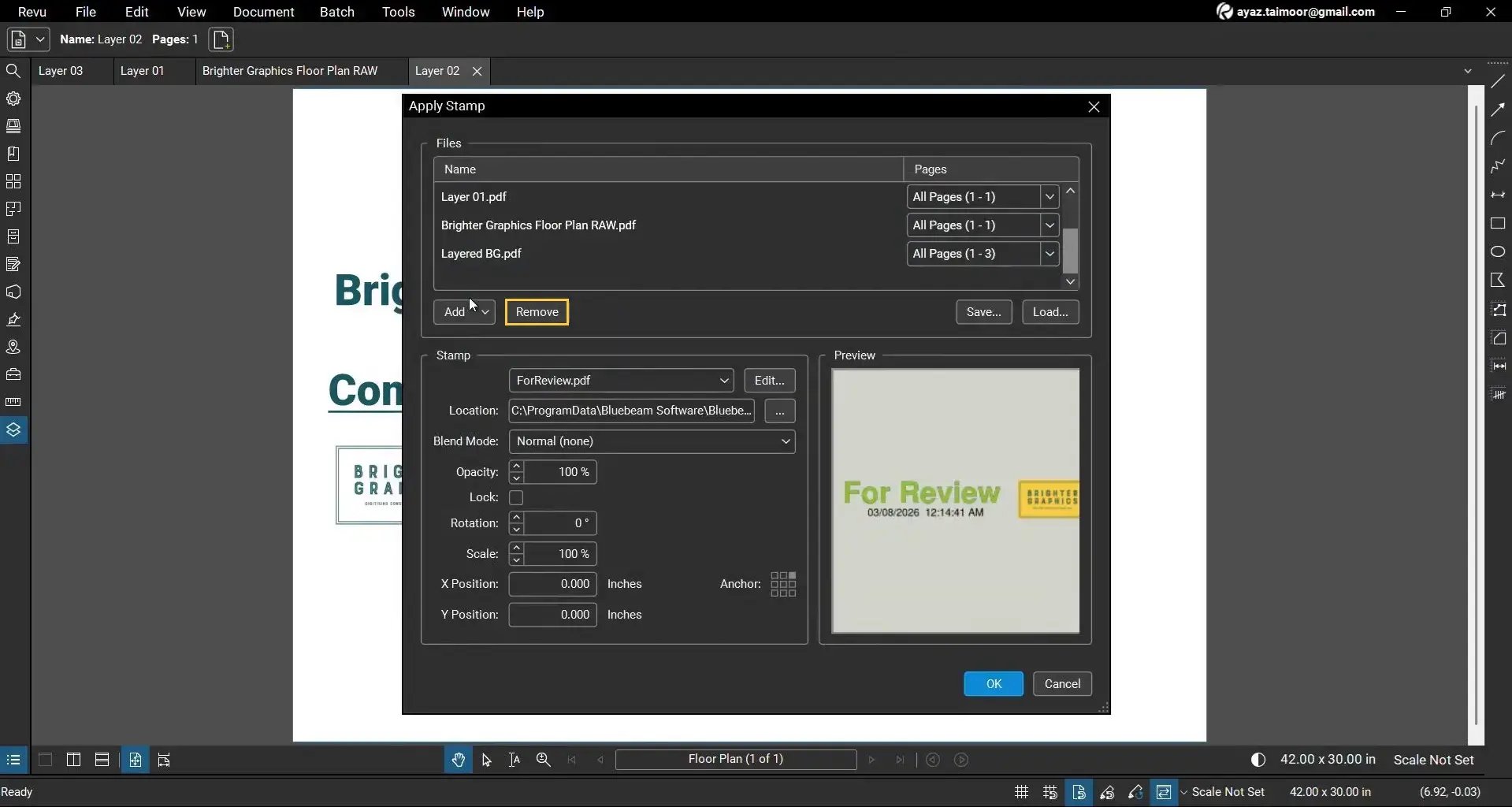
Apply Batch Stamps to Specific Pages
Revu allows you to control which pages receive the stamp.
Step 05: Define Custom Page Ranges
05 A: Select a document from the batch list.
05 B: Click the dropdown, select Custom Range, and enter your desired page range.
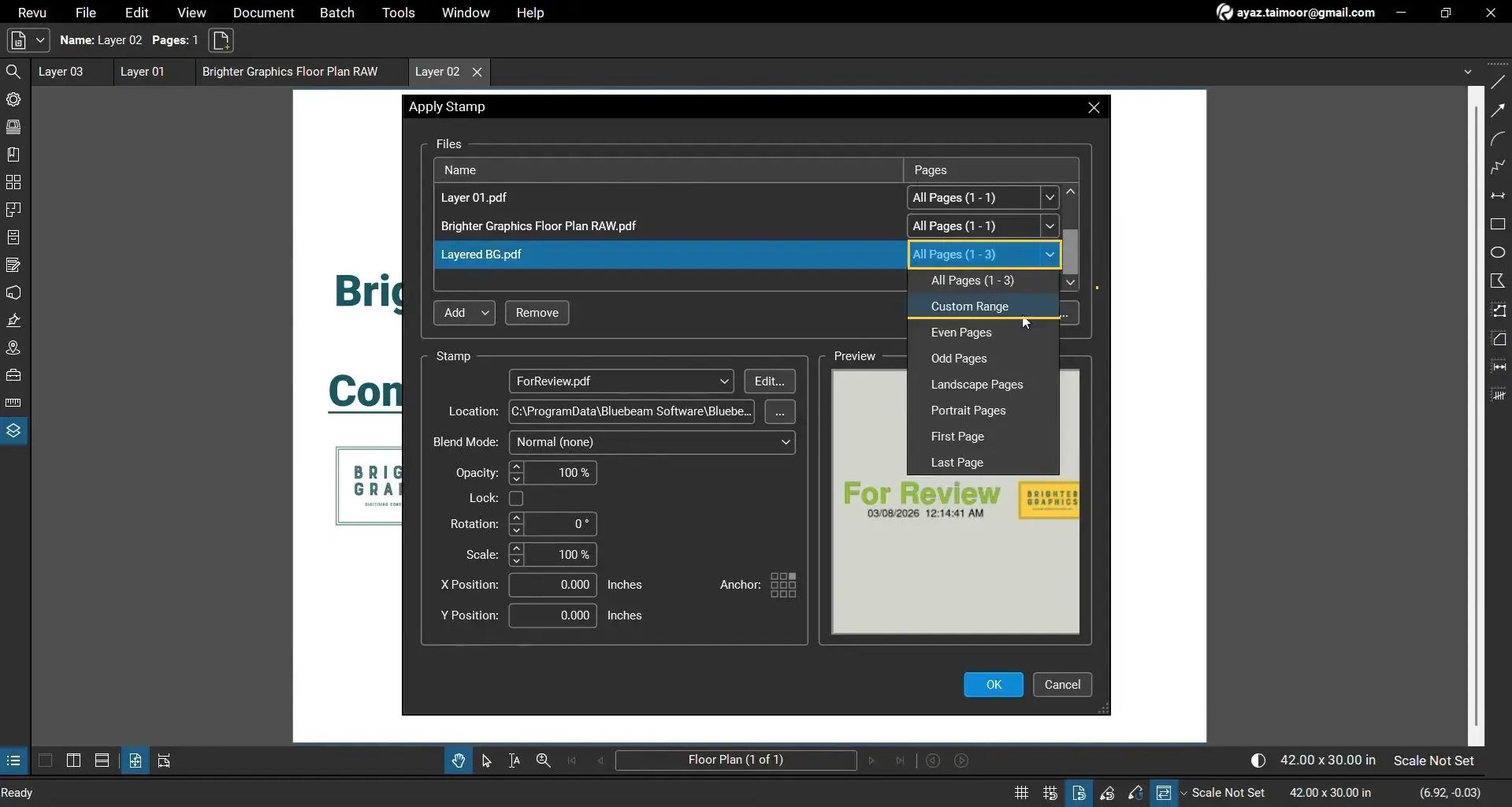
Use:
- Dash (-) for continuous ranges
- Commas (,) for separate pages or ranges
Example Ranges for your idea:
- 1-3 (Pages Selected: 1,2,3)
- 1-2, 5 (Pages Selected: 1,2,5)
- 2, 3-5, 7-9 (Pages Selected: 2, 3,4,5,7,8,9)
Configure Stamp Placement and Appearance
Step 06: Position the Stamp on the Page
Select your saved For Review stamp. Under the Stamp section, configure:
- Anchor position
- X and Y offsets
- Stamp opacity
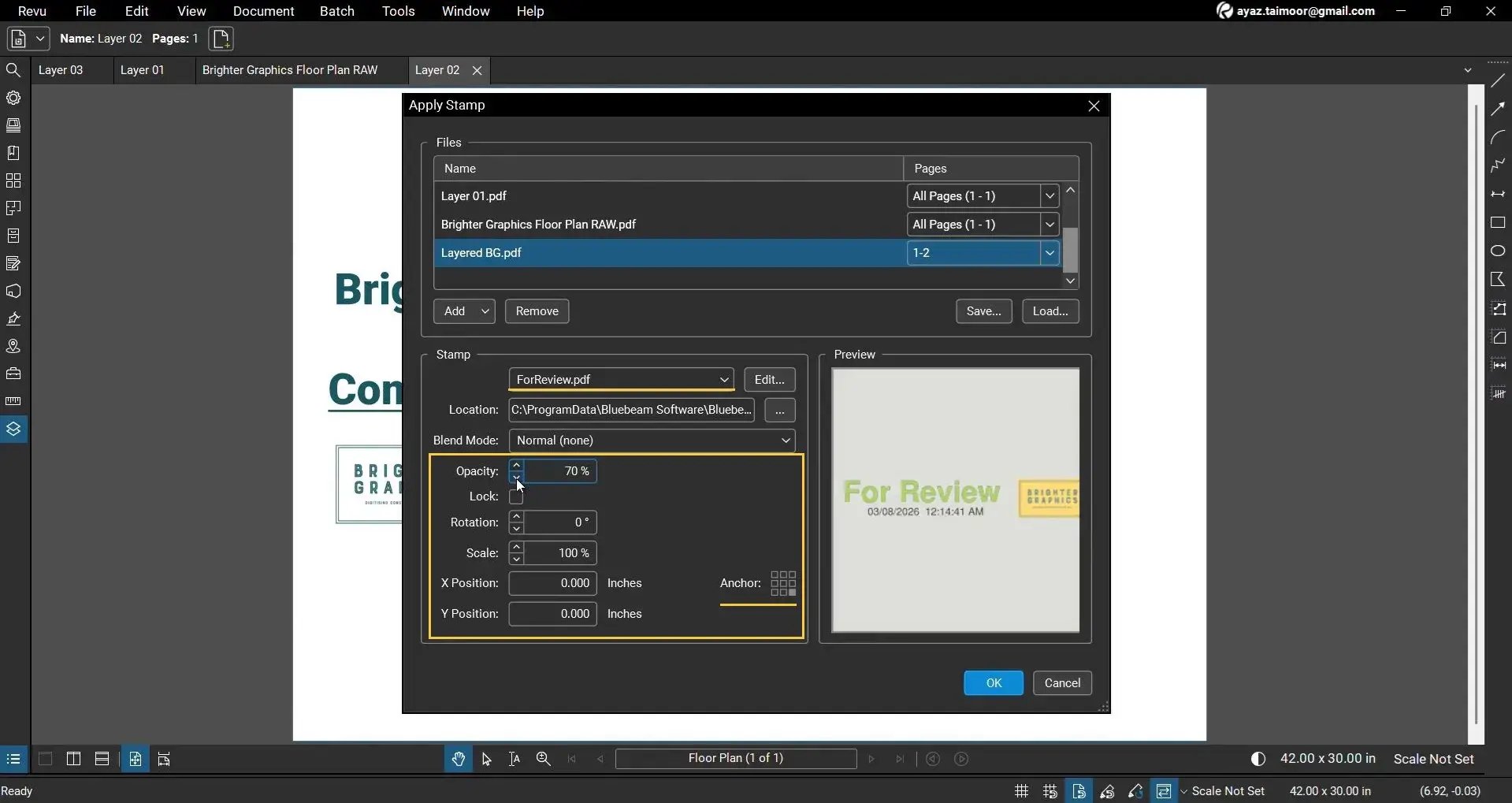
For example:
- Selecting a 3x3 anchor grid position at the bottom-right places the stamp in the lower-right corner of each page.
- X and Y offset coordinates help fine-tune placement so the stamp does not overlap important drawing content.
- Adjust the opacity to control how visible the stamp appears.
Step 07: Apply the Batch Stamps
07 A: Review all selected files and settings.
07 B: Click OK to begin the batch process for stamping.
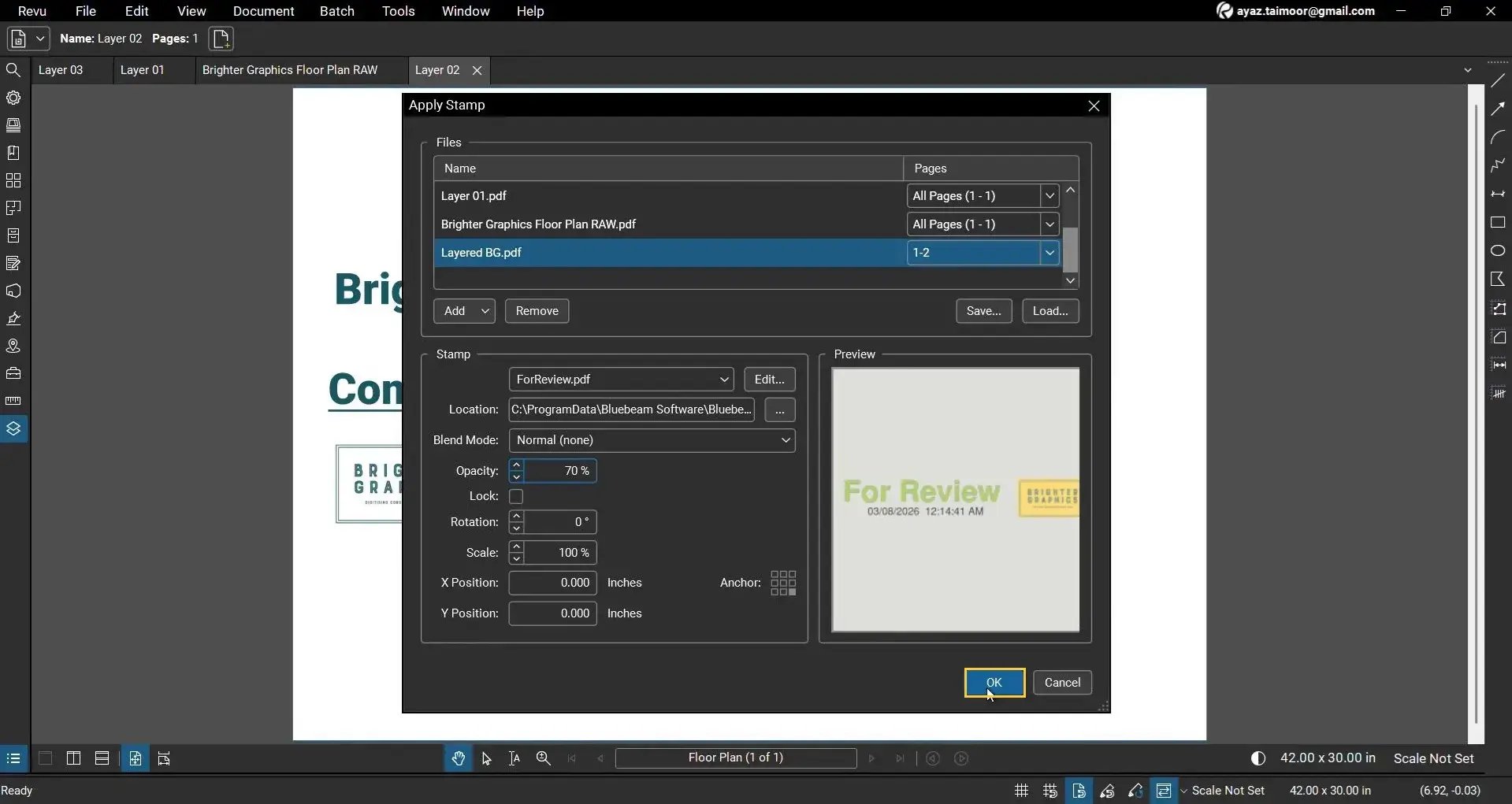
Revu will automatically apply the selected stamp to all included files and pages.
Adjust Stamps After Processing
Once applied:
- Open any processed PDF
- Use the Select tool
- Click and drag the stamp to reposition it if needed
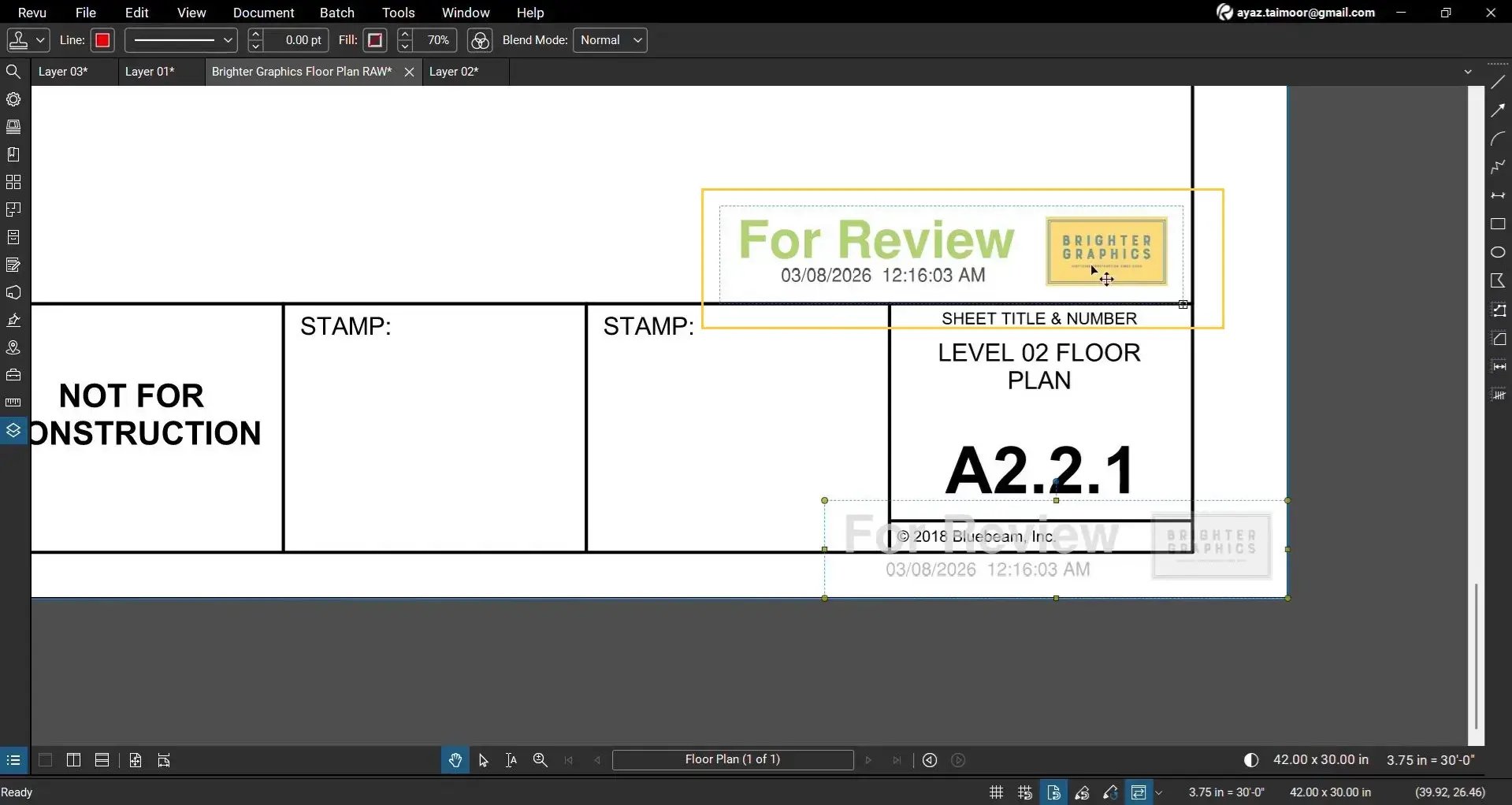
Each Batch stamp behaves like standard markup and can be modified later.
Batch Stamps in the Markups List
Every applied stamp appears in the Markups List, along with other markups and measurements.
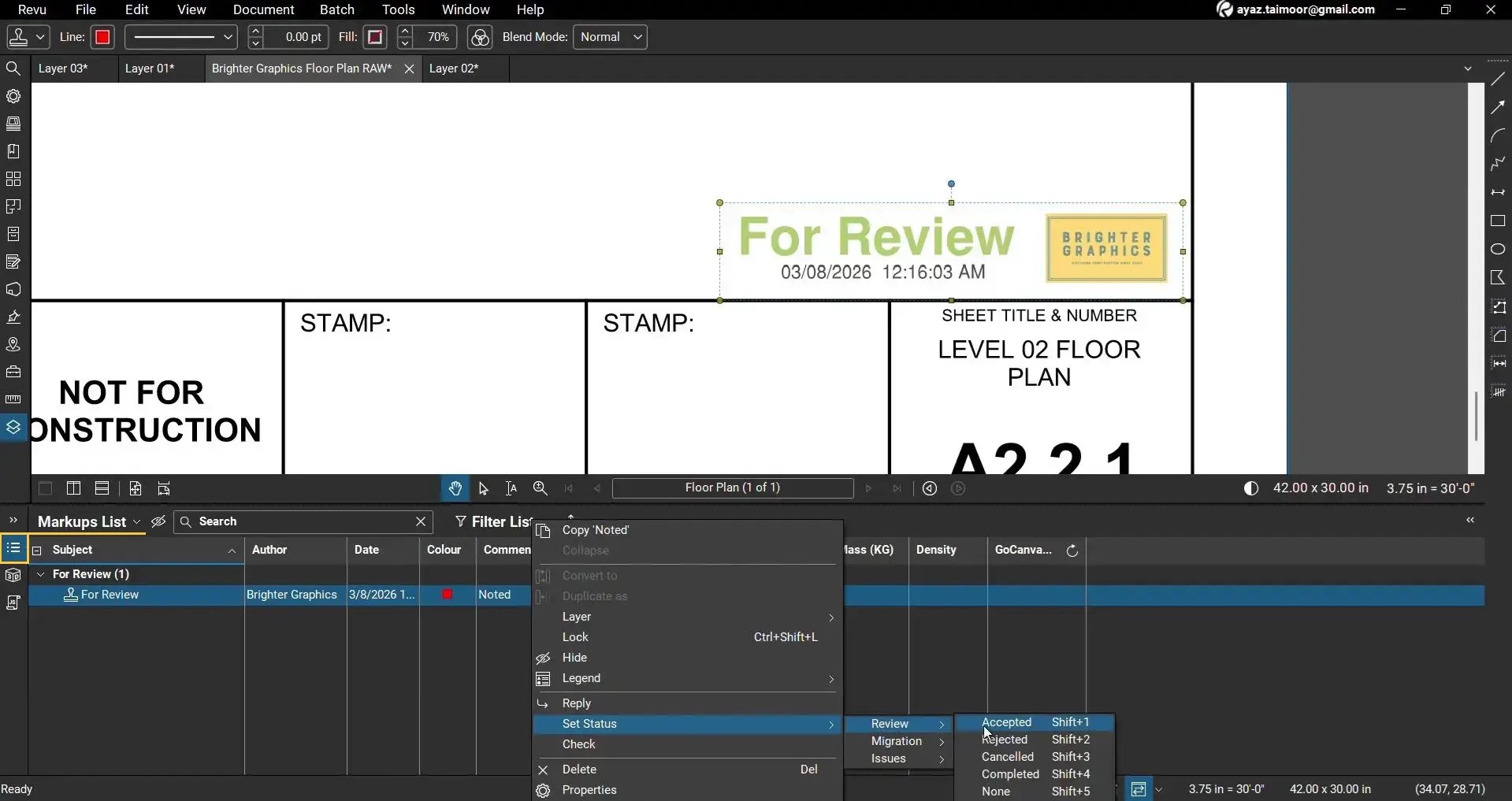
You can include your stamps in collaborative review workflows by:
- Adding comments
- Tracking review statuses
- Assigning custom statuses
This makes Batch Stamps useful for design reviews, approval cycles, and document validation processes.
Process Closed Documents with Batch Stamps
Batch processing is not limited to files currently opened in Revu.
You can:
- Add unopened PDF files
- Process entire folders
- Apply stamps across multiple project directories
When opened later, the selected pages will already contain the applied stamps.
Level Up Your Bluebeam Experience
This is how you can use Batch Stamps in Bluebeam Revu 21 to apply review stamps across multiple PDF documents in a single workflow. By using batch processing tools, you can significantly improve efficiency and consistency when managing large document sets.
To further improve your document review workflows in Revu, explore our other Bluebeam guides and stay connected with Brighter Graphics, your go-to Bluebeam partner in the UK, Europe, and the Middle East.