Counting repeated elements such as door openings, windows, fixtures, or symbols is an important part of construction workflows and design review. The Count tool in Bluebeam Revu 21 allows you to quickly mark and track quantities directly on your PDF.
Each count is recorded in the Markups List, making it easy to organise, edit, and use the data for estimation, punch lists, and reporting workflows.
In this guide, you will learn how to use the Count tool in Bluebeam Revu 21, manage counts, and organise them efficiently using the Markups List.
Step-by-Step Guide to Count Tool in Bluebeam Revu 21
Follow the step-by-step process below to learn how to count objects in Bluebeam Revu.
Step 01: Open your PDF drawing in Revu
01 A: Open Bluebeam Revu 21 on your desktop.
01 B: Go to the File menu in the top menu bar.
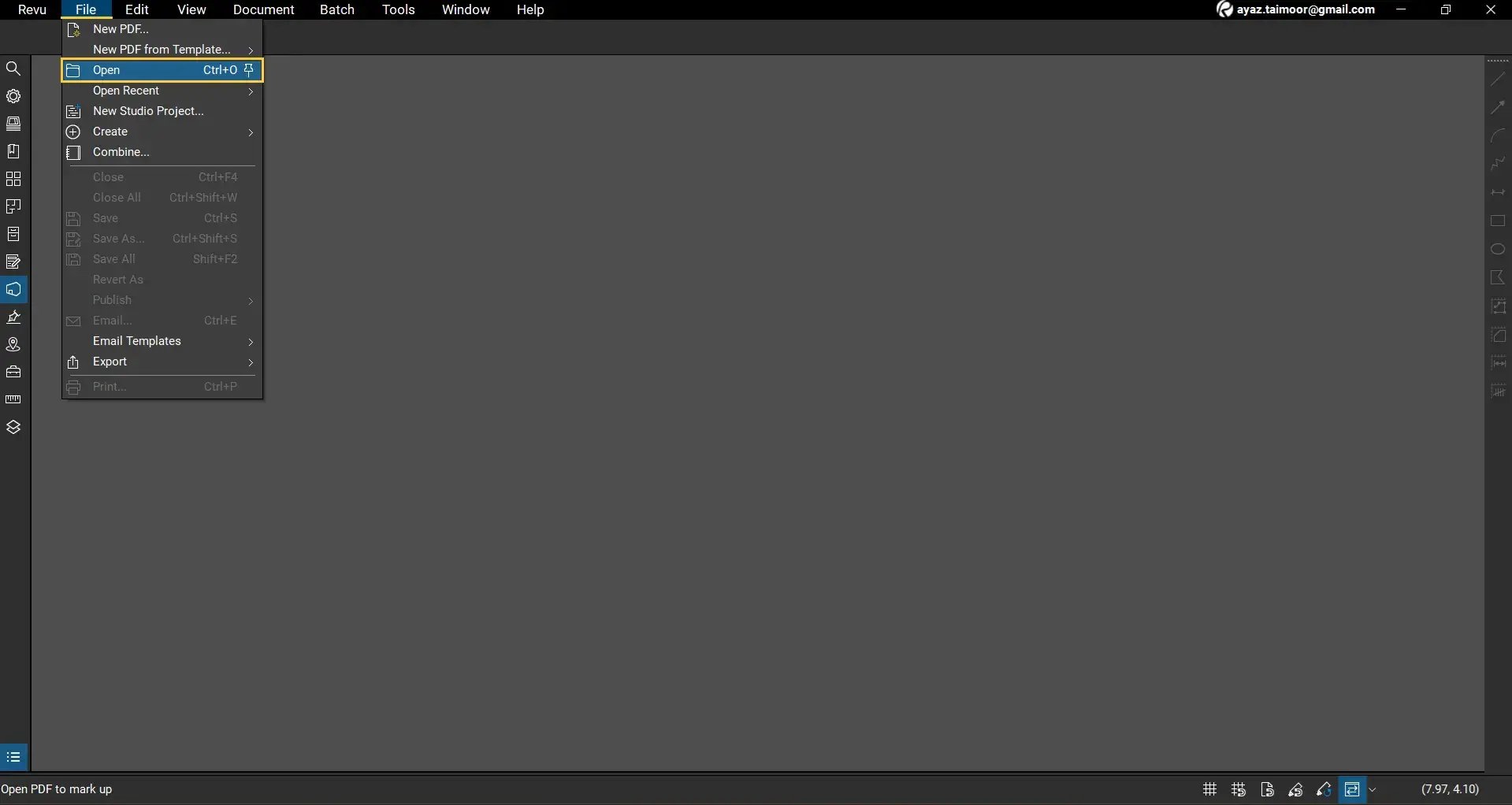
01 C: Click Open and select the PDF drawing you want to work with.
For this example, we will count door openings in a construction drawing.
Step 02: Select the Count measurement tool
02 A: Go to the Measurements panel on the left side of your workspace.
02 B: From the tools at the top, select Count.
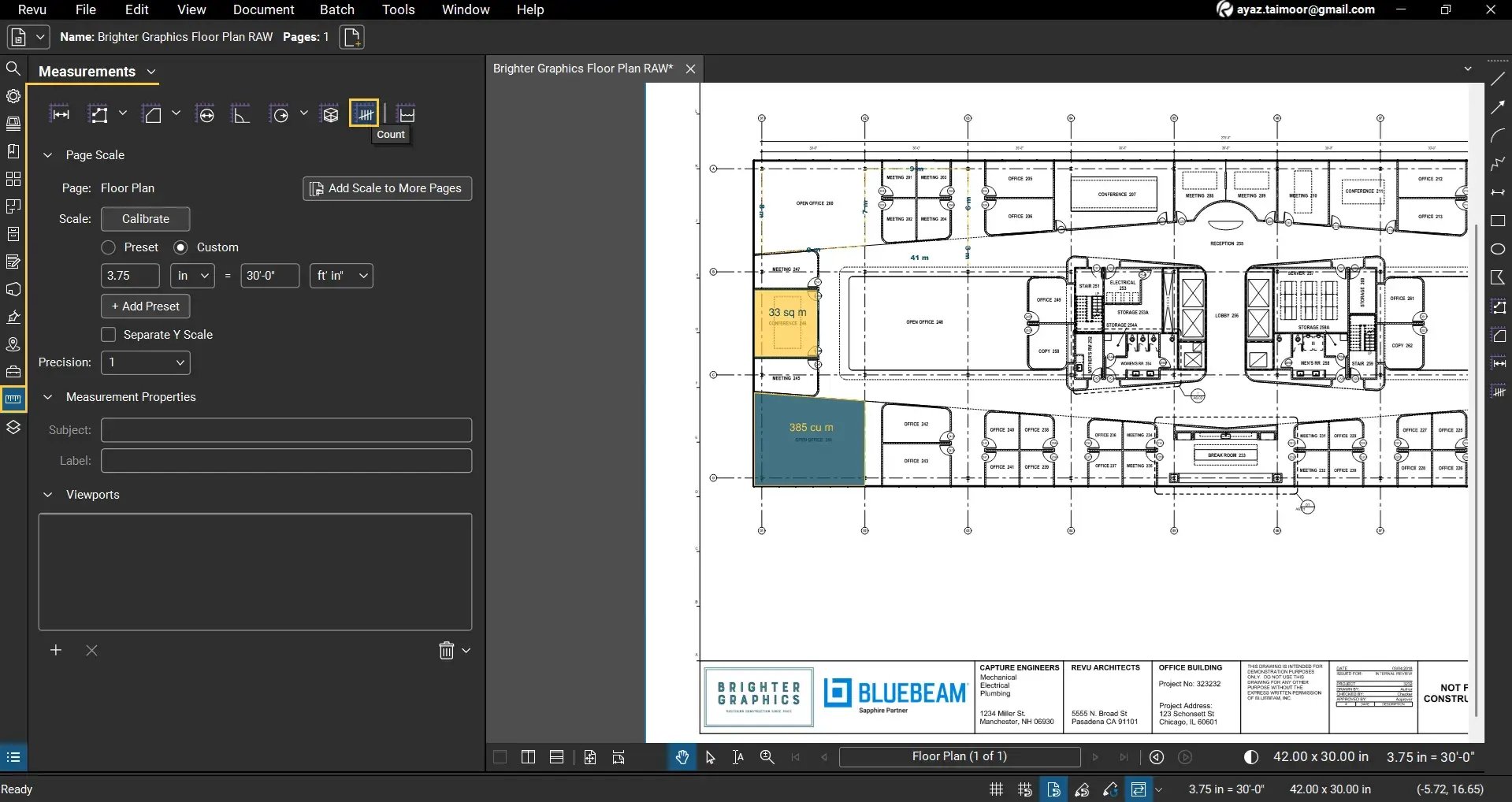
The Count tool allows you to place markers on objects and automatically track the total number.
Step 03: Place count markers on your drawing
03 A: Click on each object you want to count (e.g. door openings or anything you want to count).
03 B: Continue clicking to place count markers across the drawing.
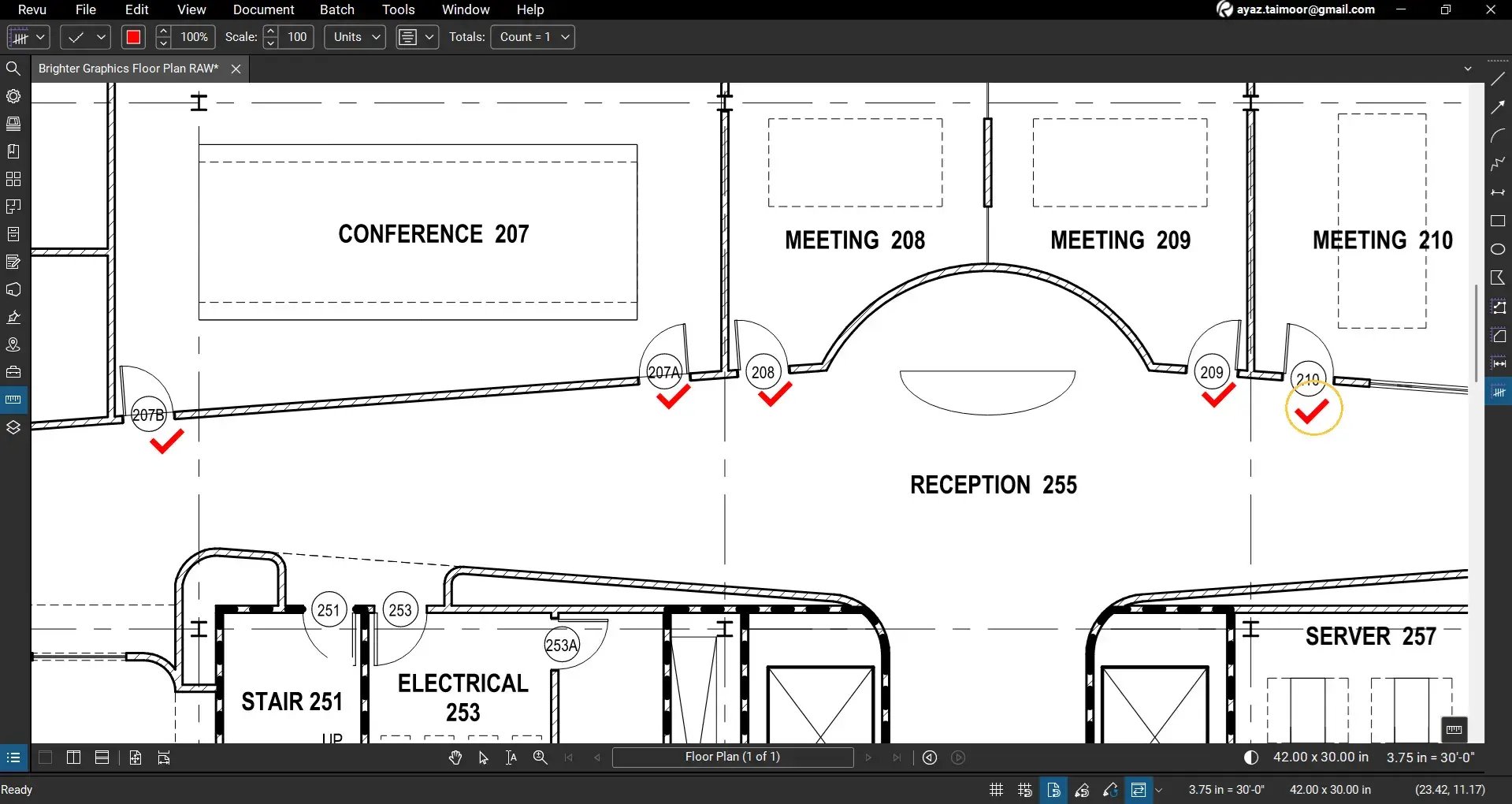
*Each click represents one count and is automatically numbered.
Step 04: Complete the counting process
04 A: Once you have marked all required items, select the Select tool from the navigation bar.
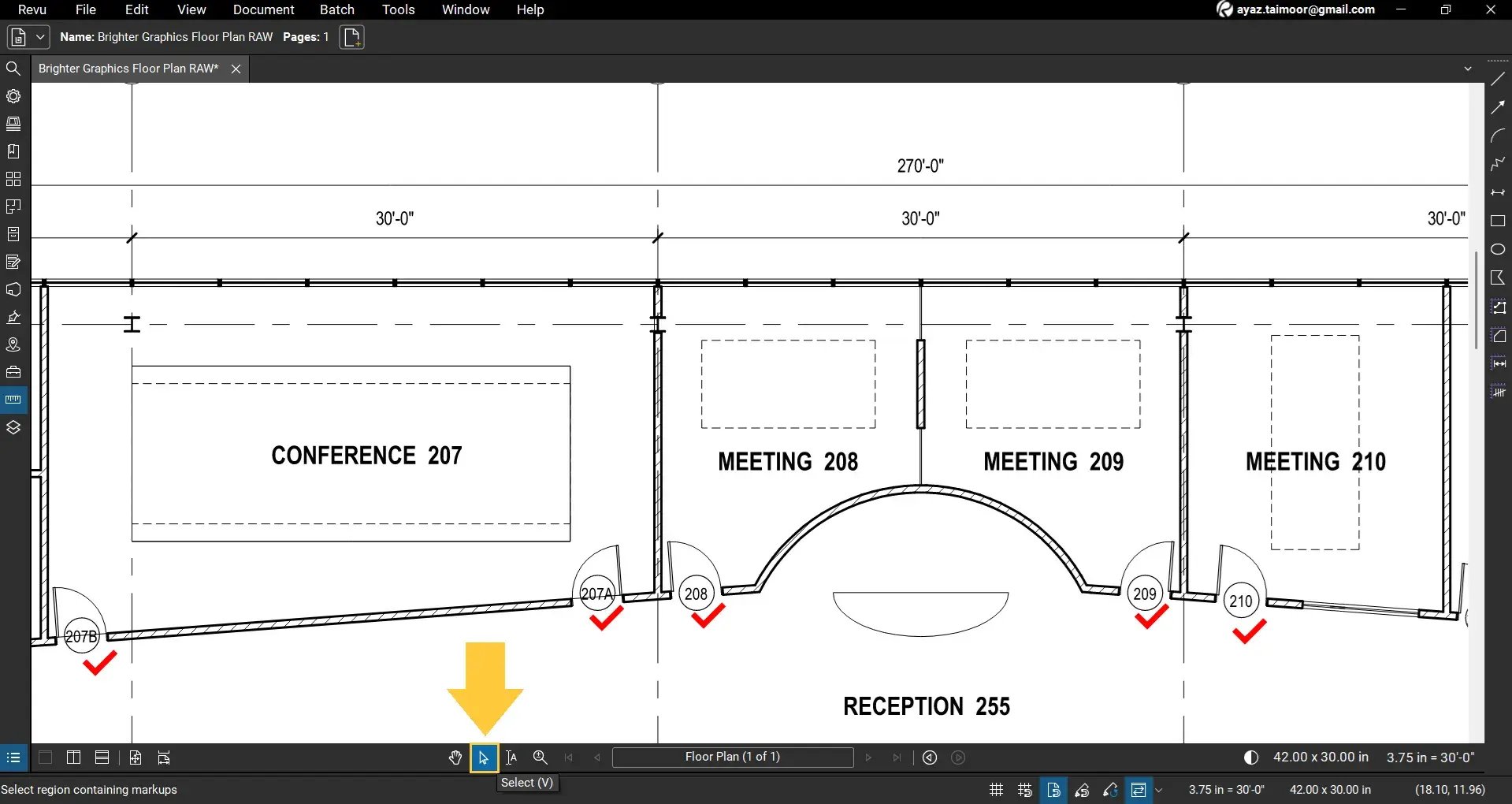
This completes and finalises the count.
04 B: Open the Markups List at the bottom of your workspace.
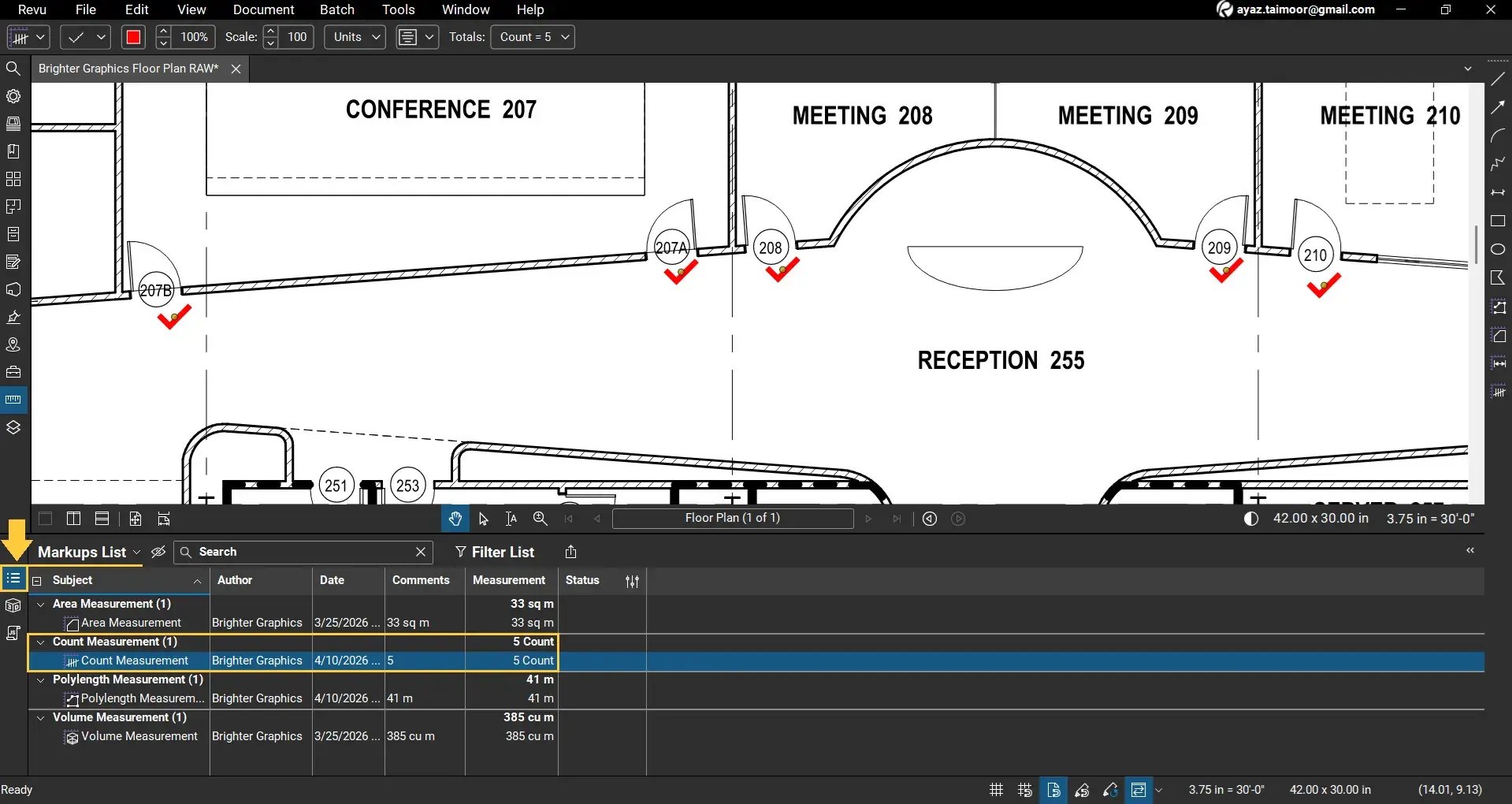
Look for Count Measurement under the Subject column. You will now see a single row showing the total count value under the Measurement column. For example: 5 counts that we market on this PDF.
Manage and Edit Counts
Split counts into separate groups
If you want to separate each count:
- Right-click on any individual count
- Select Split Count
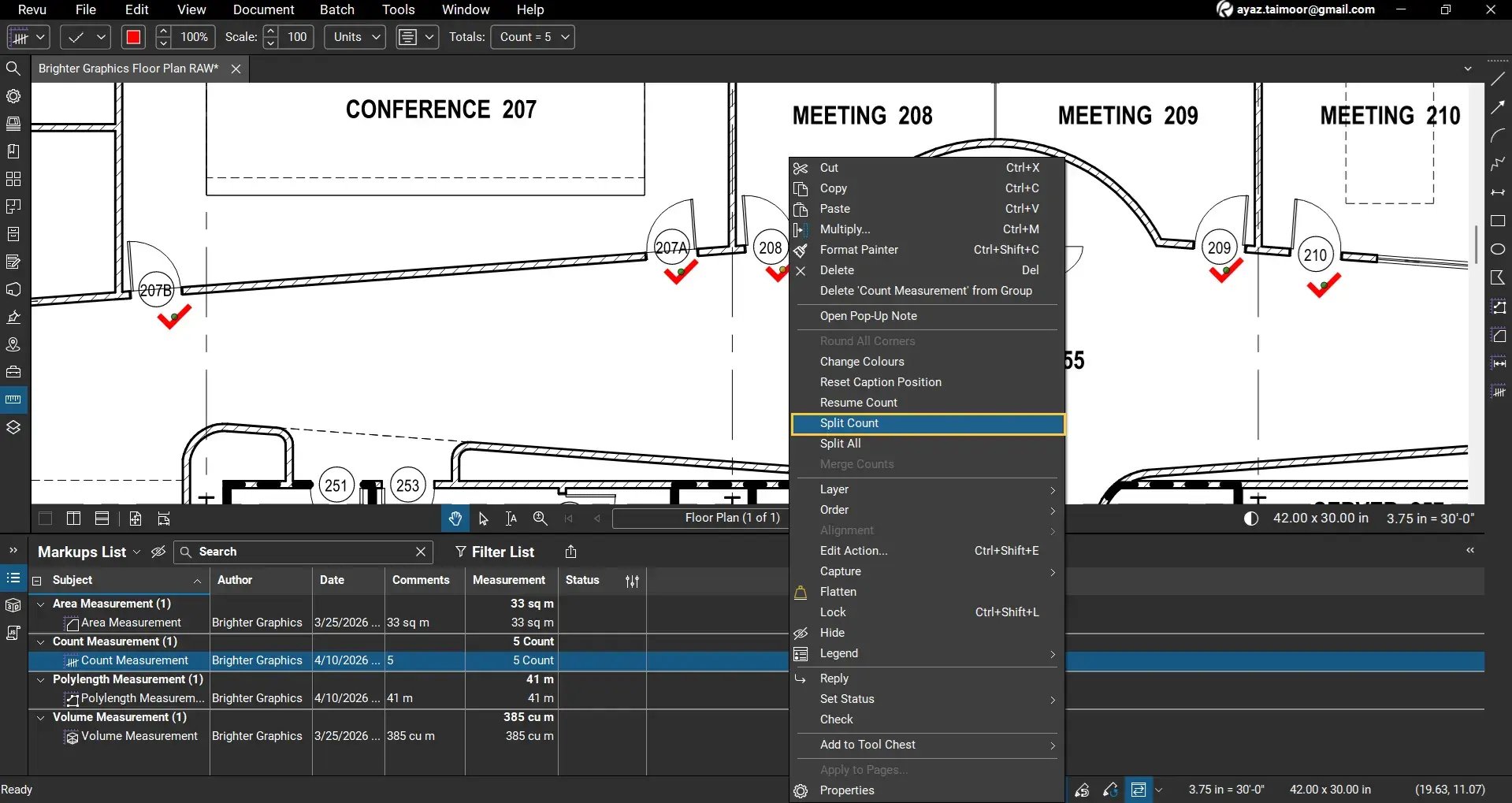
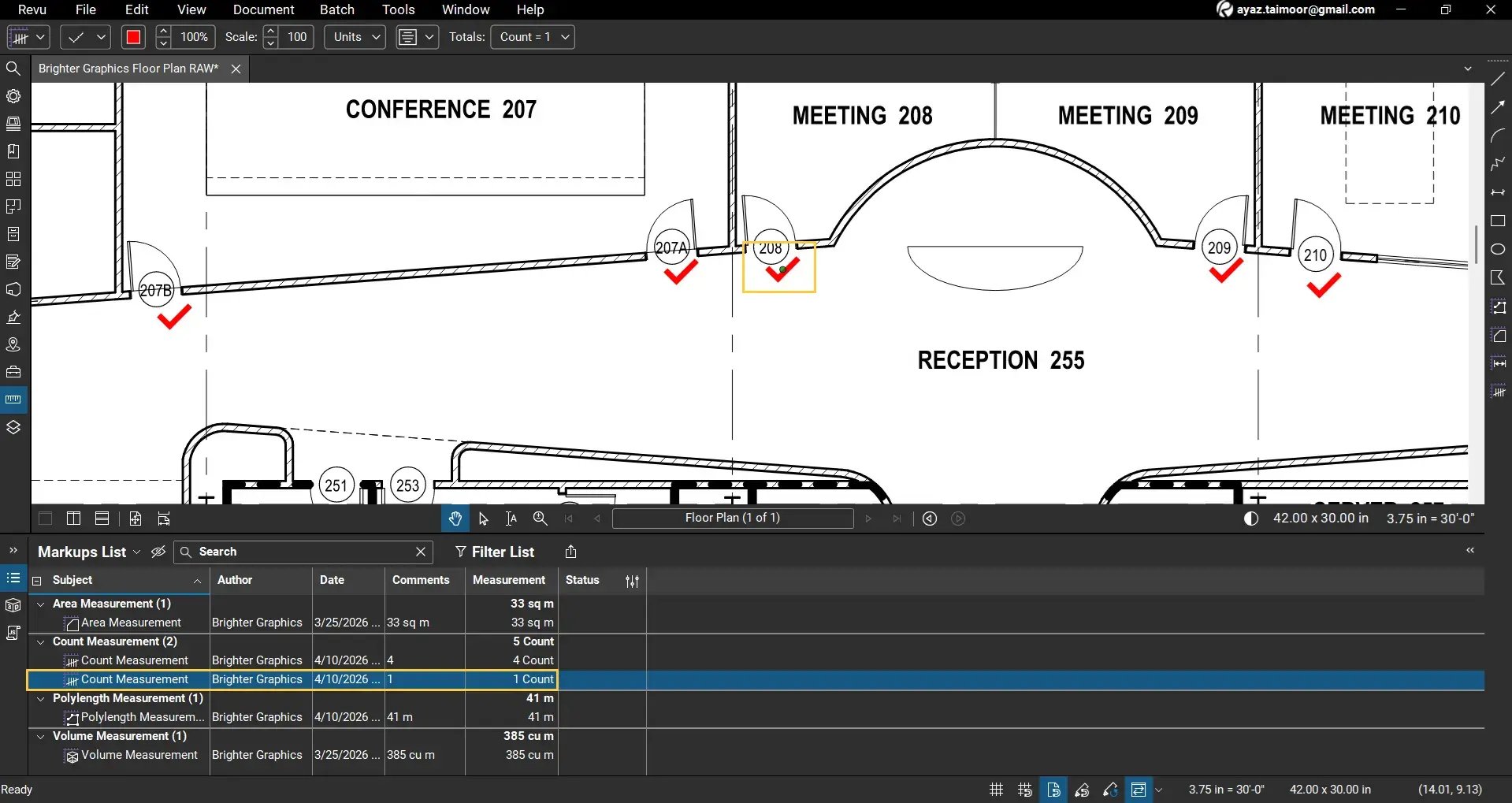
Repeat this for other points if needed. Your split count will appear in the Markups List, and now you can select and edit it as a separate individual markup.
Now: Total Counts = 4+1=5
You can also use:
- Right-click on the set of multiple counts.
- Click Split All to separate all counts at once
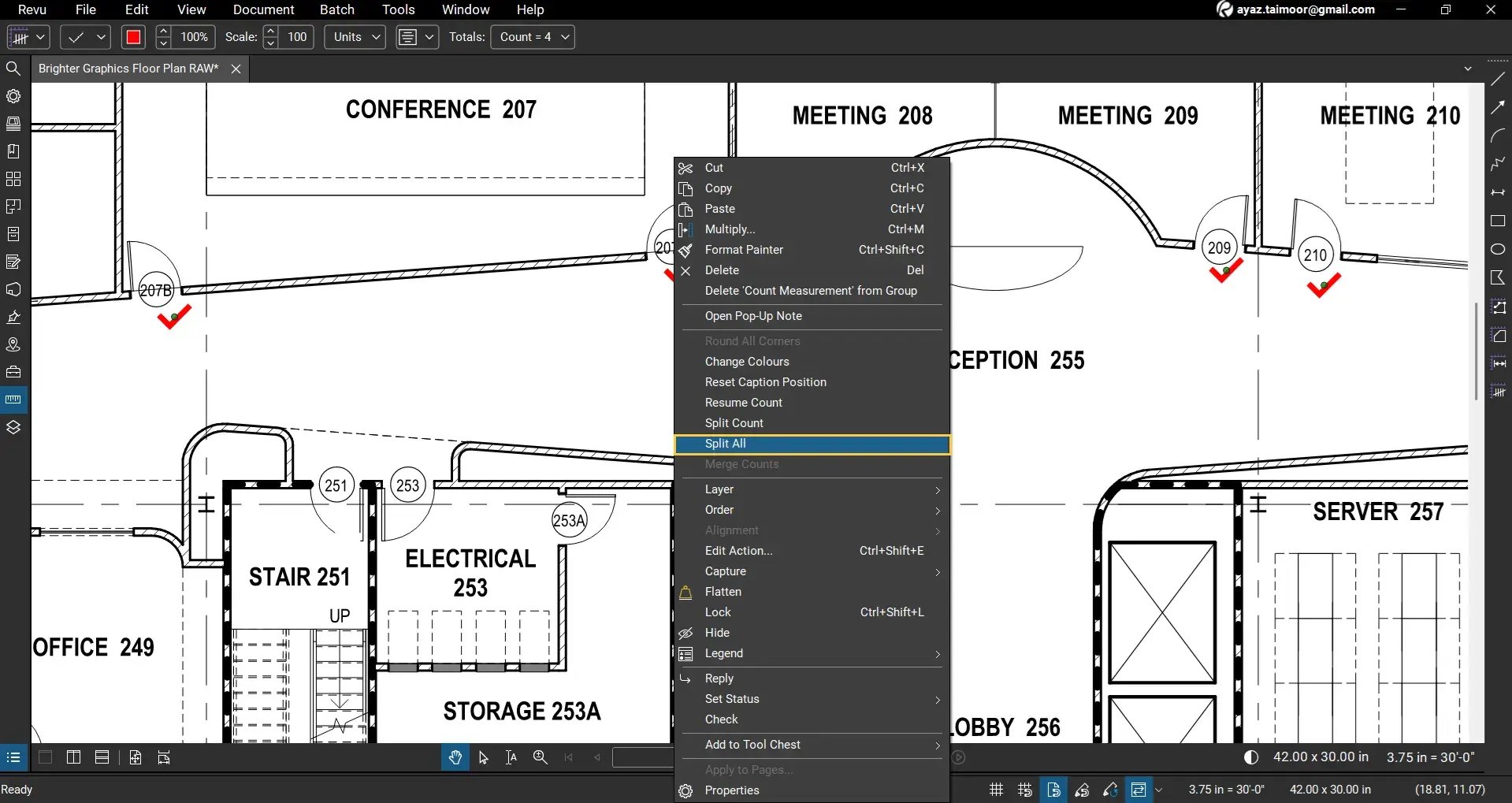
After splitting, each count becomes an individual markup that can be selected, edited, or deleted separately. The same starts reflecting in the Markups List.
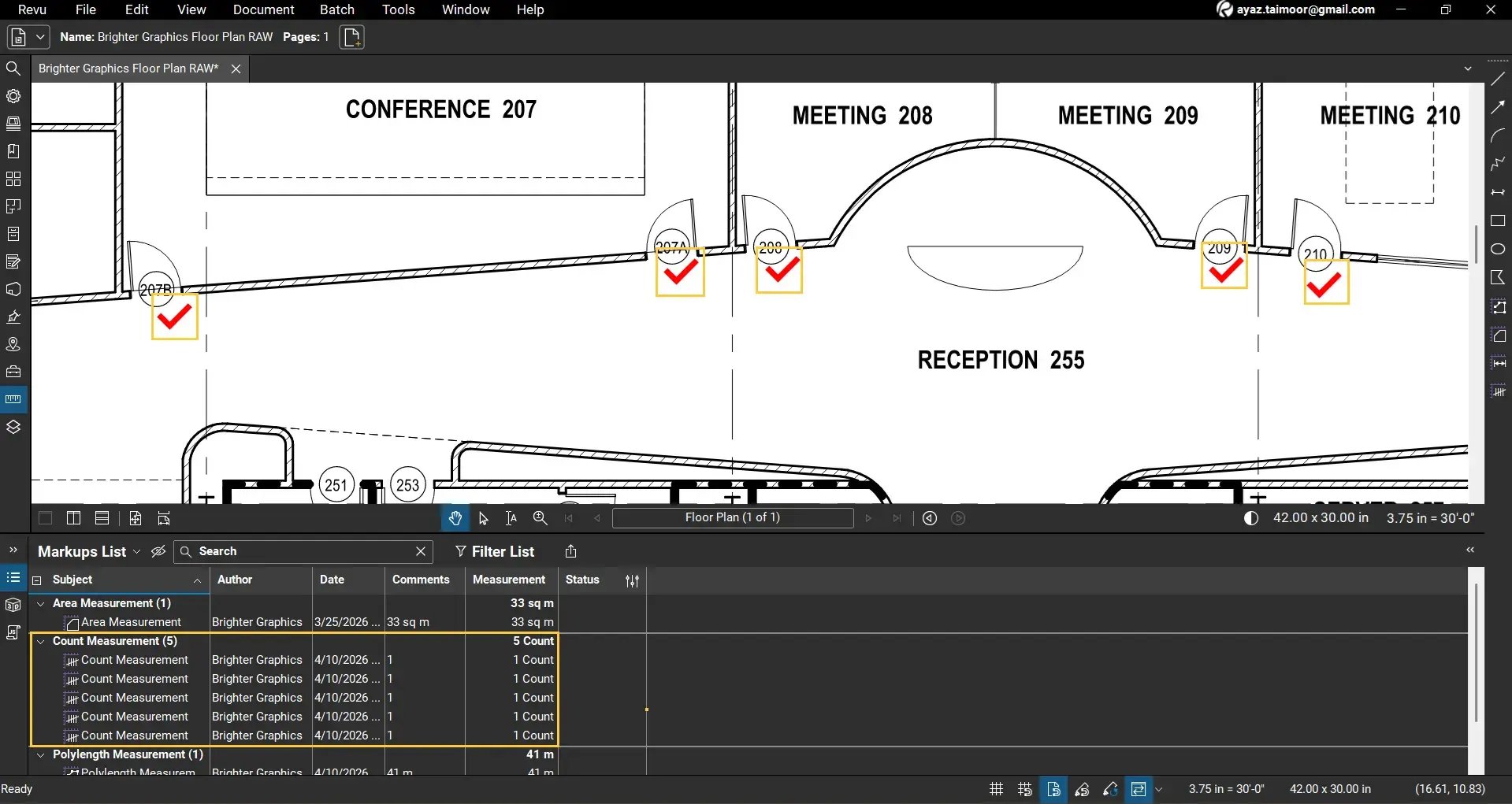
Press the Control+Z keys to undo the action.
Merge counts into a single group
To combine counts:
- Press the Shift Key and click to select multiple counts (or all counts)
- Right-click and select Merge Counts
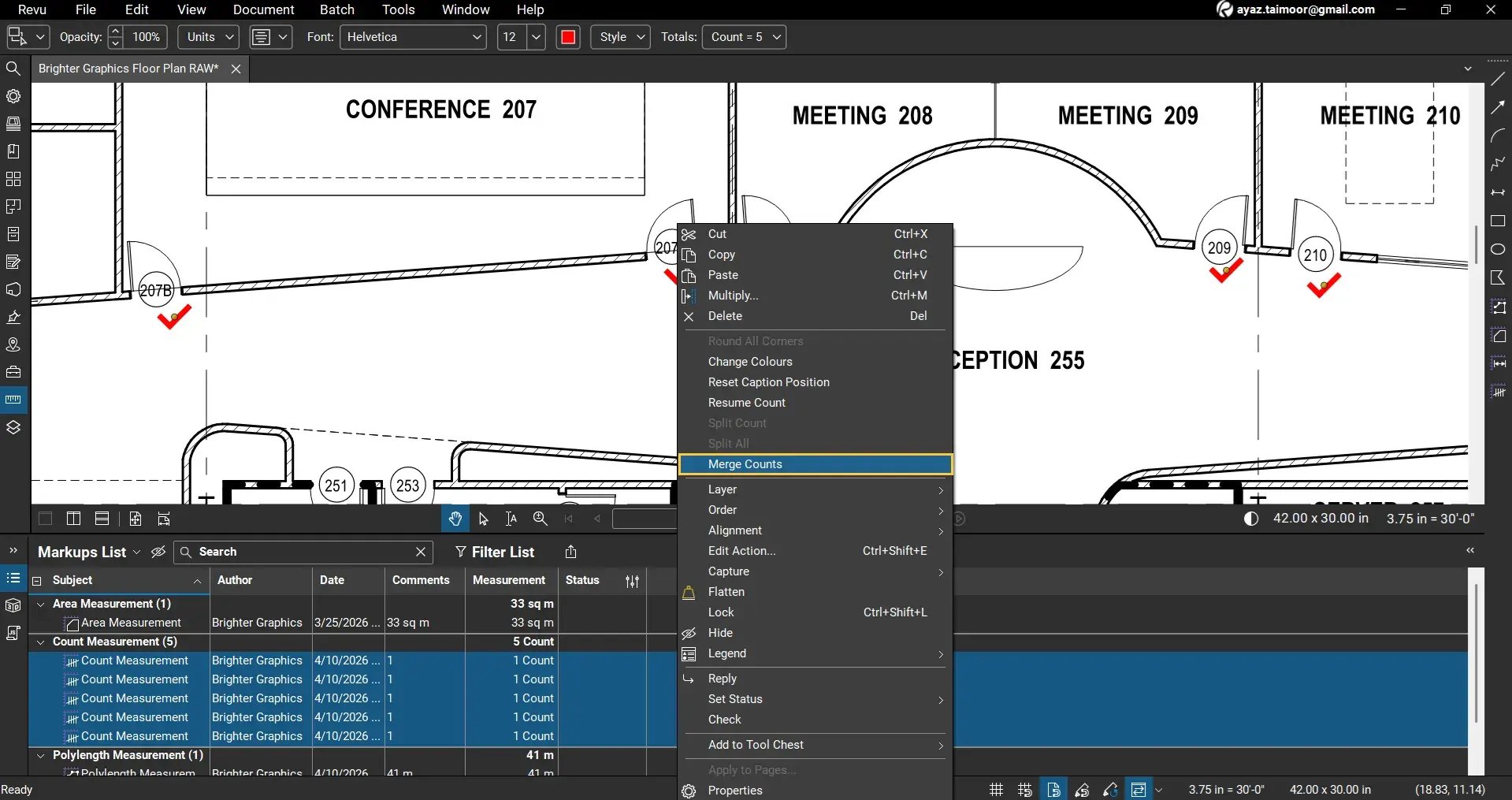
All selected counts will be grouped back into a single count measurement.
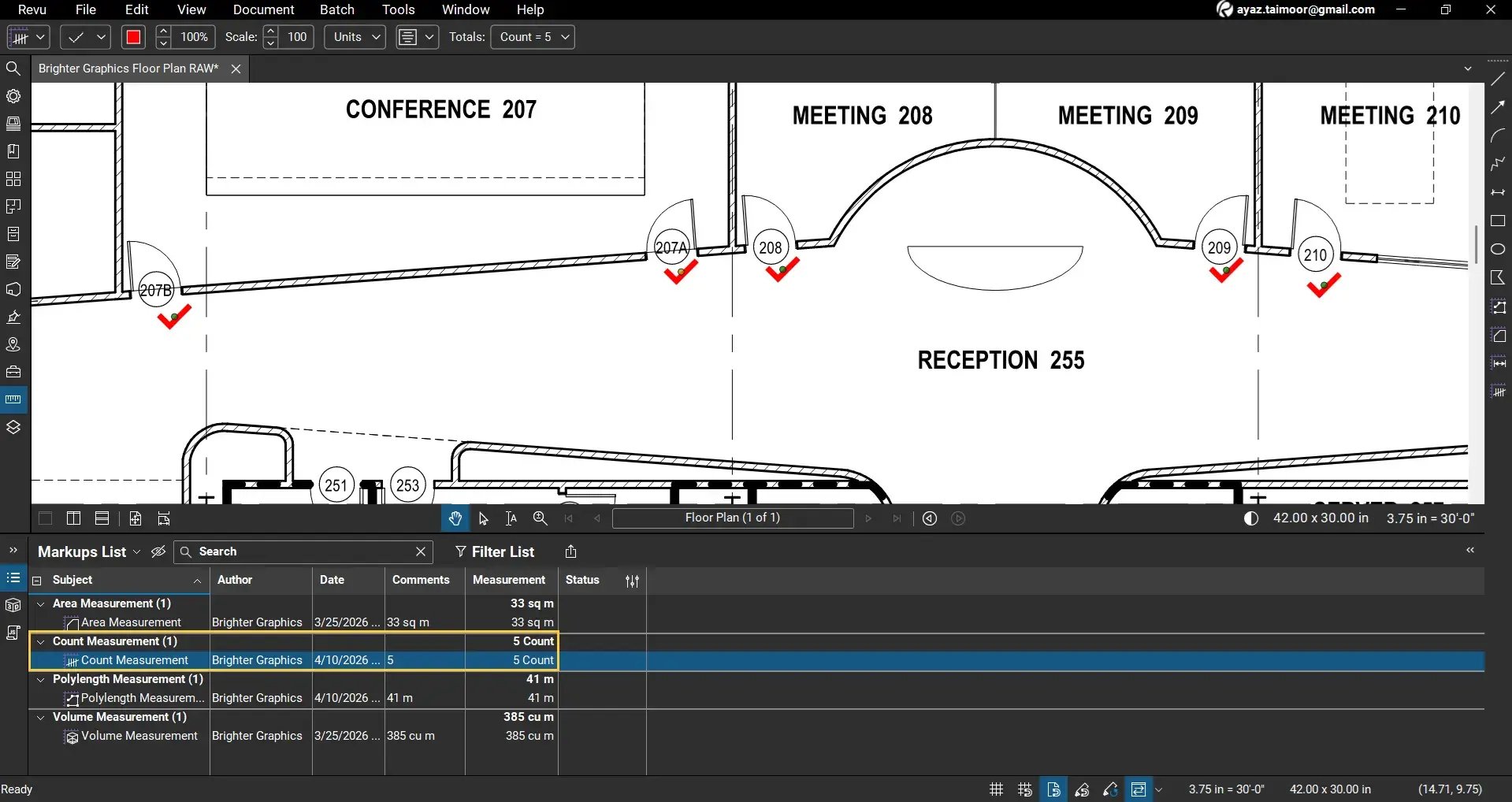
For example, our separate counts of 1+1+1+1+1 will merge back into a total of 5.
Resume Counting from an Existing Set
If you select the Count tool again, it will start counting from 1 by default, but to continue from an existing count:
- Right-click on an existing count markup
- Select Resume Count
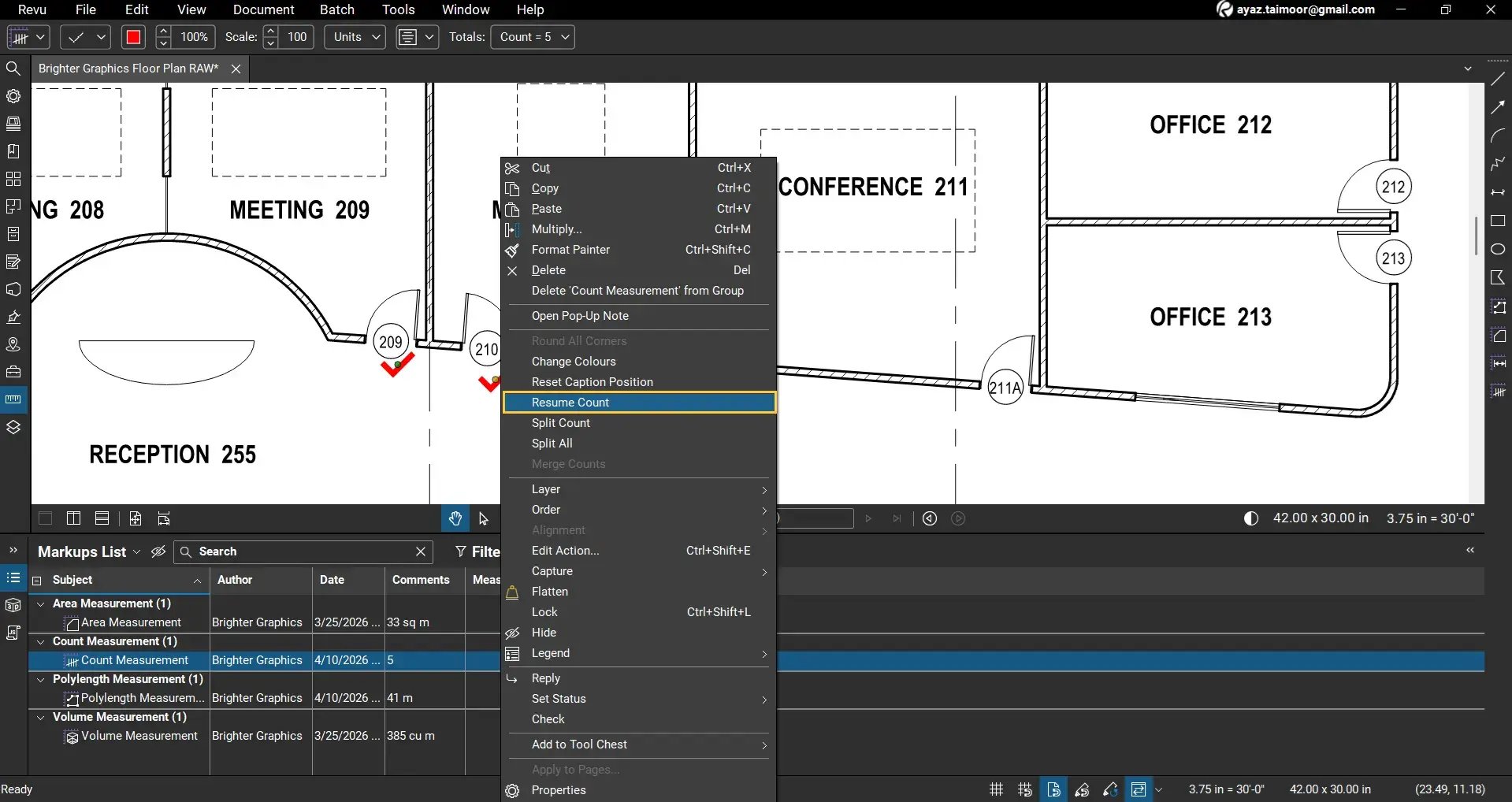
Now, when you add new points, the numbering will continue from the last count.
For example:
- Existing count = 5
- New counts added = 4
- Final count = 9
The Markups List updates the total only after you complete the count by switching to the Select tool.
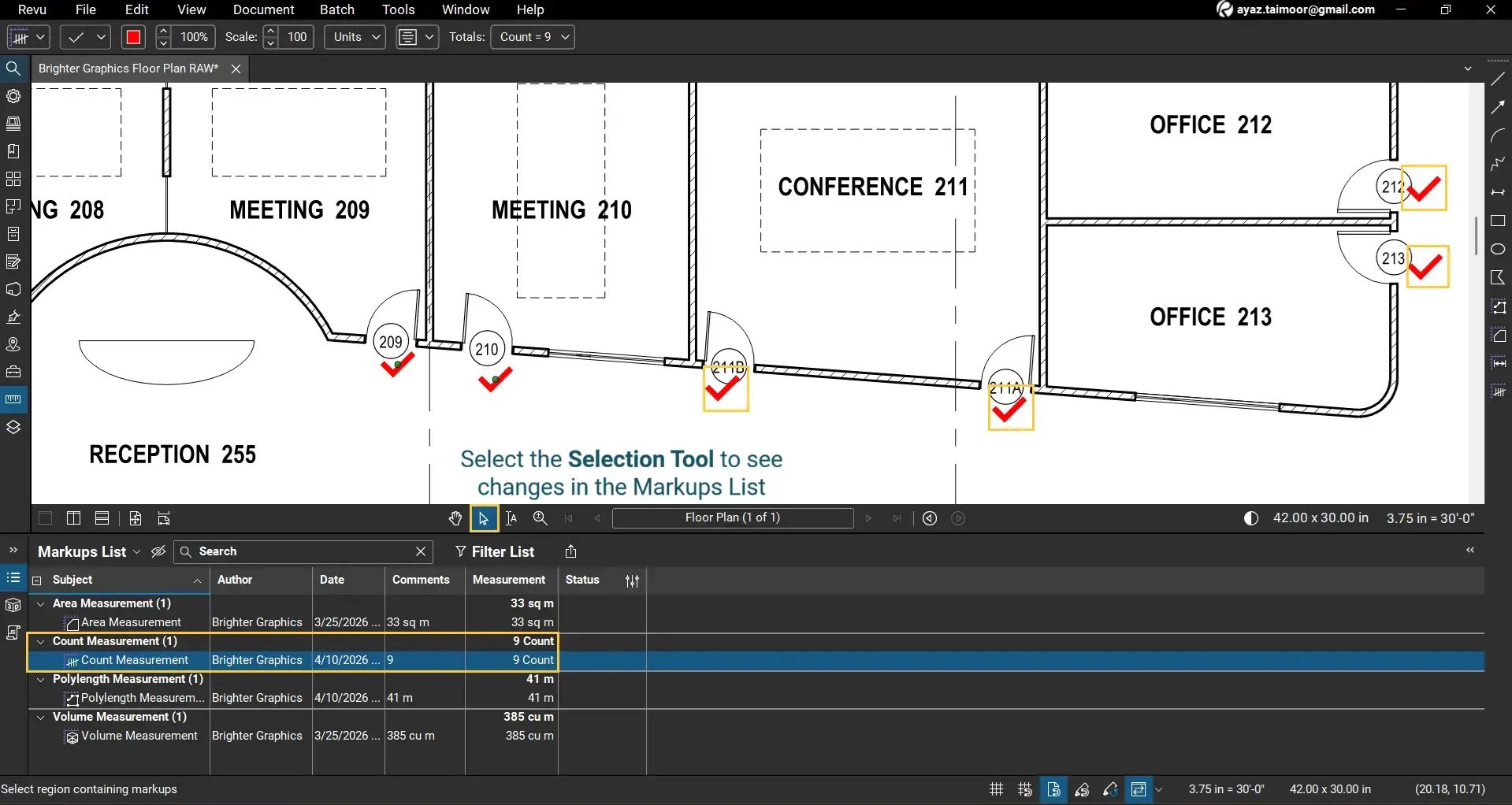
If you split any count and resume counting from that separated count, it will start from 2 onwards.
Using the Count Tool for Estimation and Reviews
The Count tool is widely used in:
- Quantity takeoffs (doors, windows, fixtures)
- Punch walks and site inspections
- Design reviews and annotation walks
- Object-based quantity tracking
You can also combine counts with:
- Custom columns
- Status tracking
- Colour coding
This helps organise and analyse data across large drawing sets.
Level Up Your Bluebeam Experience
This is how you can use the Count tool in Bluebeam Revu 21 to quickly count objects and manage quantities directly on your PDF drawings. By using the Markups List and count management features, you can streamline your estimation and review workflows.
To further improve your Bluebeam workflows, Explore our other guides on measurement tools and Markups List features.
Stay connected with Brighter Graphics, your go-to Bluebeam partner in the UK, Europe, and the Middle East.