It is necessary that you secure sensitive, data-rich PDFs, whether these are construction drawings, contracts, technical reports, or confidential project files. Bluebeam Revu 21 allows you to secure your PDFs using password protection and permission controls.
With PDF security enabled, you can restrict access to documents and control actions such as printing, copying, editing, and document changes.
In this guide, you will learn how to enable PDF security in Bluebeam Revu 21, apply passwords, manage document permissions, and restrict document access.
Step-by-Step Guide to Enable PDF Security in Bluebeam Revu 21
Follow the process below to secure your PDF documents using password protection and permission settings in Revu 21.
Step 01: Open your PDF Document in Revu
01 A: Open Bluebeam Revu 21 on your desktop.
01 B: Go to the File menu from the top menu bar.
01 C: Click Open and select the PDF document you want to protect.
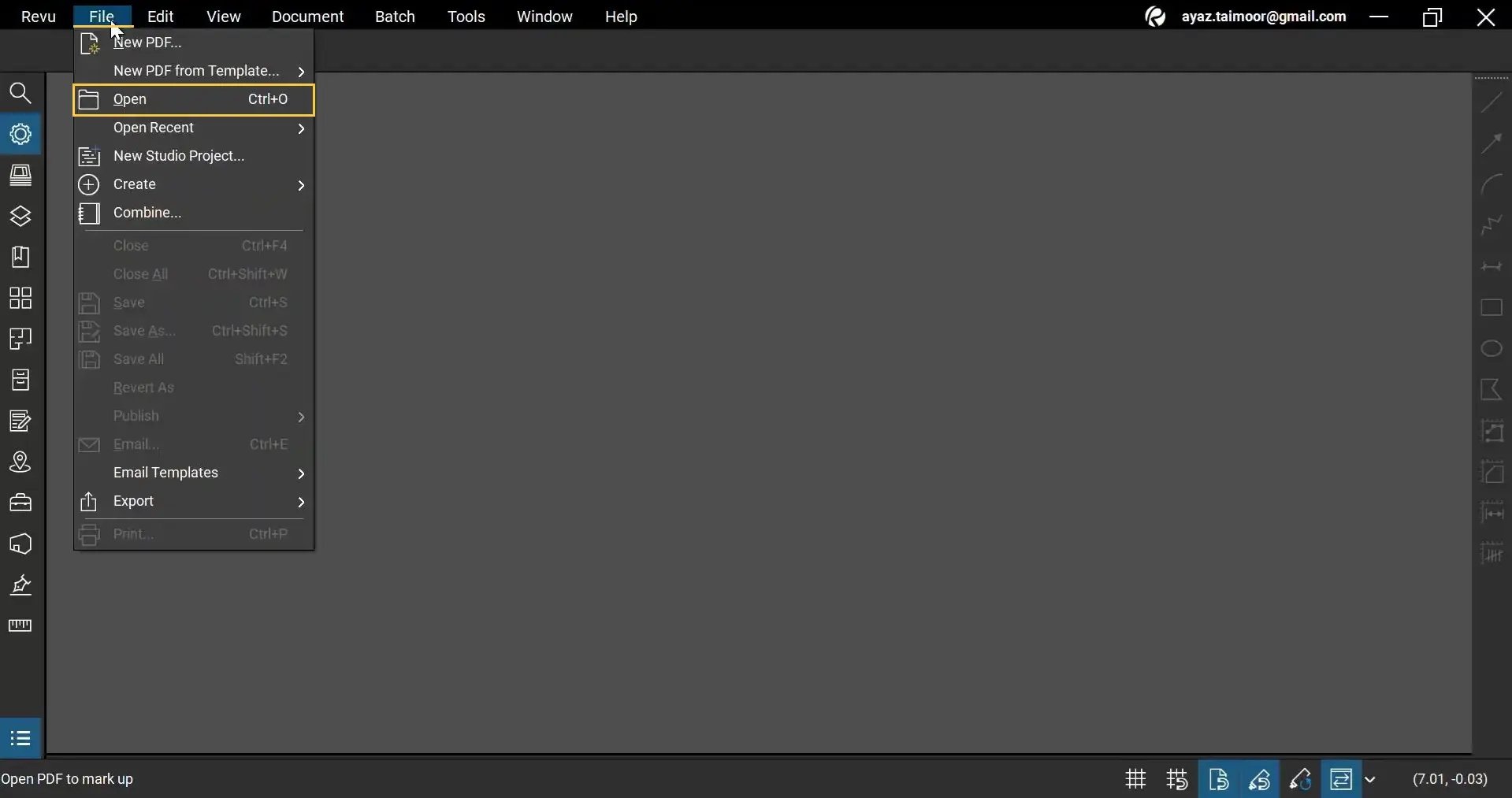
If the PDF opens directly without asking for authentication, it means the document currently has no security restrictions applied.
Step 02: Access the PDF Security Settings
02 A: Go to the Document menu at the top of your workspace.
02 B: Click Security, or you can also use the shortcut: Ctrl + L.
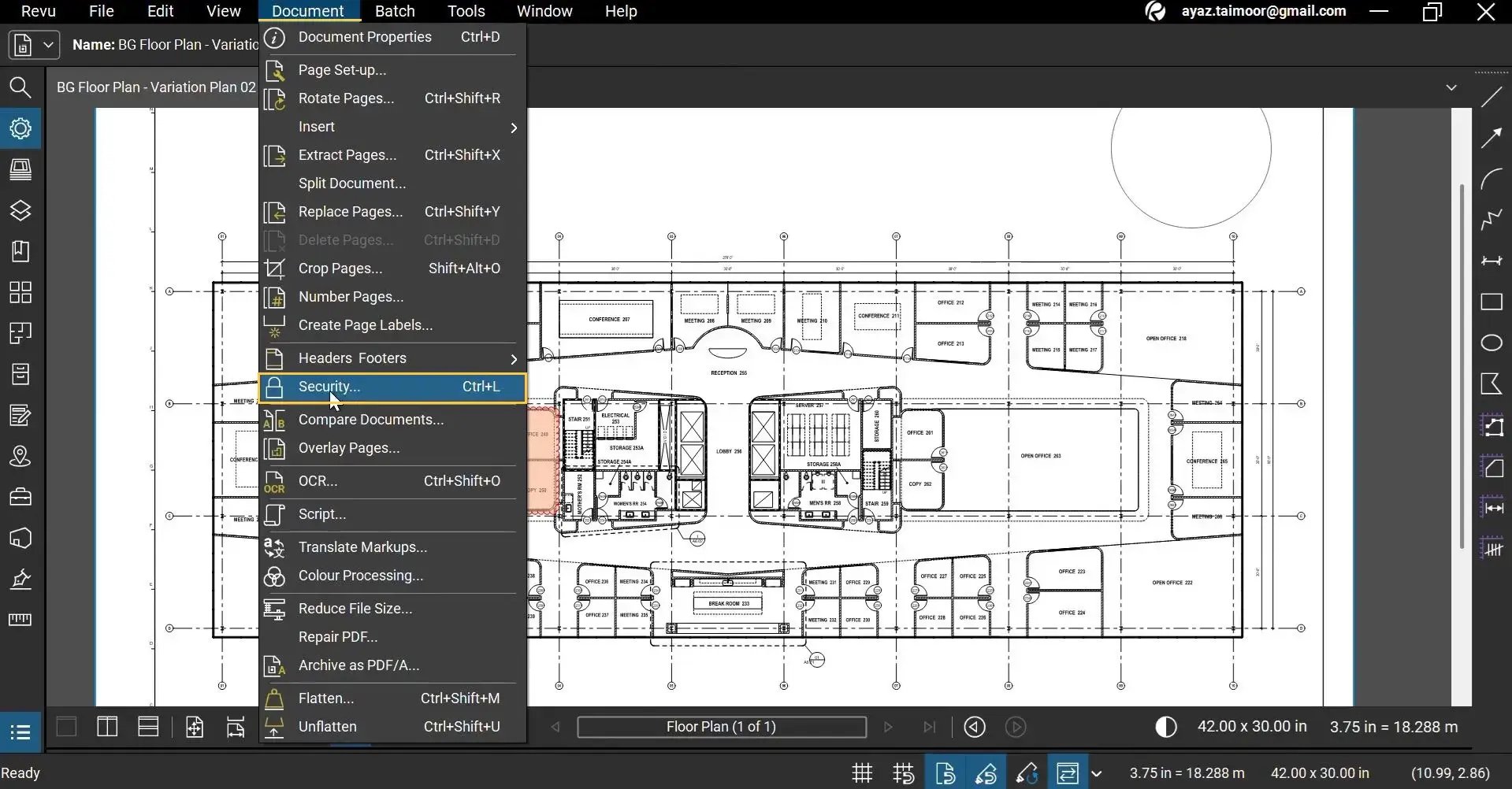
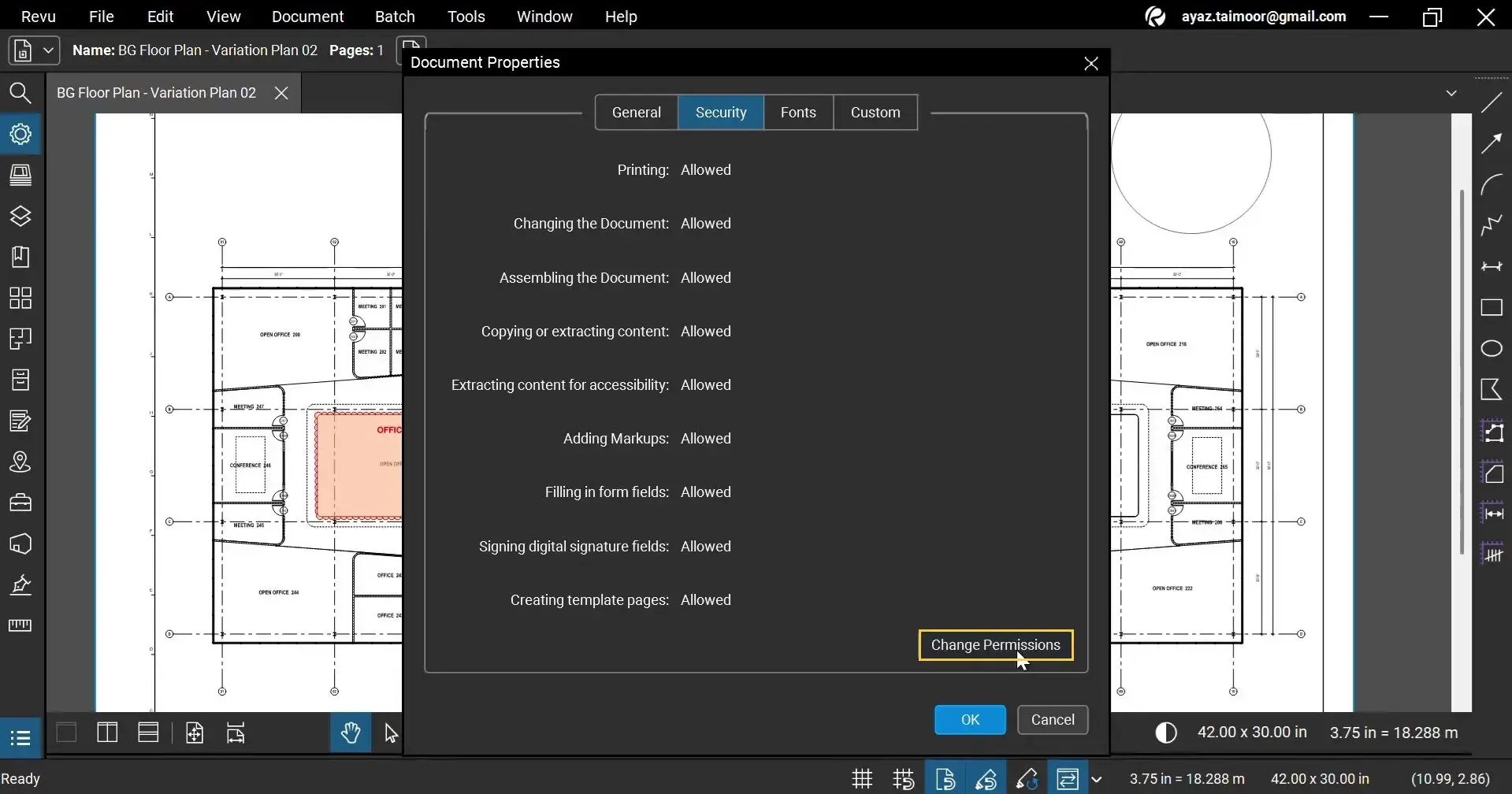
This opens the Document Properties dialog box with a dedicated Security tab.
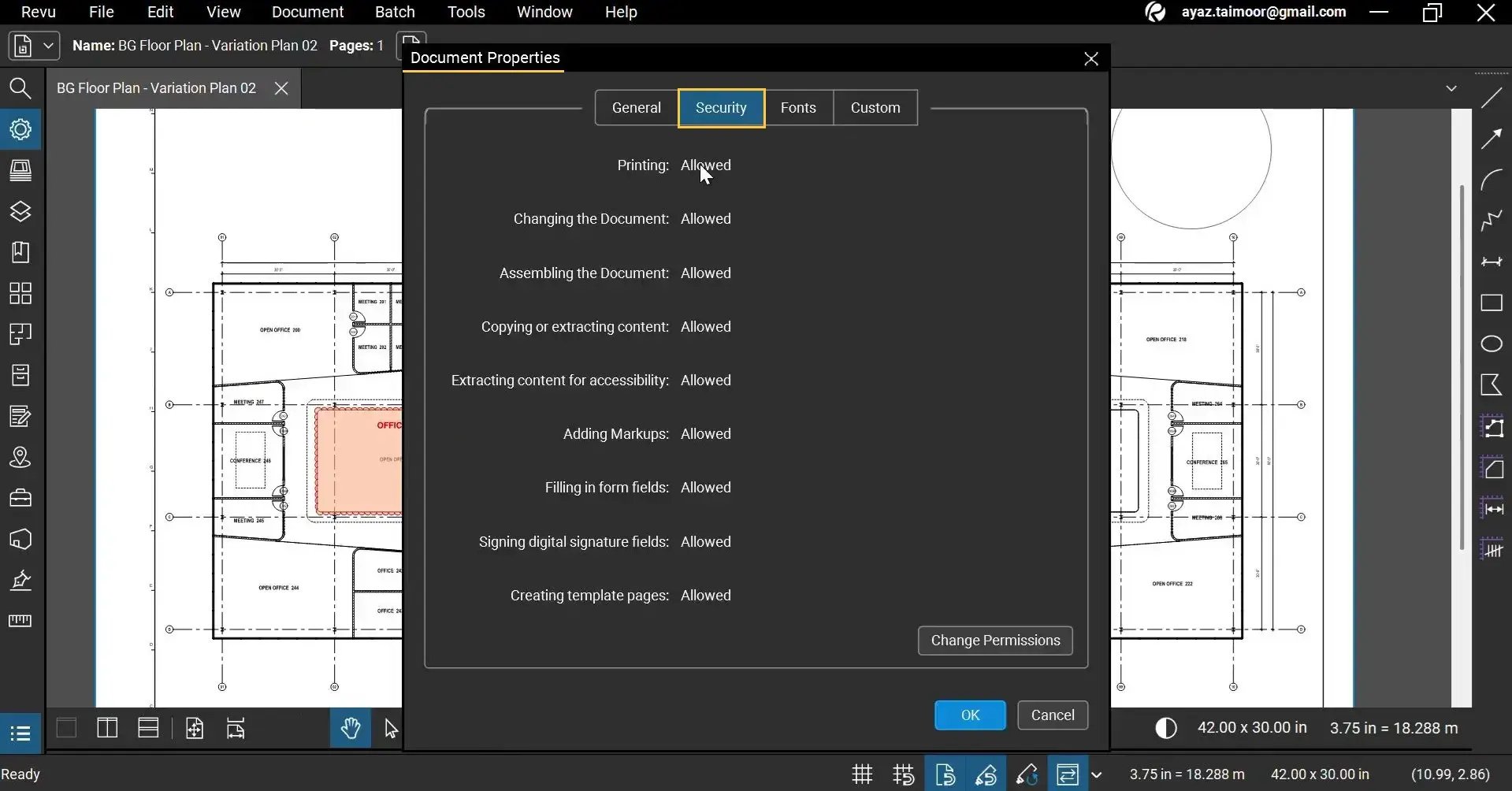
Step 03: Review Existing Document Permissions
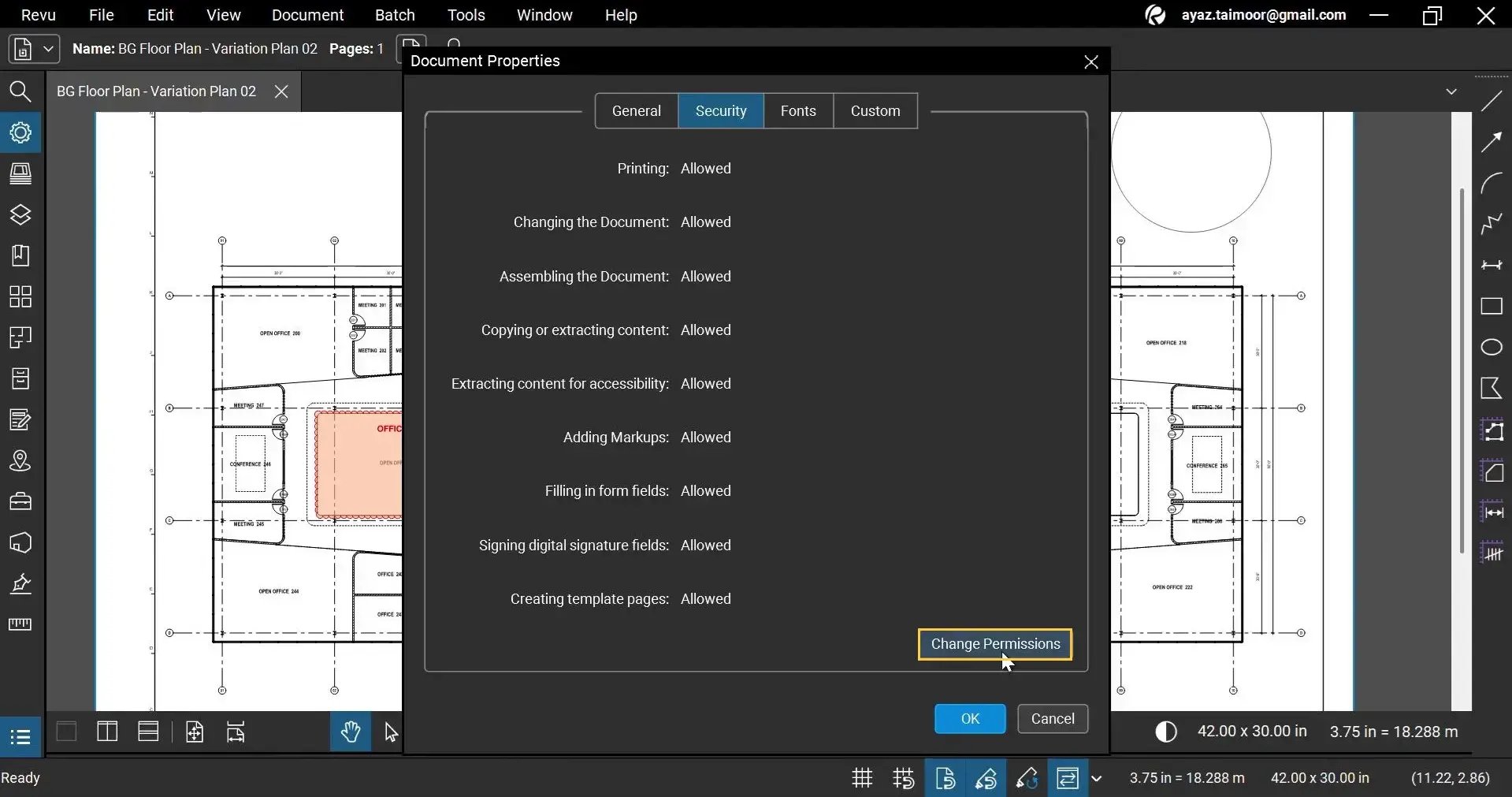
Inside the Security tab, you will see the current permissions applied to the document.
If no restrictions exist, all permissions will appear as allowed, including:
- Printing: Allowed
Users can print the PDF without any restrictions.
- Changing the Document: Allowed
Users are permitted to edit or modify the PDF content.
- Assembling the Document: Allowed
Pages can be rearranged, inserted, deleted, or combined with other PDFs.
- Copying or Extracting Content: Allowed
Text, images, and other content can be copied from the document.
- Extracting Content for Accessibility: Allowed
Screen readers and accessibility tools can access and extract document content.
- Adding Markups: Allowed
Users can add comments, highlights, stamps, and other annotations.
- Filling in Form Fields: Allowed
Interactive form fields in the PDF can be completed and edited.
- Signing Digital Signature Fields: Allowed
Users can apply digital signatures to designated signature fields.
- Creating Template Pages: Allowed
Pages from the PDF can be saved or reused as templates.
To modify these permissions:
- Click the Change Permissions button.
Step 04: Add a Password to Open the Document
04 A: Enable the option: Require a password to open the document
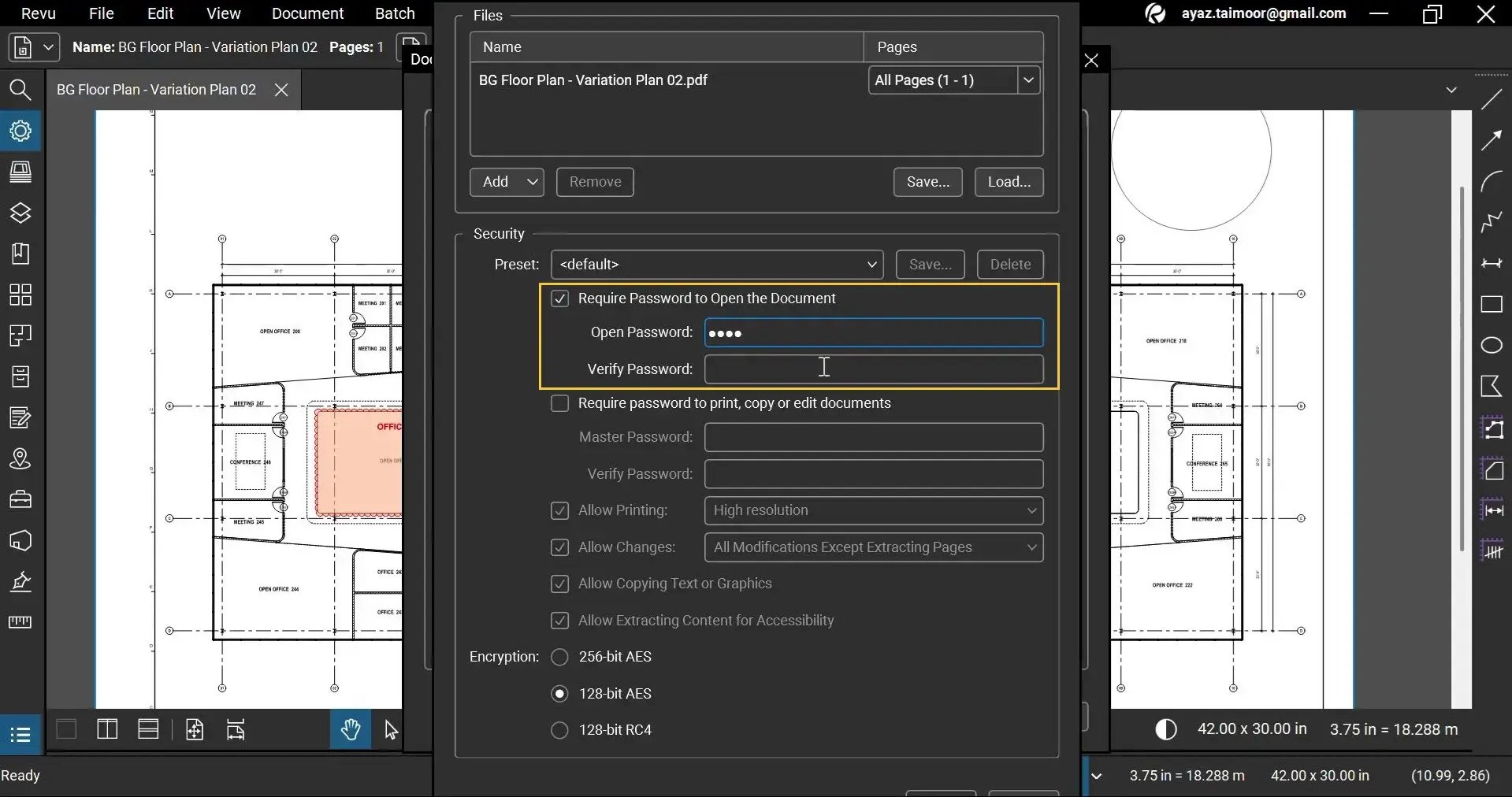
04 B: Enter your desired password.
04 C: Re-enter the password to verify it.
Click OK at the bottom right of the dialog box. Once applied, users will need this password every time they attempt to open your PDF.
Step 05: Create a Permissions Password
In addition to the document-opening password, Revu allows you to create a master permissions password.
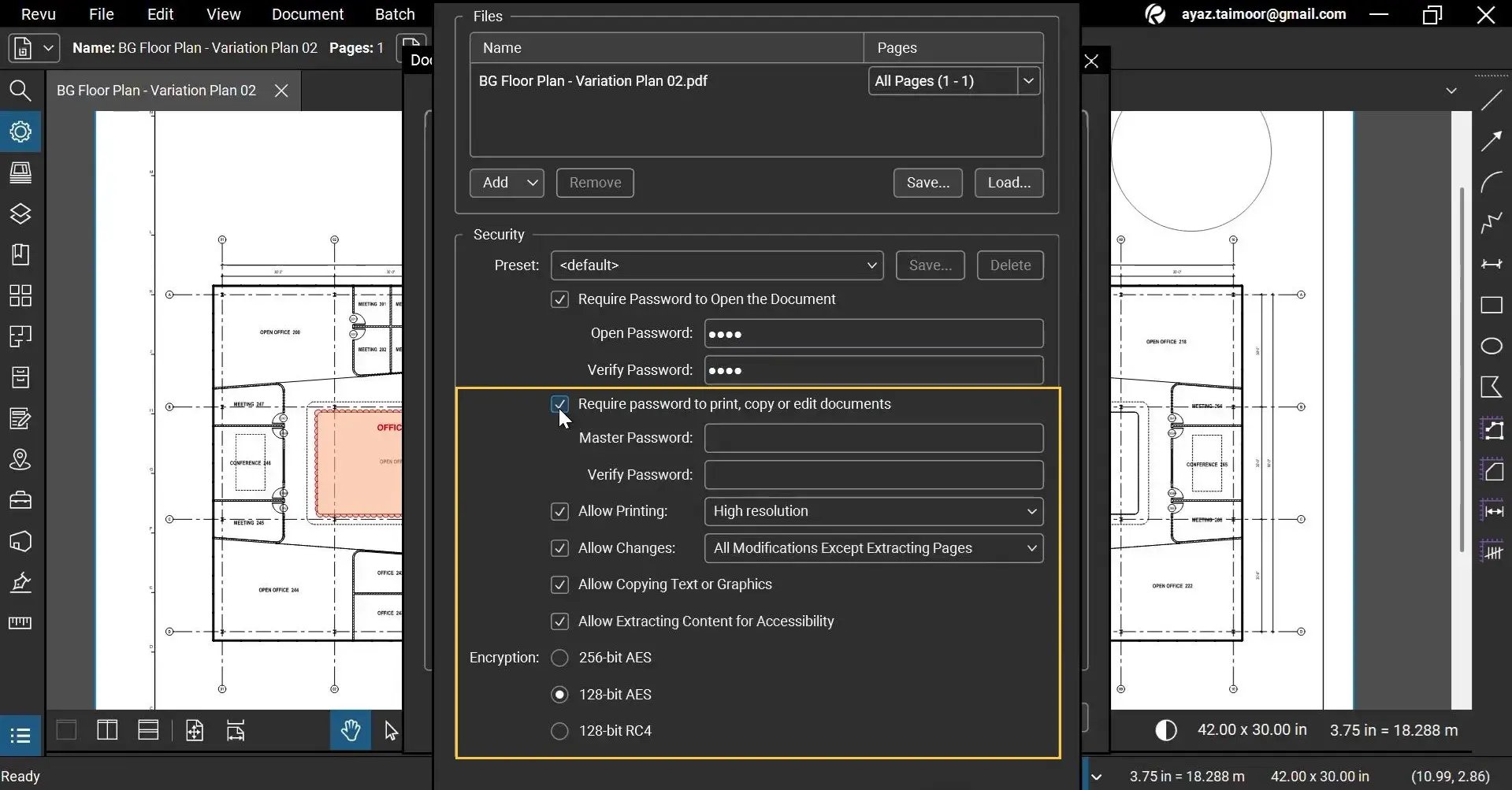
05 A: Check to enable the “Require Password to Print, Copy, or Edit Documents” option.
05 B: Enter a Master password.
05 C: Verify the password again.
05 D: Select to disable the permissions you want to restrict, including:
- Allow Printing (Disable or define allowed resolution)
- Allow Changes (Disable or select to define the scope of changes)
- Allow Copying Text or Graphics
- Allow Extracting Content for Accessibility
05 E: You can also set different encryption standards, such as AES and RC4, to determine how securely the PDF content is protected.
- 256-bit AES: A very strong modern encryption standard for PDFs. Highly secure and best for sensitive documents, but may need newer PDF readers.
- 128-bit AES: A strong and widely supported encryption. Good balance of security and compatibility for most business files.
- 128-bit RC4: An older and weaker encryption. Now considered less secure and not recommended for confidential documents.
*In this example, we are allowing everything but restricting the document printing to see how it works later.
Step 06: Apply and save security settings
06 A: Once your settings are configured, click OK.
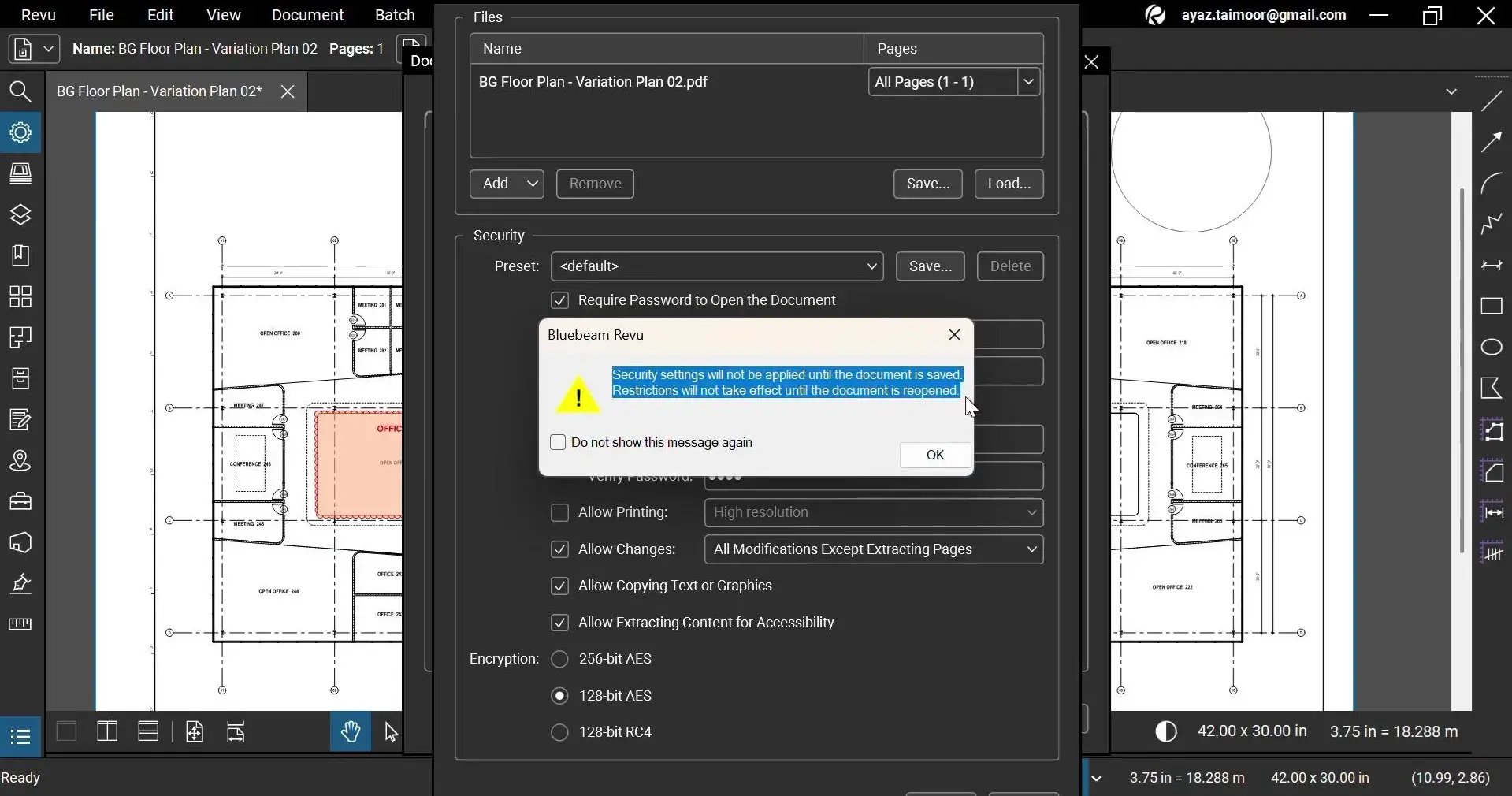
Revu will display a message stating that security changes will not apply until the document is saved and reopened.
06 B: Click OK to continue.
06 C: Press: Ctrl + S to save the document.
Test Your PDF Security Before Sharing the Document
To test your updated security and permissions settings:
- Close the PDF document.
- Reopen the same file in Revu or any other PDF viewer.
You will now be prompted to enter the password before accessing the document.
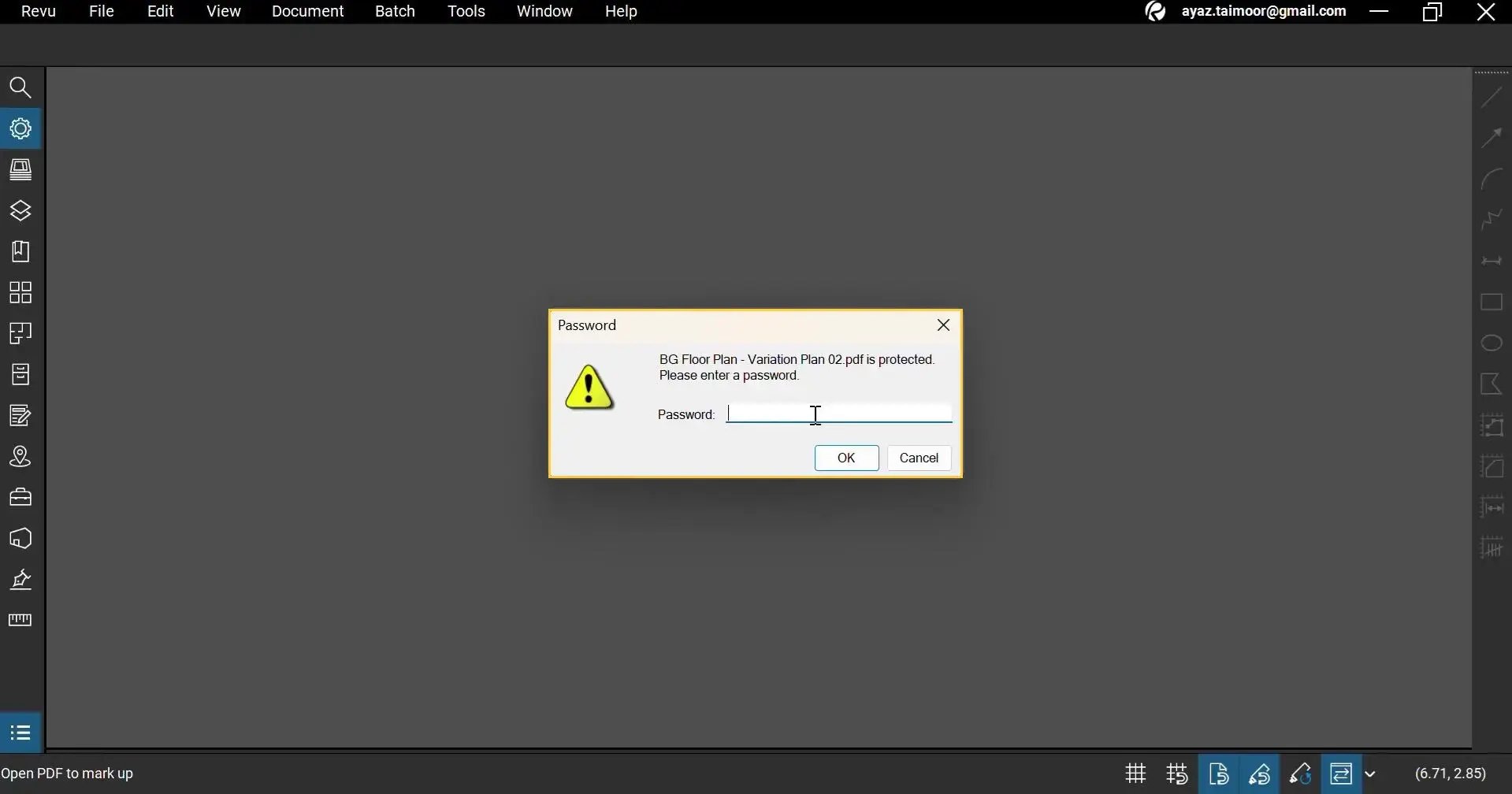
This confirms that your PDF security settings have been successfully applied.
Test Restrict Printing and Editing in Bluebeam Revu
Since we disabled printing permissions while configuring security settings:
- Open the File menu
- Click Print
Revu will block the action and display an error message: “Secure documents cannot be printed.”
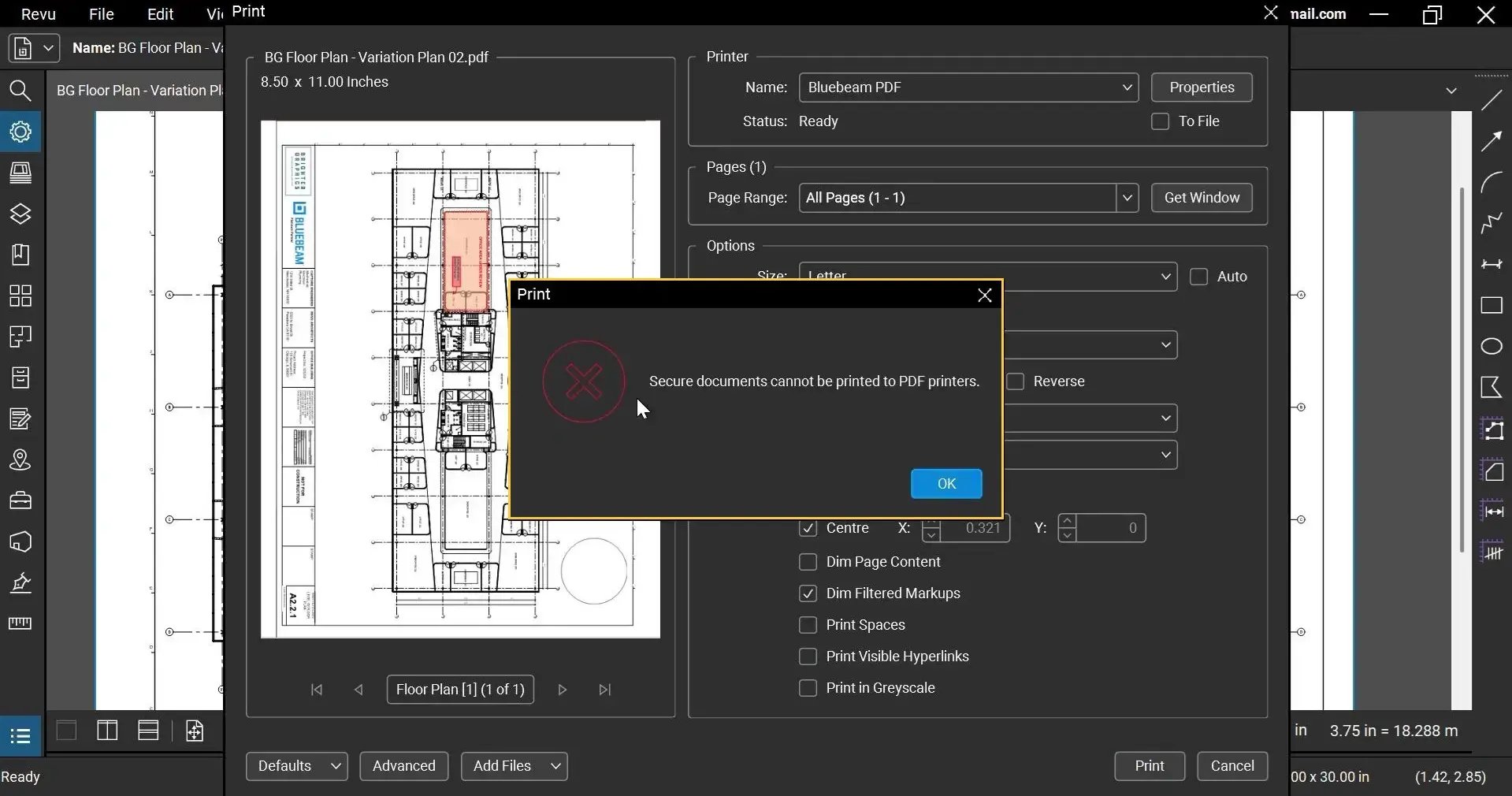
Similarly, restricted editing and copying actions will remain unavailable unless the user has permission.
Modify PDF Security Later
If you are the document owner and know the permissions password:
- Return to the Document menu and click Security
- Enter the Permissions password
- Modify or remove restrictions as needed
This allows you to update document access later without having to recreate the PDF.
Level Up Your Bluebeam Experience
This is how you enable PDF security in Bluebeam Revu 21 and protect your confidential PDFs with passwords and permission controls. Configure and apply these document restrictions to securely share PDFs and maintain control over editing, printing, and access permissions.
To further improve your PDF management workflows in Revu, explore our other Bluebeam guides and stay connected with Brighter Graphics, your go-to Bluebeam partner in the UK, Europe, and the Middle East.