Measuring multiple connected segments is very common in construction drawings, site layouts, and technical plans. The Polylength tool in Bluebeam Revu allows you to measure a continuous path made up of multiple line segments and automatically calculate the total length.
This makes it especially useful for construction takeoffs, estimating, and project planning where materials follow complex routes rather than straight lines.
For example, it is commonly required in measuring electrical conduit runs, wiring layouts, plumbing pipe routes, HVAC ductwork, fencing, roadways, or any installation that changes direction multiple times across a drawing.
Instead of measuring each segment separately, the Polylength tool streamlines the process by providing one accurate total measurement.
In this guide, you will learn how to measure Polylength in Bluebeam Revu 21, adjust measurements, change units, and use the Markups List to extract total length values for estimation and takeoff workflows.
Step-by-Step Guide to Polylength Measurement in Bluebeam Revu 21
Follow the step-by-step process below to learn how to measure multiple connected segments using the Polylength tool in Bluebeam Revu 21.
Step 01: Open your PDF drawing in Revu
01 A: Open Bluebeam Revu 21 on your desktop.
01 B: Go to the File menu in the top menu bar.
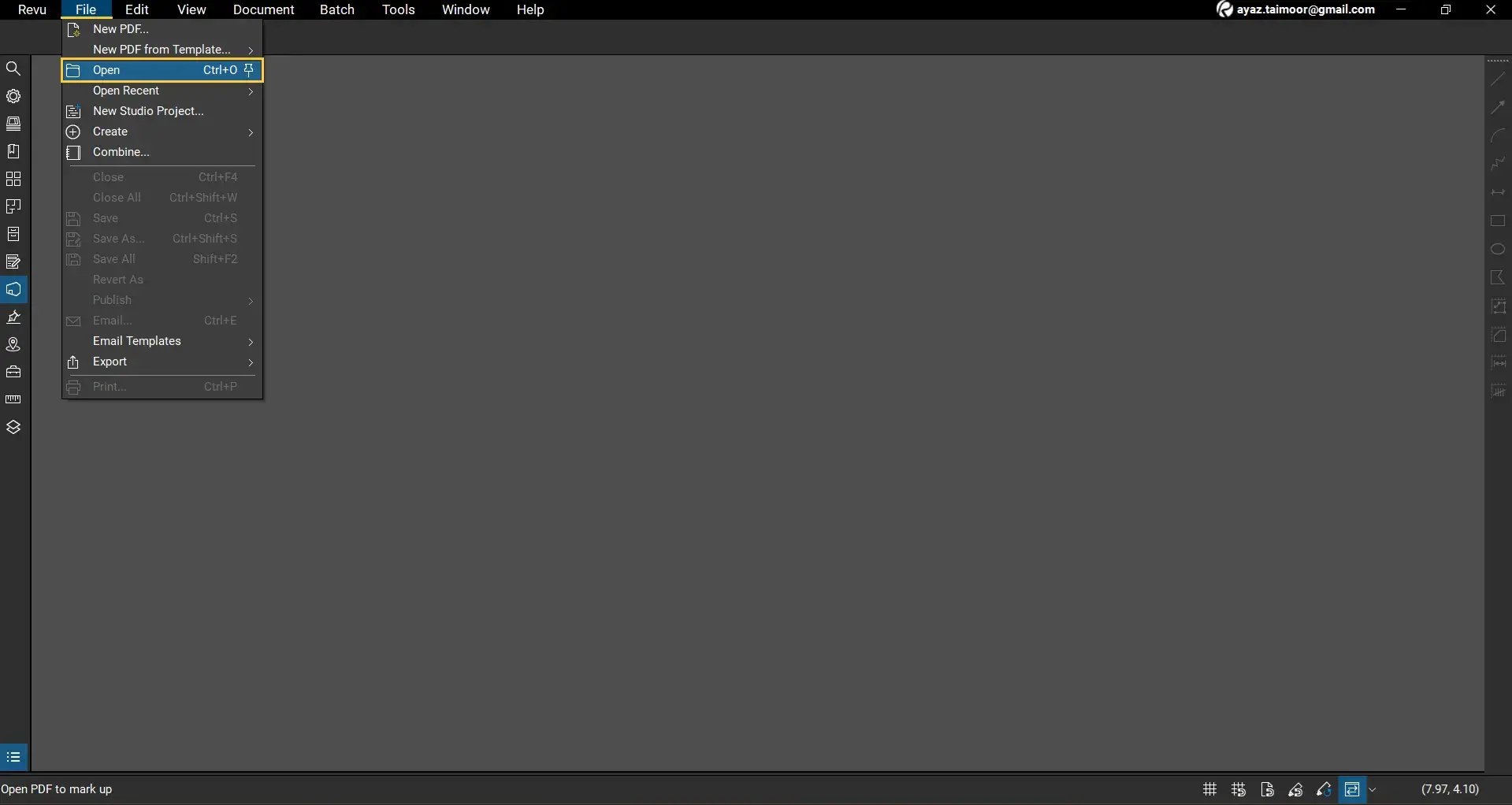
01 C: Click Open and select the PDF drawing you want to measure.
Once opened, navigate to the area where you want to apply the Polylength measurement.
Step 02: Enable Snap to Content for accurate measurements
Before starting your measurement, ensure the Snap to Content feature is enabled.
02 A: Look at the status bar at the bottom of your workspace.
02 B: Ensure the Snap to Content option is turned on. Click to enable it if it's not.
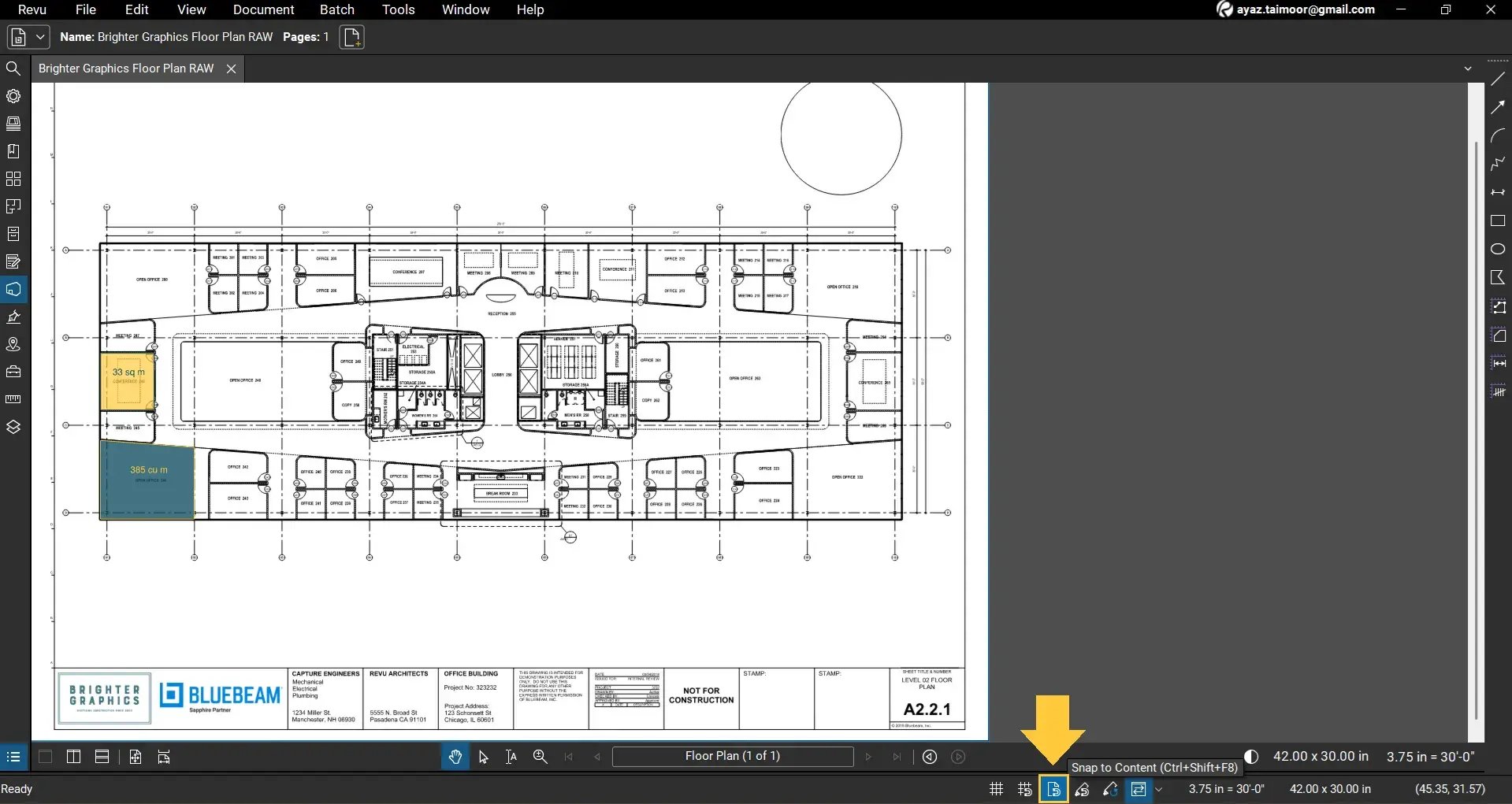
The Snap Feature allows your cursor to align with vector elements, such as lines and edges, in your PDFs, improving measurement accuracy.
Step 03: Select the Polylength measurement tool
Before moving forward, Ensure your drawing scale is correctly calibrated to match the PDF scale.
To use the polylength measurement tool:
03 A: Go to the Measurements panel on the left side of your workspace.
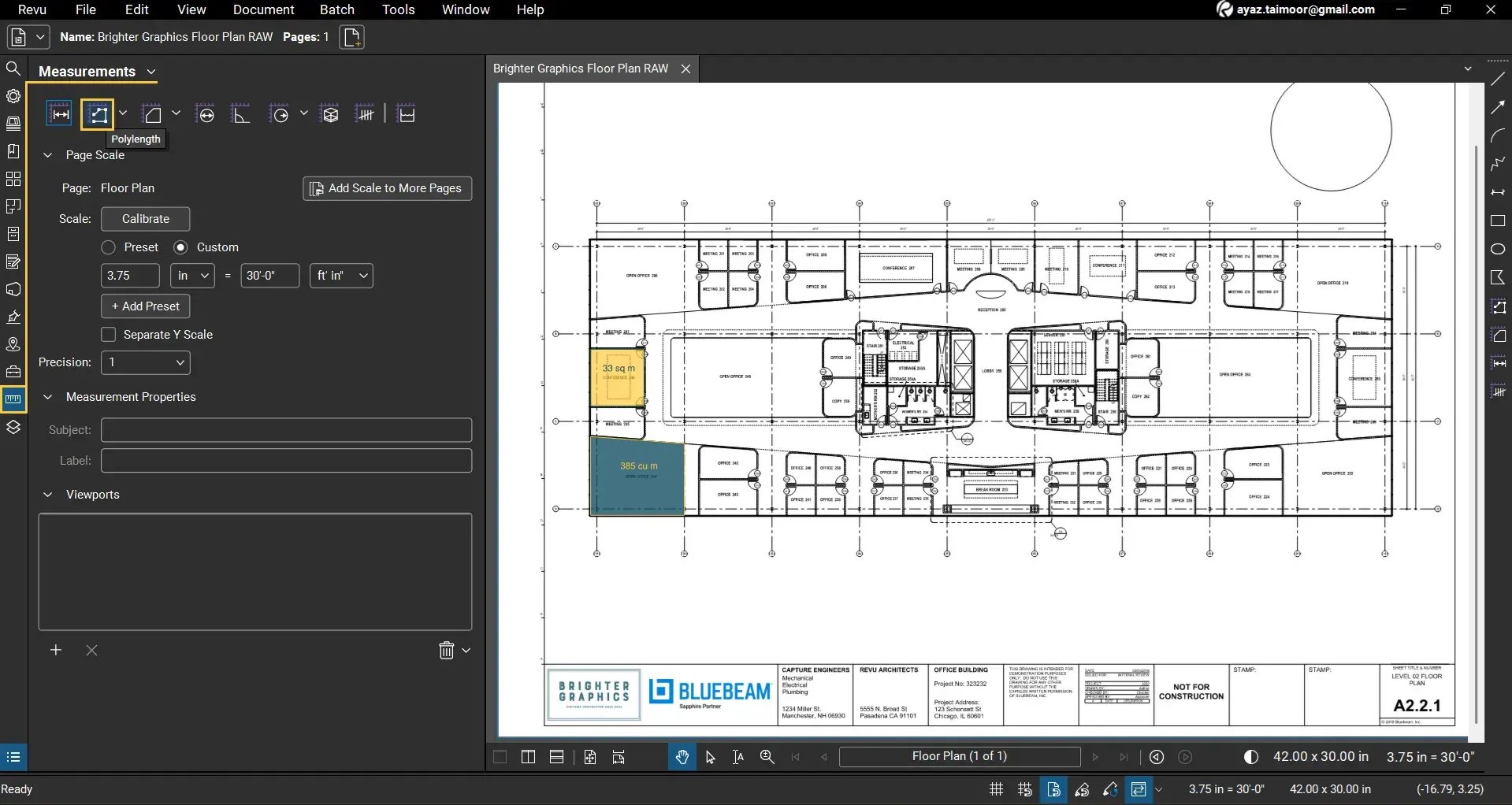
03 B: From the measurement tools at the top, select Polylength.
Step 04: Measure the Polylength
04 A: Zoom in to your desired drawing region for better control.
04 B: Click once to place the first anchor point.
04 C: Move your cursor and click again to place the second anchor point.
04 D: Continue placing anchor points along your required path.
Note: If you hold the Shift key while moving the cursor, the line will remain parallel to the X or Y axis or at 45 degrees, helping you create clean, straight segments.
04 E: Once you have completed your path, double-click on the last point to finish the measurement.
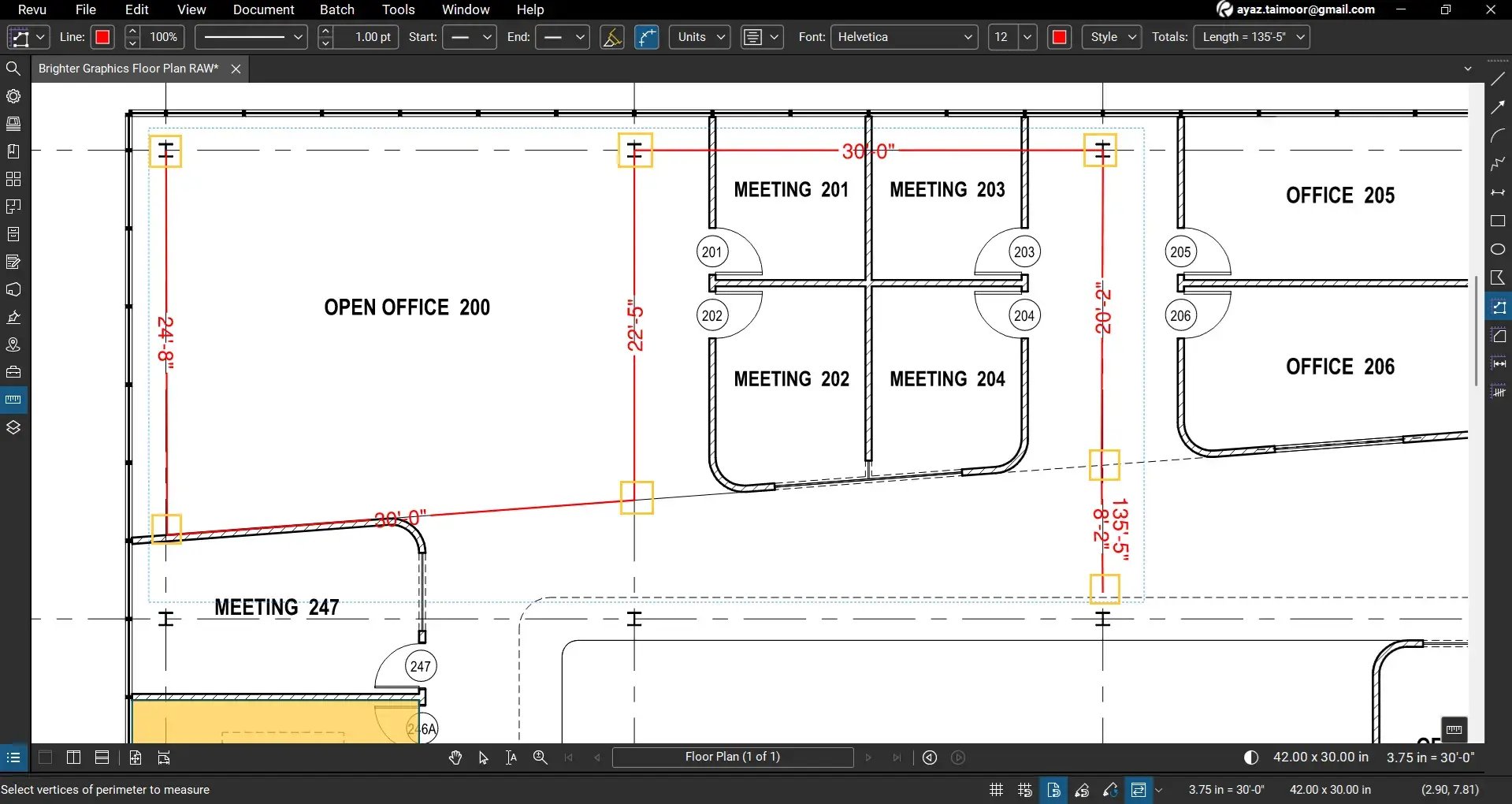
Bluebeam Revu will now display the individual length of each segment, along with the total length.
Refine the Polylength Measurement
If your measurement requires adjustment:
- Zoom in on your drawing region.
- Use the Select tool from the navigation bar to select your Polylength measurement.
- Drag the anchor points at the end of each line segment to refine or adjust the path.
- Ensure each segment aligns correctly with the drawing geometry.
- Hold shift and click and drag the Total Measurement label to relocate it. Or click and drag a circular handle near the Total Measurement label to rotate it.
You can also right-click on any line segment and click the Arc Segment option to turn a straight line into an arch along a circular drawing segment.
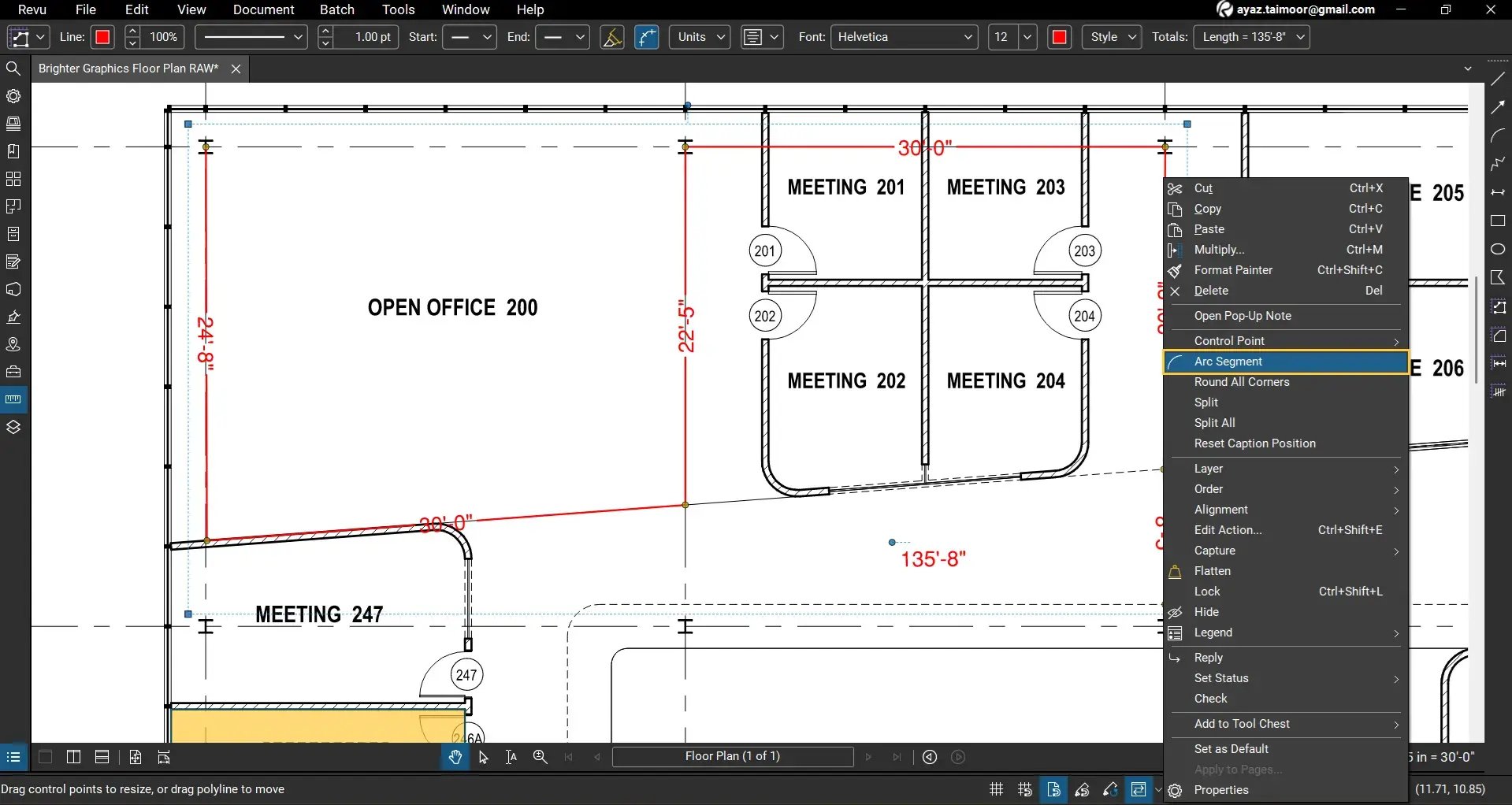
This helps ensure that the measurement accurately follows the intended path without missing or exceeding the actual geometry.
Customise the Polylength Appearance
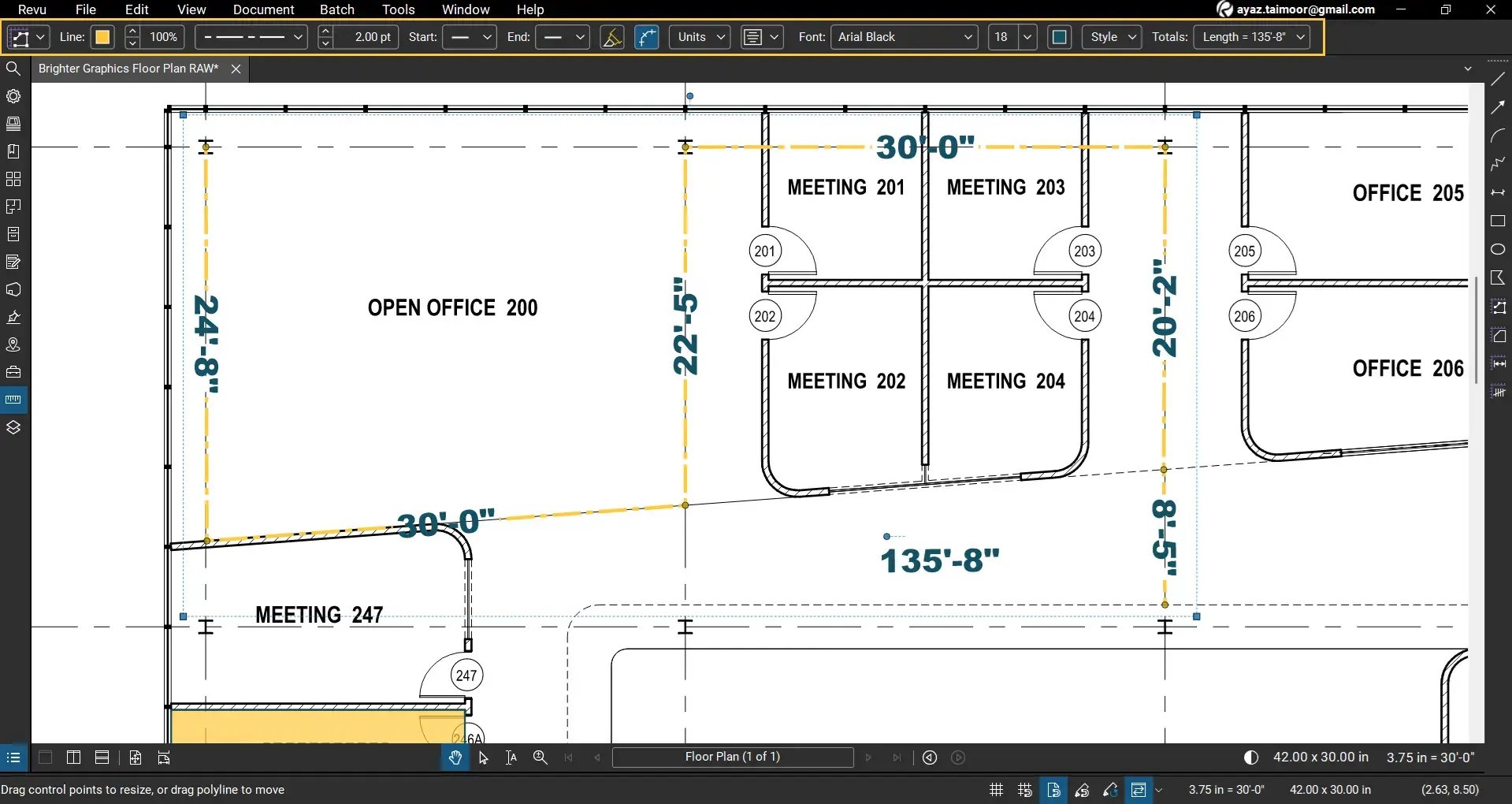
You can customise the visual appearance of your Polylength measurement for better clarity.
- Select your polylength measurement.
- Go to the Markup Editor at the top of your workspace.
From here, you can:
- Change line colour
- Adjust line thickness
- Apply different line styles
- Modify Font style, type, size, and colour
Read our detailed guide on how to Create, manage, and share custom line styles in Revu 21.
Change the Measurement Units
Since Polylength is a linear measurement, it uses length units.
To change the unit of measurement:
- Select the Polylength measurement.
- Open the Measurements panel.
- Locate the Length Unit option under Polylength Measurement Properties.
- Select your preferred unit.
For example, you can convert the measurement from feet to metres.
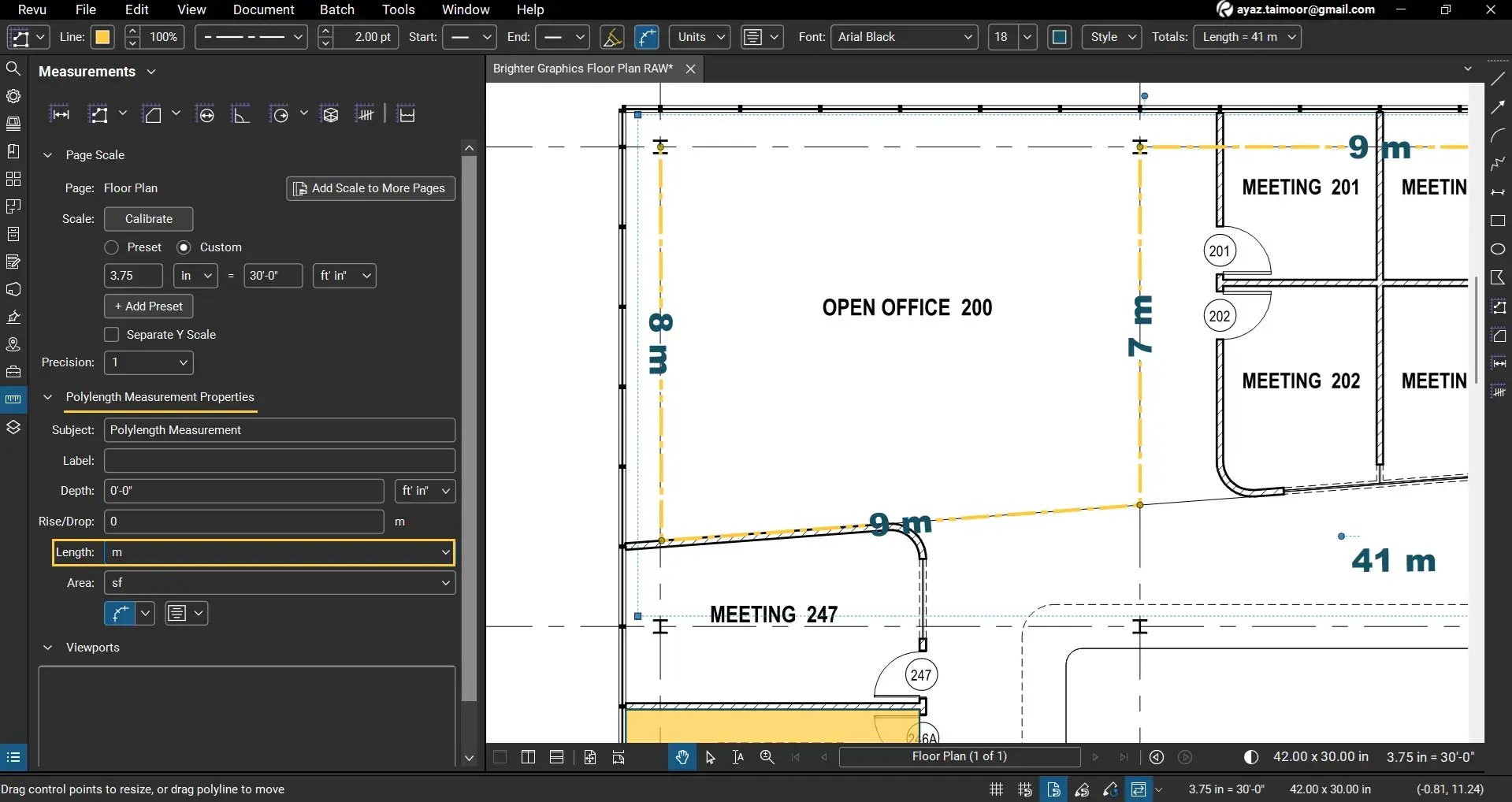
The total length and segment values will update instantly.
Polylength in the Markups List
Every Polylength measurement appears in the Markups List.
- Open the Markups List at the bottom of your workspace.
- Locate the Polylength Measurement entry under the Subject column.
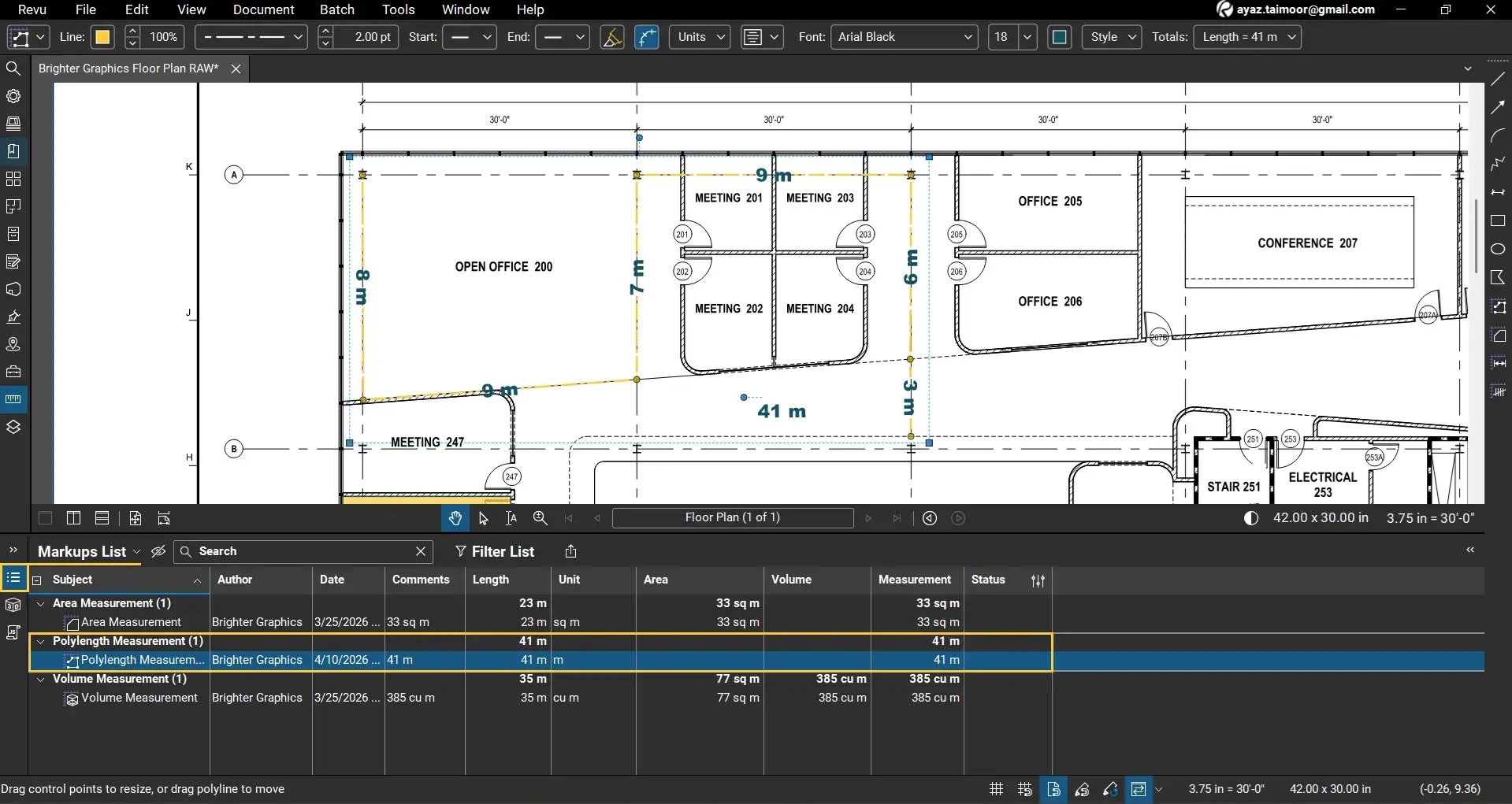
You will see:
- The total length value (sum of all segments) under the Measurement, Length, and Comment column
- Metadata, including Author and date information
- Other markup properties (based on the enabled columns in the Markups List).
You can enable or disable desired columns if they are not visible by going to the Markups List dropdown > Columns.
This total length value can be used for further calculations and reporting. You can also Create custom columns to scale your calculations.
Using Polylength for Estimation Workflows
The Polylength tool is widely used in construction and quantity takeoffs. You can use it for:
- Measuring wall perimeters
- Pipe or cable runs
- Road and boundary lengths
- Linear material estimation
You can also use the total length value from the Markups List to be used for:
- Creating custom columns with formulas
- Perform cost calculations
- Generate quantity takeoff reports
Level Up Your Bluebeam Experience
This is how you can measure multiple connected segments using the Polylength measurement tool in Bluebeam Revu 21.
No need to rely on the basic Length tool for measuring individual segments and manually aggregating totals later. The Polylength tool delivers a more efficient and accurate solution by capturing continuous multi-segment paths in a single measurement.
By using this tool along with the Markups List, you can capture accurate length data for construction drawings and streamline your takeoff workflows.
To further improve your measurement and estimation workflows in Revu, explore moreBluebeam Guides and stay connected with Brighter Graphics, your go-to Bluebeam partner in the UK, Europe, and the Middle East.