When working with area measurement in Revu, you often need to exclude irregular shapes such as shafts, openings, or unusable regions. The Polygon Cut-Out tool in Bluebeam Revu 21 allows you to subtract custom-shaped areas from an existing Area measurement. This helps you calculate accurate net areas without creating multiple overlapping measurements.
In this guide, you will learn how to use the Polygon Cut-Out tool in Bluebeam Revu 21, refine your selections, and understand how the results are reflected in the Markups List.
Step-by-Step Guide to Polygon Cut-Out in Bluebeam Revu 21
Follow the step-by-step process below to remove unwanted polygonal regions from an Area measurement.
Step 01: Open your PDF drawing in Revu
01 A: Open Bluebeam Revu 21 on your desktop.
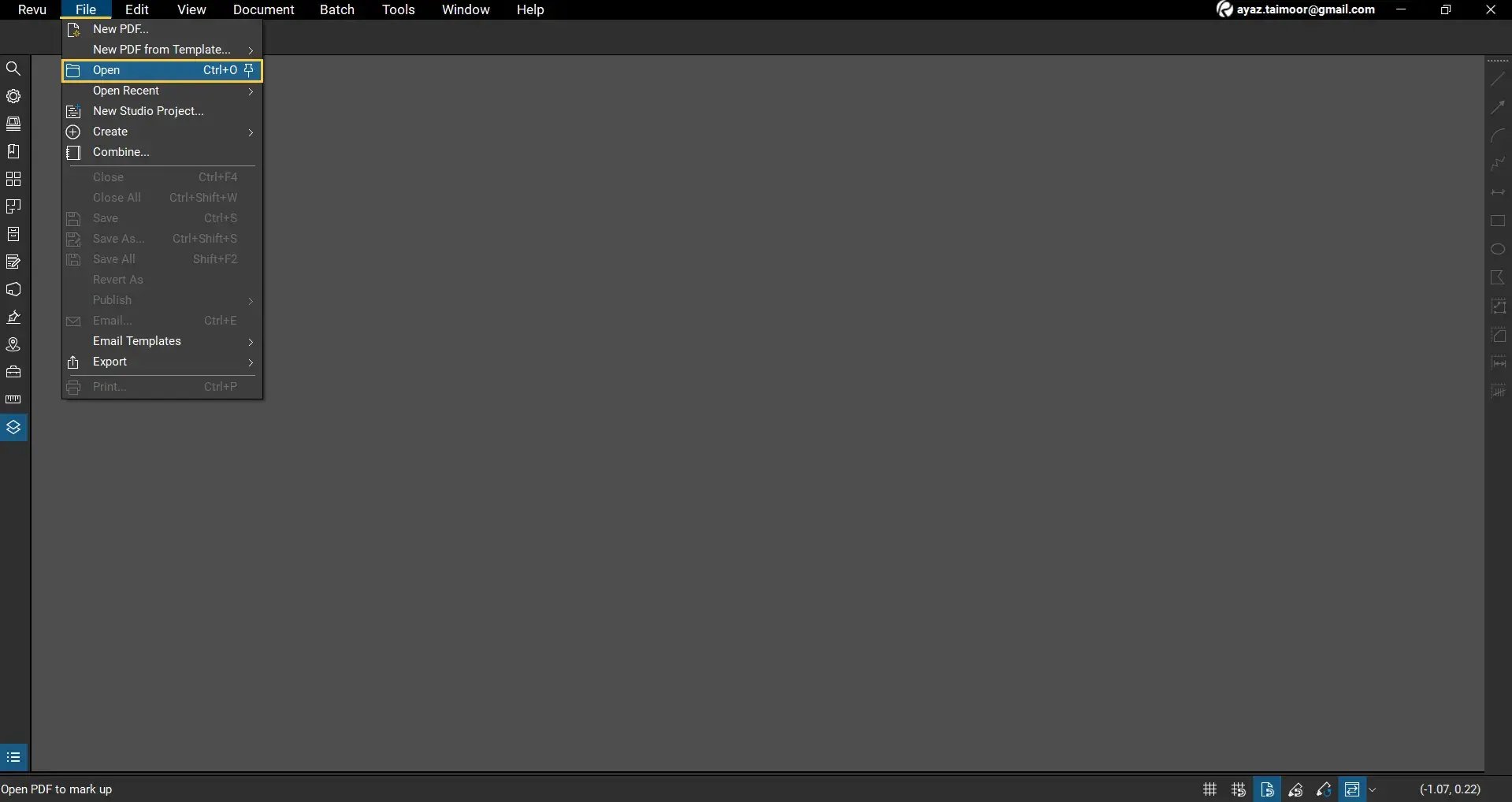
01 B: Go to the File menu in the top menu bar. Click Open and select the PDF drawing you want to work with.
Step 02: Set Up Your Drawing for an Area Measurement
The Polygon Cut-Out tool only works on an existing Area measurement. You cannot apply it directly to a blank PDF. So, we have to apply an area measurement first. Before using Area or any other measurement, ensure that you calibrate your drawing and enable the Snap to Content feature from your navigation bar below.
Read our separate guides on calibrating your drawings in Revu 21 and using different types of Snap features.
To apply an area measurement:
02 A: Select the Area tool from the Measurements panel.
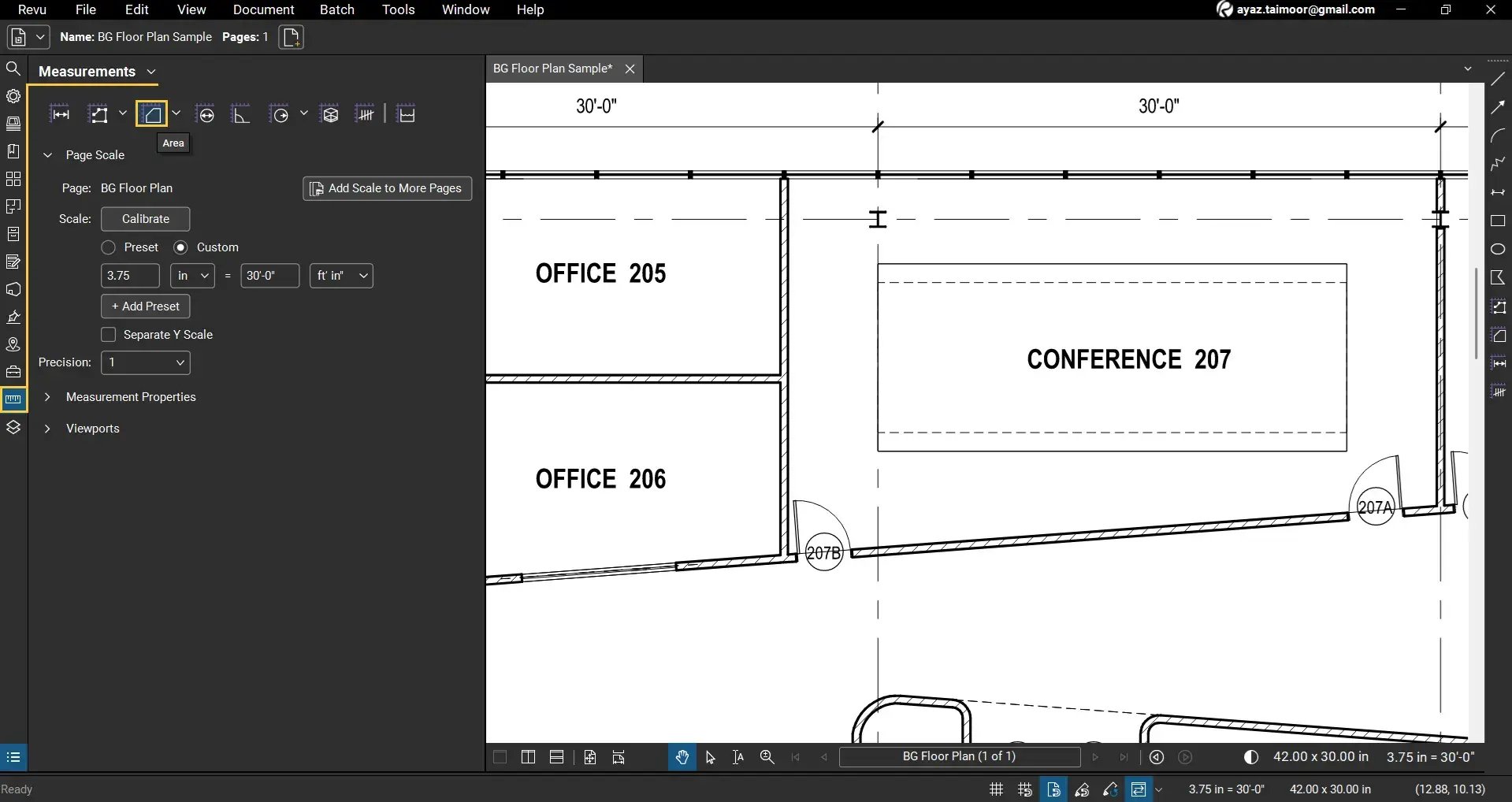
2B: Click and drag to create a rectangular area, or click to place multiple anchor points for a polygonal area.
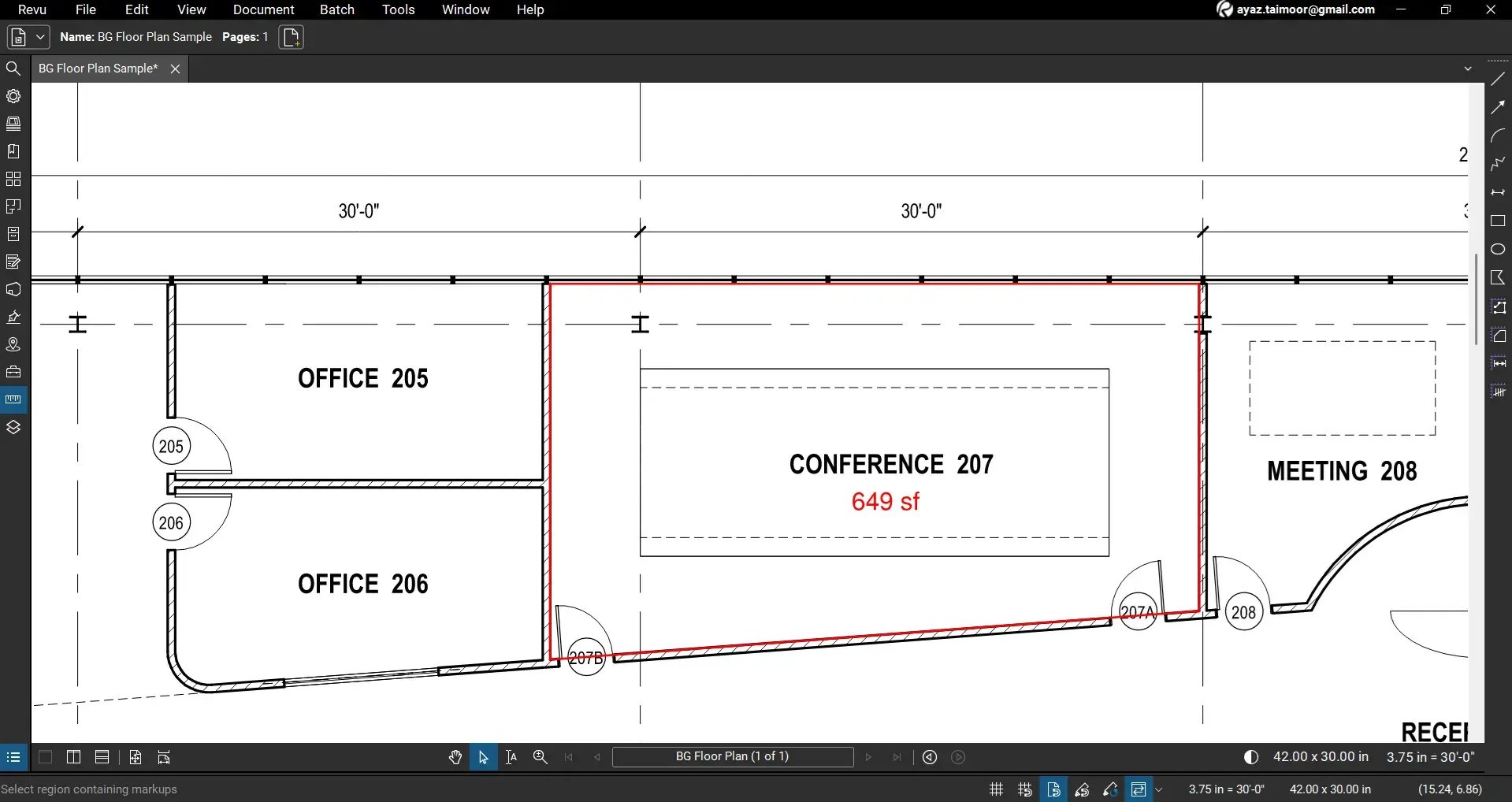
You will now see the area value displayed on your drawing. Add fill colour for your Area measurement from the editing bar before using the polygon cut-out.
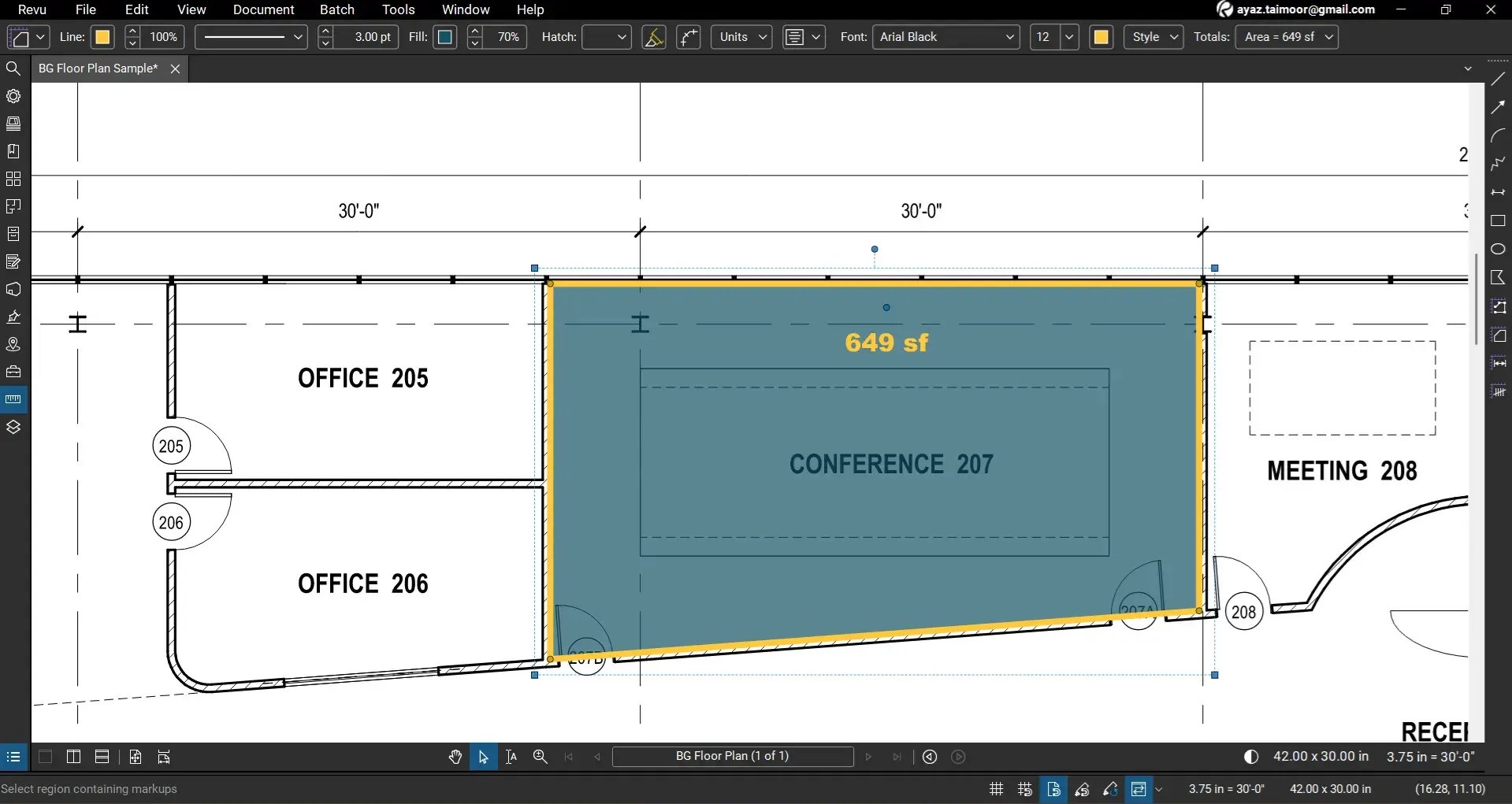
Read our detailed guide on Area measurement in Bluebeam Revu and how you can find the area or volume of irregular, complex geometries using the Dynamic Fill feature in Revu.
Step 03: Select the Polygon Cut-Out tool
03 A: Go to the Measurements panel on the left side of your workspace.
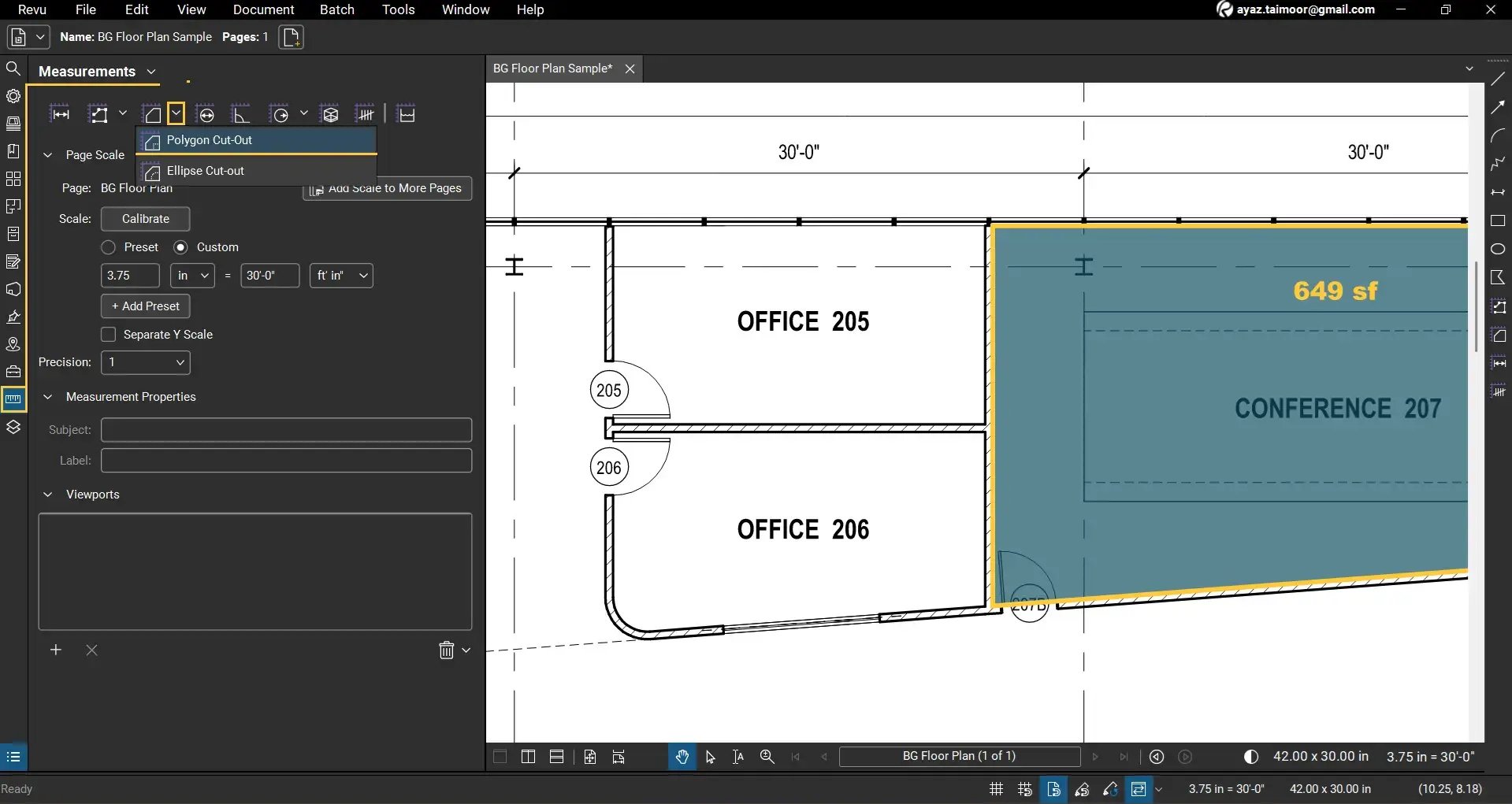
03 B: Click the dropdown next to the Area tool.
03 C: Select Polygon Cut-Out.
Step 04: Apply the Polygon Cut-Out
04 A: Define the cut-out area using either method:
- Click to place individual anchor points and create a custom polygon
- Click and drag to create a rectangular cut-out
04 B: Complete the selection to apply the cut-out.
The selected region will be removed from the original area measurement.
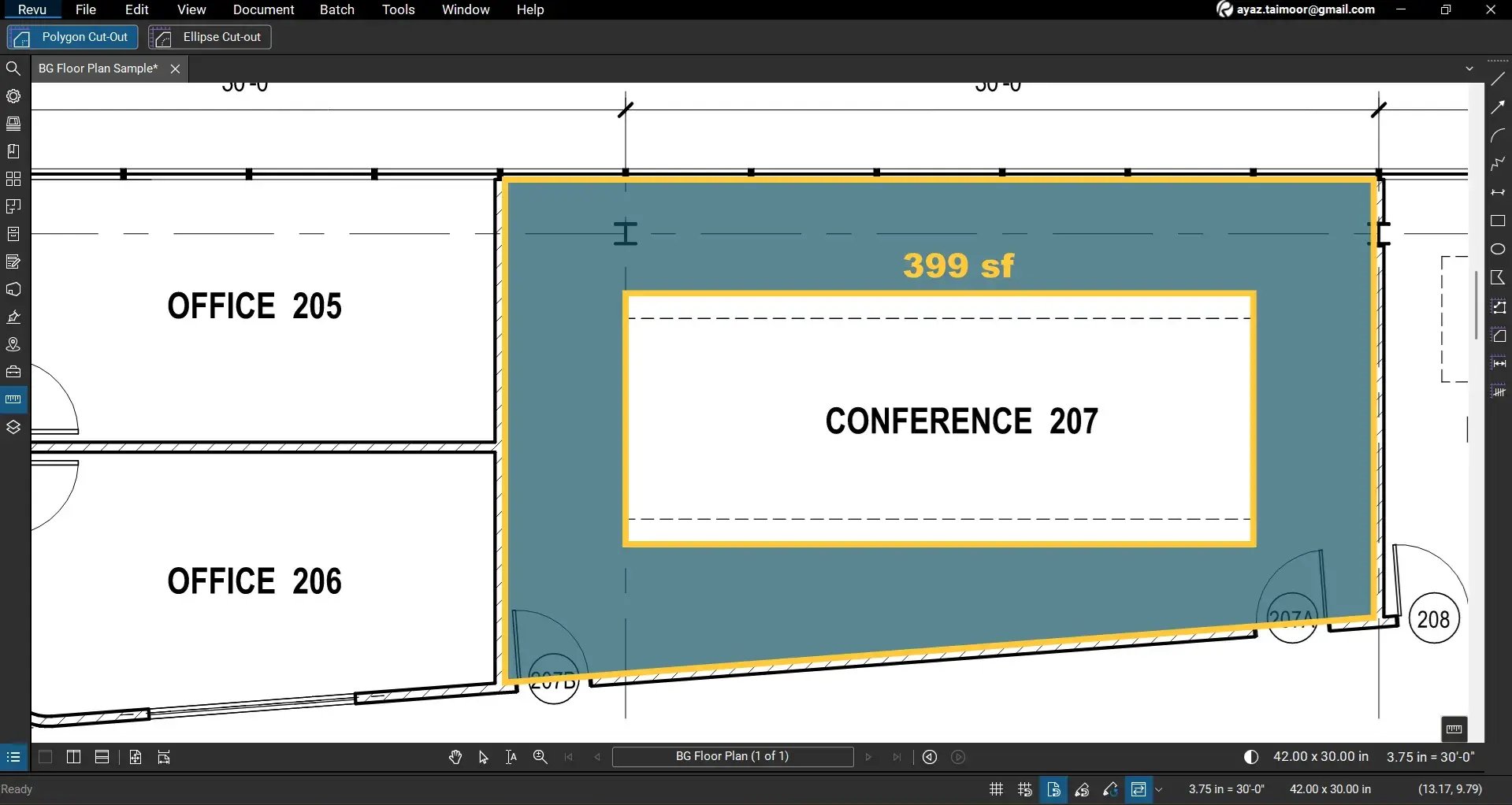
The Polygon Cut-Out will only work inside the area boundary.
Note: If you press and hold the Shift key while creating a rectangle within your area, your selection will be restricted to creating a perfect square. Pressing the Shift key while creating a polygon will restrict your line segments to be parallel to the coordinate axes or at 45 degrees.
Once you release your click, your cut-out will be applied, and your area measurement will start showing an updated value.
- Original Area = 649 sq ft
- Updated Area after cut-out = 399 sq ft
Refine the Polygon Cut-Out
If required:
- Zoom in to improve placement accuracy.
- Adjust anchor points by selecting the markup.
- Ensure the cut-out boundary aligns with the intended geometry.
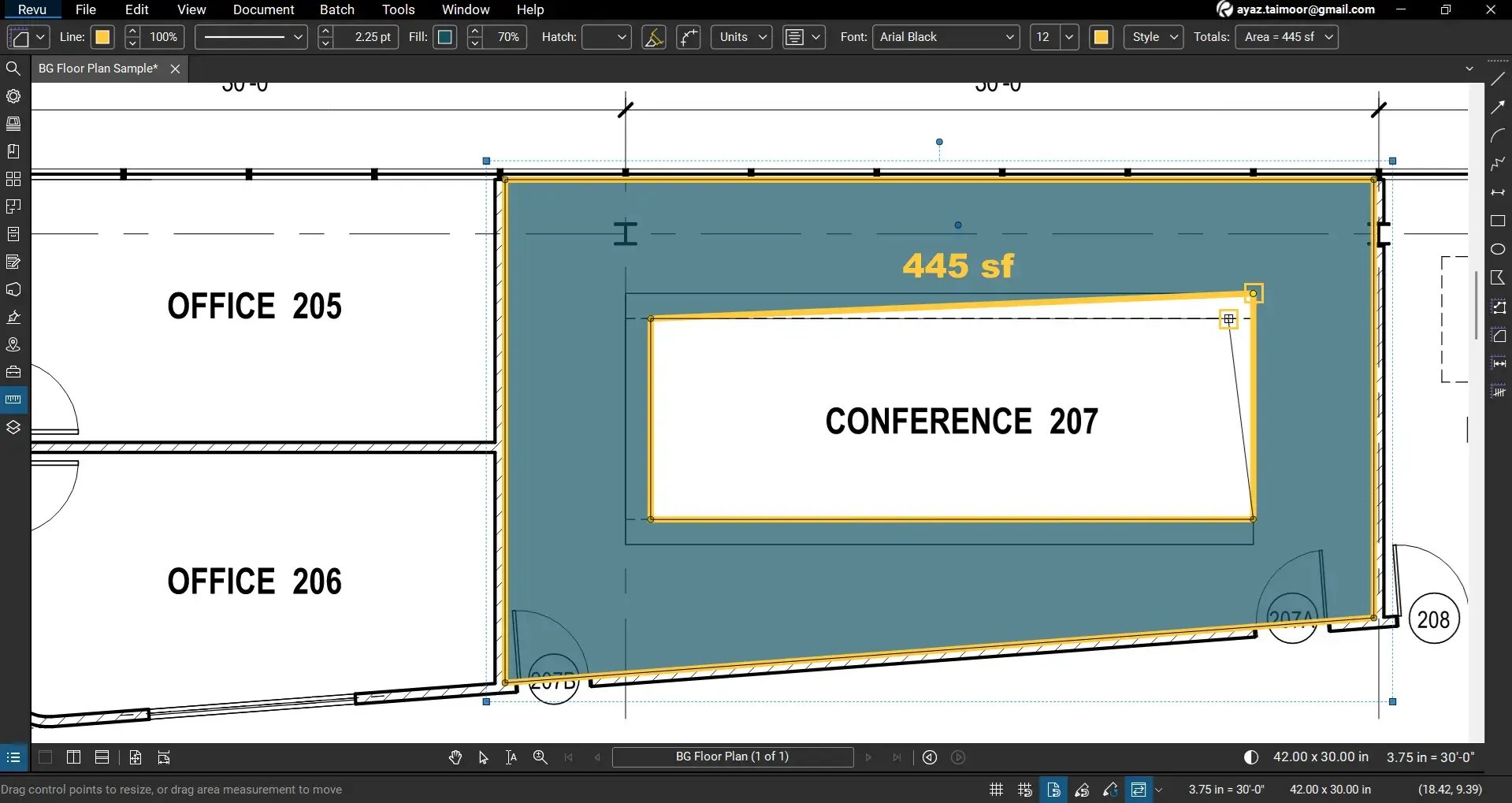
This helps achieve precise subtraction of irregular shapes.
Polygon Cut-Out in the Markups List
Polygon Cut-Out does not appear as a separate markup entry. It will reflect the updated area for the Area measurement it applies to.
- Open the Markups List at the bottom of your workspace
- Locate your Area measurement
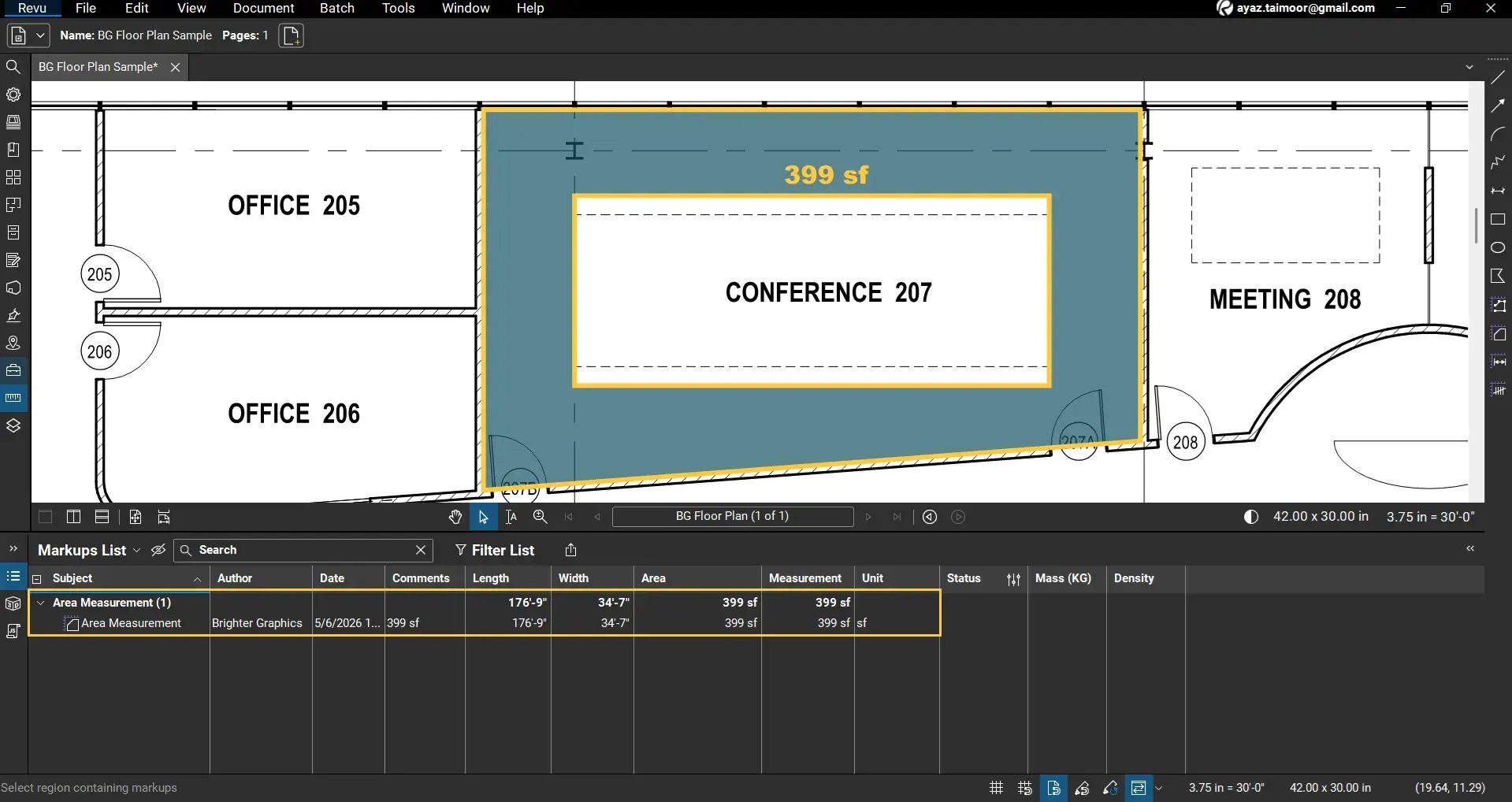
You will see:
- The updated area value after subtraction
- Measurement data in the Measurement column
- Author and other markup properties
- More data from custom columns
The Markups List always reflects the net area after subtraction.
The result follows this logic:
Final Area = Original Area − Cut-Out Area
Read our separate guide on creating and using custom columns in Revu’s Markups List.
Level Up Your Bluebeam Experience
This is how you can use the Polygon Cut-Out tool in Bluebeam Revu 21 to subtract irregular regions from your area measurements. To further improve your workflows, explore our other Bluebeam guides on Area measurements and Ellipse Cut-Out tools.
Stay connected with Brighter Graphics, your go-to Bluebeam partner in the UK, Europe, and the Middle East.