No two people can use the same tool in Revu the same way. There are multiple ways to use the same tool in Revu. To make your markups or design activity more efficient, it is always recommended to approach the task in the most efficient way possible. The same applies to the Polygon markup tool in Revu.
Below is the step-by-step process of how you can use your Polygon Markup in the most efficient way possible.
Step-by-Step Guide to Polygon Markup in Bluebeam Revu 21
Bluebeam Revu Polygon Markup - Video Tutorial
Improve your Bluebeam Revu skills with this practical guide to the frequently-used Polygon markup tool. In this guide, you’ll learn how to draw precise polygons, create curved edges, convert straight segments to arcs, and quickly make rectangles and perfect squares.
*The same drawing practice you see here can be applied to applying Area or Volume measurement tools, as they also work the same way, but with measurements.
Step 01 - Prepare Revu 21 for precise markups
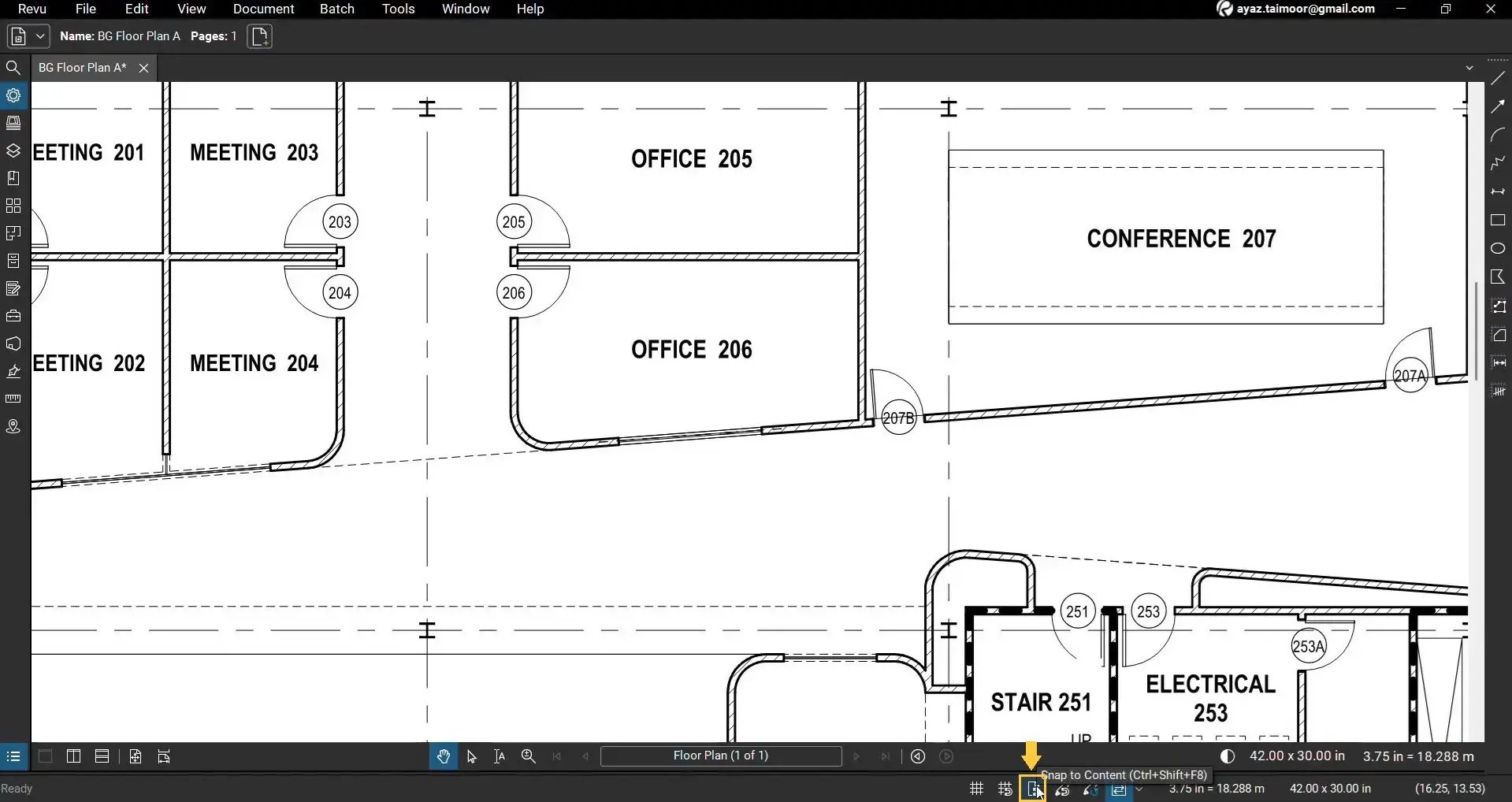
01 A: Open Bluebeam Revu 21 on your desktop.
01 B: Ensure Snap to Content is enabled (bottom status bar).
*This snaps anchor points to vector content for accurate alignment on drawings and plans.
Step 02 - Select Polygon markup
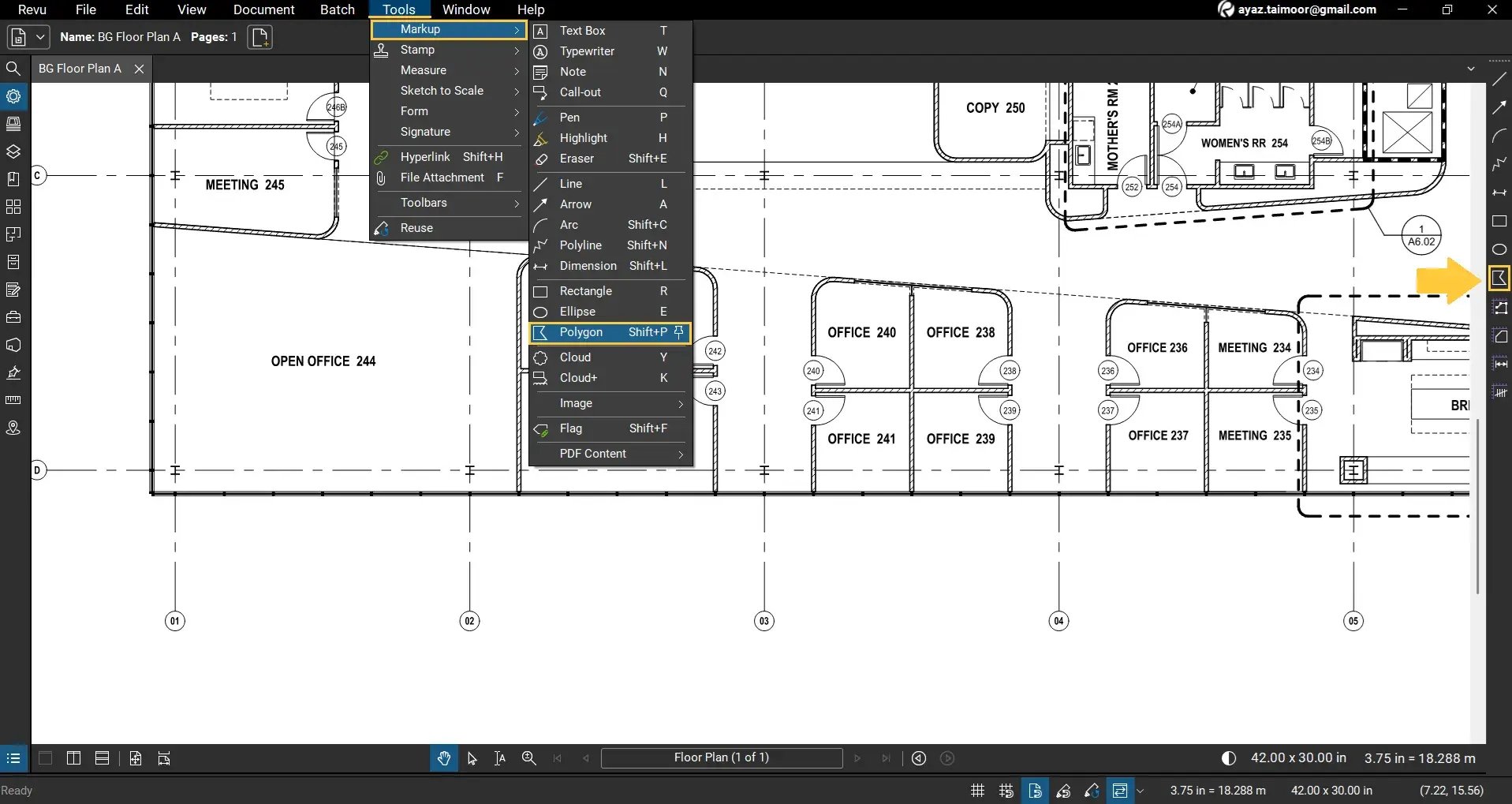
From your Toolbar, or go to the Tools menu and choose the Polygon tool in Markups (Tools > Markup > Polygon). For quick access, use shortcut keys Shift+P.
Step 03 - Place the first anchors (zoom for control)
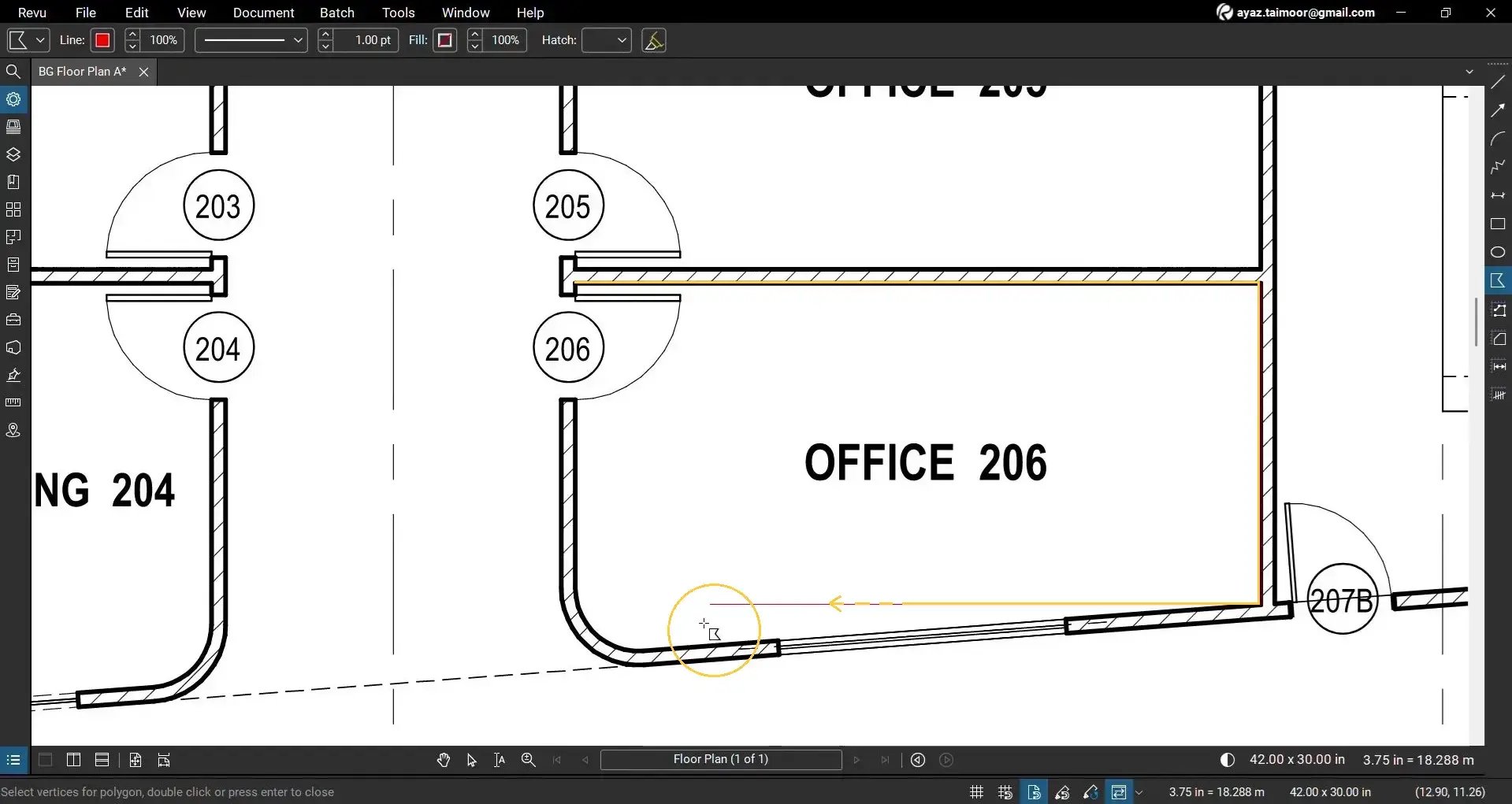
03 A: Zoom in on the target region for pixel-level control.
03 B: Click once to set the first anchor, then click at the next vertex to place the second.
03 C: Hold Shift while moving the cursor to constrain edges parallel to the X/Y axes for orthogonal geometry.
Step 04 - Continue anchoring vertices
04 A: Add anchors around the shape.
04 B: Release Shift whenever the next segment is not parallel to the axes to avoid unwanted constraints.
Step 05 - Create a curved segment (live curve method)
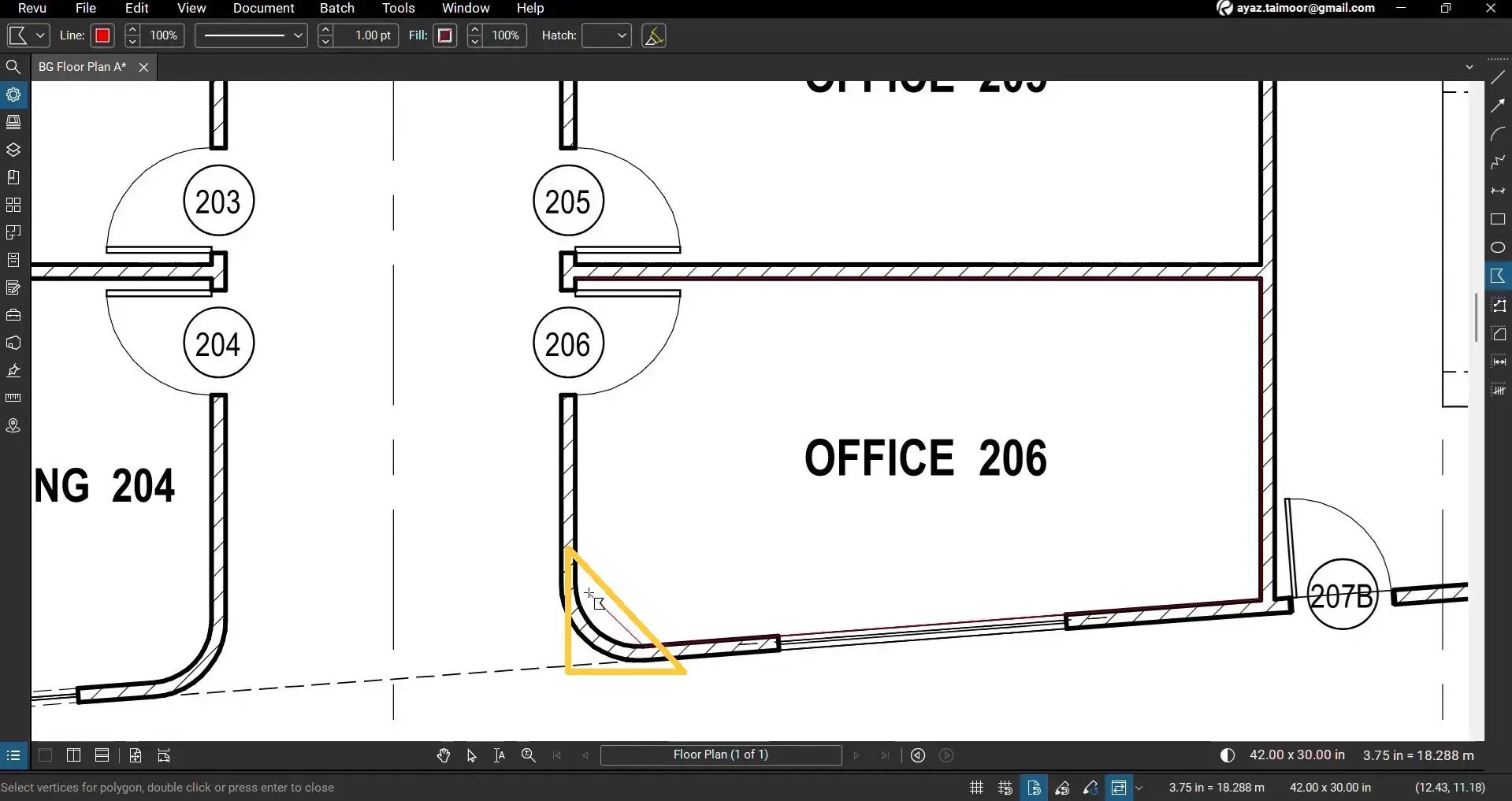
05 A: At the start of the curved region, place anchors to approach the curve with straight segments.
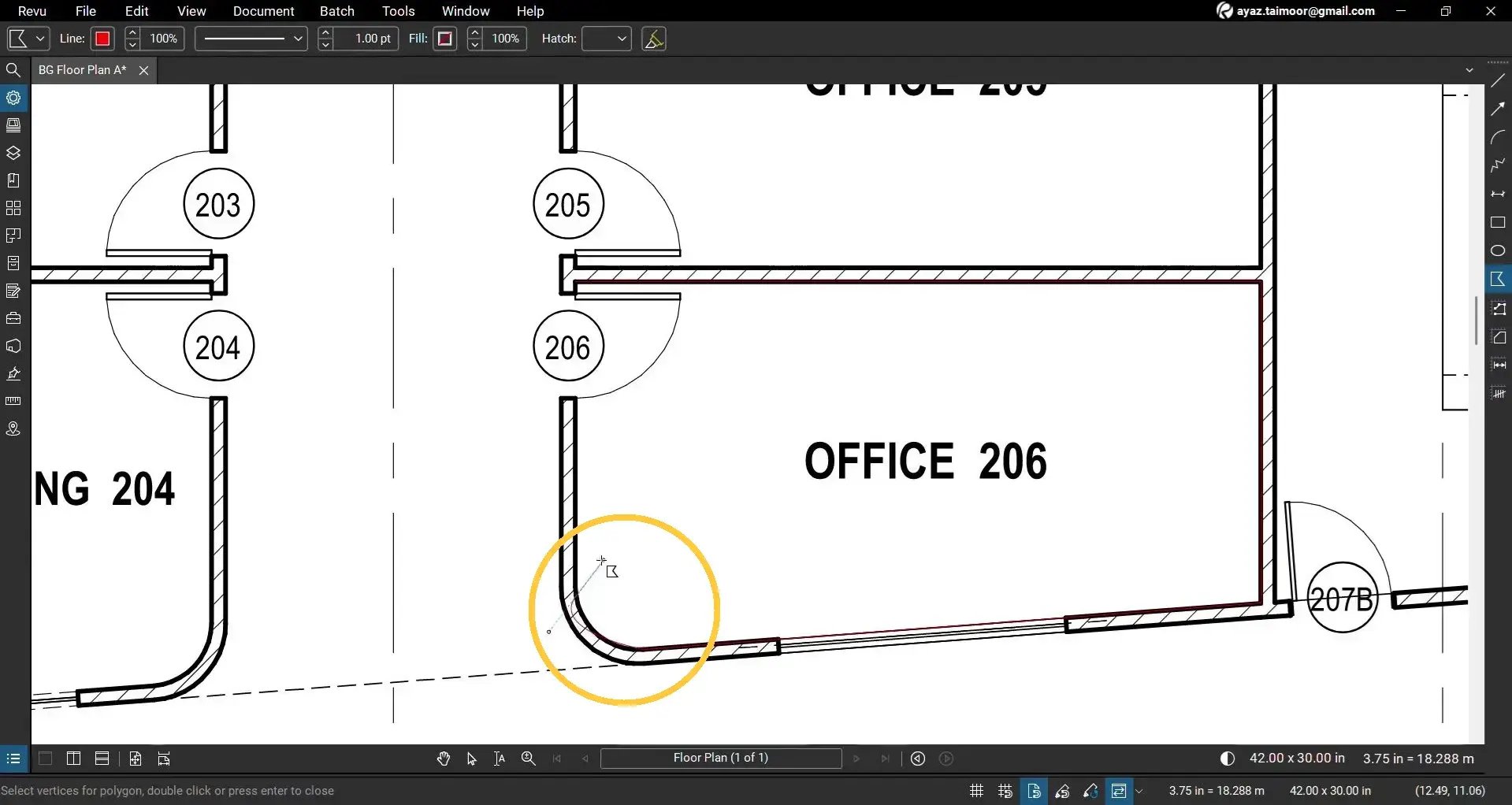
05 B: At the final point of the curve, click-and-hold (don’t release), then press Ctrl.
05 C: The active segment converts to a curve; drag the handle to shape the arc (left/right, forward/back) for a tight fit.
Step 06 - Trace the curved run and close the shape
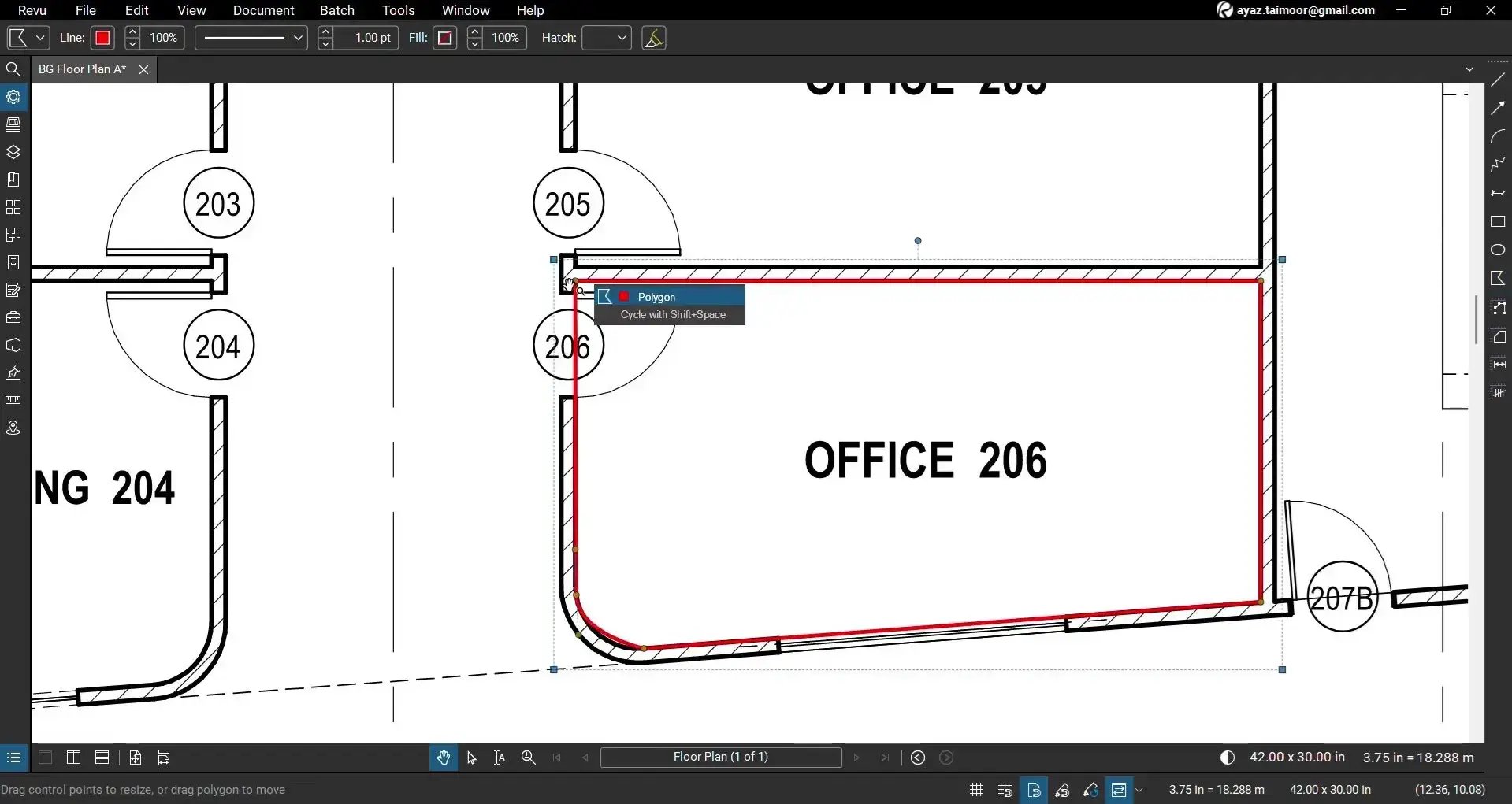
06 A: Continue clicking along the curved path to follow the geometry.
06 B: Return to the first anchor and double-click it to close the polygon cleanly.
Step 07 - Refine the curve with handles
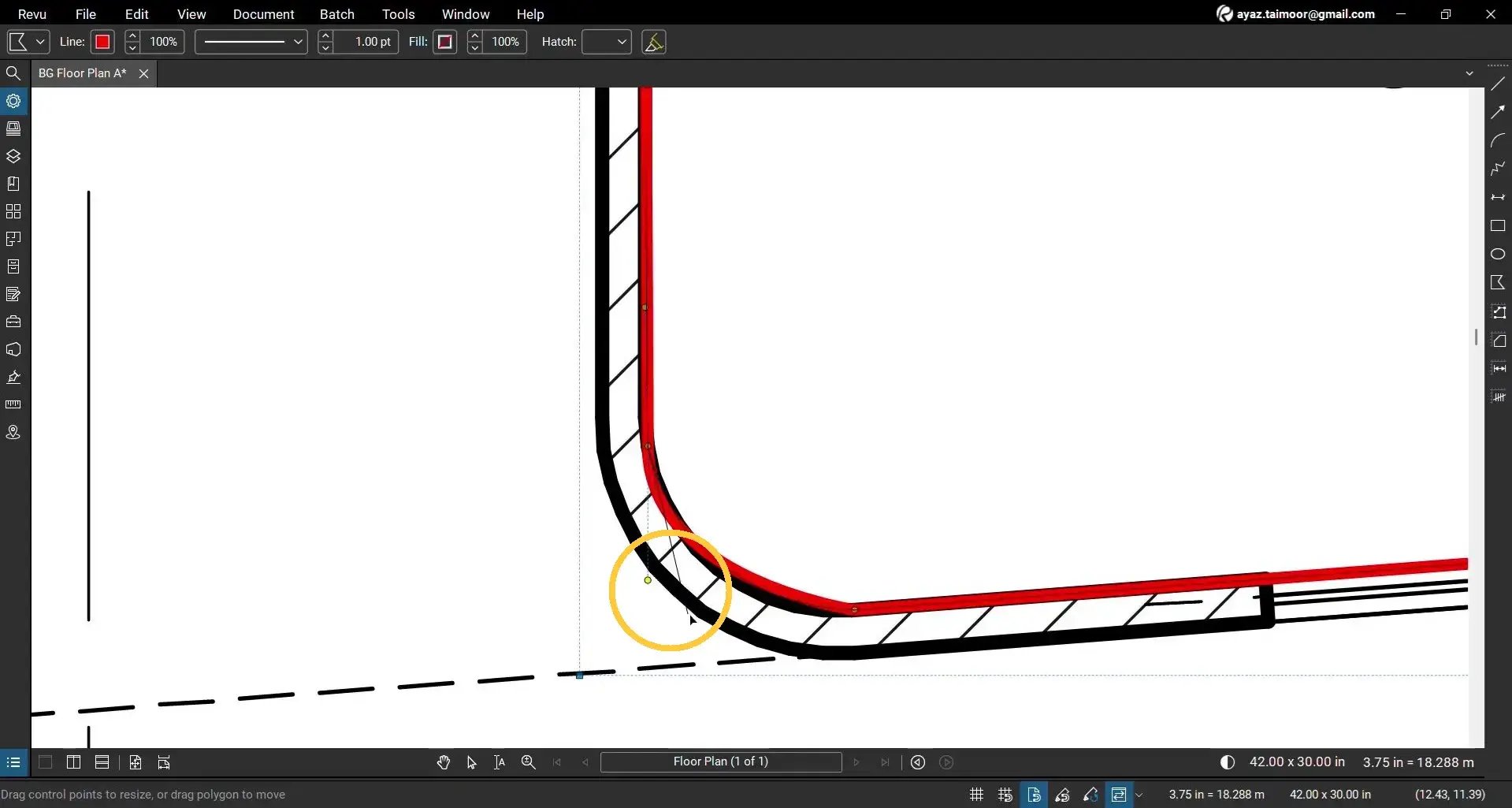
07 A: Zoom in on the curved edge.
07 B: Drag the yellow control handles to fine-tune tangency and radius until the arc matches the PDF linework.
Once you are done, it is recommended to add your favorite, frequently used custom tools, shapes, measurements, and markups to your Tool Chest for quick access across documents.
More Ways to Use the Polygon Tool in Revu 21
You can also use the polygon tool as an alternative to the rectangle tool to draw rectangles and squares. Additionally, if the above method for covering curved corners appears difficult to use, an alternative approach is available. Let's see how.
Alternate way to draw a polygon with curved corners (Convert to Arc)
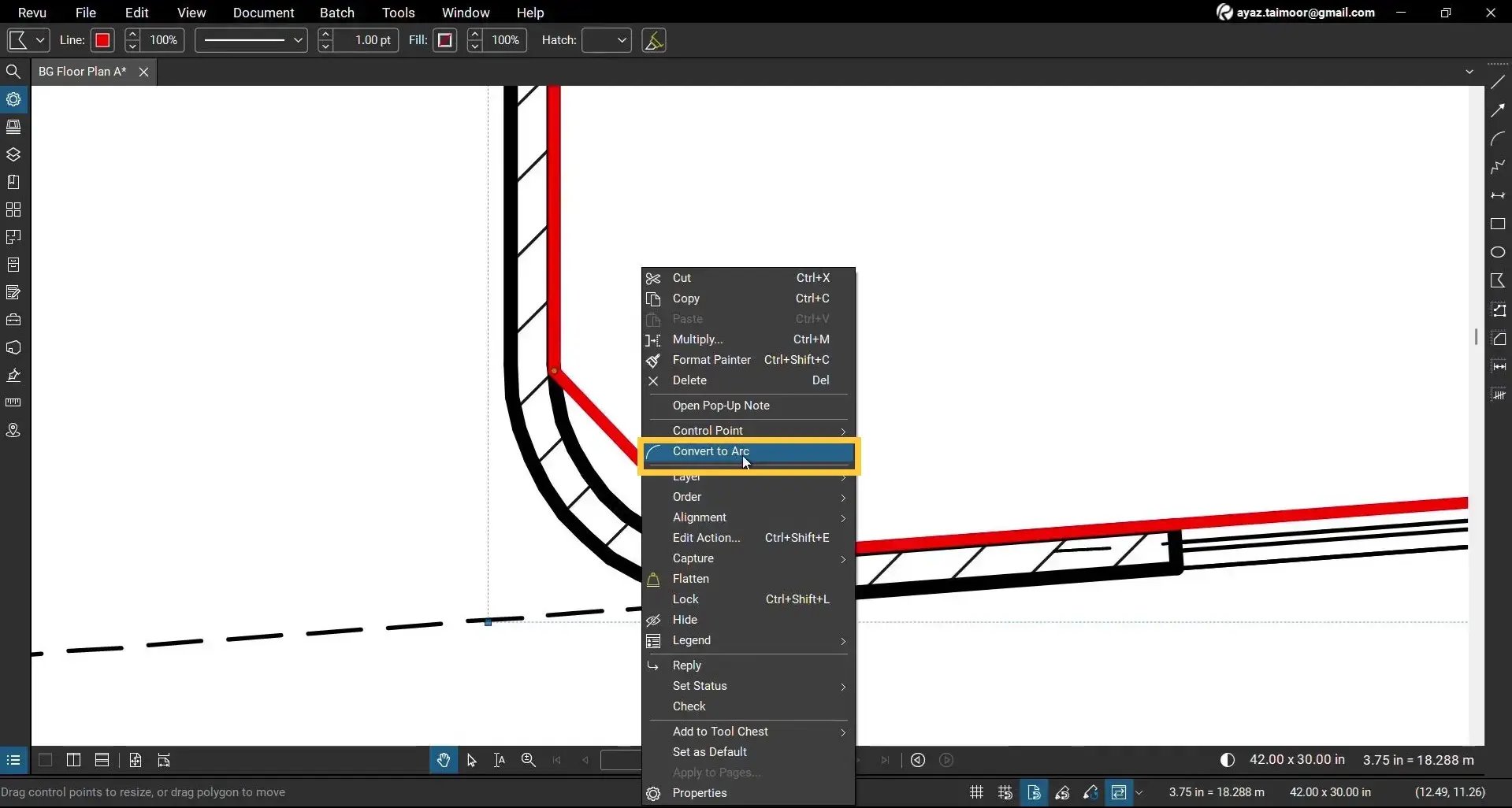
08 A: Draw the polygon with straight segments first, ignoring the curve.
08 B: Right-click the straight segment that should be curved, and from the menu, hit Convert to Arc.
08 C: Use the yellow handles to adjust curvature precisely.
Draw a Rectangle with the Polygon Tool
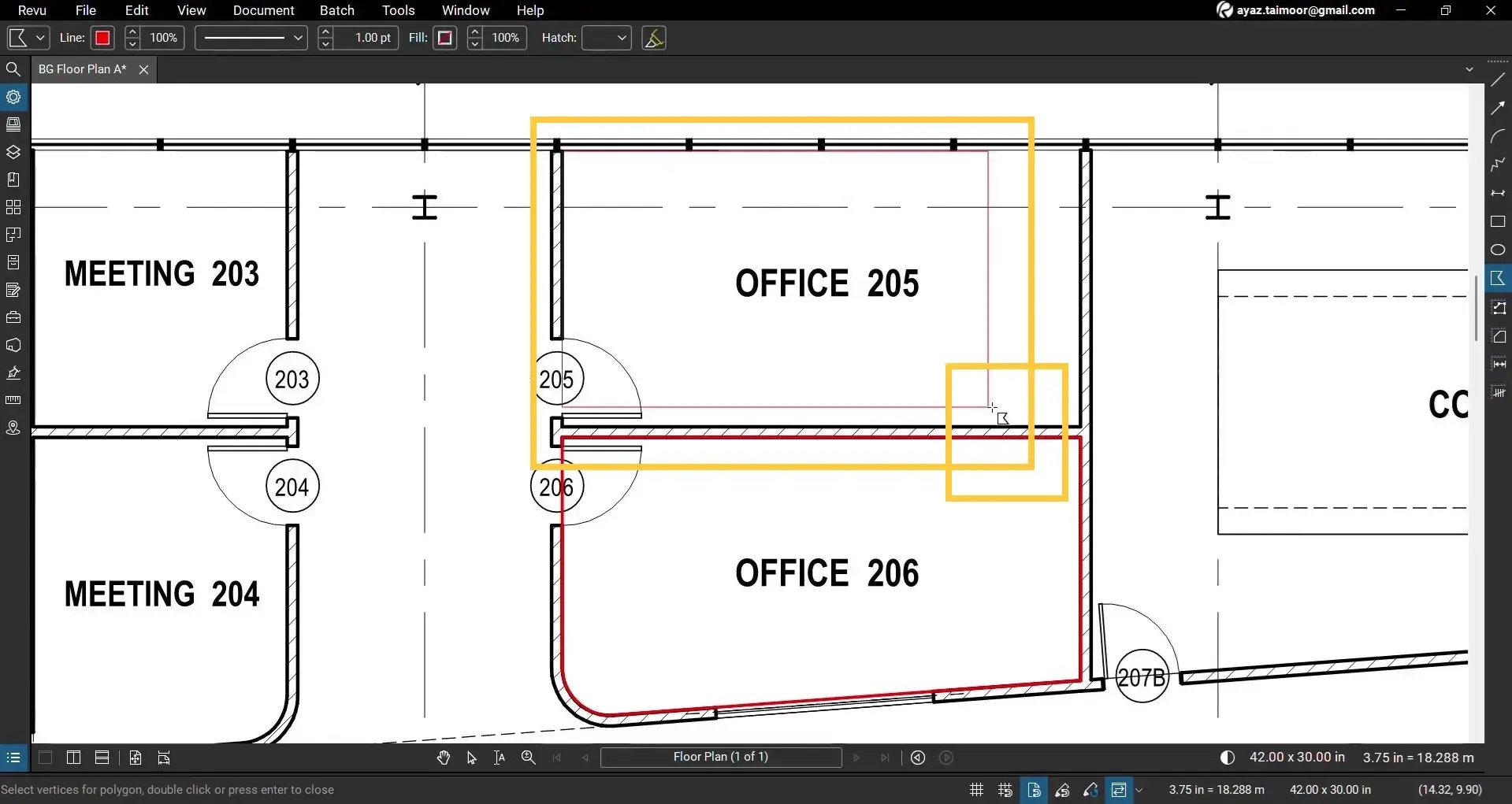
With Polygon selected, click-and-drag from the first corner to the opposite corner (keep mouse held).
Release to auto-place the four corners and create a rectangle.
Draw a Perfect Square with a Polygon Tool
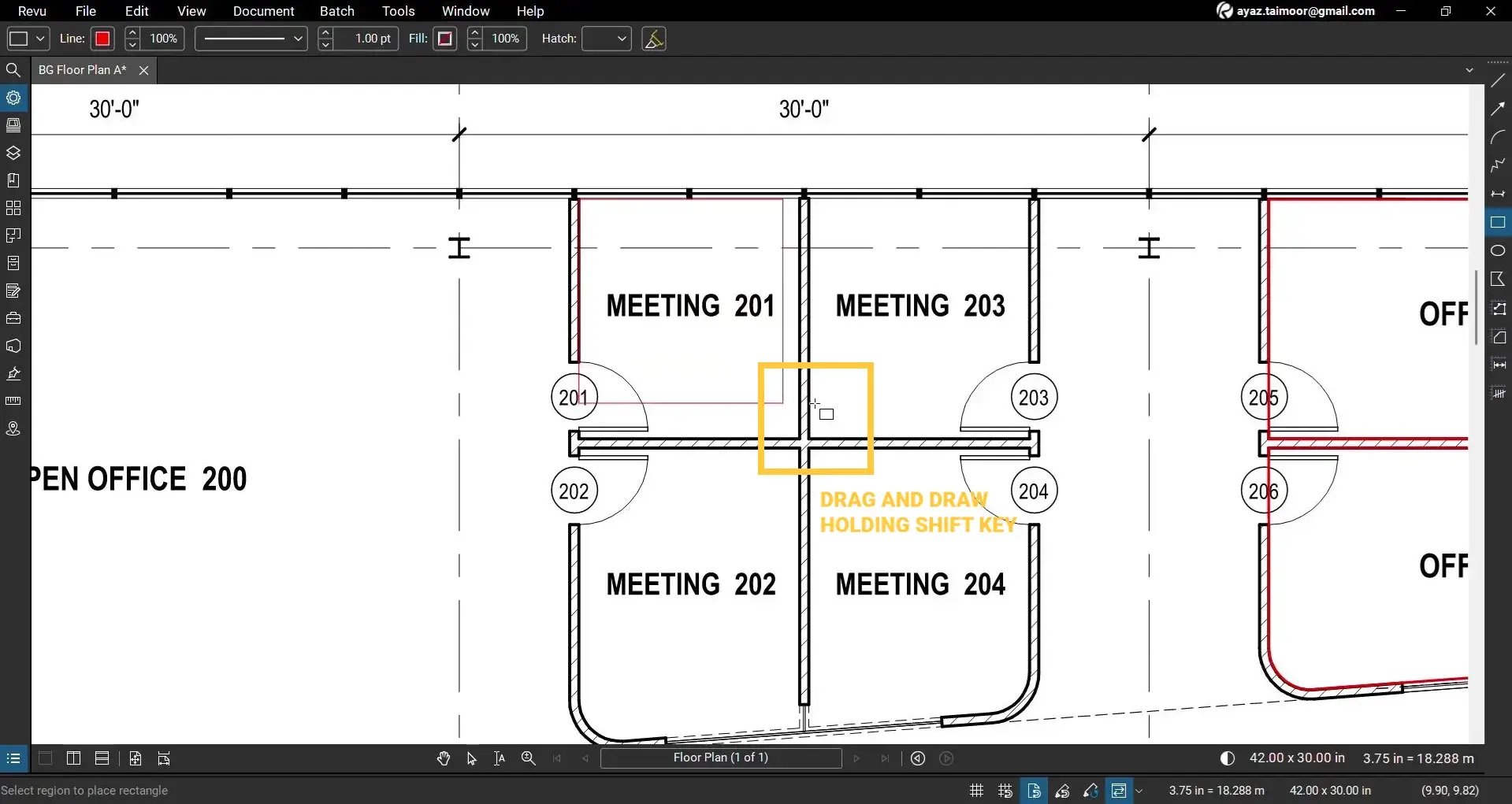
Click-and-drag to begin a rectangle, then hold Shift to constrain equal width and height.
Move away from the first anchor to scale; release to set a perfect square.
Adjust Geometry to Your PDF Content After Completion
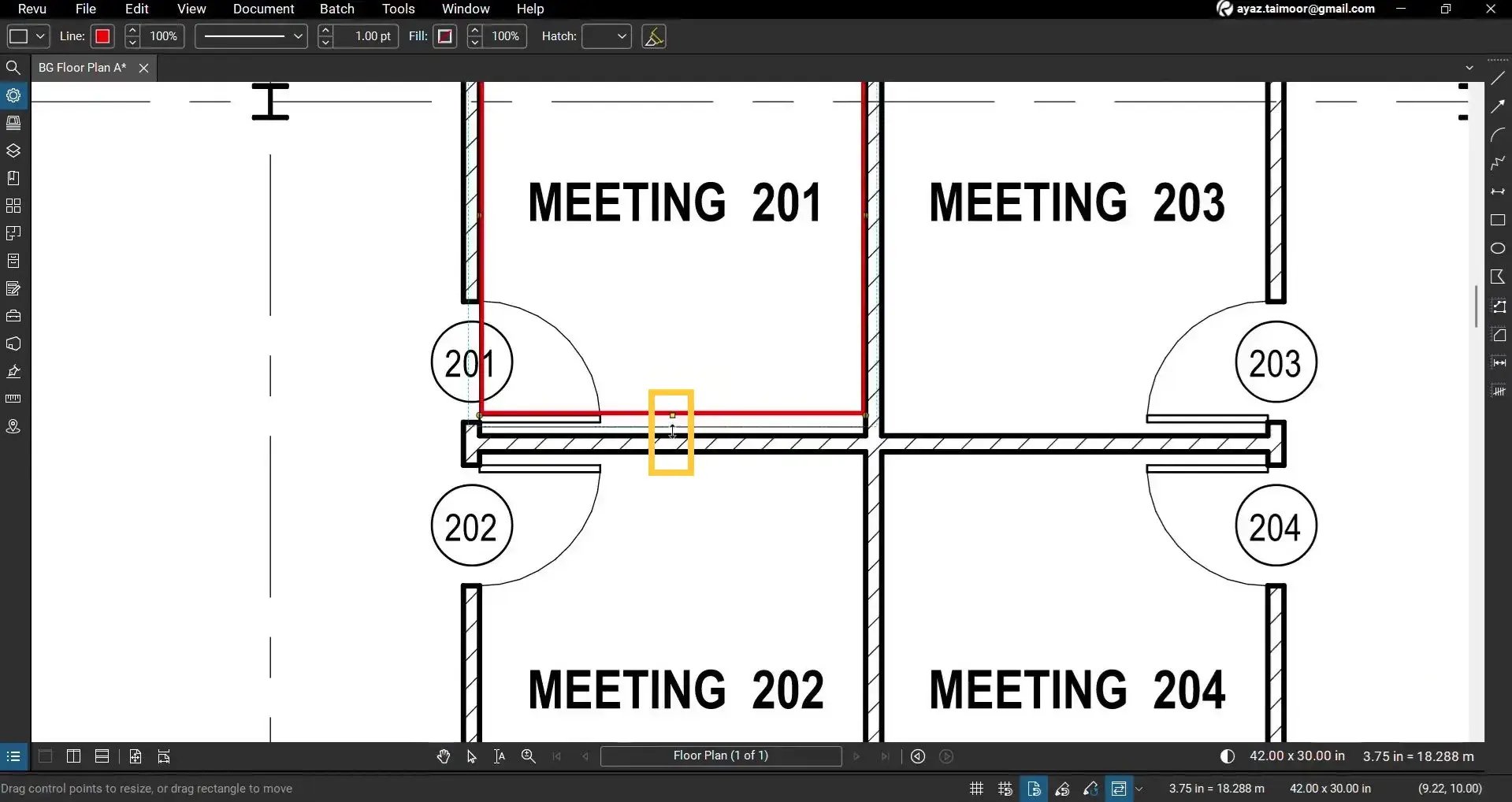
If the square needs slight alignment, drag the yellow mid-segment handle to nudge it into place and square it against the drawing content.
Extend to Triangles, Other Shapes, and Measurement Tools
Use the same anchoring workflow to create triangles and other polygons.
Note: The same approach and handling apply to Area and Volume measurement tools that you use in quantity takeoff and construction estimating.
Tips for Efficiently Marking Construction PDFs
Always remember the following aspects while marking your drawings with the polygon tool or other markups and measurements.
- Use Snap to Content + Ortho (holding Shift while drawing) together for crisp, orthogonal edges on floor plans and elevations.
- For complex curves, fewer, well-placed anchors, combined with the Convert to Arc feature, yield cleaner geometry than adding multiple tiny straight segments.
- Store common shapes in the Tool Chest with set Properties (colour, line weight, hatch) for consistent project standards. Learn how.
Common Mistakes and How to Avoid Them
- Wavy edges: Enable Snap to Content; zoom in further before placing anchors.
- Over-segmented curves: Use the Convert to Arc option and adjust handles instead of adding extra points.
- Mis-closure: Always double-click the first anchor to close the shape exactly (do it with Snap-to-Markup enabled; the option alongside Snap-to-Content at the bottom of your workspace; refer to the 1st step in this guide).
Level Up Your Bluebeam Experience
This is how you can efficiently use the Polygon markup in Bluebeam Revu 21, all while covering complex geometries involving straight edges, arcs, rectangles, squares, and triangles.
To improve your skills in PDF markups and Area/Volume measurements in Revu, explore our other Bluebeam guides.
Stay connected with Brighter Graphics, your go-to Bluebeam partner in the UK, Europe, and the Middle East.