Measuring circular elements accurately is a common requirement when working with construction drawings, mechanical layouts, and architectural plans. Bluebeam Revu provides a dedicated Radius Measurement tool that lets you quickly find the radius of circular shapes directly in your PDF drawings.
In this guide, you will learn how to measure the radius of circular objects in Bluebeam Revu 21, adjust the measurement, and manage its units and properties.
Bluebeam Revu Radius Measurement – Step-by-Step Guide
Radius Measurement in Bluebeam Revu 21 - Video Tutorial
Follow the step-by-step process below to learn how to use the Radius Measurement tool in Bluebeam Revu 21 to quantify circular geometries on your PDF drawings.
Step 01: Open your PDF drawing in Revu
01 A: Open Bluebeam Revu 21 on your desktop.
01 B: Go to the File menu in the top menu bar.
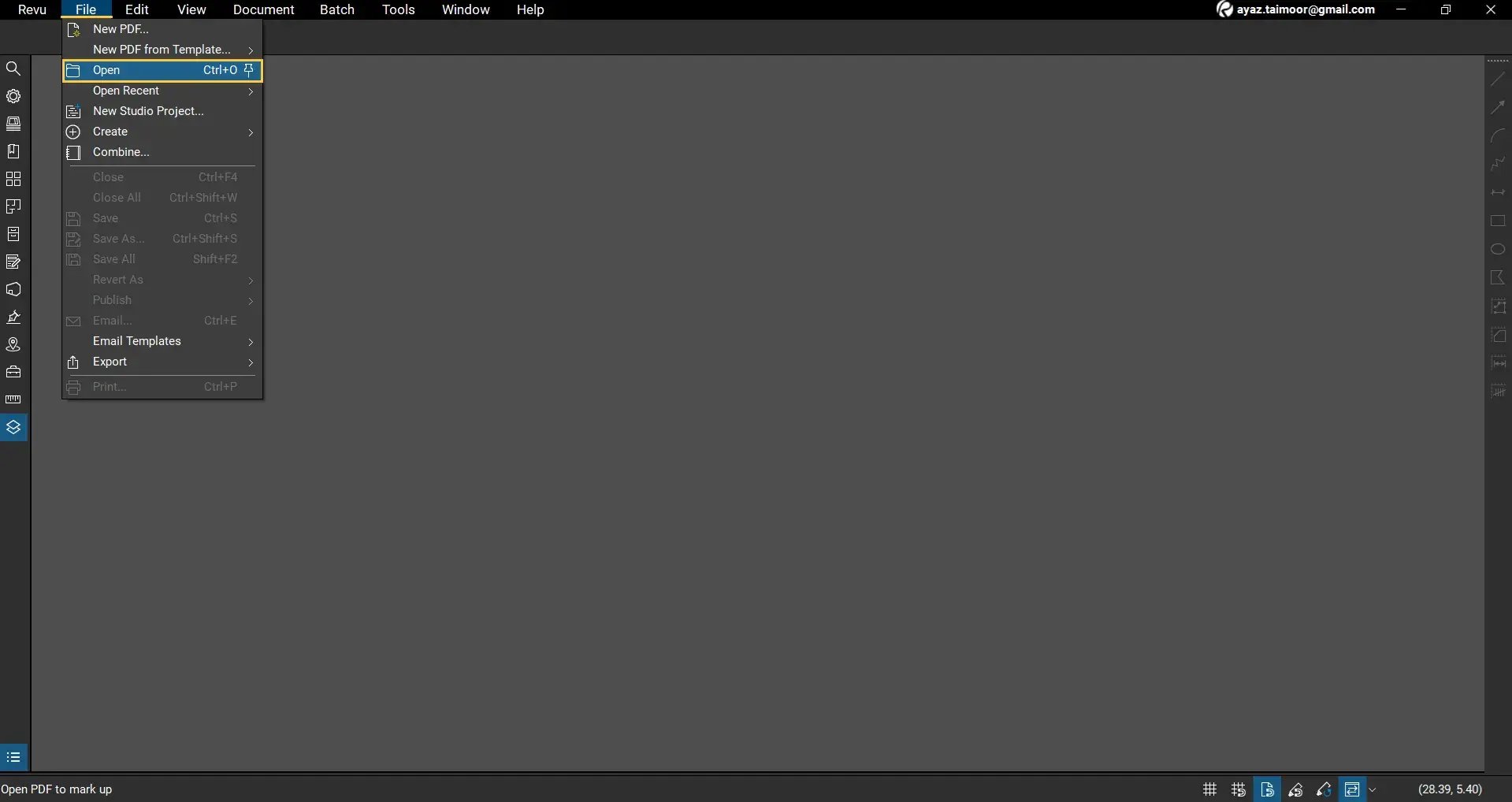
01 C: Click Open and select the PDF drawing you want to measure.
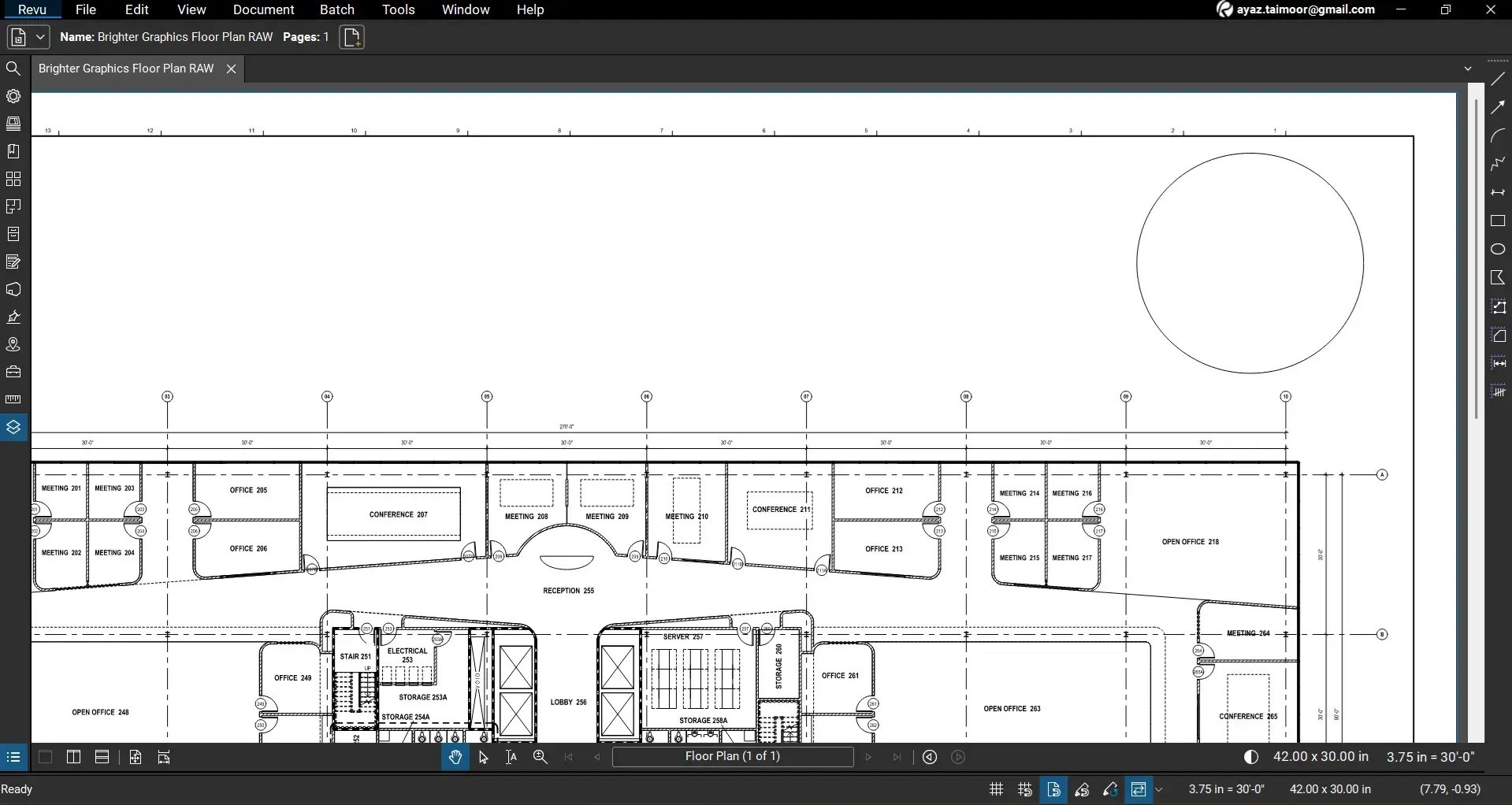
For this example, the drawing we are using contains a circular object at the top of the page. We will measure its radius using the Radius measurement tool in Bluebeam Revu.
Step 02: Enable Snap to Content for accurate measurements
Before going for a measurement, ensure the Snap to Content feature is enabled.
02 A: Look at the status bar at the bottom of your workspace.
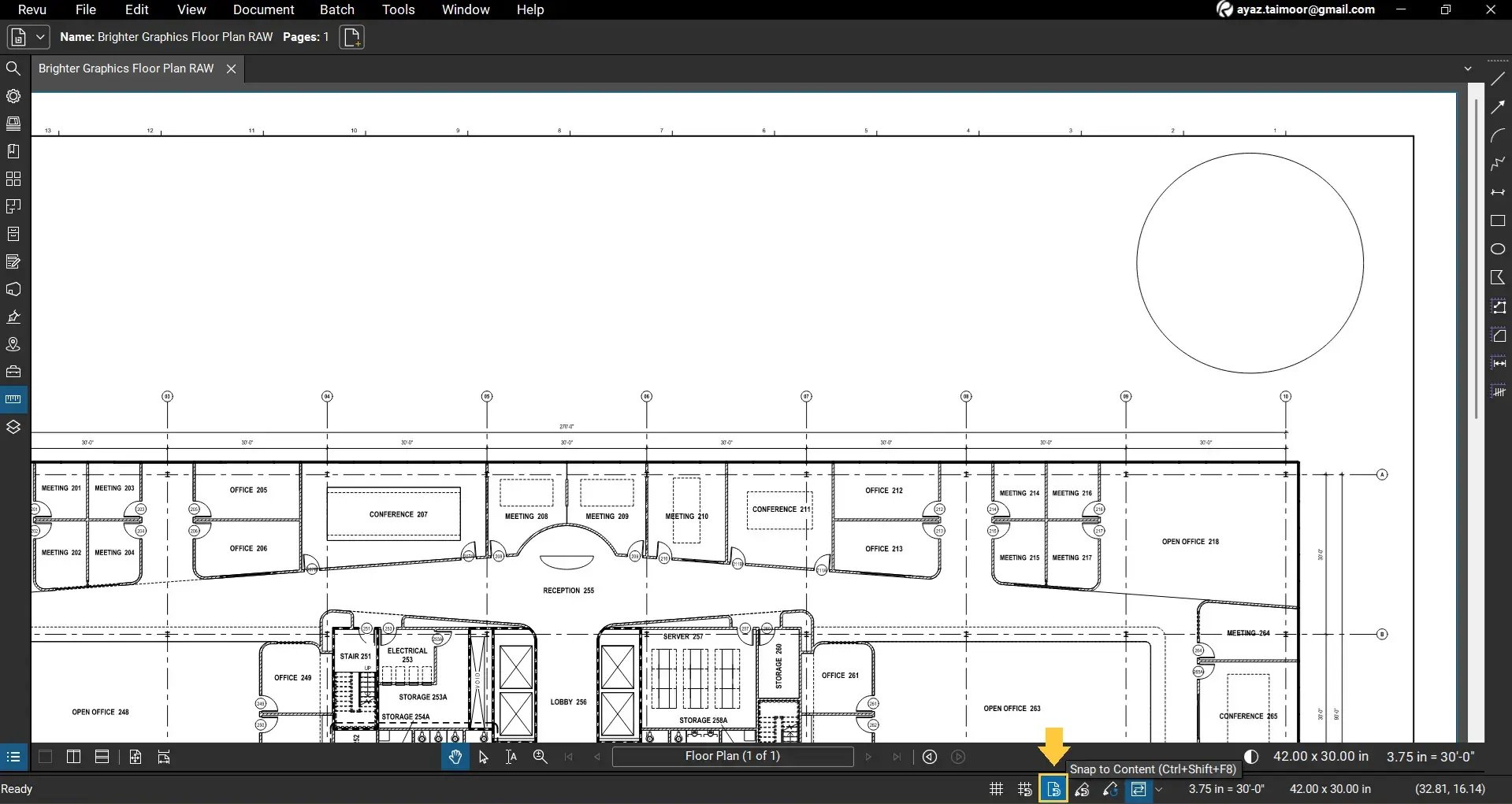
02 B: Ensure the Snap to Content option is turned on. Click to enable it or press Ctrl+Shift+F8.
This Snap feature in Revu helps your cursor align automatically with vector content in the PDF, such as lines, arcs, and circle boundaries. It improves measurement accuracy when you work with technical or engineering drawings.
Step 03: Access the Radius measurement tool
Before moving further, ensure that your Revu scale is calibrated and matches the drawing scale. Read our separate guide to see how to Calibrate the scale of a drawing in Bluebeam Revu 21.
Once you are done:
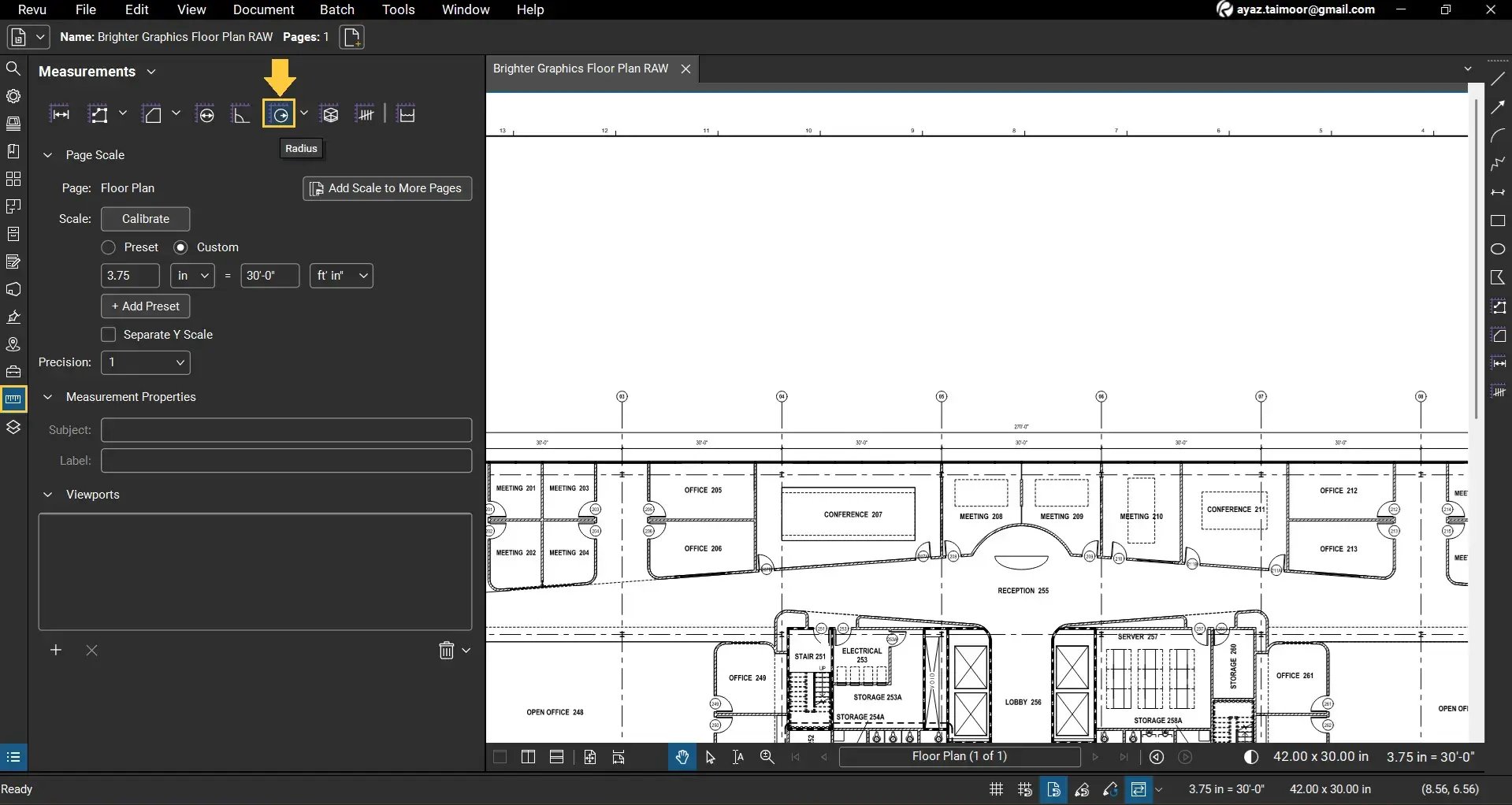
03 A: Go to the Measurements panel on the left side of your workspace.
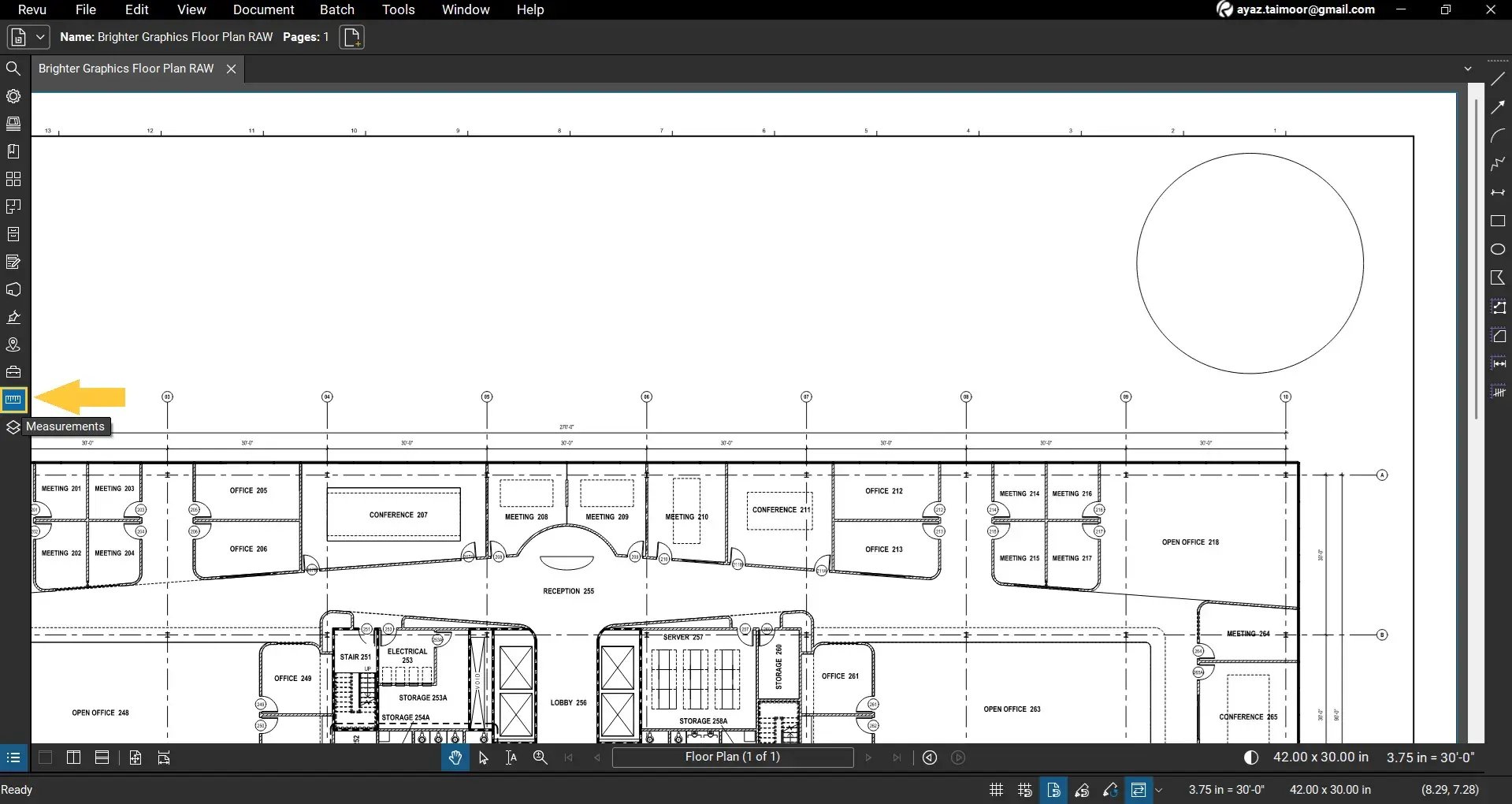
03 B: From the list of Revu measurement tools at the top of the panel, select Radius.
Step 04: Measure the radius of a circular object
04 A: Zoom to the drawing region and click on the centre of the circle from where you want the radius measurement to begin.
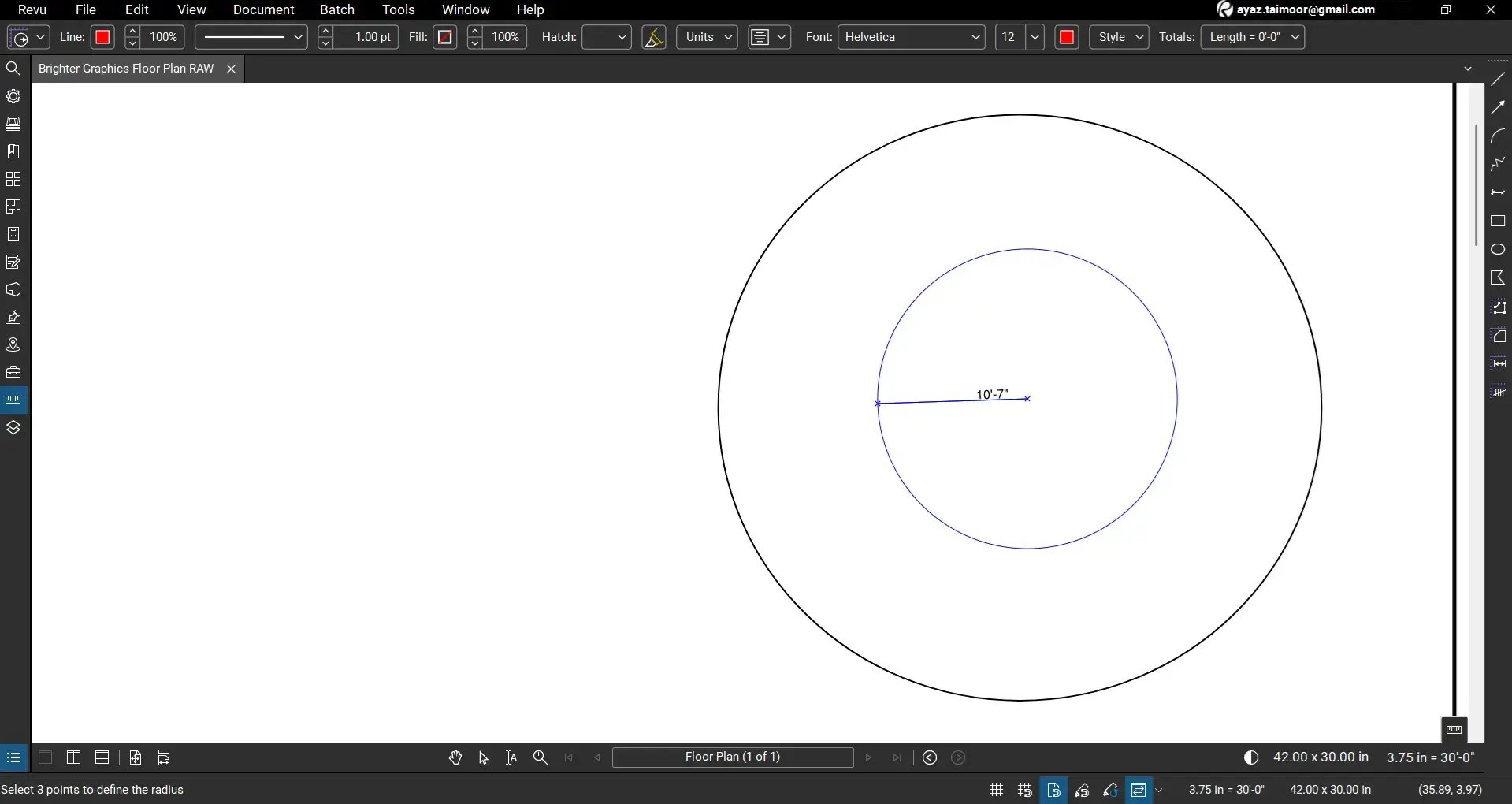
04 B: Hold your click and drag your cursor from the centre of the circle outward to define the radius line.
04 C: Once you reach the point on the circle’s surface, adjust your position and release the click to complete the measurement.
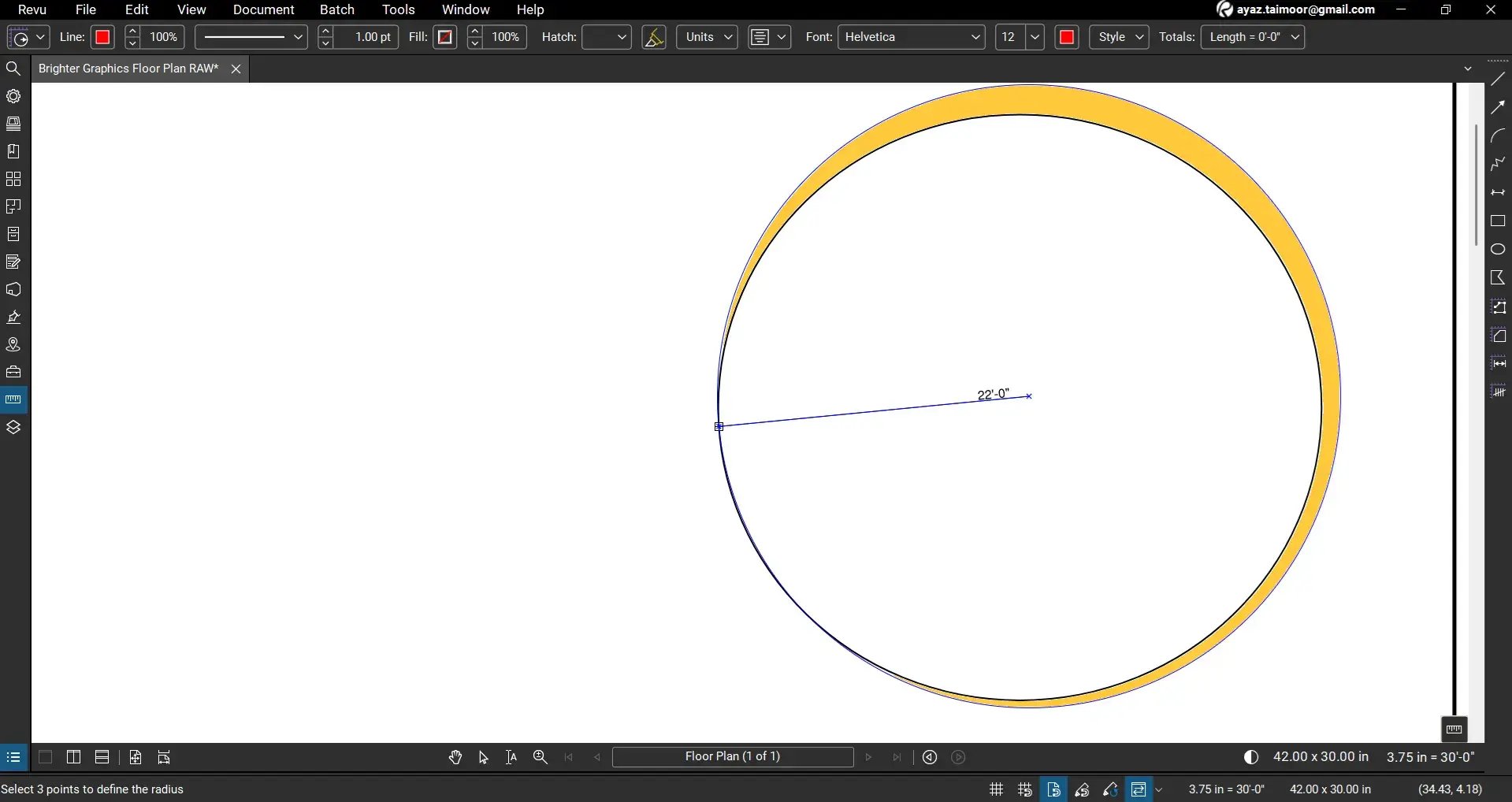
Note: You can also click the centre, release the click, and click again on the circle’s surface to apply the radius measurement.
Bluebeam Revu will calculate and show the radius from your drawn measurement.
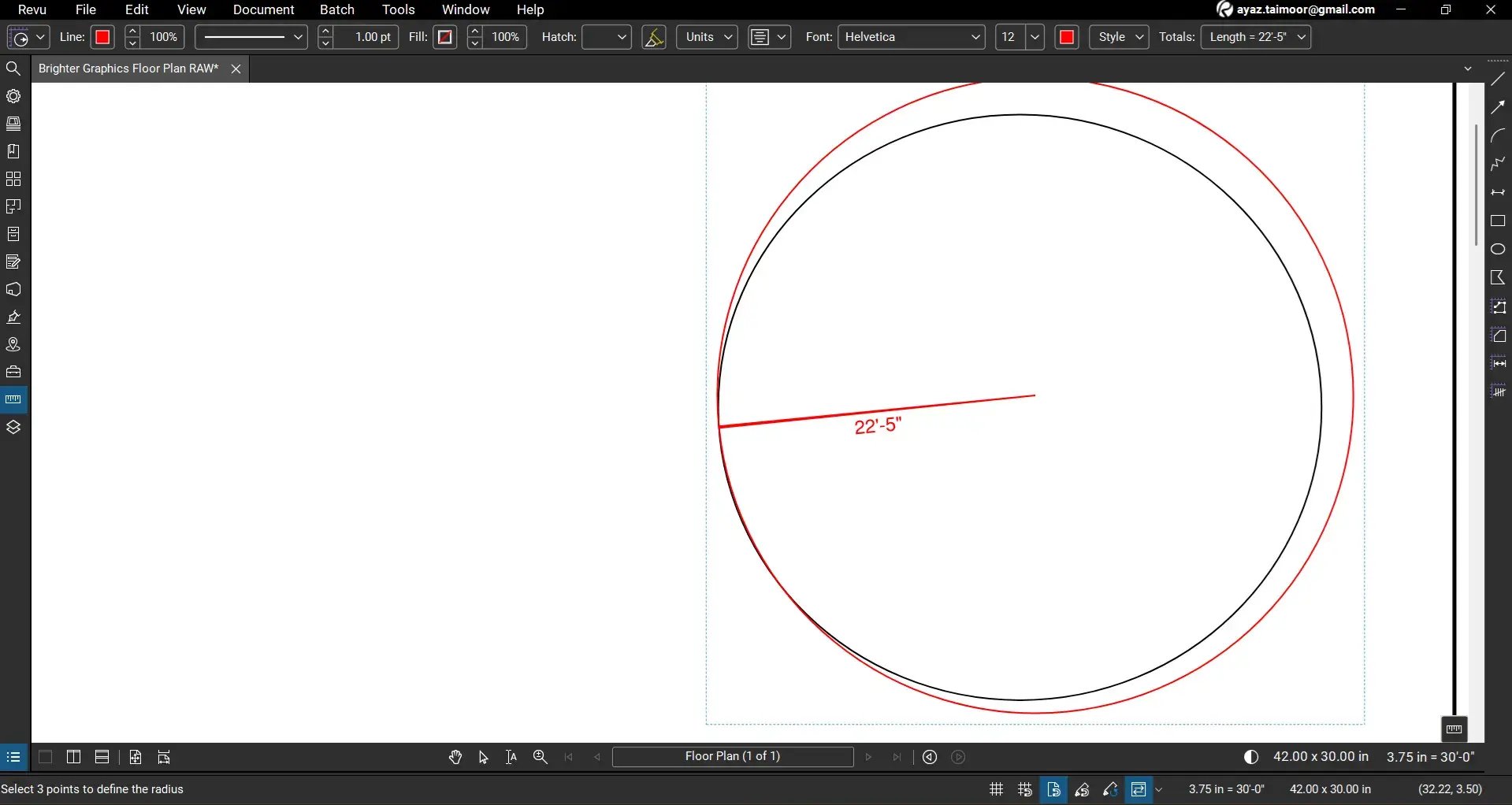
But you can’t find the exact centre just by observing visually. So it's not accurate because the measurement isn't perfectly aligned with the circular object you're trying to measure (due to improper centre alignment).
Adjust and Align the Radius Measurement
Once the measurement is placed, you may want to reposition it so it aligns neatly with the circle.
- Select the Select tool from the navigation bar to unselect the Radius measurement and go into the normal selection (cursor) mode.
- Click on the radius measurement you created.
- Drag the measurement’s centre to adjust it neatly against the circle.
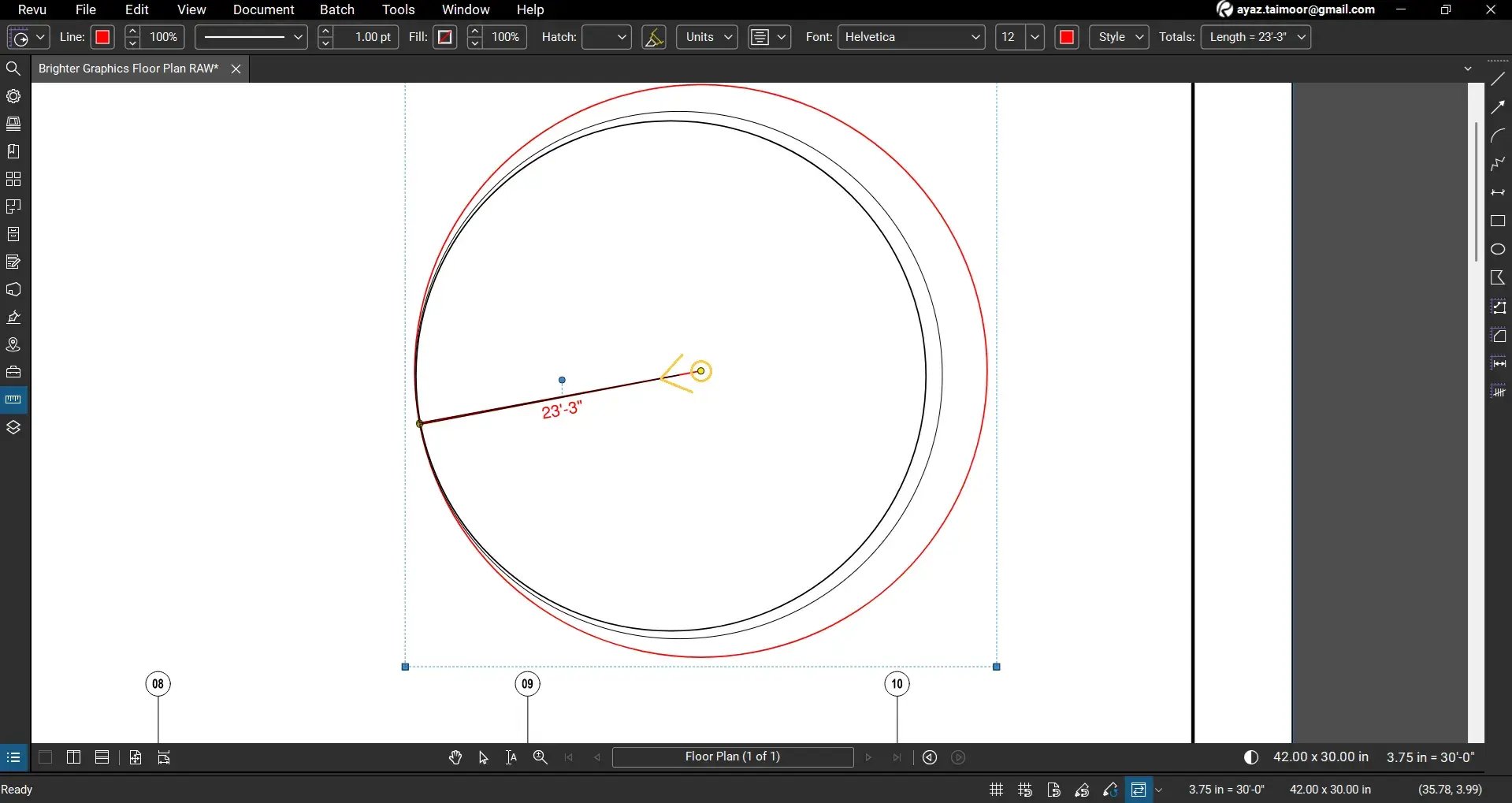
Note: Extend outward to increase and inward to reduce.
To reposition the entire measurement, simply select it and drag it to align with the shape.
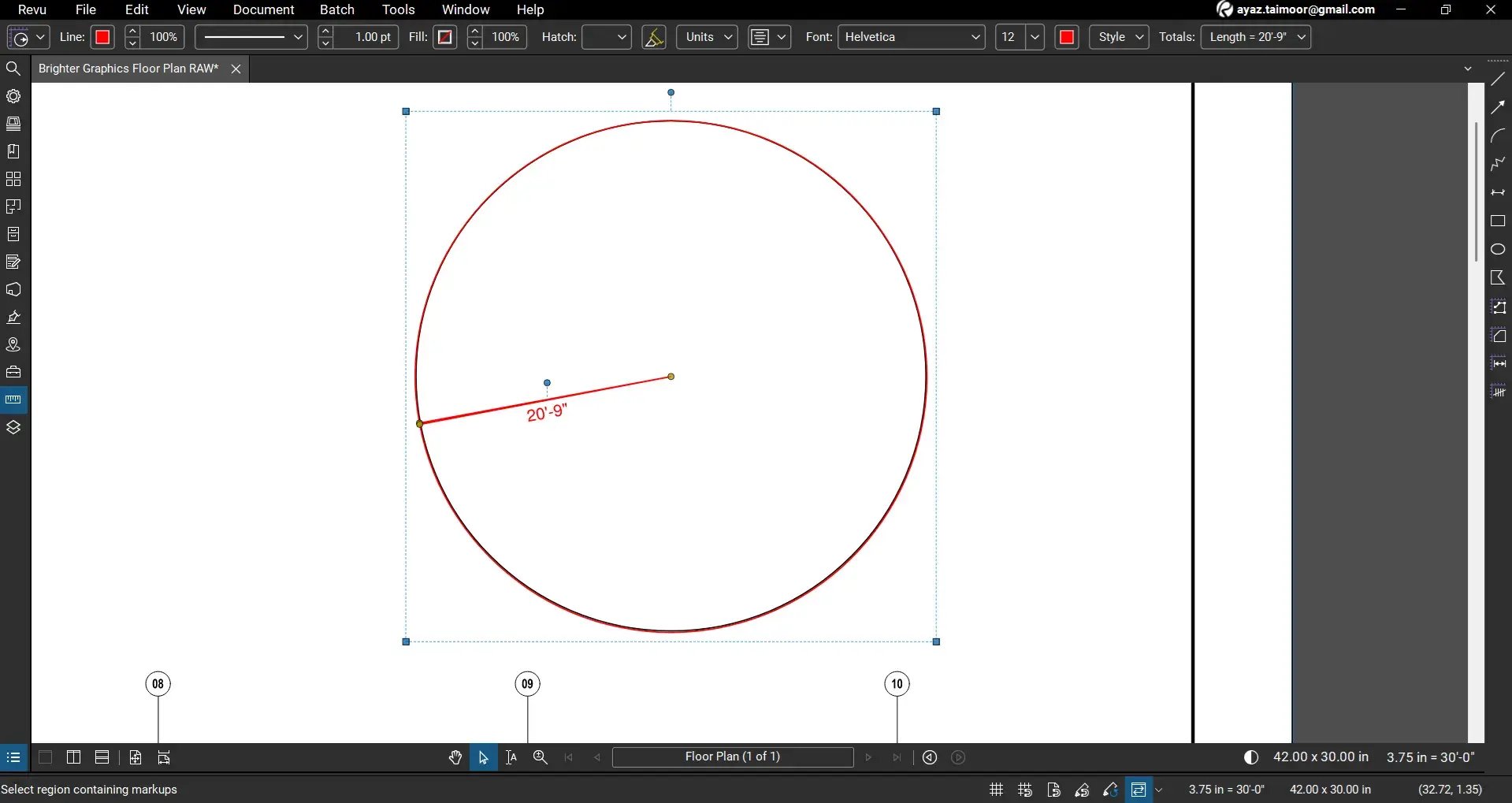
Once your measurement aligns perfectly with the shape, Revu will start showing the accurate Radius measure.
Change Measurement Units in Bluebeam Revu
Radius measurements are linear quantities, meaning they use length units rather than area or volume units. To change your unit of measurement for Radius:
- Select the radius measurement.
- Go to the Measurements panel.
- Locate the Length Unit setting.
- Choose the preferred unit for your measurement.
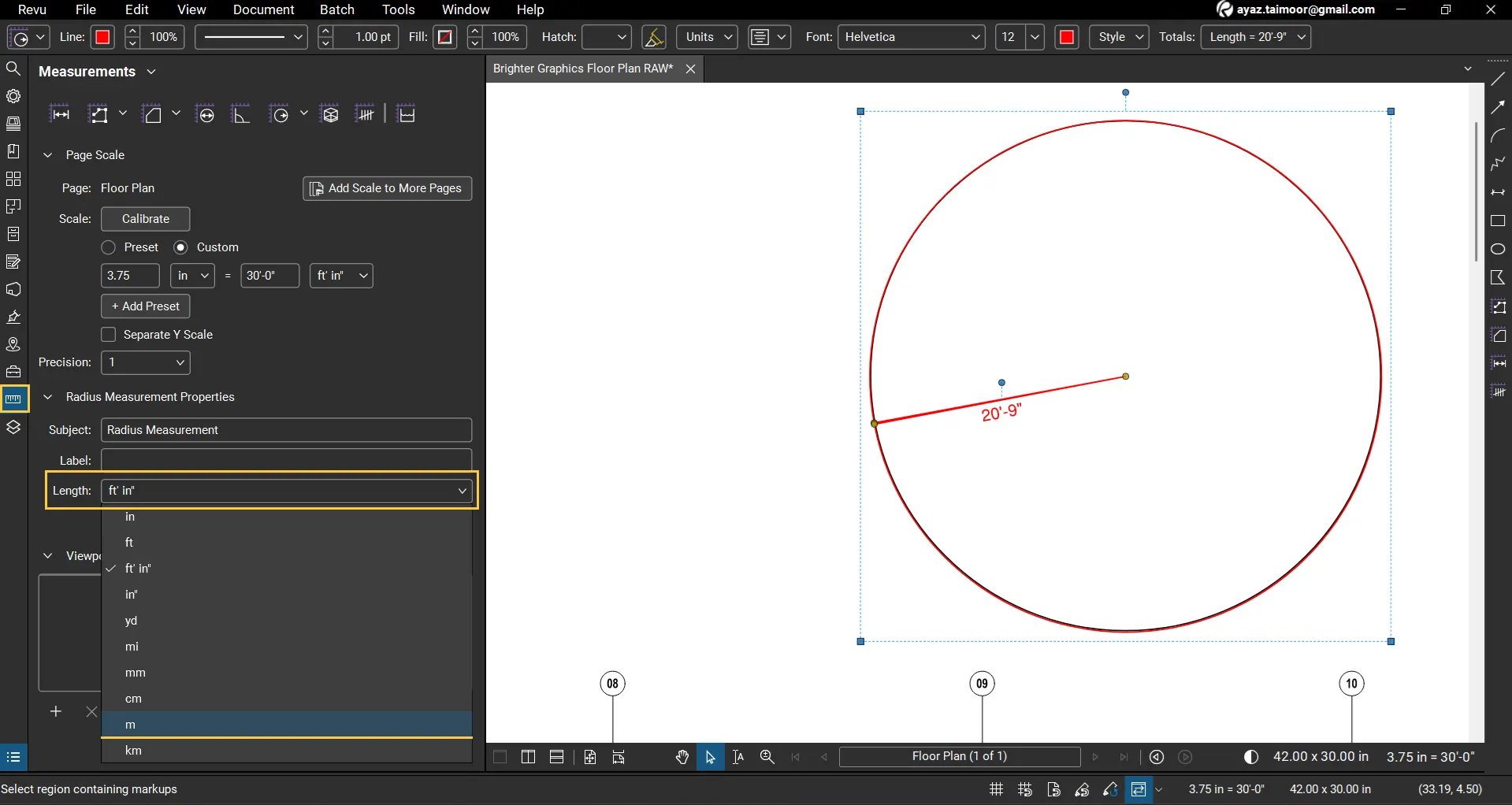
For example, you can change the unit from feet and inches to meters.
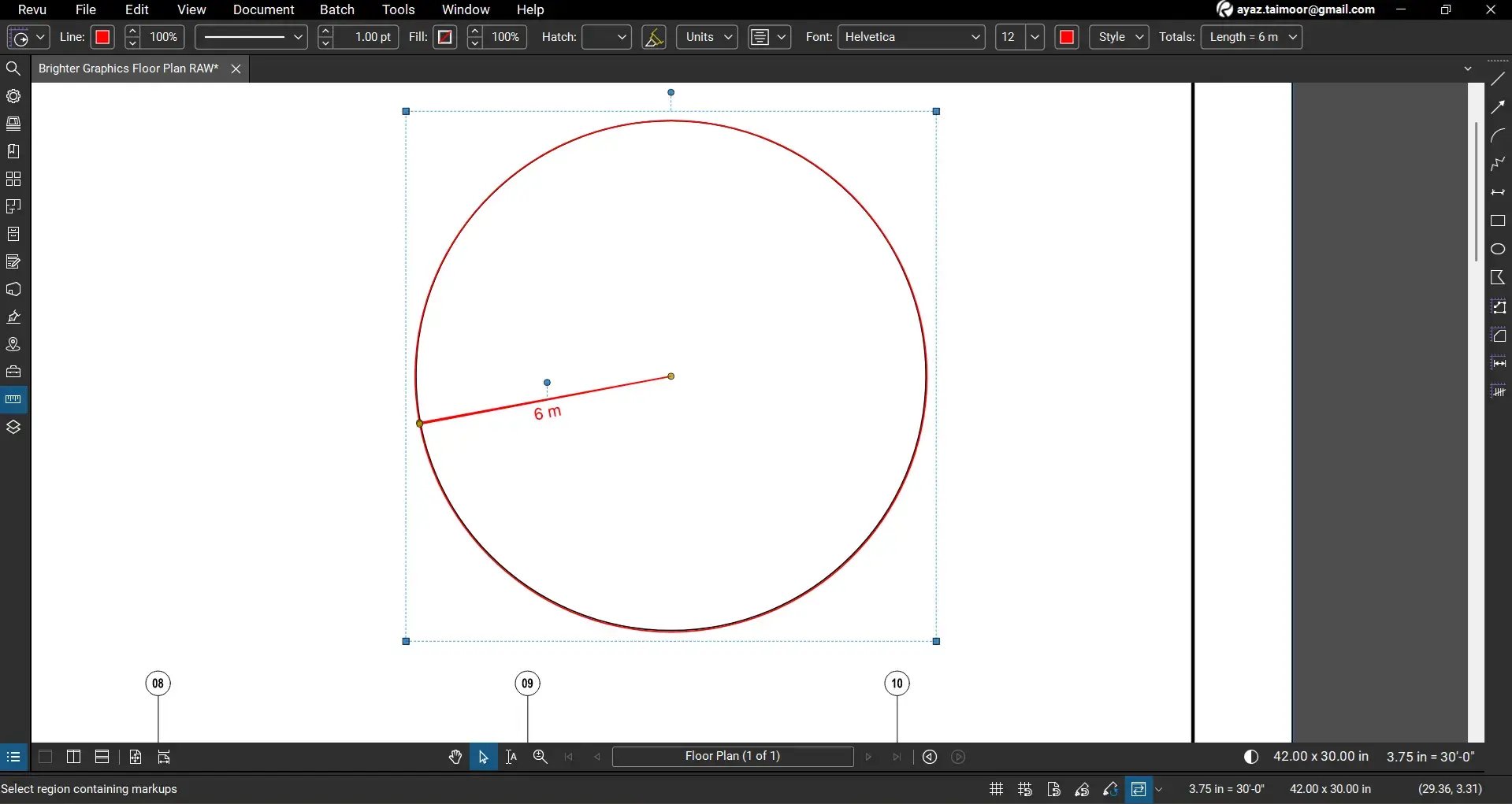
The measurement value will update automatically based on the selected unit.
Radius Measurement in the Markups List
Every measurement you create in Bluebeam Revu is automatically recorded in the Markups List.
- Open the Markups List panel at the bottom of your workspace.
- Locate the measurement entry labelled Radius Measurement under the Subject column.
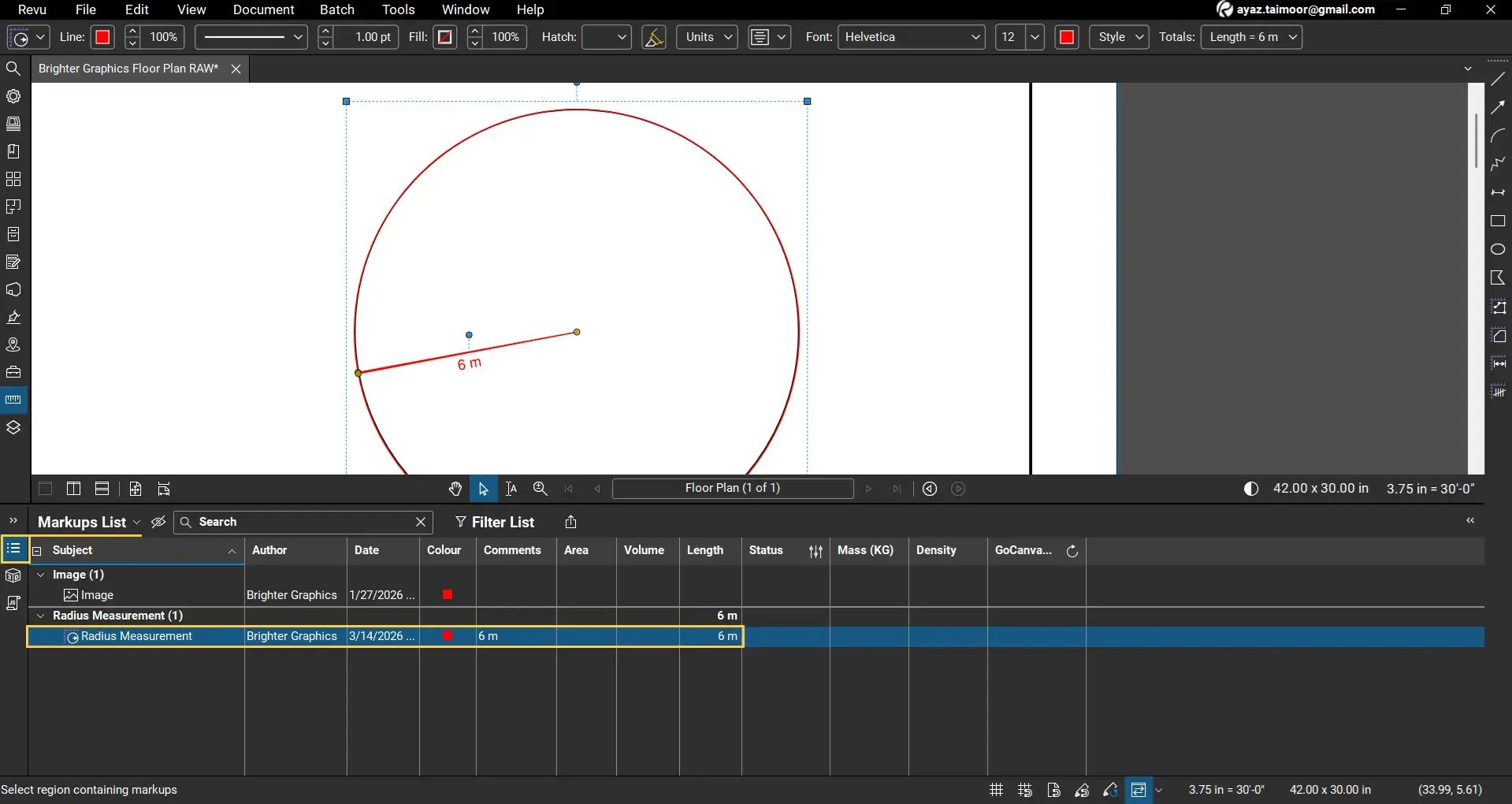
Here you will see additional properties, including:
- The measurement and comments column shows your measurement value
- The length column also shows the radius measurement
- Author and date information
- Other markup properties
The Measurement and Length columns contain the scaled value used for calculations within the Markups List.
This makes it easy to track measurements across a set of documents.
Using Radius Measurements with Custom Columns
You can extend the functionality of radius measurements by using custom columns in the Markups List.
With custom formulas, you can calculate values derived from the radius, such as:
- Circle diameter
- Circle area
- Volume calculations for cylindrical elements
This approach is particularly useful in Construction estimating and quantity takeoffs, where measurement data can be used to calculate material quantities.
Remember: We have dedicated measurement tools in Revu to calculate:
Calculate Diameter from a Radius Using Custom Columns
As discussed, the Markups List lets you create custom formula columns that perform calculations based on measurements. For example, you can calculate the diameter from your radius measurement. Lets see how you can do so:
- Open the Markups List and click the Markups List dropdown at the top right.
- Under the Columns option, click Manage Columns options at the end of the menu items.
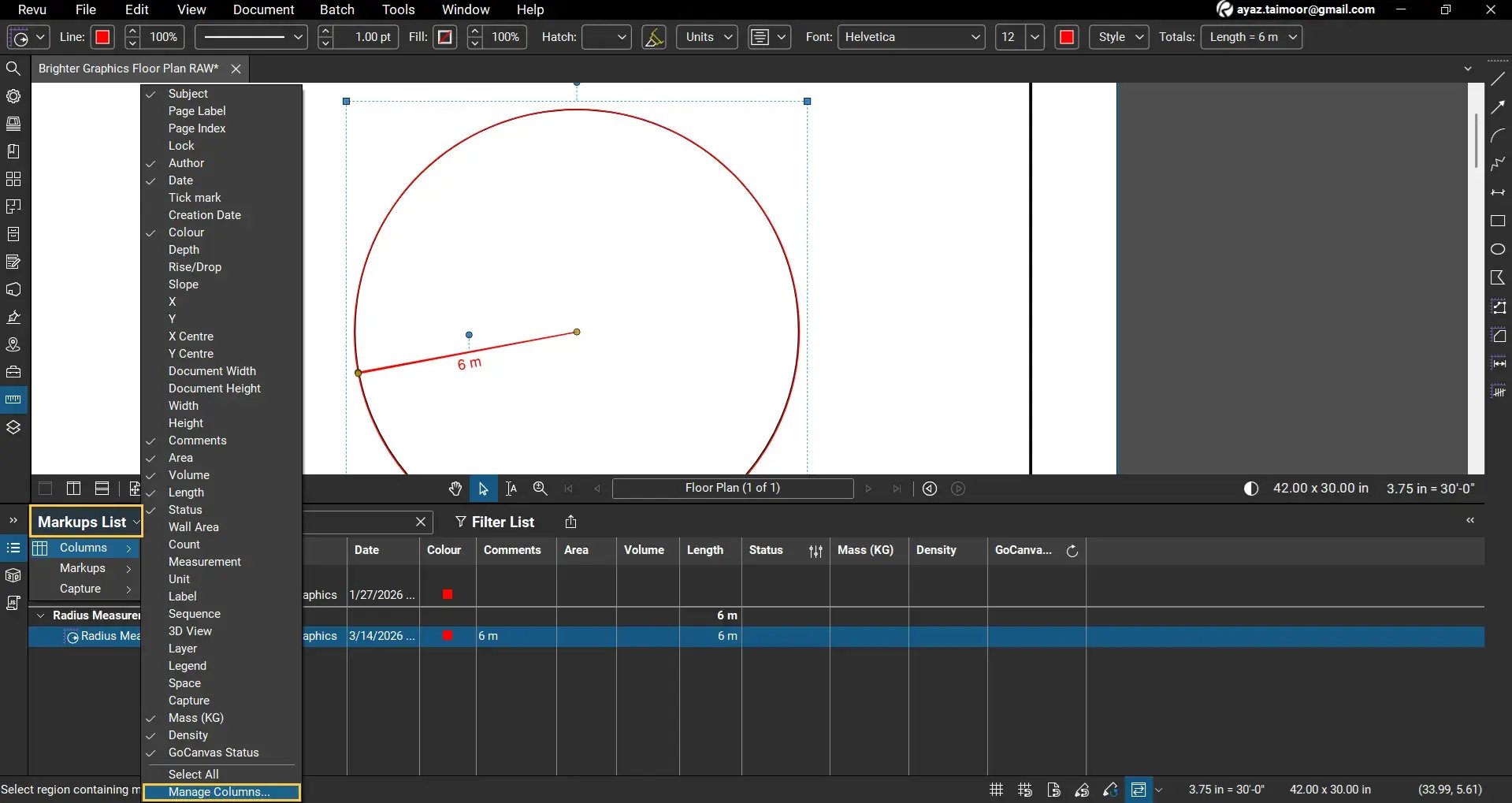
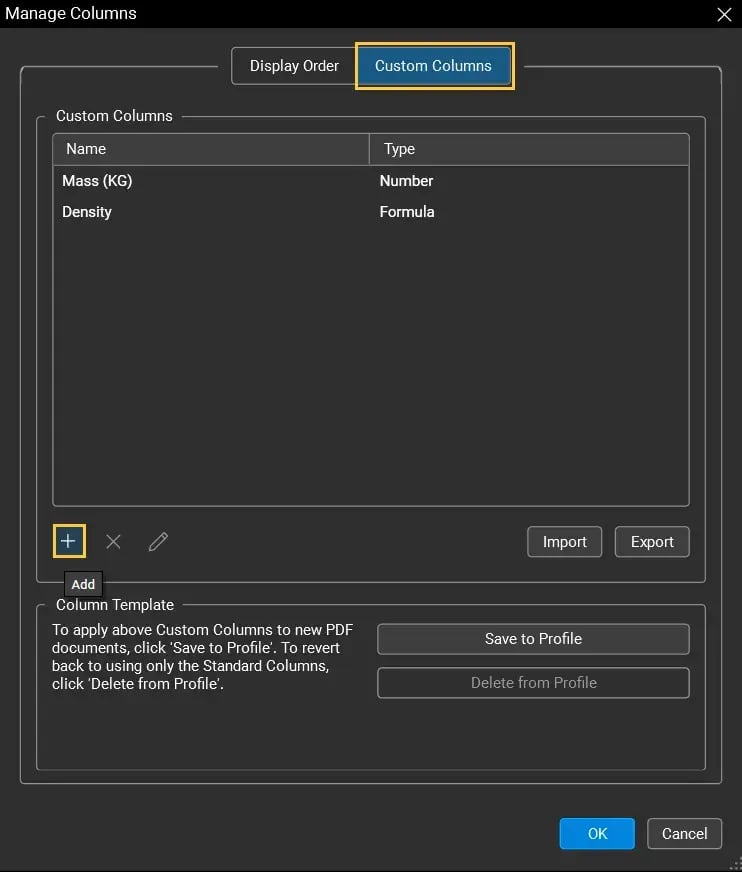
- In the Manage Columns dialogue box, go to the Custom Columns section, click Add (+).
- In the Add Column Dialog box, add the column Name: Diameter and set the Type to Formula.
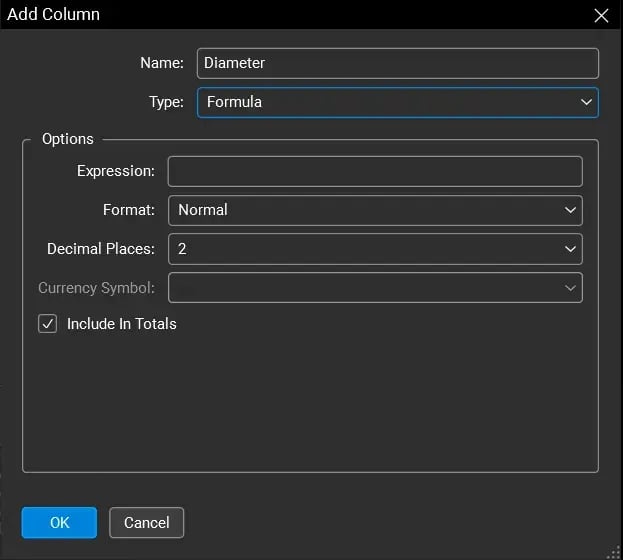
Since the Diameter is twice the Radius, we will use that ratio to create a formula.
Under the Expression section, type Length or click to access all available options. Then select length because we are going to pick the radius value from the length column (as radius is a linear quantity and the length column gives us the Radius measurement for the Radius listing). Or you can also use the value from the measurement column.
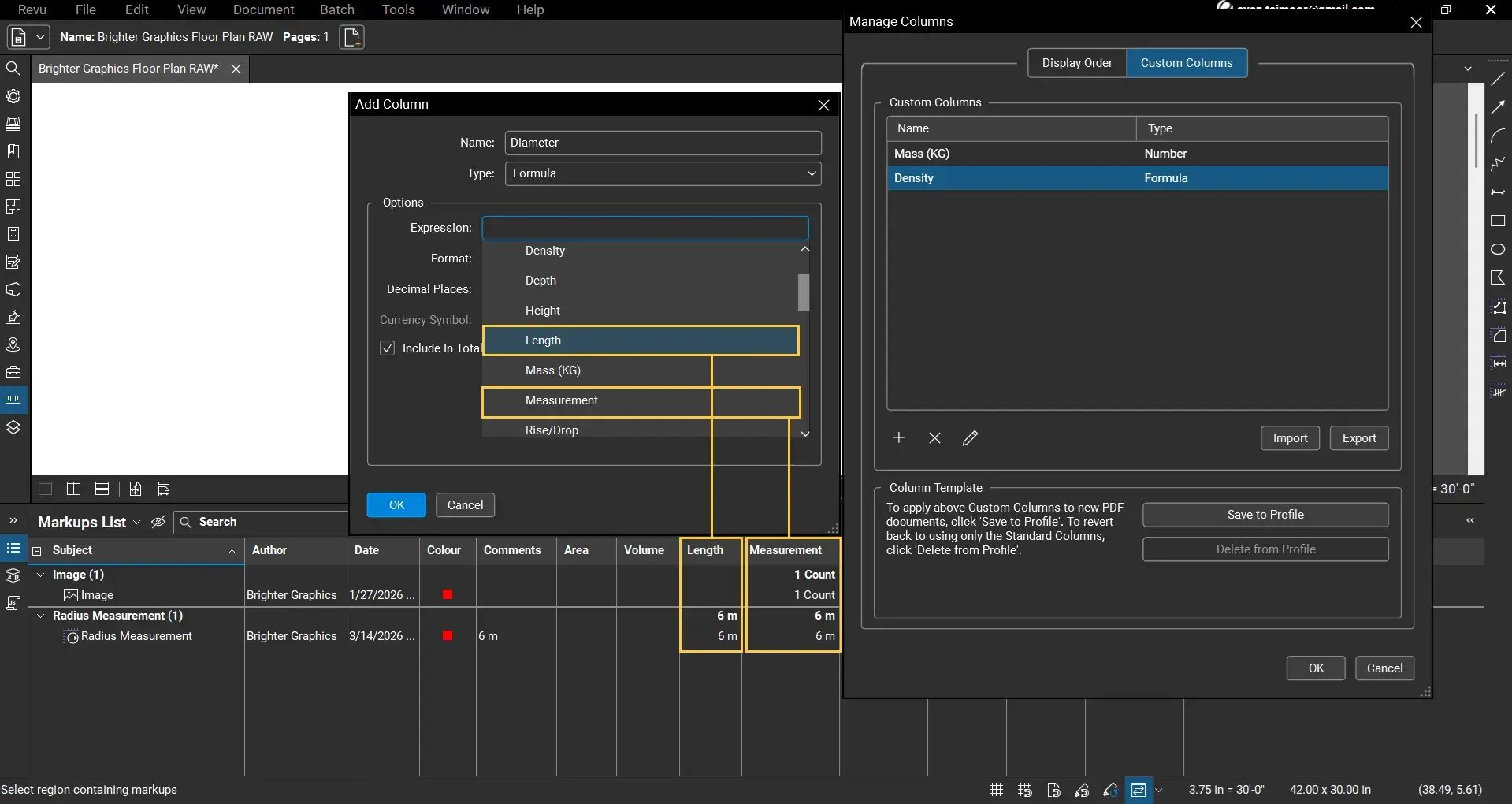
- Multiply (use the starric * sign for multiplication) this value by 2.
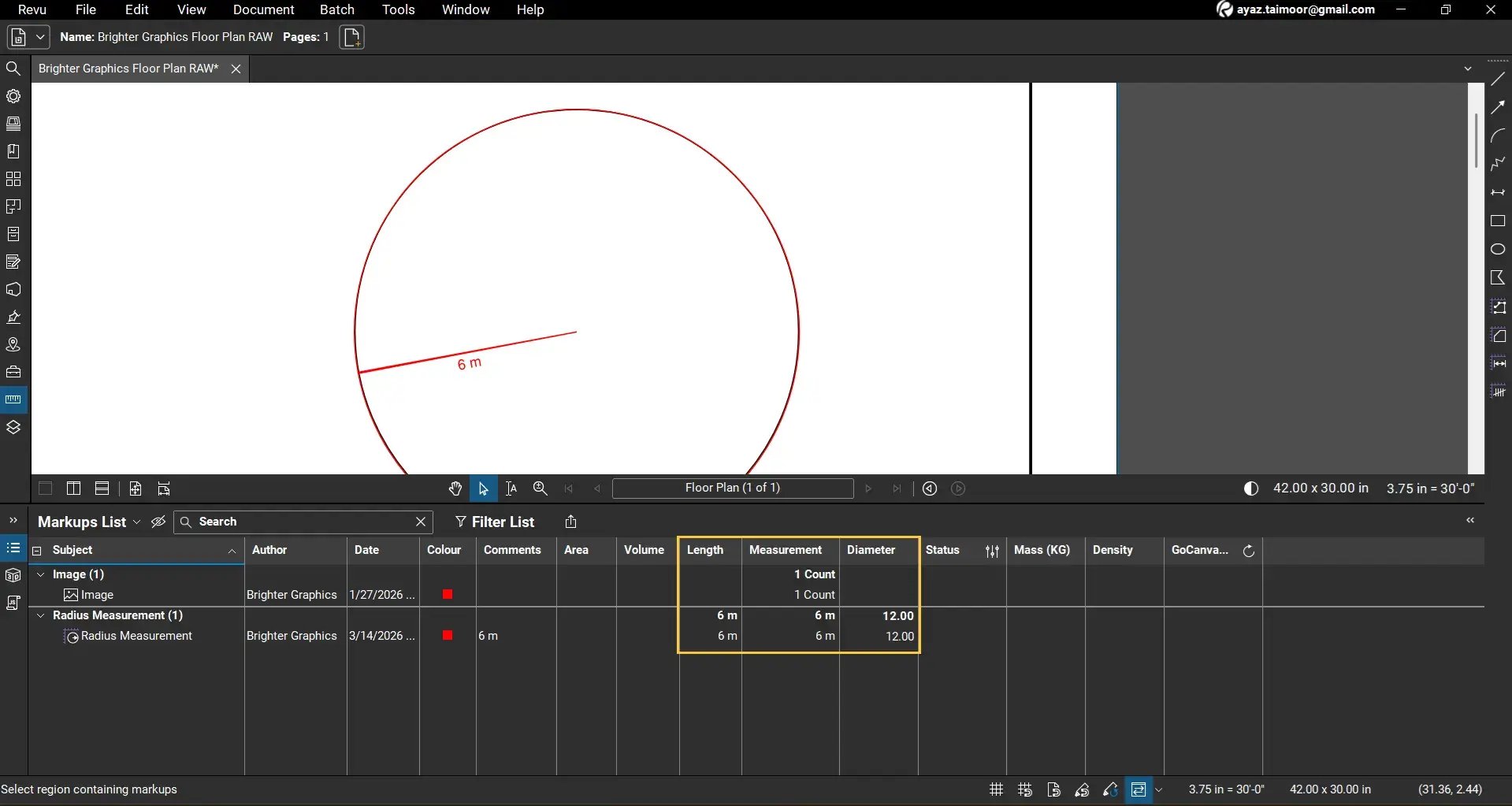
The formula should effectively calculate the diameter as:
[Length] * 2
- Click OK to apply the formula.
You can now see a new column displaying the calculated diameter for your radius measurement.
For example:
Radius (Length or Measurement) = 6 metres
Diameter = 12 metres
Although you have a built-in tool for Diameter Measurement in Bluebeam Revu, this is an example of how you can play with formulas to apply more calculations on captured data from your PDFs in the Markups Lists.
You can do more complex calculations with custom columns in Revu 21. Do not forget to read our separate guide on creating and using custom columns in Revu’s Markups List to discover how you can scale your measurements in Revu.
Customising the Radius Measurement
You can use the Markup Editor at the top to customise the line colour, line style, fill colour, fill opacity, and font type & style of your radius measurement.
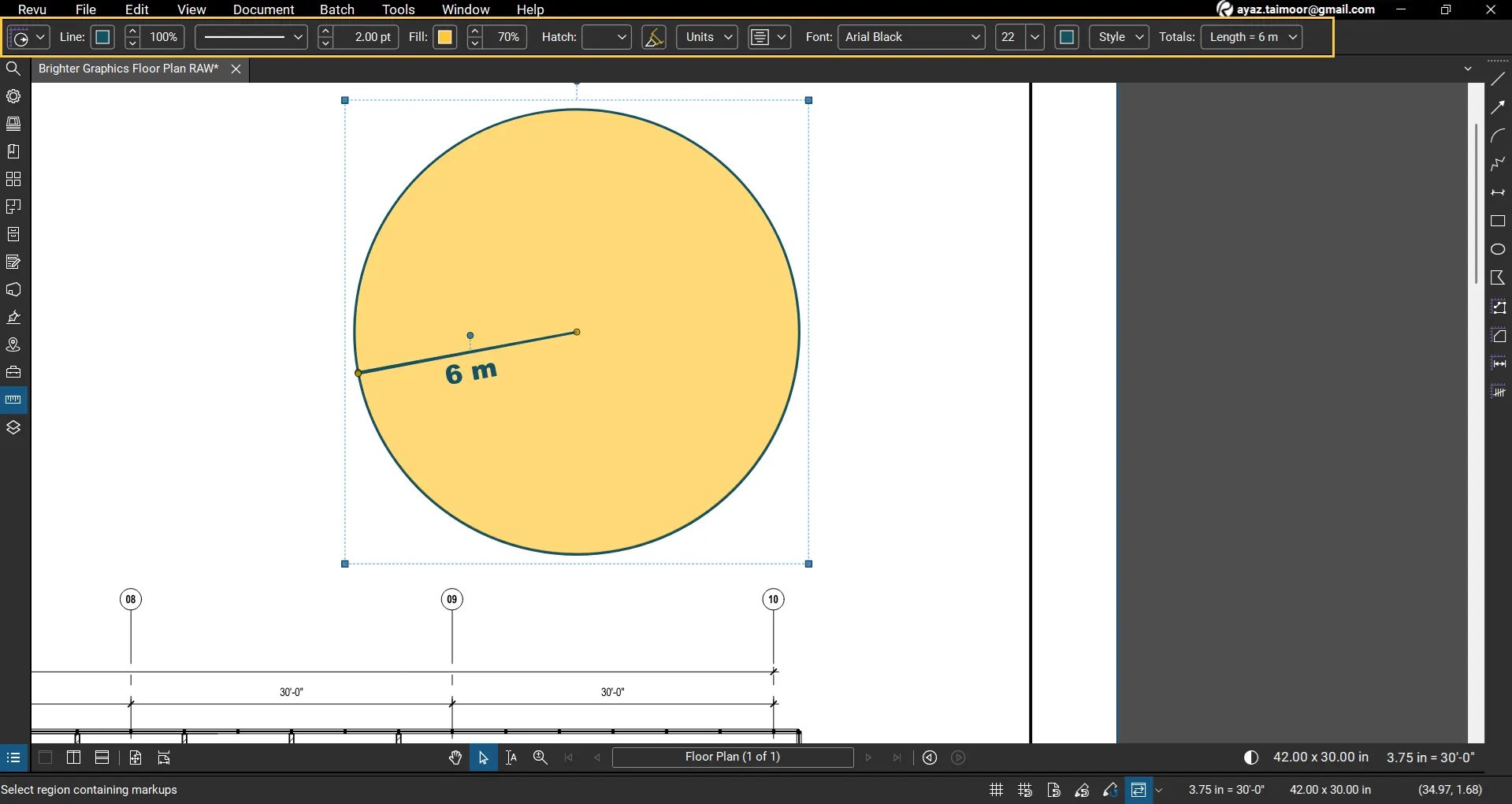
You can also save your custom markups and measurements by Adding tools to your Tool Chest for later use as saved custom tools.
Tips for Accurate Radius Measurements in Bluebeam Revu
To improve accuracy when using measurement tools in Bluebeam Revu:
- Ensure your drawing scale is correctly calibrated before performing measurements.
- Always enable Snap to Content when measuring drawing elements.
- Use the Markups List and create or customise columns for meaningful interpretation and usage of captured data.
Level Up Your Bluebeam Experience
This is how you can measure the diameter of circular objects directly on your PDFs using the Diameter Measurement tool in Bluebeam Revu. By using the right measurement tools and the Markups List, you can capture accurate measurement data directly from your PDF drawings.
To further improve your measurement and annotation workflows in Revu, explore our other Bluebeam guides, and stay connected with Brighter Graphics, your go-to Bluebeam partner in the UK, Europe, and the Middle East.