


Bluebeam Max QuickStart
Talk to Your Drawings with Claude
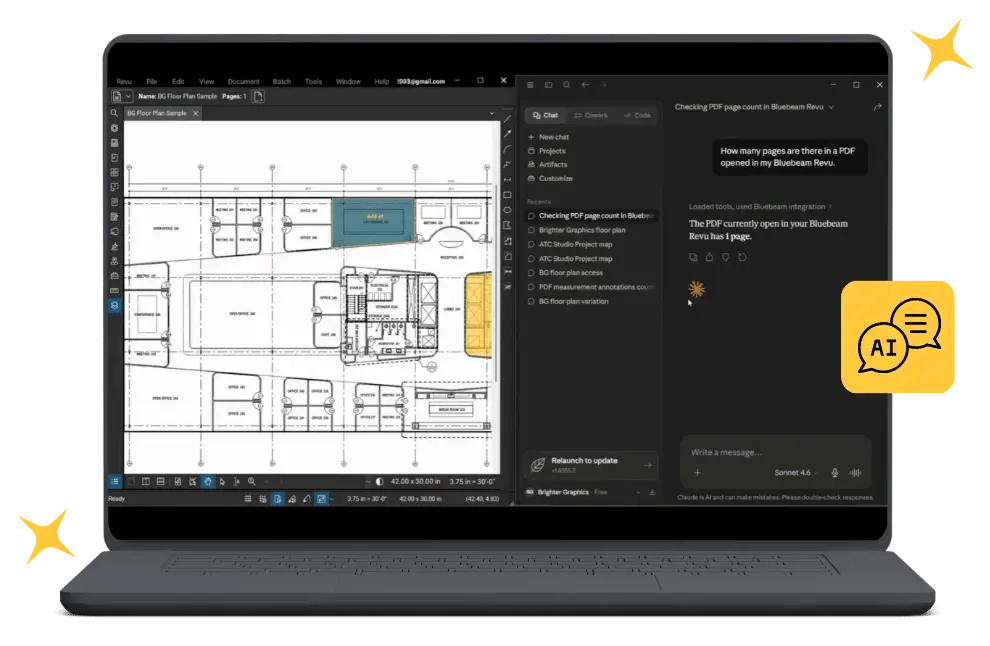
Bluebeam Max is the first Revu plan with a real AI layer inside it. Bluebeam Certified Instructor Vince French connects Claude to an open drawing on screen, runs the work you would actually do on a Monday morning, and finishes with a live Q&A you set the agenda for.
Free for Brighter Graphics customers on a Max licence | 60 to 90 minutes | Next session: 22nd October, 2:00 PM United Kingdom (GMT +1)
Your live link into Bluebeam Max
See it working before you set it up
Bluebeam Max is not a faster version of Revu. It is the first release with a genuine AI layer built in, and Talk to Your Drawings is the part you need to watch before you believe it. Vince connects Claude to a live sheet, runs real skills against real drawings, and answers questions as he goes, so you leave able to do it yourself the same afternoon.

Vince French BSc (Hons), MCIOB
Bluebeam Certified Instructor
Nearly 40 years in construction, starting out as a Carpenter and Joiner, moving into Quantity Surveying, and working for some of the UK's largest housebuilders before setting up his own QS firm over 20 years ago. Vince has used Bluebeam almost daily for 10+ years and is a Bluebeam Community Champion.
What you'll cover
Five blocks, one live thread
Four blocks of live work on real drawings, then a dedicated Q&A where you set the agenda.
What is Bluebeam Max?
Where the new AI-first plan sits against Complete, plus a quick tour of Smart Review, Smart Overlay, Stitching and Magic Markups.
Why the Claude link is different
MCP explained without the jargon, and what a live, two-way link into your open file actually changes.
Setting up the connection
Getting Bluebeam and Claude talking, set up live on screen. Nothing to prepare beforehand.
Real work on live drawings
Bending schedules, SI reports and construction make-ups, then scaling, bulk markup edits, the Markups List, and the checks that keep results reliable.
Live Q&A Session
The final block is yours. Bring your own sheets, your own workflow, and the questions the demos raised, and Vince answers them live on the call.
By the end
You'll be able to
Why the Claude link is different
Not an upload. A connection.
Uploading a drawing to an AI platform and asking questions is already common practice. What is different about Bluebeam Max is the live MCP link between Claude and Revu.
Upload to AI
Other platforms read a copy of your drawing, more photocopy than original. Useful for a one-off answer, but the link ends the moment the reply lands, and nothing it works out ever reaches your file.
Live MCP link
Claude works inside your live, open Bluebeam file, reading it and writing back to it as you watch. Think of MCP as a universal USB port for AI: one standard plug, and Revu and the model simply work together. Update 400 markups from a single prompt, and see every change land on the sheet.
Setting up the connection
A one-time setup, shown live
Vince walks through this on screen during the session. No need to set anything up beforehand.
Have Max and Claude ready
Make sure you are on a Bluebeam Max licence and have the Claude desktop app installed. The free Claude tier is enough to follow along.
Enable the Bluebeam MCP link
Turn on the Bluebeam connection so Claude can see your live file.
Approve access
Confirm the connection and permissions when prompted the first time.
Open your drawing and check
Open a file in Bluebeam and confirm Claude can see it. You're ready to go.
Everyday tasks, made easier
The jobs you already do, done in a fraction of the time.
Bending schedules
Combine several schedule files and run the reinforcement skill to get totals in seconds, not an afternoon.
Site Investigation Reports
Run the summary skill on a dense SI report to pull out the findings that actually affect your job.
Construction make-ups
Break every build-up out layer by layer, from surface to capping, complete with totals.
Working together on drawings
Where Claude reads, edits and adds markups on your live file.
Set the scale
Claude applies the correct scale per page across a whole drawing set. Always confirm with a check measurement.
Change existing markups
Bulk edits like capitalising text, recolouring, and updating space details in one instruction.
Read the Markups List
The same skill, run with and without markups on the sheet, shows what a live link finds that upload tools can't.
Getting reliable results
The link makes you faster. Your judgement still makes it right.
Always review the output
Treat Claude as a fast, capable assistant. You're still the checker and the signature.
Keep your check measurements
Especially on scale and quantities, confirm with a known dimension.
Start simple with new tasks
Adding markups and larger jobs take more time and memory, so build up gradually.
Mind confidential information
Be aware of what's in the drawings and reports you work with, as with any tool.
Monthly through year end
Free with every Bluebeam Max licence bought from Brighter Graphics. Self-service registration, so pick the month that suits you.
Brighter Graphics customers only
The QuickStart is open to Brighter Graphics customers only. Every registration is checked against your account before your place is confirmed. If you hold a Bluebeam Max licence bought elsewhere, talk to us about moving your account across and we will get you onto the next session.
Questions
Frequently Asked Questions
-
Do I need Bluebeam Max to attend the QuickStart?
Yes. Talk to Your Drawings and the Claude integration are exclusive to Bluebeam Max, so the session is built for Max licence holders. If you are not yet on Max, get in touch about upgrading; every new Max purchase from Brighter Graphics comes with a free QuickStart place.
-
I bought Bluebeam Max somewhere else. Can I attend?
Not as things stand. The QuickStart is a Brighter Graphics customer benefit, and registrations are checked against your account before a place is confirmed. If you would like to move your licence to Brighter Graphics, talk to our team and we will sort the transfer and book you onto the next session.
-
Do I need a paid Claude plan to follow along?
No. You can use the free Claude version with Bluebeam Max, though for heavier use a paid Claude plan removes the token limits of the free tier. Vince covers this in the setup section of the session.
-
Will the session be recorded?
Vince will confirm at the start of each session whether it's being recorded, so you can revisit the live demos afterwards if needed.
-
How much of the session is hands-on?
Most of the session is live in Bluebeam. The slides are signposts between demos. Expect roughly 60 to 90 minutes, with the fifth and final block set aside entirely for live Q&A.
-
What if I can't make the September date?
The QuickStart runs monthly through December, so register for whichever month suits you. The content is the same each month, and the Q&A is different every time.
-
Can I ask questions during the session?
Yes. Drop questions into the Teams chat at any point and Vince picks them up as he goes. Block five is a dedicated live Q&A session, so anything still outstanding gets answered there.
Resources
Keep going after the session
Compare Bluebeam Max ›
Learn what's new in Max compared to previous products.
Connect Max with Claude ›
A written walkthrough of the setup shown in the QuickStart.
Bluebeam Max Guides ›
How-to guides on the other new Max features.
Talk to a Bluebeam Expert ›
Questions about upgrading to Max ahead of the session?
Get more from your Max subscription
The QuickStart is the starting point. Ask about follow-on sessions covering Smart Review, Smart Overlay, Stitching and Connected Sessions with Revit, getting more from your setup and markups, and building custom tools and columns.
Vince French BSc (Hons), MCIOB | 07775 510 539 | vince@brightergraphics.com
Step 01
Understanding Your Needs
Once you get in touch, our project team will schedule a demo and scoping call to understand your project's goals, challenges, and constraints.
Step 02
Recommending the Right Solution
We don’t just sell services; we solve problems. Based on our conversation, we propose a tailored plan that fits your timeline and budget.
Step 03
From Quote to Kick-Off
Our dedicated team handles your quote and project setup, keeping everything simple and clear.
Step 04
Precision Data Capture
We use Trimble scanners and professional 360° cameras to collect highly accurate spatial and visual data.
Step 05
Advanced 3D Modelling
Our experts use the latest design tools, including Autodesk Revit, AutoCAD Plant 3D, and other industry-standard platforms to build smart, reliable models aligned with your project needs.
Step 06
Smart Asset Management
We enhance your data with We enhance your site data with interactive 360° HD imagery and smart tagging systems to give you full visibility and control, anytime, from anywhere.