Efficiently managing and editing PDFs is an important part of working with construction drawings and document sets in Bluebeam Revu. If you frequently feel the need to add pages, remove unnecessary pages, insert pages into your PDFs from other documents, or crop unwanted areas from drawings. This Revu guide by Brighter Graphics is for you.
In this guide, you will learn how to add, delete, insert, replace, and crop pages in Bluebeam Revu 21 so you can organise and prepare your PDF drawings for review, markup, and collaboration.
Step-by-Step Guide to Adding, Deleting, or Cropping PDF Pages in Bluebeam Revu 21
Read this step-by-step guide to see various document editing and management features in Revu 21in action and learn how to manipulate and edit your PDF pages.
It includes inserting blank pages, importing pages from another document, replacing existing pages, deleting unwanted pages, and cropping page areas to remove unnecessary white space.
Let's explore all the features in detail to make your document management and editing in Bluebeam Revu 21 more efficient and seamless.
Step 01: Open your PDF document in Revu
To manage and manipulate PDF pages in Bluebeam Revu 21:
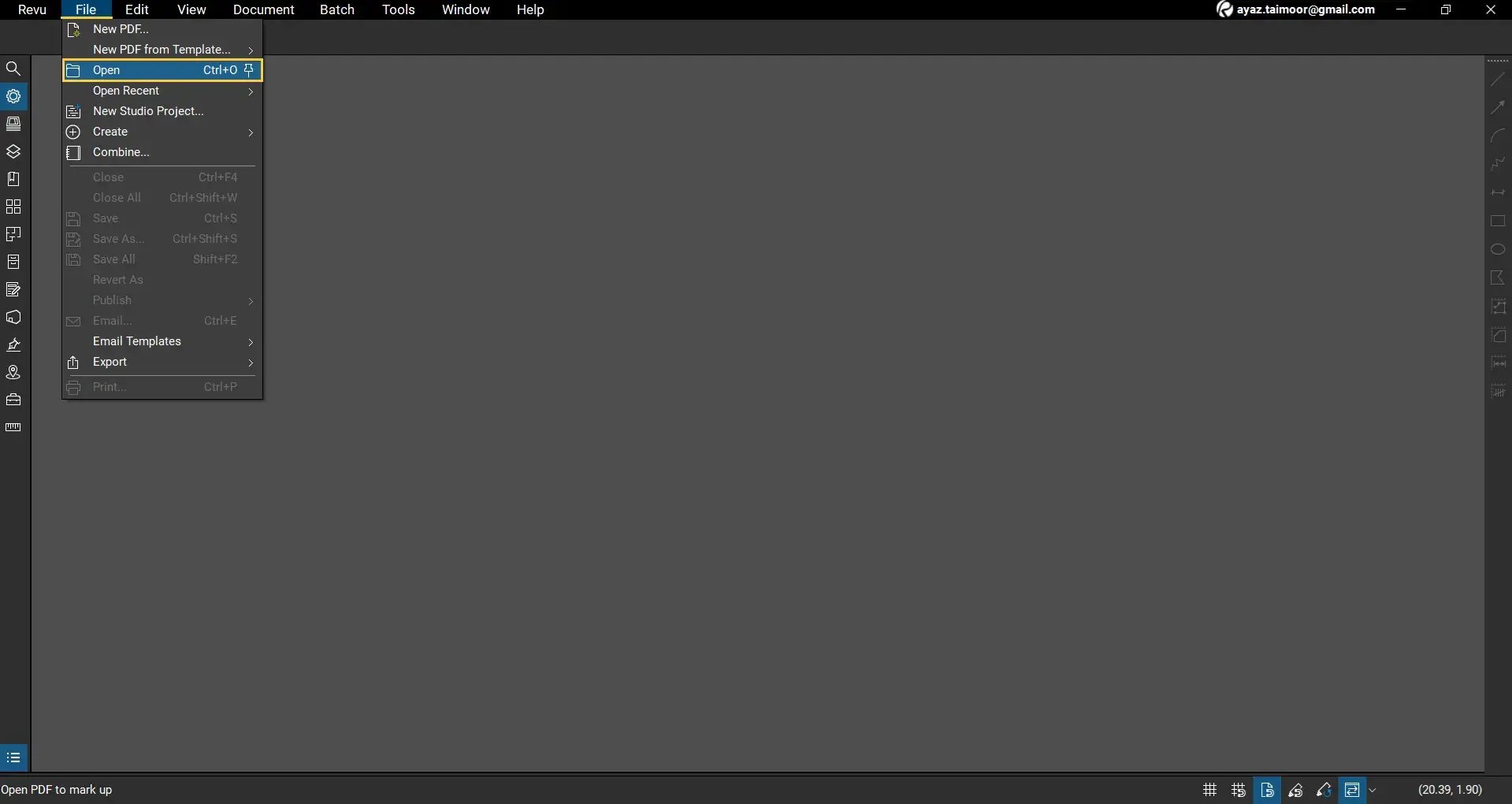
01 A: Open Bluebeam Revu 21 on your desktop.
01 B: Go to the File menu in the menu bar at the top.
01 C: Click Open or press Ctrl+O to select the PDF drawing from your drive location that you want to work with.
Once the document opens, you will see the page navigation bar at the bottom of your workspace. In the image below, this bar shows the total number of pages in your document and allows you to move between them.
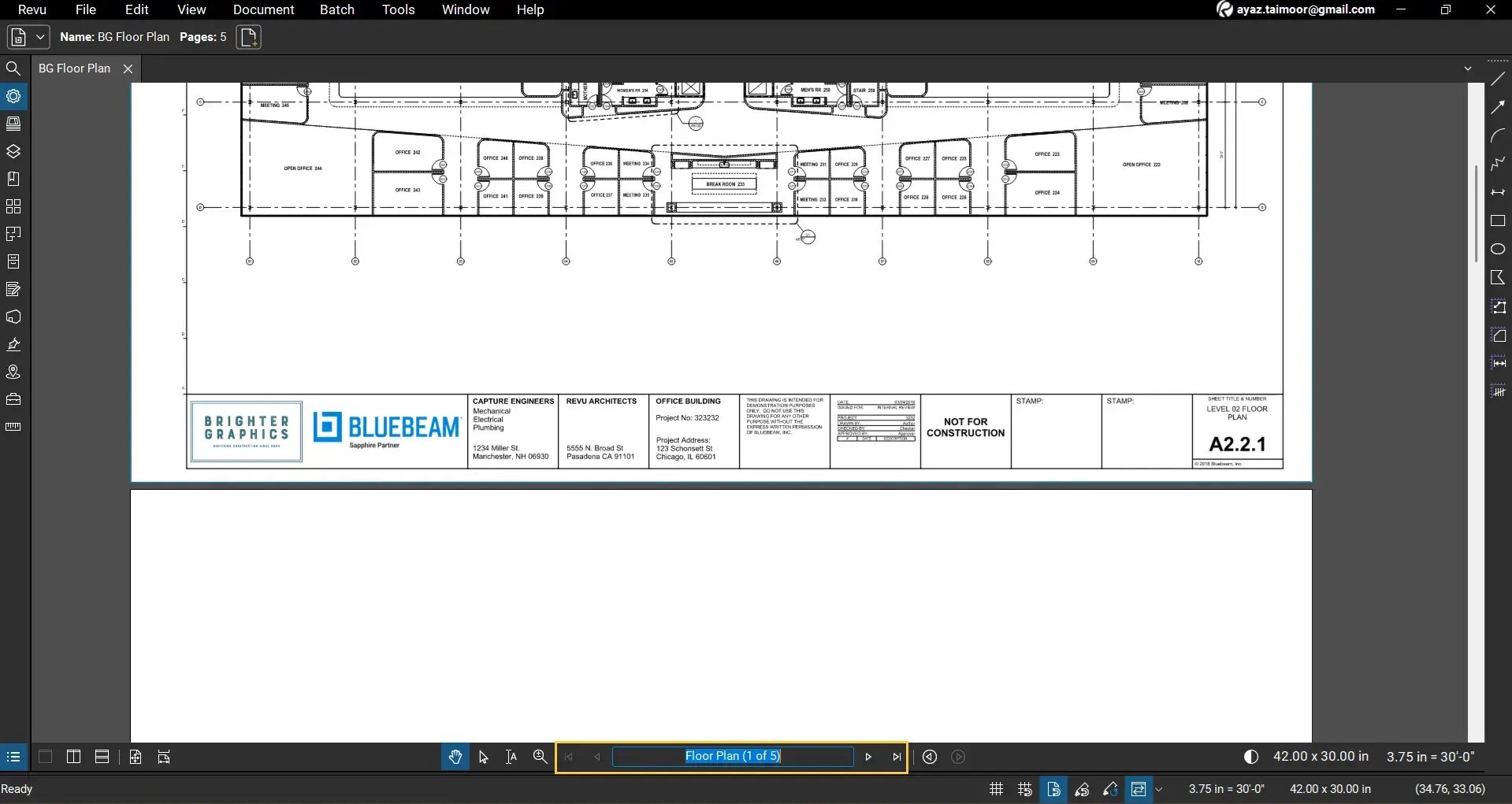
For example, if your PDF contains 5 sheets, the navigation bar will display 1 of 5 alongside the file name (eg, Floor Plan 1 of 5).
Step 02: Access the Document menu for page management
To manage pages in your document, go to the Document menu in the top menu bar.
Here you will find several page management options, including:
- Insert Pages
- Delete Pages
- Replace Pages
- Crop Pages
Note: If you open a single-page document, you will notice that the Delete Pages option is greyed out. This is because Revu cannot delete a single page in a document. Of course, you simply go to your file location and delete it directly from there.
Let's explore all these options in detail, one by one.
Option 01: Insert a New Blank Page
Insert Pages in PDF - Revu Video Tutorial
To insert a blank page into your PDF in Bluebeam Revu:
Step 01: In the Document menu, go to Insert, then click Blank Page.
.webp?width=1919&height=1021&name=add-delete-crop-pdf-pages-in-bluebeam-revu-option01-%20(1).webp)
The Insert Blank Page dialog box will appear, where you can define the properties of the new page.
Step 02: Choose whether to create a custom page or use one of Revu’s built-in page templates.
.webp?width=538&height=586&name=add-delete-crop-pdf-pages-in-bluebeam-revu-option01-%20(2).webp)
Step 03: Define the page dimensions (Width and Height) manually or click the “Current Page” option to set the exact width and height of your current PDF page.
.webp?width=540&height=585&name=add-delete-crop-pdf-pages-in-bluebeam-revu-option01-%20(3).webp)
Step 04: You can also choose the page orientation:
- Landscape
- Portrait
.webp?width=536&height=585&name=add-delete-crop-pdf-pages-in-bluebeam-revu-option01-%20(4).webp)
Note: Skip this option if you are using page dimensions from the current page.
You can also add page styles by choosing from the built-in templates in the Style dropdown. For a blank page, leave it to Blank.
Step 05: Specify Page Count to define how many pages you want to insert.
.webp?width=537&height=583&name=add-delete-crop-pdf-pages-in-bluebeam-revu-option01-%20(5).webp)
Step 06: Select where the page should be inserted:
- Before a specific page
- After a specific page
Let's add it before the 3rd page in our document.
.webp?width=538&height=584&name=add-delete-crop-pdf-pages-in-bluebeam-revu-option01-%20(6).webp)
Do not forget to select the Page bullet if you are adding new page(s) before or after pages other than the first or last page, then add the page number before proceeding.
Once you have configured these settings, click OK. You will now see the new page(s) that have been added to the document.
.webp?width=1919&height=1018&name=add-delete-crop-pdf-pages-in-bluebeam-revu-option01-%20(7).webp)
The navigation bar will update to reflect the total number of pages, for example, “1 of 8” or “3 of 8.”
If you want to undo the change, press Ctrl+Z to restore the original document.
Option 02: Insert Pages from Another PDF
Sometimes you need to combine drawings from multiple PDF files into one document. To do this, you can import pages from another document and add them to your current PDF. Let's see how.
Step 01: In the Document menu, go to Insert, then click Pages from Document. Alternatively, you can use the shortcut: Ctrl+Shift+I.
.webp?width=1919&height=1019&name=add-delete-crop-pdf-pages-in-bluebeam-revu-option02-%20(1).webp)
Step 02: Select the PDF file that contains the pages you want to insert.
Step 03: In the Insert Pages dialog box, click to select the file (from where you want to import pages or an entire file) from the “Insert Files” option and click Modify to define which pages you want to import.
.webp?width=589&height=632&name=add-delete-crop-pdf-pages-in-bluebeam-revu-option02-%20(2).webp)
(You can also click Add to include more file(s) and select and modify these file(s) to add pages from them).
Step 04: Once you click Modify, the Select Pages dialog box will appear, prompting you to select All Pages or Custom Range (continuous or discrete, like we did before; refer to step 02 of the previous section to see how).
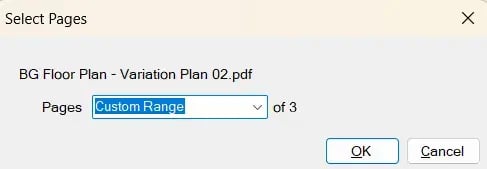
Enter the page or range, then click OK to proceed.
-1.webp?width=490&height=167&name=add-delete-crop-pdf-pages-in-bluebeam-revu-option02-%20(4)-1.webp)
Step 05: Now, in the Insert Pages dialog box, choose where to place the imported pages in your document. You can insert them before or after a selected page.
.webp?width=586&height=629&name=add-delete-crop-pdf-pages-in-bluebeam-revu-option02-%20(4).webp)
Under the Options section, you can also choose to include or exclude Bookmarks, file attachments, merge document properties, and layers from the imported page.
.webp?width=589&height=639&name=add-delete-crop-pdf-pages-in-bluebeam-revu-option02-%20(5).webp)
Leave the "Use Filename as Page Label" option checked, then click OK to complete the process.
.webp?width=1918&height=1015&name=add-delete-crop-pdf-pages-in-bluebeam-revu-option02-%20(6).webp)
The imported page(s) will now appear within your current document.
If you want to undo the change, press Ctrl+Z to restore the original document.
Option 03: Add Layered Pages for Document Comparison
Another useful feature in Bluebeam Revu when inserting pages is the ability to create layered pages. Layered pages allow you to compare different versions of the same drawing.
Let's see how we can add layered pages from another document:
Step 01: Go to the Document menu, in the Insert option, select the Layered Pages option.
.webp?width=1919&height=1021&name=add-delete-crop-pdf-pages-in-bluebeam-revu-option03-%20(1).webp)
Step 02: Choose the PDF file containing the pages you want to overlay.
Step 04: Repeat the same process as the previous section. Select the file, click Modify, set page or range, and choose the location where the layered page should be inserted.
.webp?width=590&height=632&name=add-delete-crop-pdf-pages-in-bluebeam-revu-option03-%20(2).webp)
You can add additional files by clicking the Add button. Once you are done, click OK.
The imported pages will appear as a layer you can toggle on or off in the Layers panel, making it easier to compare revisions across drawing versions.
.webp?width=1919&height=1017&name=add-delete-crop-pdf-pages-in-bluebeam-revu-option03-%20(3).webp)
If you want to undo the change, press Ctrl+Z to restore the original document.
Option 04: Add Pages from a Scanner
The insert option also lets you scan documents directly from your scanner.
.webp?width=1919&height=1021&name=add-delete-crop-pdf-pages-in-bluebeam-revu-option04-%20(1).webp)
Define where you want to insert the scanned sheets, then click OK. Revu will start your scanner, scan, and add the new sheet to the defined position in your document.
.webp?width=330&height=269&name=add-delete-crop-pdf-pages-in-bluebeam-revu-option04-%20(2).webp)
If you want to undo the change, press Ctrl+Z to restore the original document.
Option 05: Delete Pages from a PDF
Delete Pages from a PDF - Revu Video Tutorial
Once your document contains more than one page, the Delete Pages option becomes accessible. To remove or delete unwanted pages from your PDF in Bluebeam Revu:
Step 01: In the Document menu, click Delete Pages.
.png?width=1919&height=1021&name=add-delete-crop-pdf-pages-in-bluebeam-revu-option-05-%20(1).png)
Step 02: In the Delete Pages dialog box, enter the page number or the range of pages you want to delete.
.webp?width=272&height=155&name=add-delete-crop-pdf-pages-in-bluebeam-revu-option-05-%20(2).webp)
For example, if you want to remove the second page you just inserted, select Page 2. To delete pages 2 to 4 and pages 6 and 8, select the Custom Range option.
.webp?width=276&height=205&name=add-delete-crop-pdf-pages-in-bluebeam-revu-option-05-%20(3).webp)
Enter the ranges separated by commas like: 2-4, 6, 8. It will delete pages 2, 3, 4, 6, and 8 from your 8-page document. Document left with a total of 3 pages.
.webp?width=272&height=156&name=add-delete-crop-pdf-pages-in-bluebeam-revu-option-05-%20(4).webp)
Click OK to continue; the selected pages will be permanently removed from your document, and the updated document will appear with the number of pages remaining.
.webp?width=1919&height=1019&name=add-delete-crop-pdf-pages-in-bluebeam-revu-option-05-%20(5).webp)
You can add multiple ranges or discrete pages or ranges to remove multiple pages from anywhere in your document in a single go.
If you want to undo the change, press Ctrl+Z to restore the original document.
Option 06: Replace Pages in an Existing Document
Sometimes you may receive updated document versions and need to replace outdated pages from your PDF with the updated ones. This is how you do it:
Step 01: In the Document menu, click Replace Pages or press Ctrl+Shift+Y.
.webp?width=1919&height=1019&name=add-delete-crop-pdf-pages-in-bluebeam-revu-option06-%20(1).webp)
Step 02: Select the PDF file containing the replacement pages.
Step 03: In the Replace Pages dialog box, define (Remove Pages) which pages in your current document should be replaced. Then, choose (Replace with) which pages from the new document should replace pages in the current file.
.webp?width=402&height=319&name=add-delete-crop-pdf-pages-in-bluebeam-revu-option06-%20(2).webp)
Click OK to complete the replacement.
.webp?width=1919&height=1017&name=add-delete-crop-pdf-pages-in-bluebeam-revu-option06-%20(3).webp)
This feature allows you to update drawings without rebuilding the entire document set from scratch.
If you want to undo the change, press Ctrl+Z to restore the original document.
Option 07: Crop Pages in Bluebeam Revu
You can use the Cropping feature in Bluebeam Revu 21 to remove unnecessary margins, empty areas, or unwanted content from a PDF sheet. To crop unwanted page areas or regions from your PDF:
Step 01: In the Document menu, select the Crop Pages option, or press Shift+Alt+O.
.webp?width=1919&height=1019&name=add-delete-crop-pdf-pages-in-bluebeam-revu-option07-%20(1).webp)
Step 02: In the Batch Crop and Page Setup dialog box, select the range of pages you want to crop.
.webp?width=668&height=508&name=add-delete-crop-pdf-pages-in-bluebeam-revu-option07-%20(2).webp)
*We are using Revu Complete, so it's allowing us to perform batch operations on multiple files.
Step 03: Click Next to preview the cropping area.
.webp?width=751&height=642&name=add-delete-crop-pdf-pages-in-bluebeam-revu-option07-%20(3).webp)
You will now see a preview of the page where you can adjust the crop margins.
Step 04: Define how much of the page you want to crop from each side.
For example, if your drawing contains empty space above the plan, increase the Top crop value.
In the example below, we are cropping from the top and right margin.
.webp?width=754&height=648&name=add-delete-crop-pdf-pages-in-bluebeam-revu-option07-%20(4).webp)
Note: We only selected one page to crop. If you select multiple pages, you can use the navigation bar at the bottom of your preview section to scroll across pages.
Step 05: Once you are satisfied with the preview, click OK.
.webp?width=1919&height=1016&name=add-delete-crop-pdf-pages-in-bluebeam-revu-option07-%20(5).webp)
The page will be cropped according to the defined margins. If you want to undo the change, press Ctrl+Z to restore the original document.
Do More with Efficient Document Management in Bluebeam Revu
Bluebeam is here to make your document management and collaboration efficient while saving time and resources. When working with large drawing sets, follow all these practices that we discussed above:
- Use Insert Pages from Document to combine multiple drawing packages into a single file.
- Use Replace Pages when updated drawings are issued instead of manually rebuilding your document.
- Use Layered Pages to compare revisions between drawing versions.
- Use Crop Pages to remove unnecessary white space and improve clarity when viewing.
Organising your PDF pages properly helps improve navigation, markup accuracy, and collaboration with project teams.
Level Up Your Bluebeam Experience
Now you know how you can add, delete, insert, replace, and crop pages in Bluebeam Revu 21 to organise your PDF sets more efficiently. These page management and manipulation tools help you keep your construction drawings structured, up to date, and ready for markup and review.
To improve your skills in PDF markups, document management, and measurement workflows, explore our other Bluebeam guides.
Stay connected with Brighter Graphics, your go-to Bluebeam partner in the UK, Europe, and the Middle East.