Measuring angles is a frequent requirement when working with construction drawings, architectural layouts, and engineering plans. The Angle Measurement tool in Bluebeam Revu 21 allows you to calculate the angle between two intersecting lines directly on your PDF.
It helps verify design geometry, check alignment, and analyse drawing accuracy. In this guide, you will learn how to measure angles in Bluebeam Revu 21.
Step-by-Step Guide to Angle Measurement in Bluebeam Revu 21
The following step-by-step process explains how you measure angles on your PDF drawings in Bluebeam Revu 21.
Step 01: Open your PDF drawing in Revu
01 A: Open Bluebeam Revu 21 on your desktop.
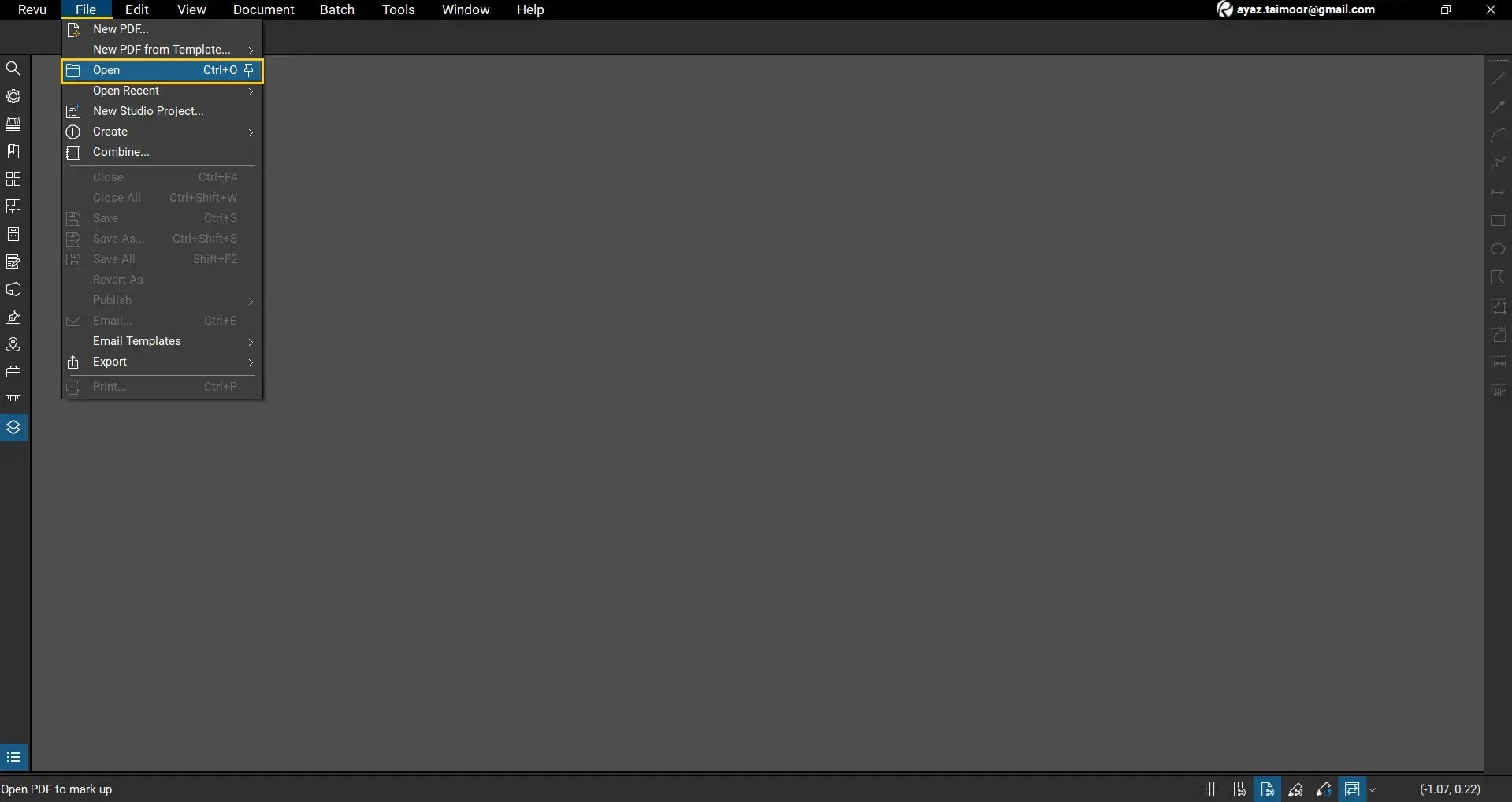
01 B: Go to the File menu in the top menu bar. Click Open and select the PDF drawing you want to work with.
Before using an area or any other measurements, ensure that you Calibrate your drawing and enable the Snap to Content option from Snap Features on your navigation bar.
Step 02: Navigate to the area of measurement
02 A: Select the Pan tool from the navigation bar.
02 B: Scroll and zoom in on the region where you want to measure the angle.
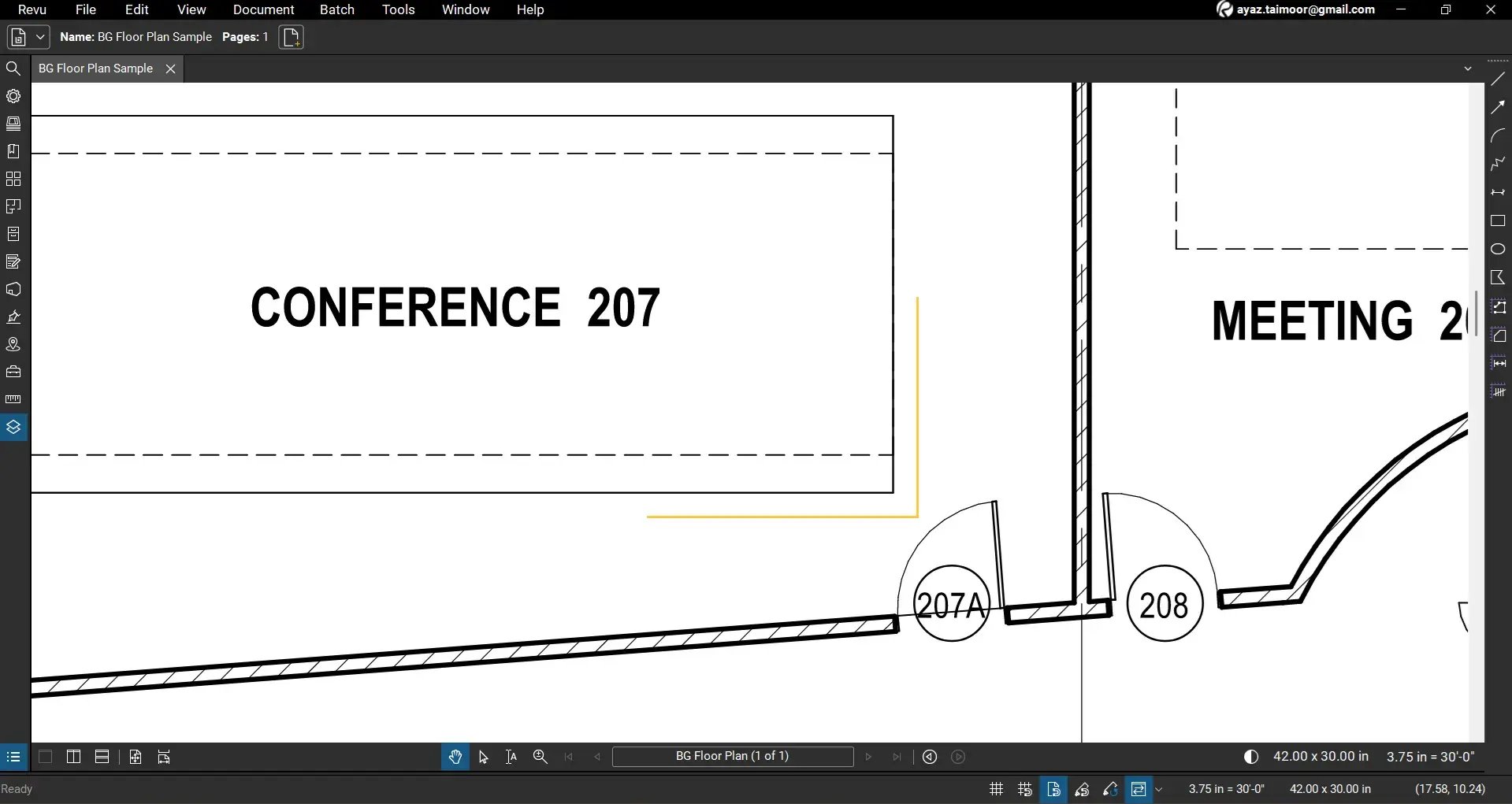
For example, you can use a rectangular shape with corners forming 90-degree angles to verify measurement accuracy.
Step 03: Select the Angle measurement tool
03 A: Go to the Measurements panel on the left side of your workspace.
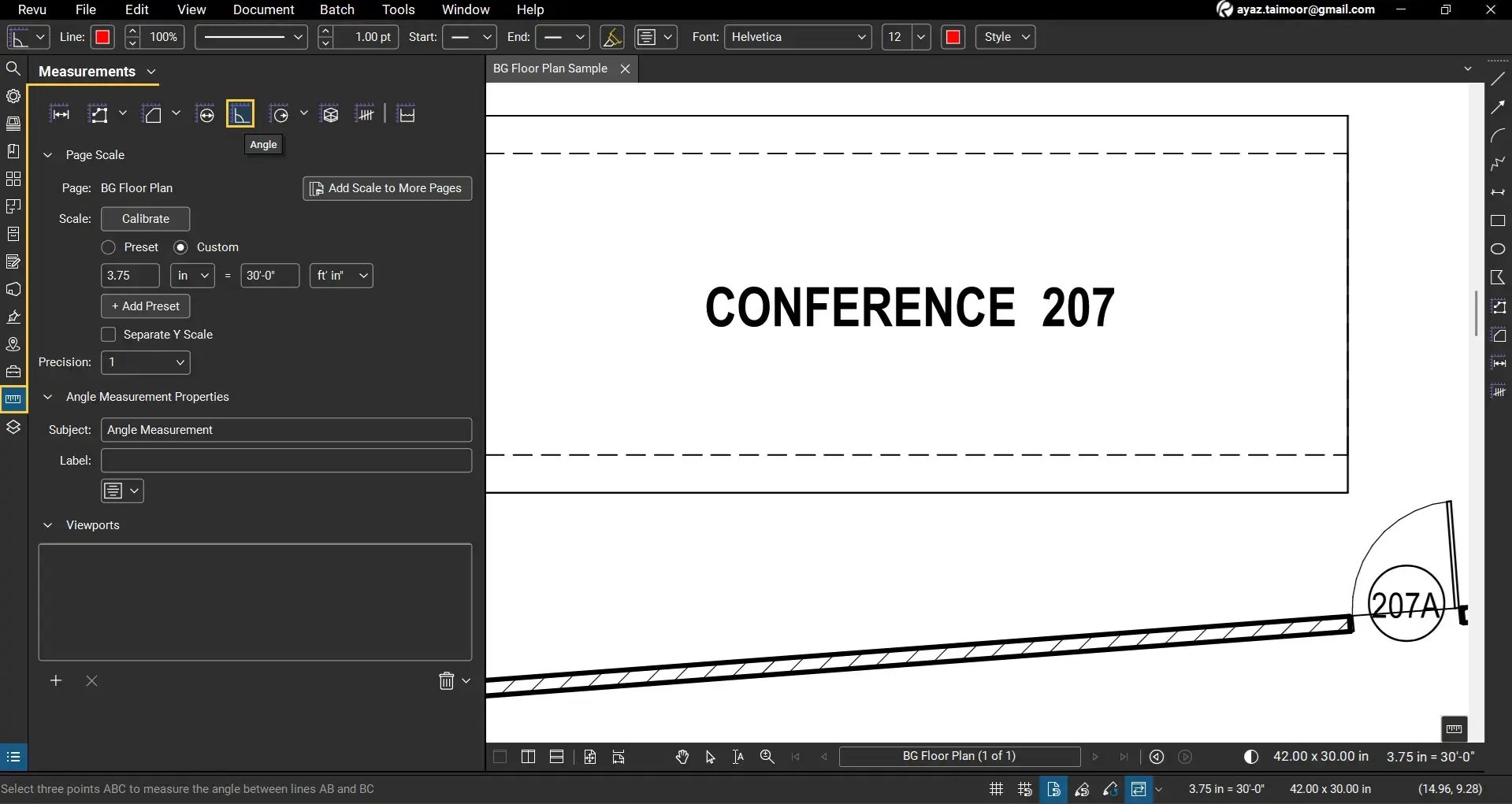
03 B: From the tools at the top, select Angle.
Step 04: Measure the angle
04 A: Click to place the first anchor point along one side of the angle.
04 B: Click to place the second anchor point at the vertex where the angle is formed.
04 C: Click to place the third anchor point along the second side of the angle.
If you press and hold the Shift key while creating angular hands, your angle will be restricted to parallel to the x or y-axes or 45 degrees.
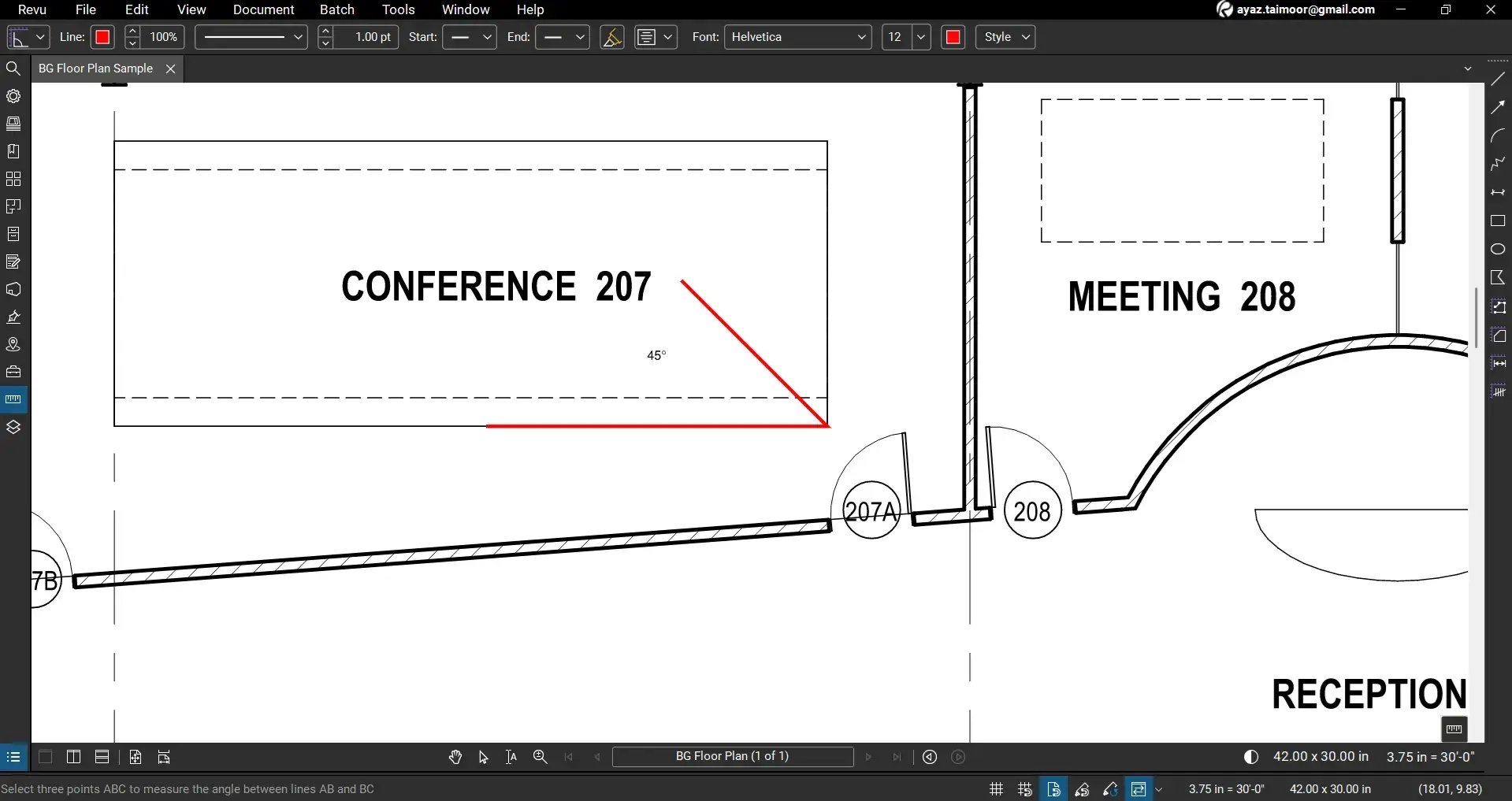
Once you click to place the 3rd anchor point, Revu will calculate and display the angle between the two lines.
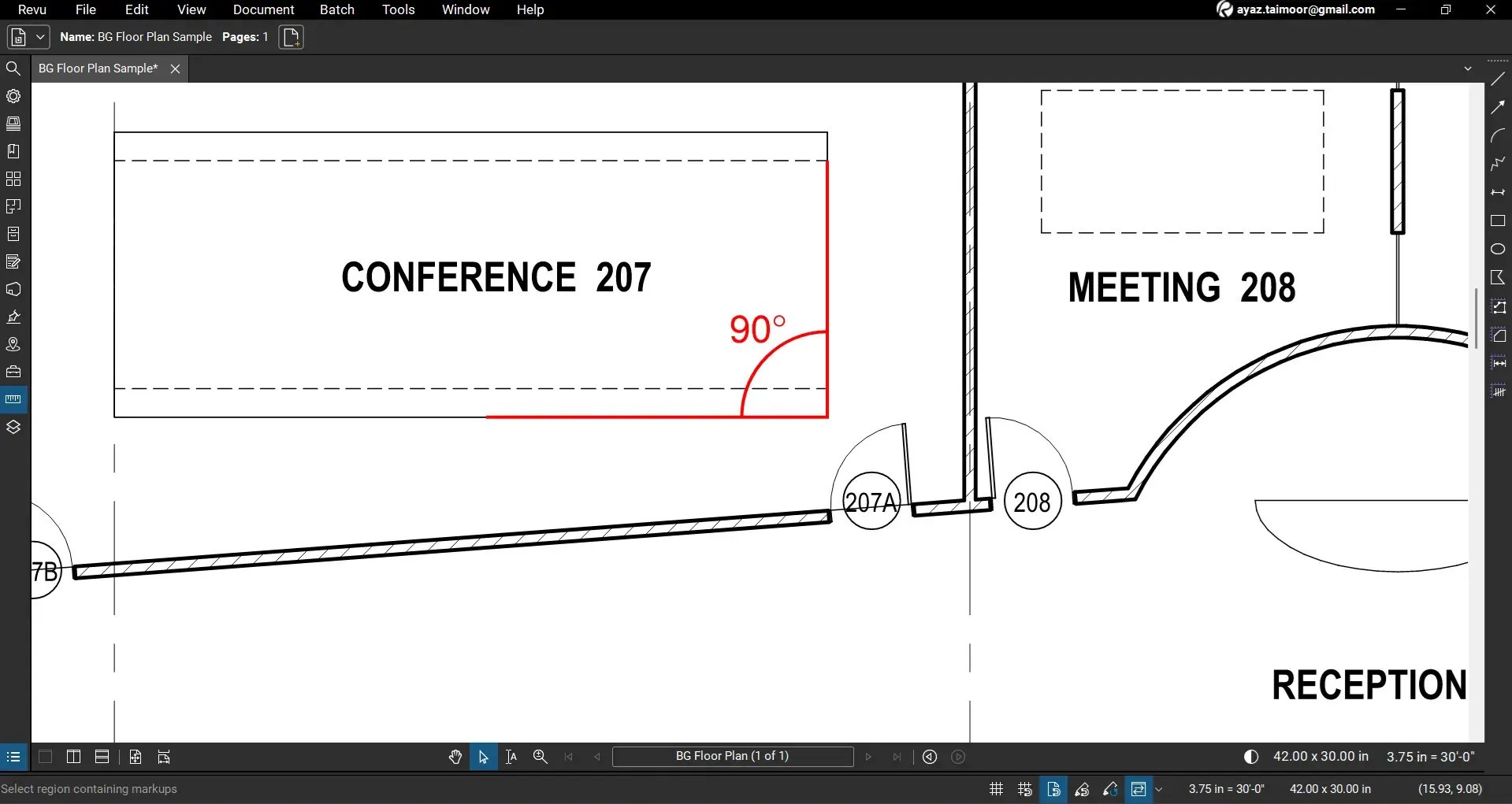
For example, measuring the angle at a rectangle's corner should return 90 degrees.
You can repeat the same steps to measure angles in irregular or non-orthogonal geometry.
Refine the Angle Measurement
If your measurement needs adjustment:
- Zoom in for better precision.
- Use the Select tool from the navigation bar and select your angle measurement.
- Drag the anchor points to align them accurately with the drawing edges.
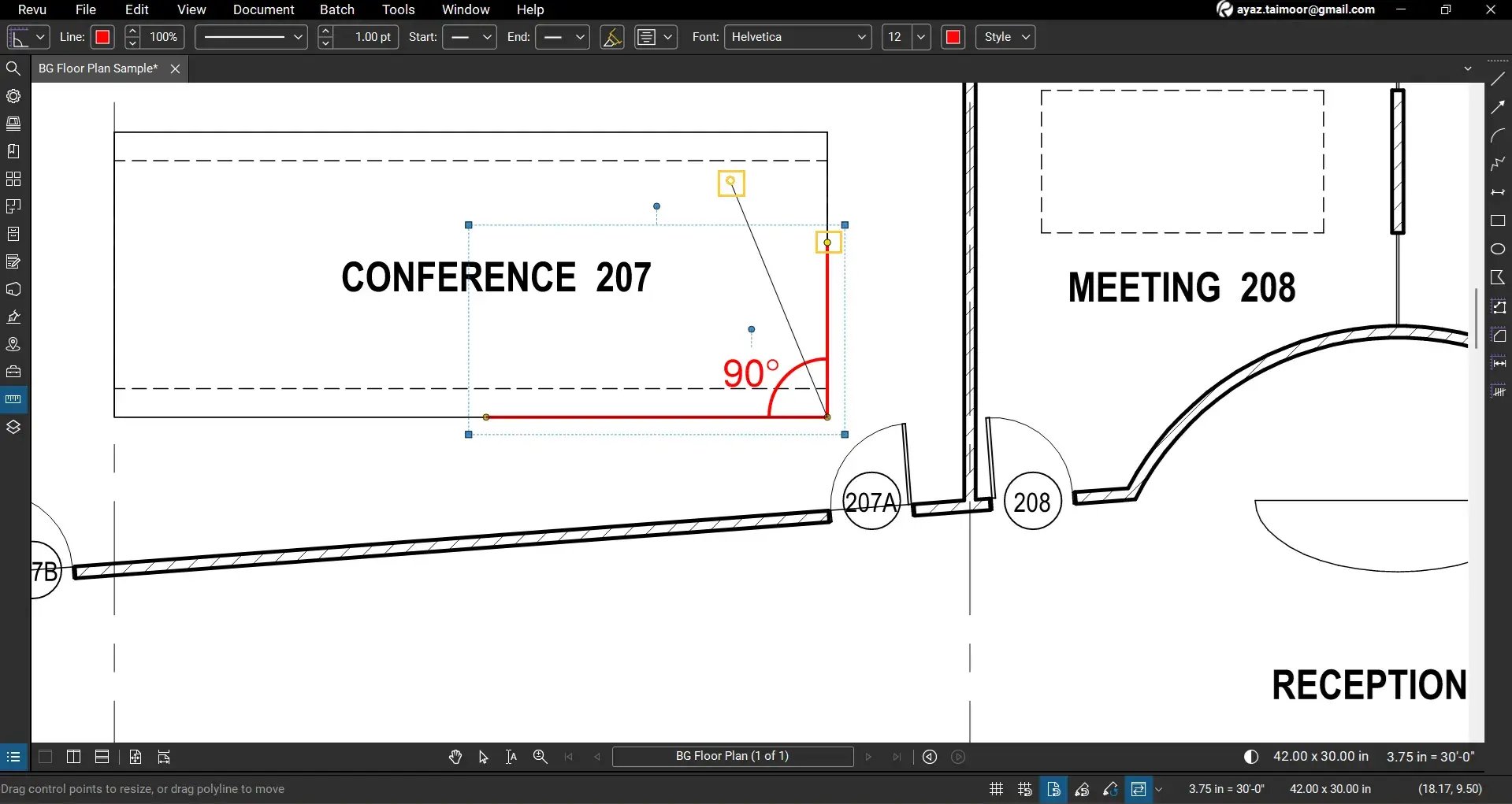
This ensures the angle reflects the required geometry of your drawing.
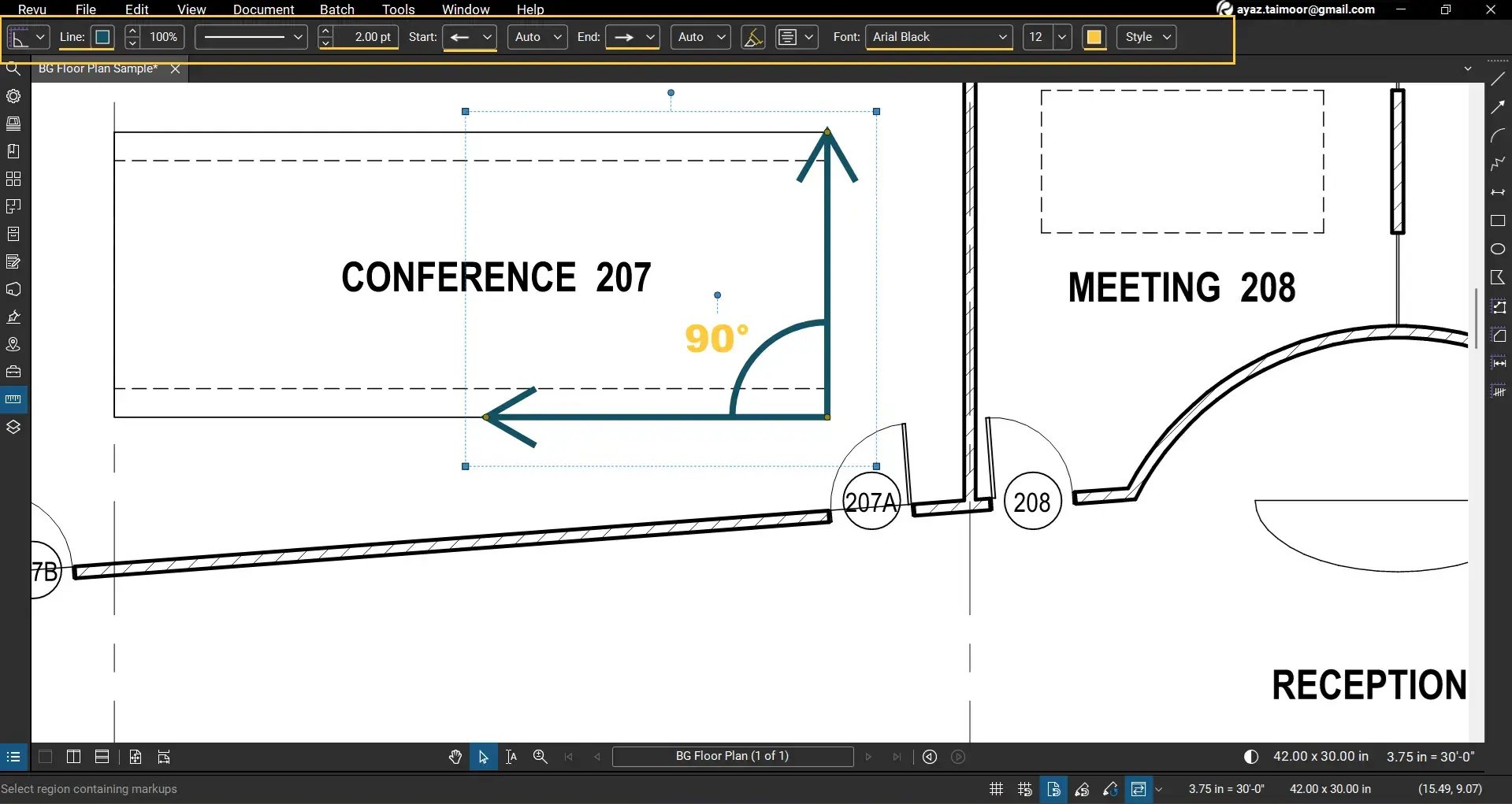
You can select your angle measurement and use the markup editor bar at the top to change the appearance of your angle measurement, just like you do with other measurements and markups.
If you need your angular measurement in Radians for further calculations, such as arc length, circumference, area, volume, and any other trigonometric calculations, you can create a Custom column with a formula field in Revu Markups List to convert Degrees to Radians or scale your angle measurement for further calculations.
Angle Measurement in the Markups List
Every angle measurement appears in the Markups List.
- Open the Markups List at the bottom of your workspace.
- Locate the entry labelled Angle under the Subject column.
You will see:
- The measured angle value under the Measurement column
- Author and date information as metadata
- Other markup properties like unit, length, depth, height, etc. (where applicable)
This allows you to track and organise angle measurements across your document.
Using Angle Measurements for Calculations
Angle measurements can be extended for further analysis.
You can:
- Export data to Excel for advanced calculations
- Create custom columns in the Markups List to apply formulas
This is useful in workflows involving trigonometry, design validation, and engineering calculations.
Level Up Your Bluebeam Experience
This is how you can measure angles using the Angle Measurement tool in Bluebeam Revu 21. By combining accurate placement with the Markups List, you can capture and analyse angular data directly from your PDF drawings.
To further improve your measurement workflows in Revu, explore our other Bluebeam guides and stay connected with Brighter Graphics, your go-to Bluebeam partner in the UK, Europe, and the Middle East.