The Custom Column (Formula) in Bluebeam Revu allows you to perform calculations directly within the Markups List using measurement data. No need to switch platforms or go to Excel. You can do complex calculations directly in your Markups List on your PDF data. This is especially useful in estimation workflows where you want to derive additional values from existing measurements.
In this short guide, you will learn how to create formula-based custom columns, and we will show you examples of how to calculate diameter and volume from a radius measurement.
Step-by-Step Guide to Custom Column (Formula)
In the following step-by-step guide, you will learn how to create formula-based custom columns and use radius measurements to calculate diameter and volume directly inside the Markups List.
For a detailed overview of custom columns in Bluebeam Revu and to understand the data structure of the Revu Markups List, refer to our detailed guide here.
Step 01: Prepare Your Radius Measurement
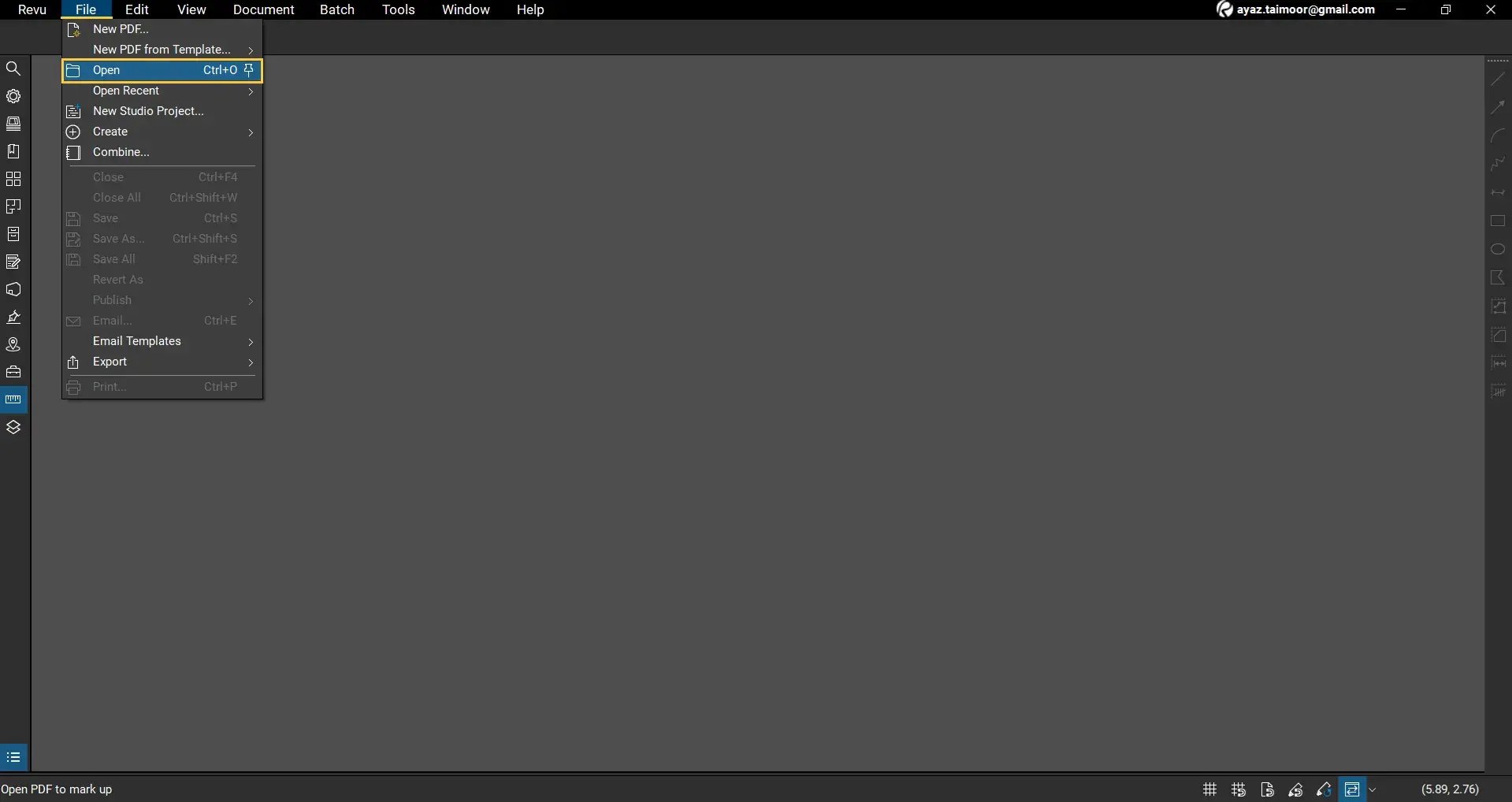
01 A: Go to the File menu and Open your PDF in Bluebeam Revu 21.
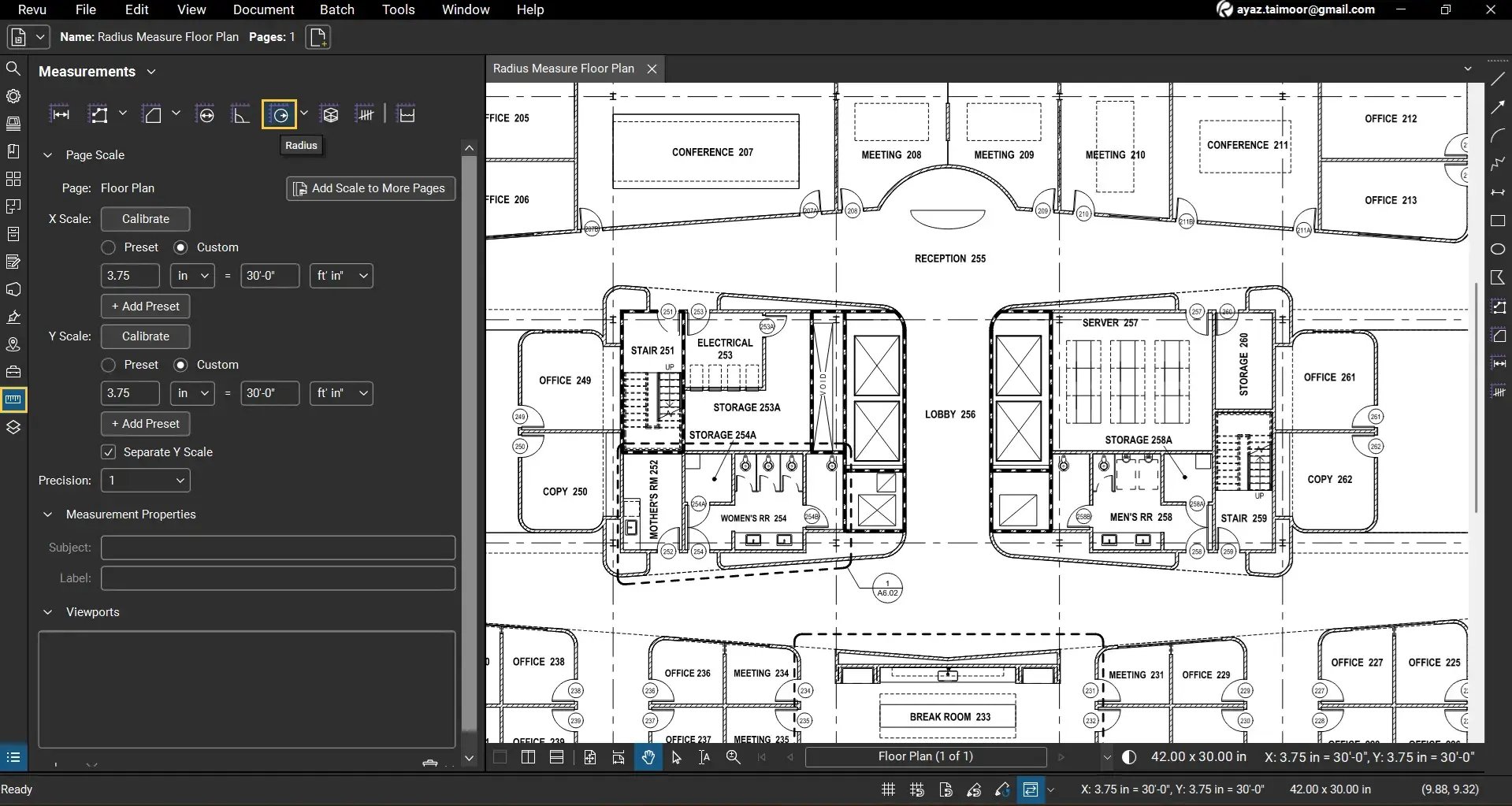
01 B: Use the Radius measurement tool to measure a circular object.
01 C: Open the Markups List at the bottom of your workspace.
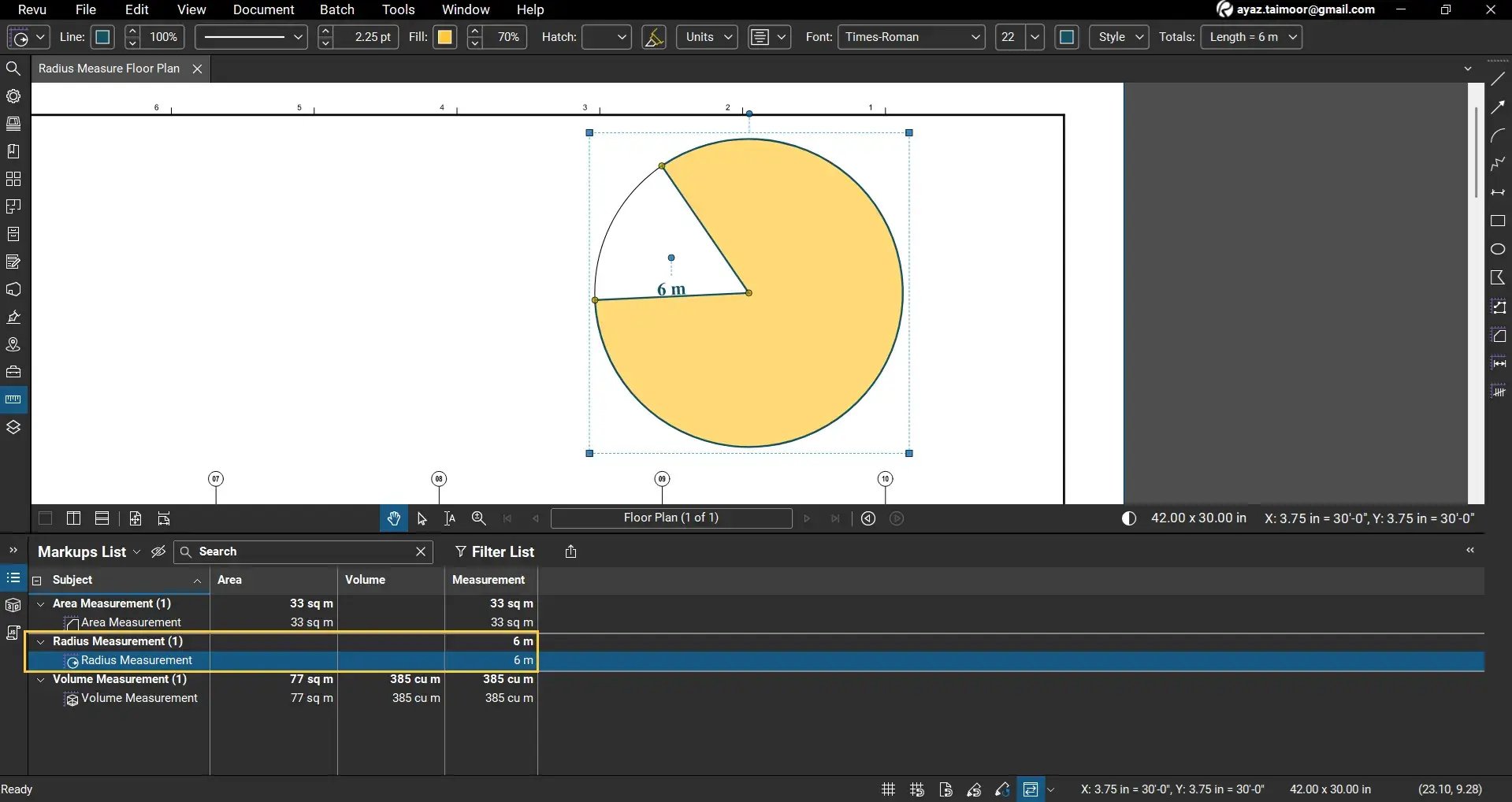
You can now see your radius measurement listed under the Subject column in the Markups List.
Read our separate guides to learn how to use the Radius measurement in Bluebeam Revu 21.
Step 02: Open Manage Columns
02 A: In the Markups List dropdown menu, go to Columns > Manage Columns.
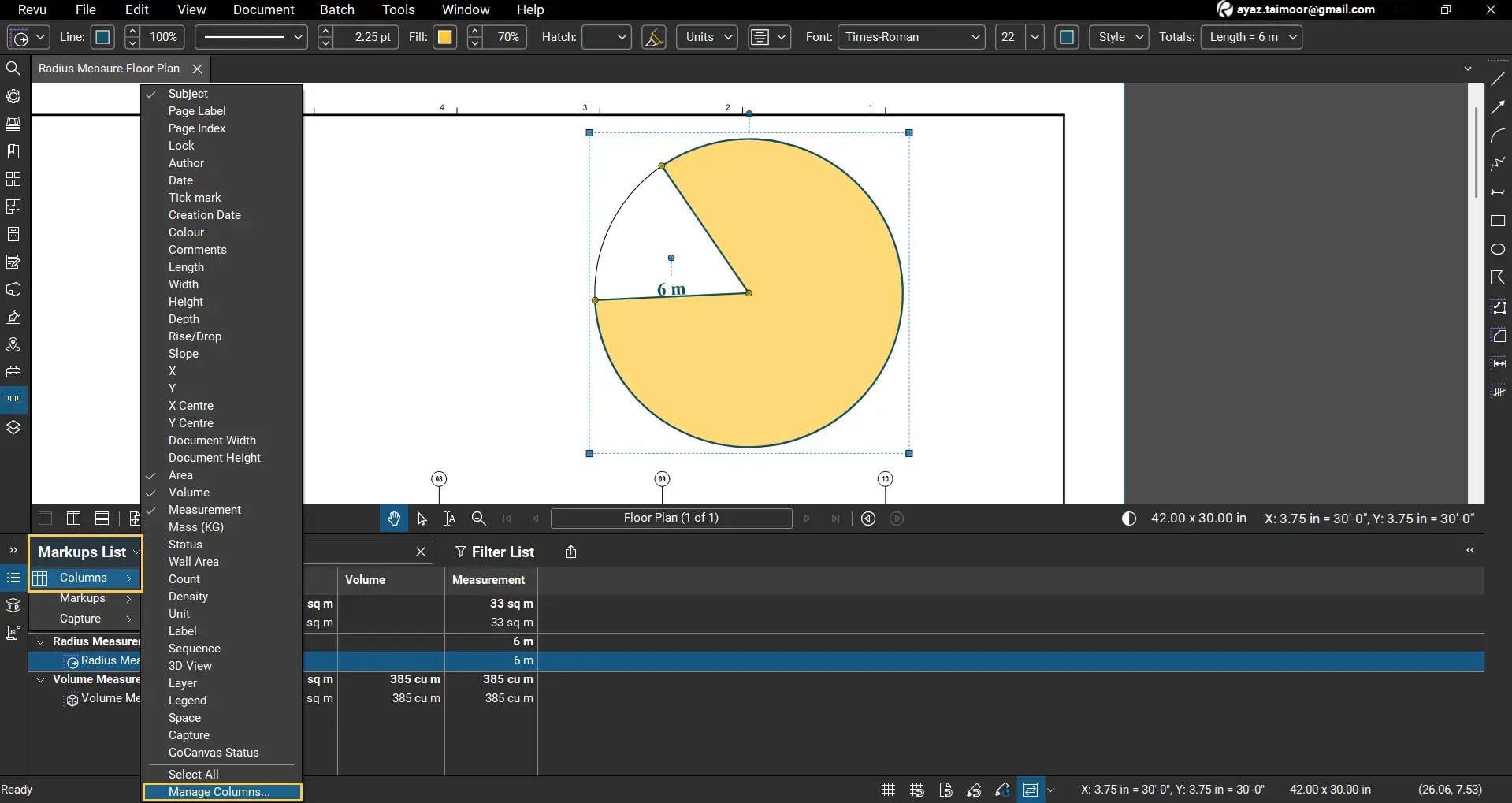
02 B: A Manage Columns dialog box will appear. Here, go to the Custom Columns tab.
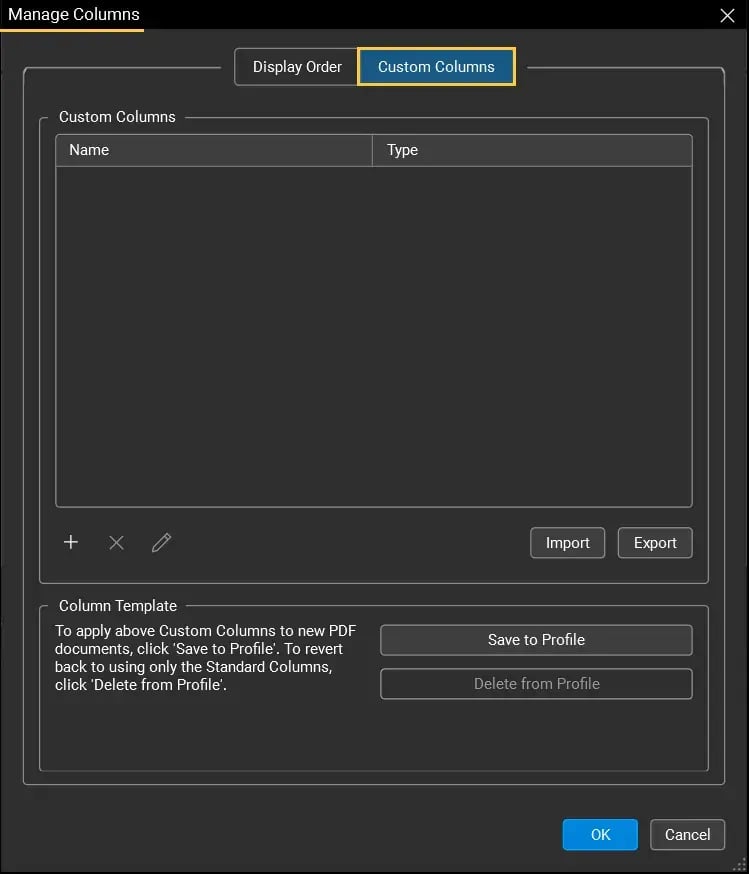
This is where you can create and manage custom column fields.
Create a Diameter Formula Column
For example, in our PDF, we will show you how to create custom, formula-based diameter and volume columns by treating the rounded object as a cylinder/tank.
To calculate the diameter from your radius measurement:
- Click the Add (+) button.
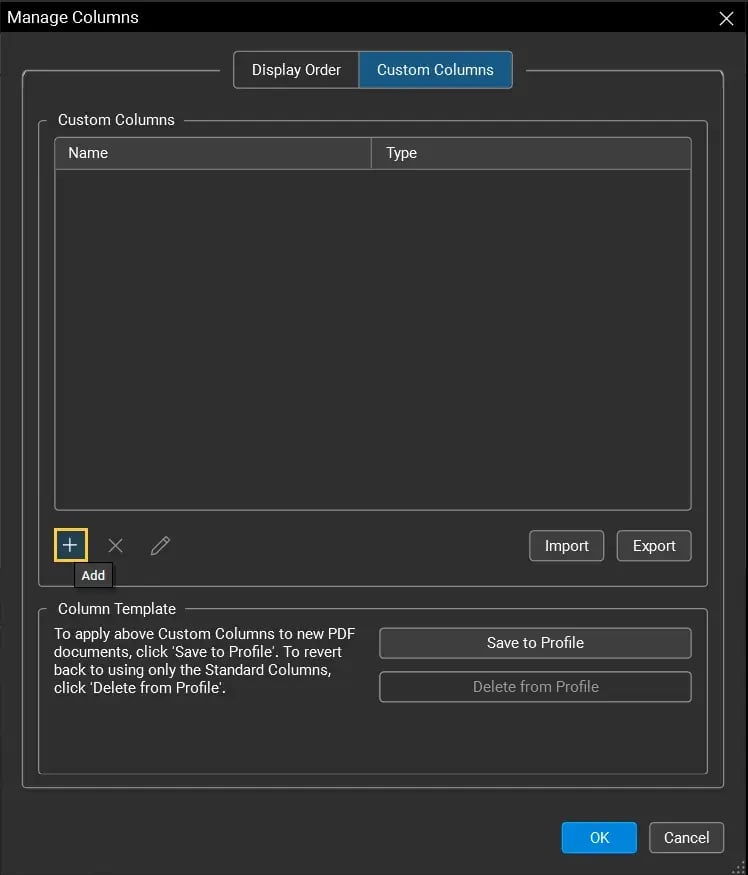
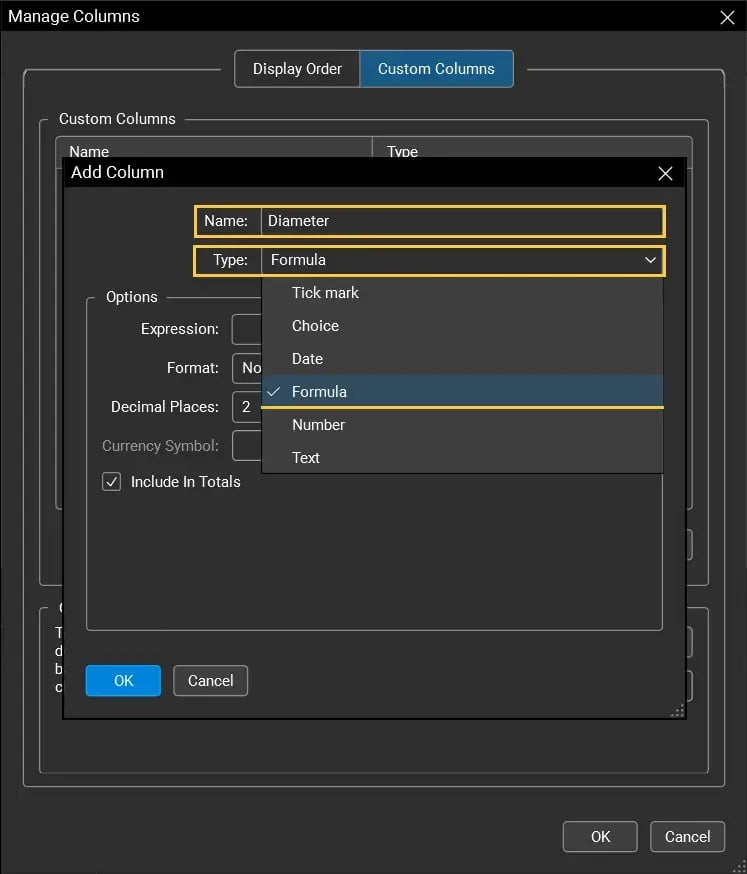
- The Add Column dialog box will appear. Set the following:
- Column Name: Diameter
- Type: Formula
- The Expression field will appear where you can create your formula by picking values from existing columns for further calculations.
. To calculate the diameter from a radius, enter:
Measurement * 2
- Type Measurement, then press Enter to auto-select the Radius value from the Measurements field (column) that appears in the suggestion below.
- The star (*) sign indicates the multiplication operator.
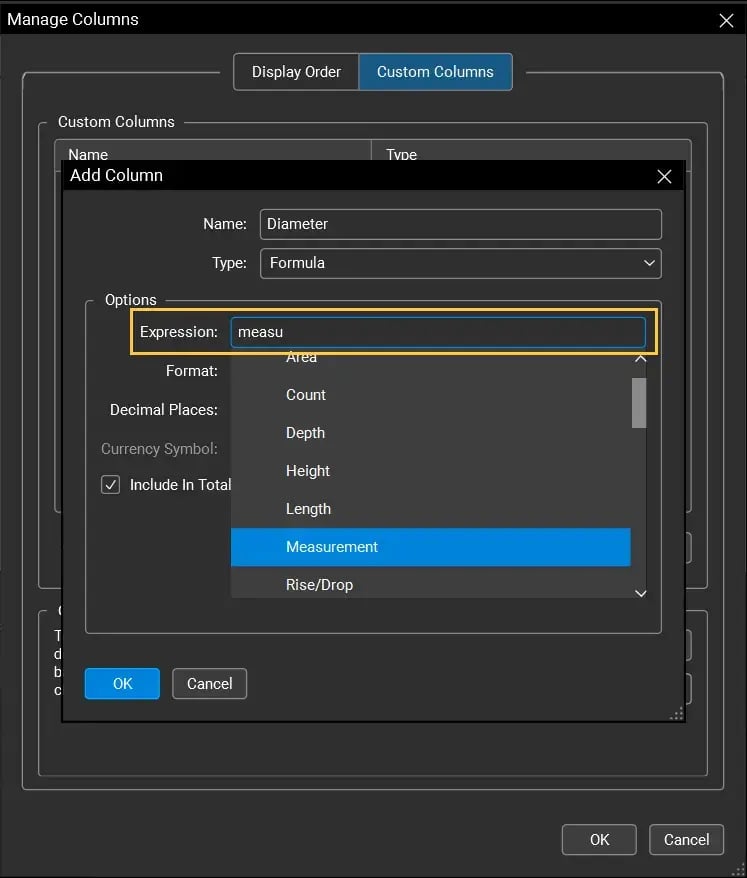
Note: To avoid errors, select Radius from the suggestions by pressing Enter, rather than typing it manually.
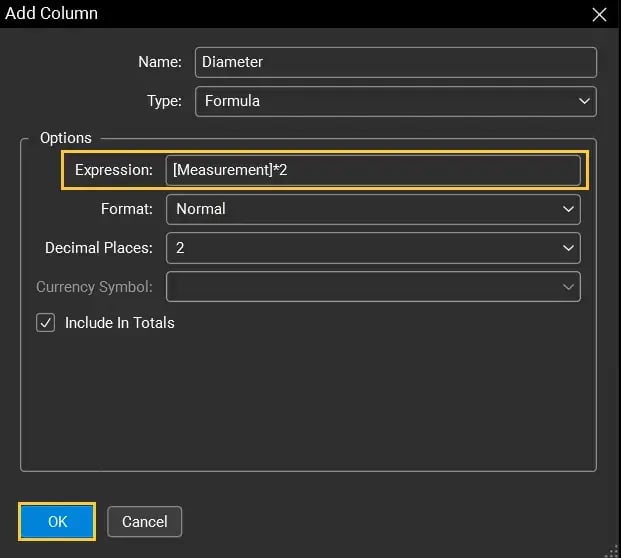
- Once you are done, click OK.
The Markups List will now display a Diameter column calculated automatically from the radius measurement.
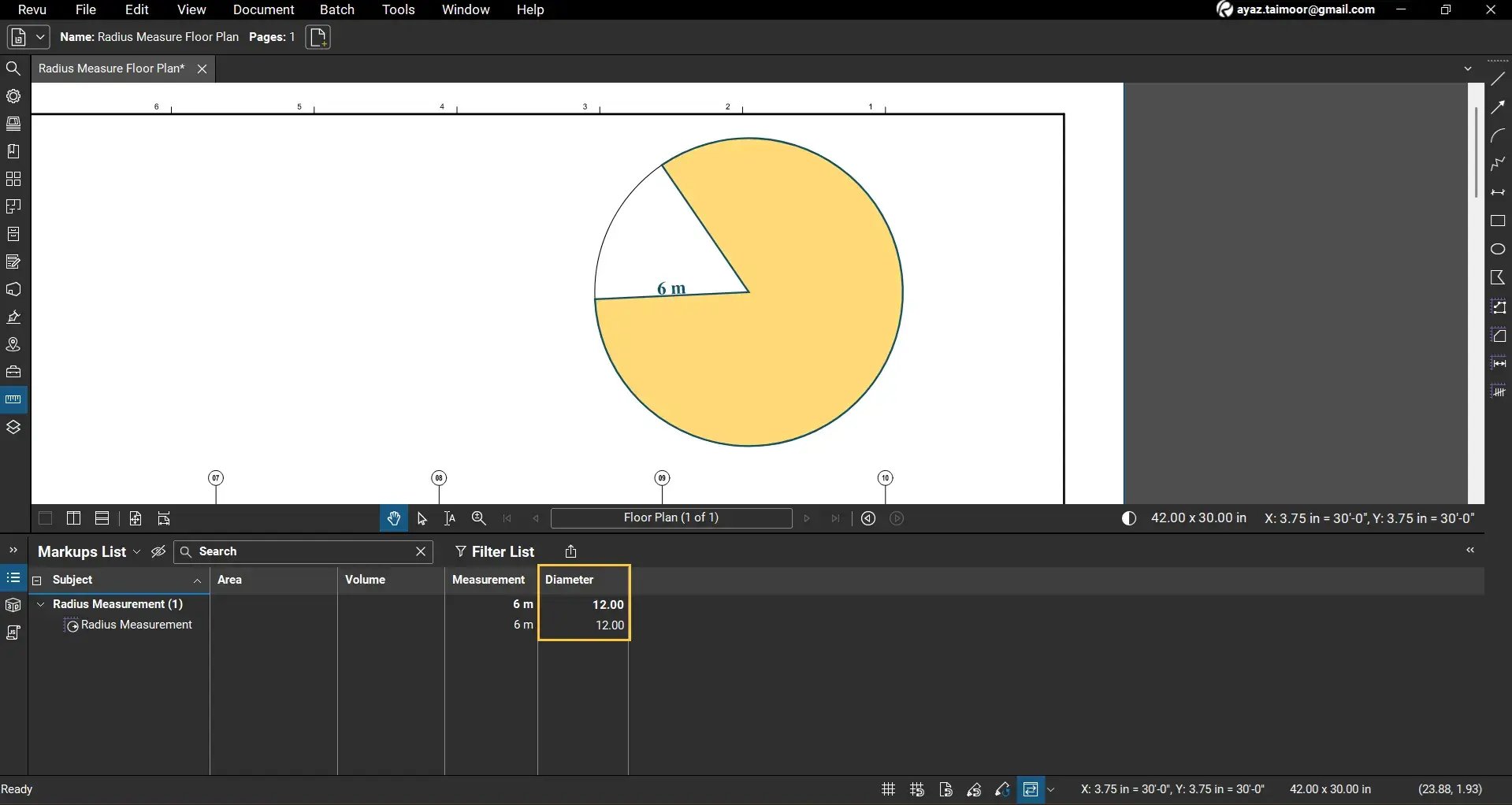
Remember, Revu has a dedicated measurement tool to Calculate the diameter. But for an idea, you can do a lot of manual calculations like these from existing measurements.
Note: If the new column doesn't appear, go to the Markups List dropdown, navigate to the Columns menu, and click to enable your new custom column to make it visible.
Create a Volume Formula Column
Revu will not show volume unless you create another Depth column. First, create a custom Depth column and keep its Type to Number so Revu treats your Depth value as a number.
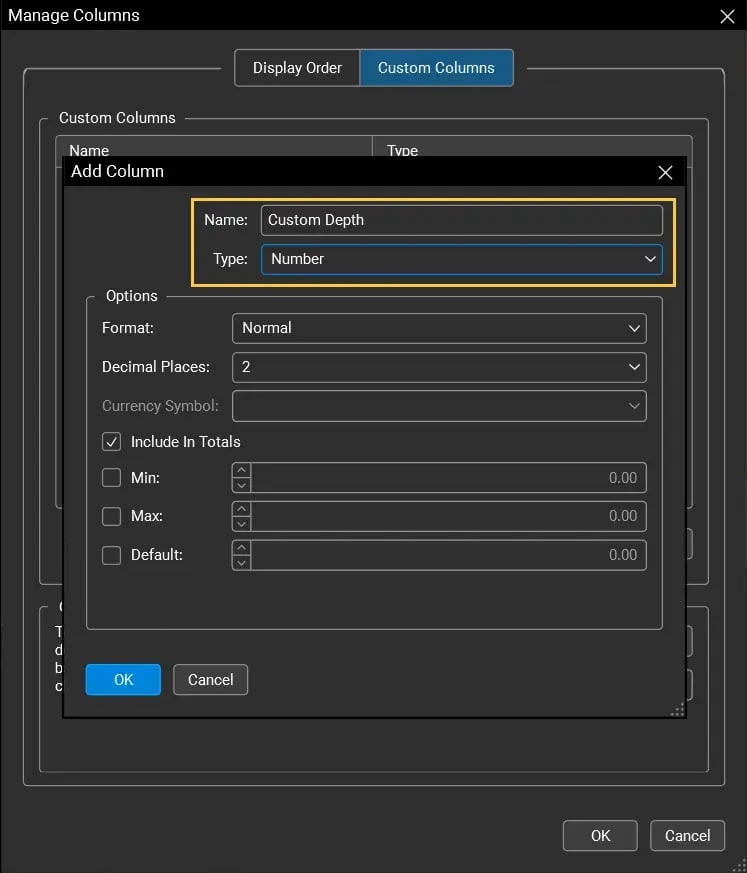
Note: Add Depth Column Name as Custom Depth (not Depth) to avoid confusion with the built-in Depth field.
*Revu also provides a built-in Depth column, but it works only with Volume Measurement. We have to create a Depth column as a custom field with Number Type.
To calculate volume, we use the formula for a cylinder/tank:
π × r² × height
04 A: Go back to the Markups List > Columns > Manage Columns. Click Add (+) again under the Custom Columns tab.
04 B: Set the following:
- Column Name: Custom Volume (Because Revu also provides a built-in Volume column, use a different name to avoid confusion specially if you want to extend this calculation further).
- Type: Formula
04 C: In the Expression field, enter:
pi * Measurement * Measurement * Depth
*The length along the z-axis in Revu is referred to as Depth (not height), which we have to enter manually in our custom depth column because we can’t calculate Depth from 2D plane drawings.
(Revu also gives built-in constants like pi that you can select from the suggestions below by typing pi).
Press Select each field from the available columns by clicking or pressing Enter.
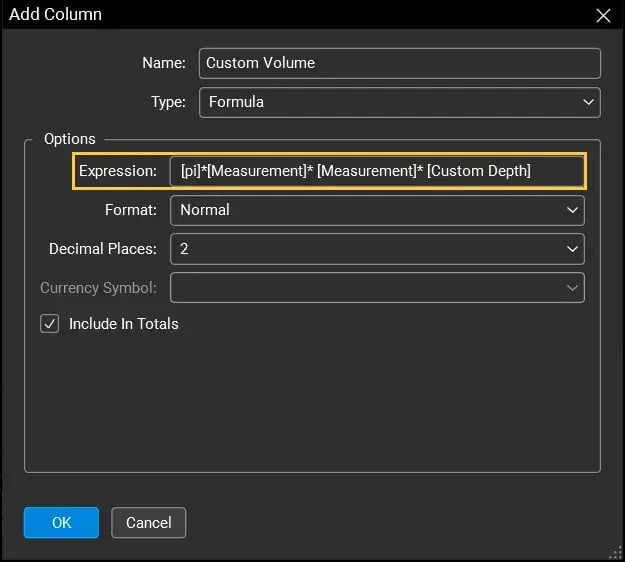
04 D: Click OK.
Now, enter the value for Custom Depth by double-clicking under the Depth column in the Markups List. Or go to the Radius Properties and add the Depth value under the Custom fields section.
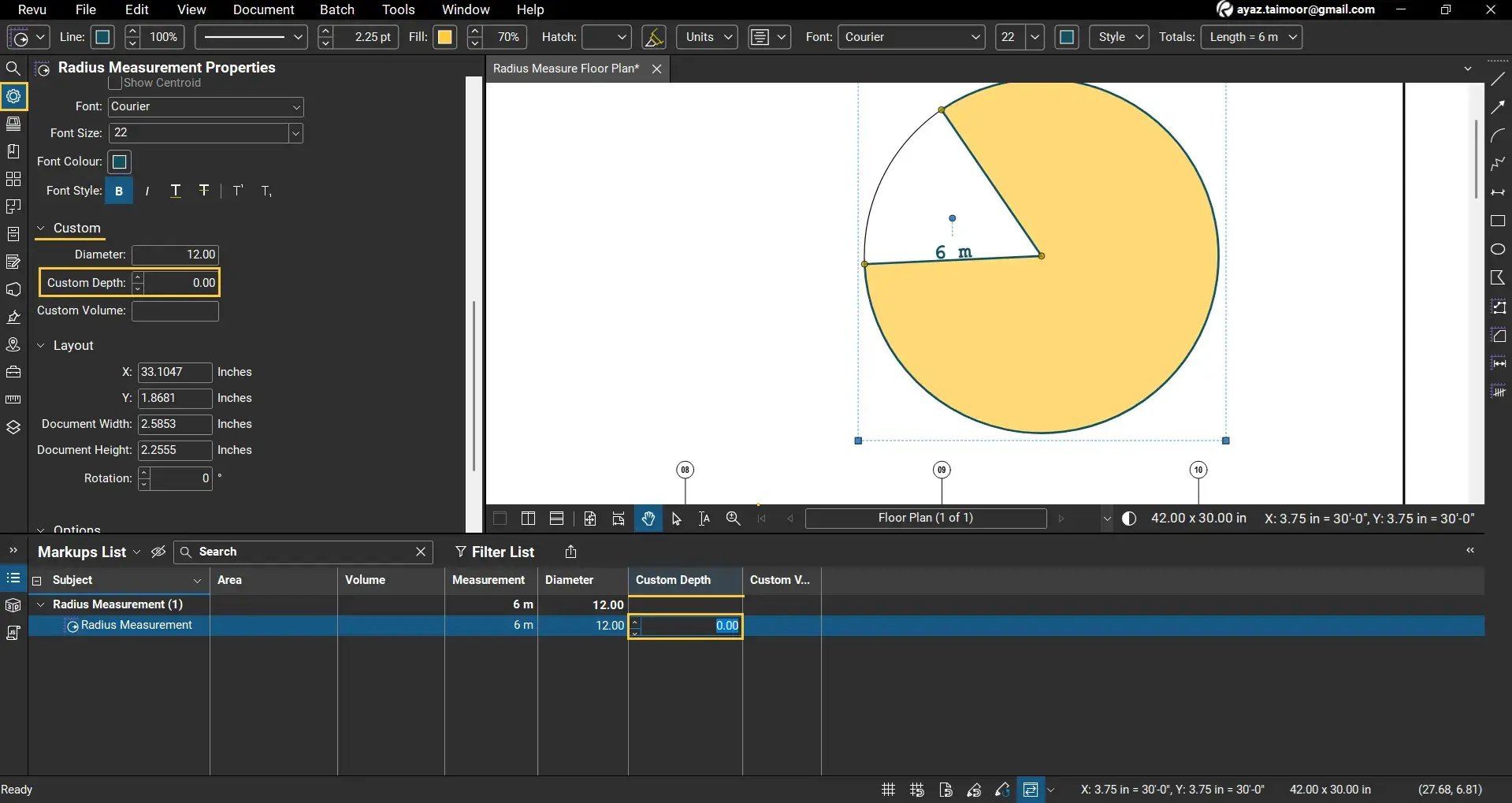
Once you define the depth of your cylinder/tank, the Volume column starts showing values based on:
- Radius (from your Measurement Column)
- Depth (from your custom markup properties)
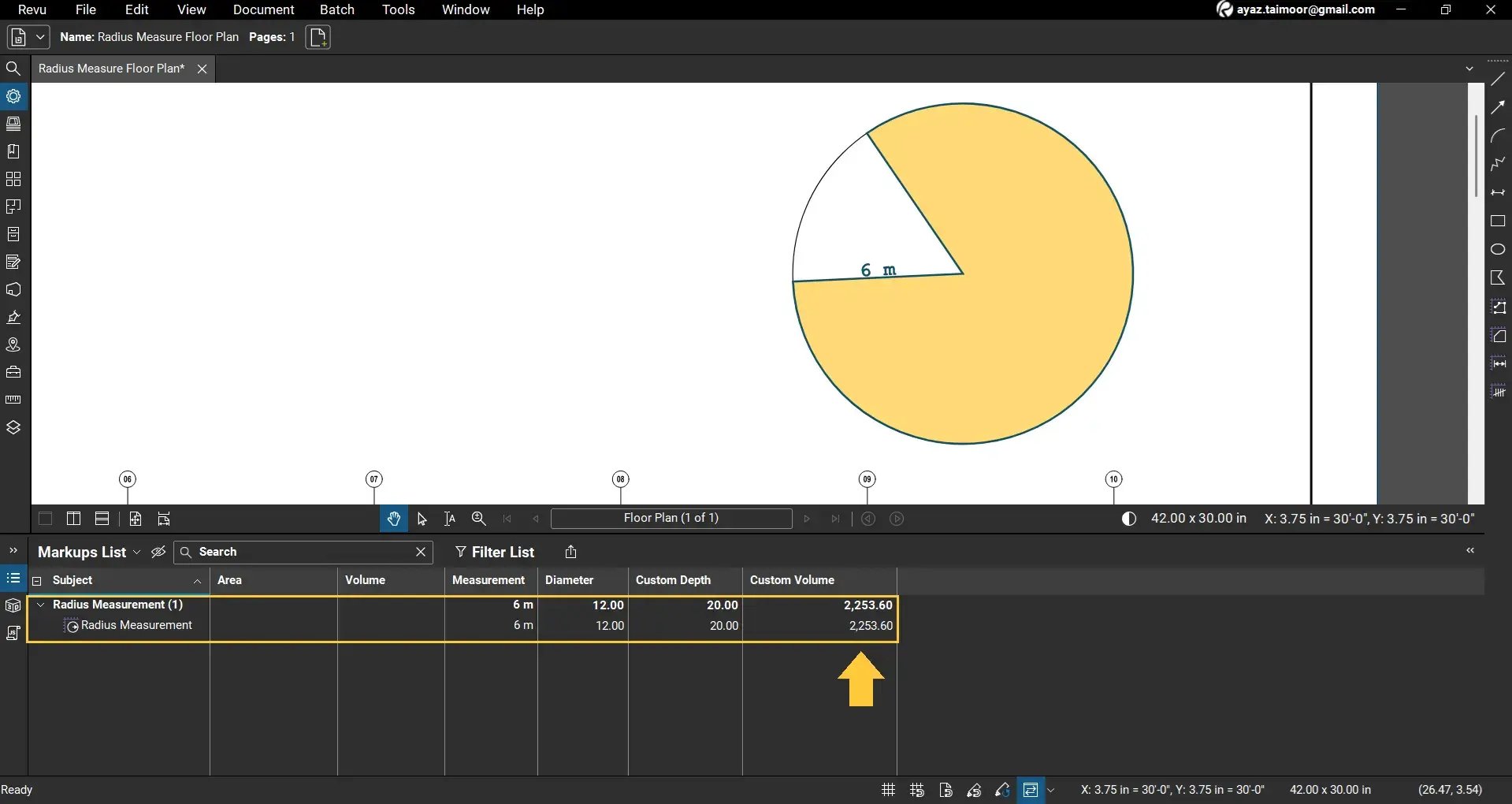
You can also add units in the column names to avoid confusion and ensure everyone using the same workflow enters the correct units in number fields like depth.
If Volume doesn't show any result after doing everything correctly, go back to the Markups List Column Settings > Manage Columns. Select your Custom Volume, click the Edit icon.
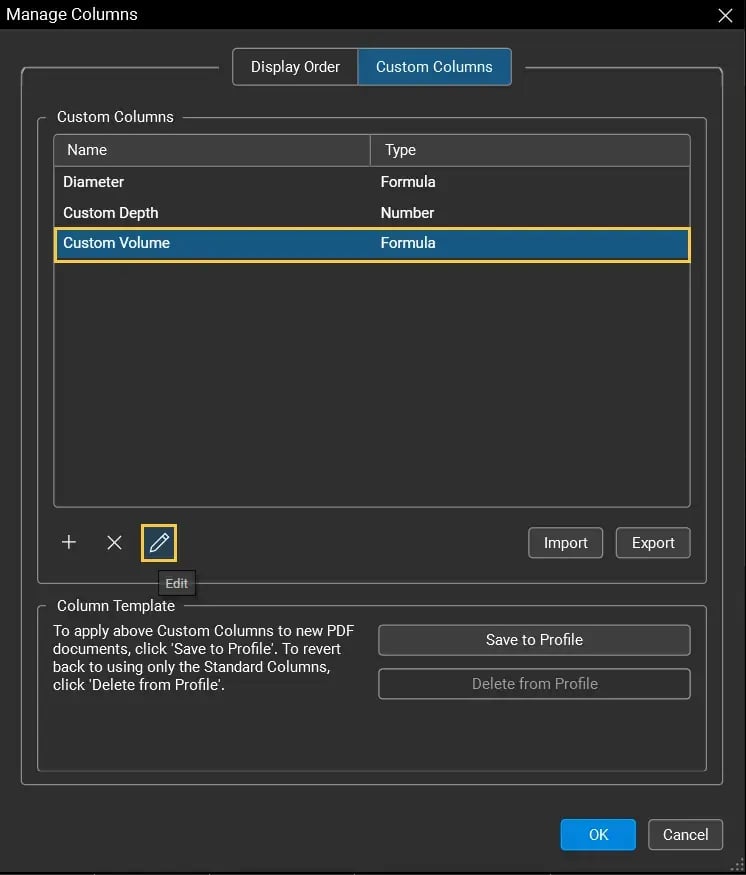
Now, replace the built-in constant (pi) with 3.14.
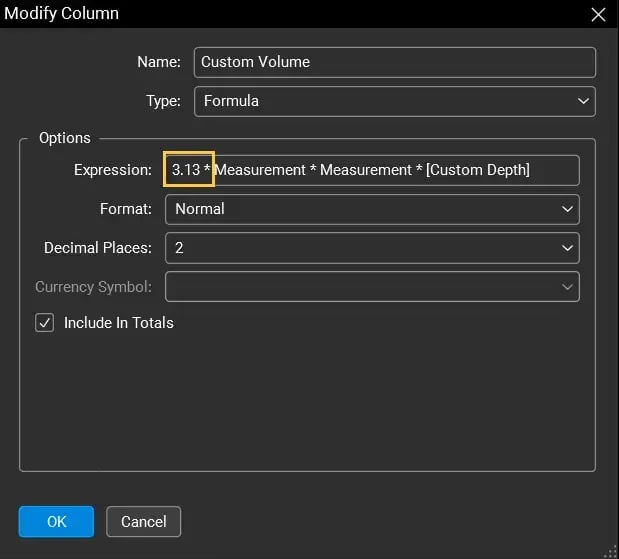
The errors will be fixed, and Revu will start showing calculations correctly.
Level Up Your Bluebeam Experience
This is how you can create formula-based custom columns in Bluebeam Revu 21 for various calculations. This approach helps streamline estimation workflows by turning simple measurements into meaningful data.
For a more detailed explanation of custom columns, data types, and advanced workflows, explore our full guide on Custom columns in Bluebeam Revu.
Stay connected with Brighter Graphics, your go-to Bluebeam partner in the UK, Europe, and the Middle East.