You often need to extract pages from a PDF when working with large drawing sets or document packages. The Extract Pages feature in Bluebeam Revu 21 allows you to create a new document using selected pages from an existing PDF.
This is especially useful when you need to share specific sheets, organise documents, or separate drawing sets for different workflows.
In this guide, you will learn how to extract pages in Bluebeam Revu 21, customise extraction settings, and manage page ranges efficiently.
Step-by-Step Guide to Extract Pages in Bluebeam Revu 21
Follow the steps below to extract selected pages from your PDF document.
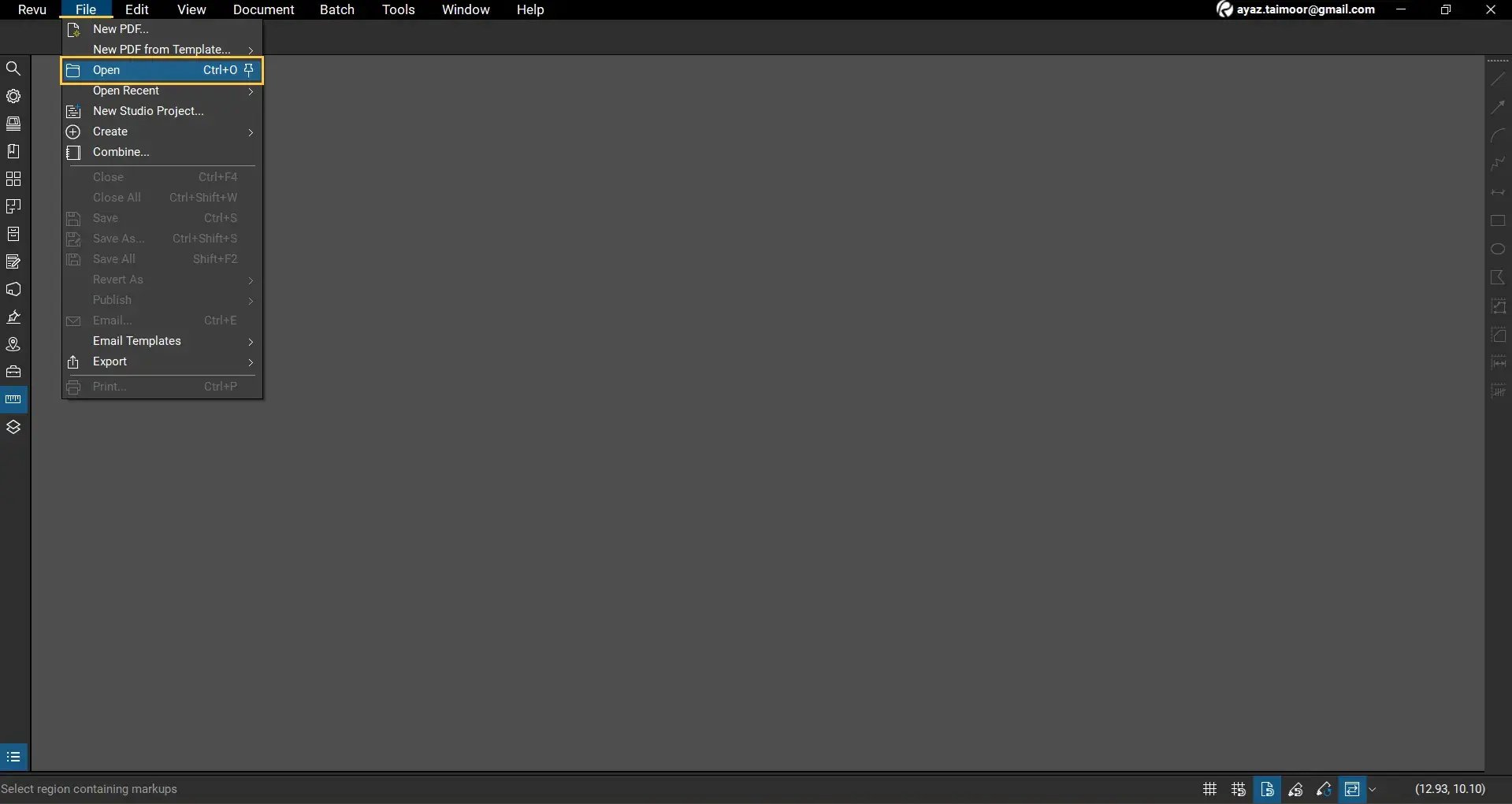
Step 01: Open your PDF document in Revu
01 A: Open Bluebeam Revu 21 on your desktop.
01 B: Go to the File menu in the top menu bar.
01 C: Click Open and select the PDF file you want to work with.
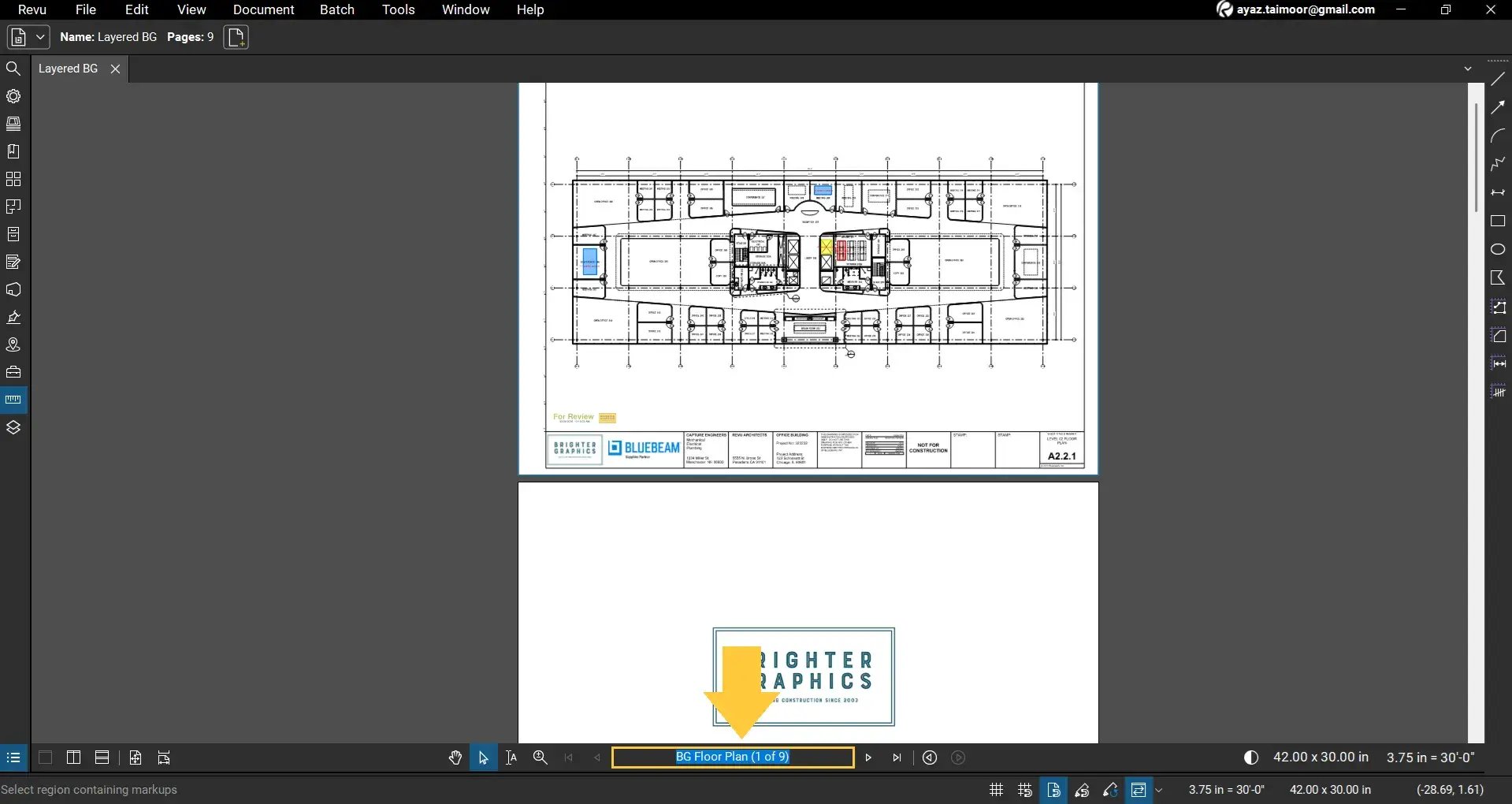
Once opened, you can view the total number of pages in the document from the navigation bar below.
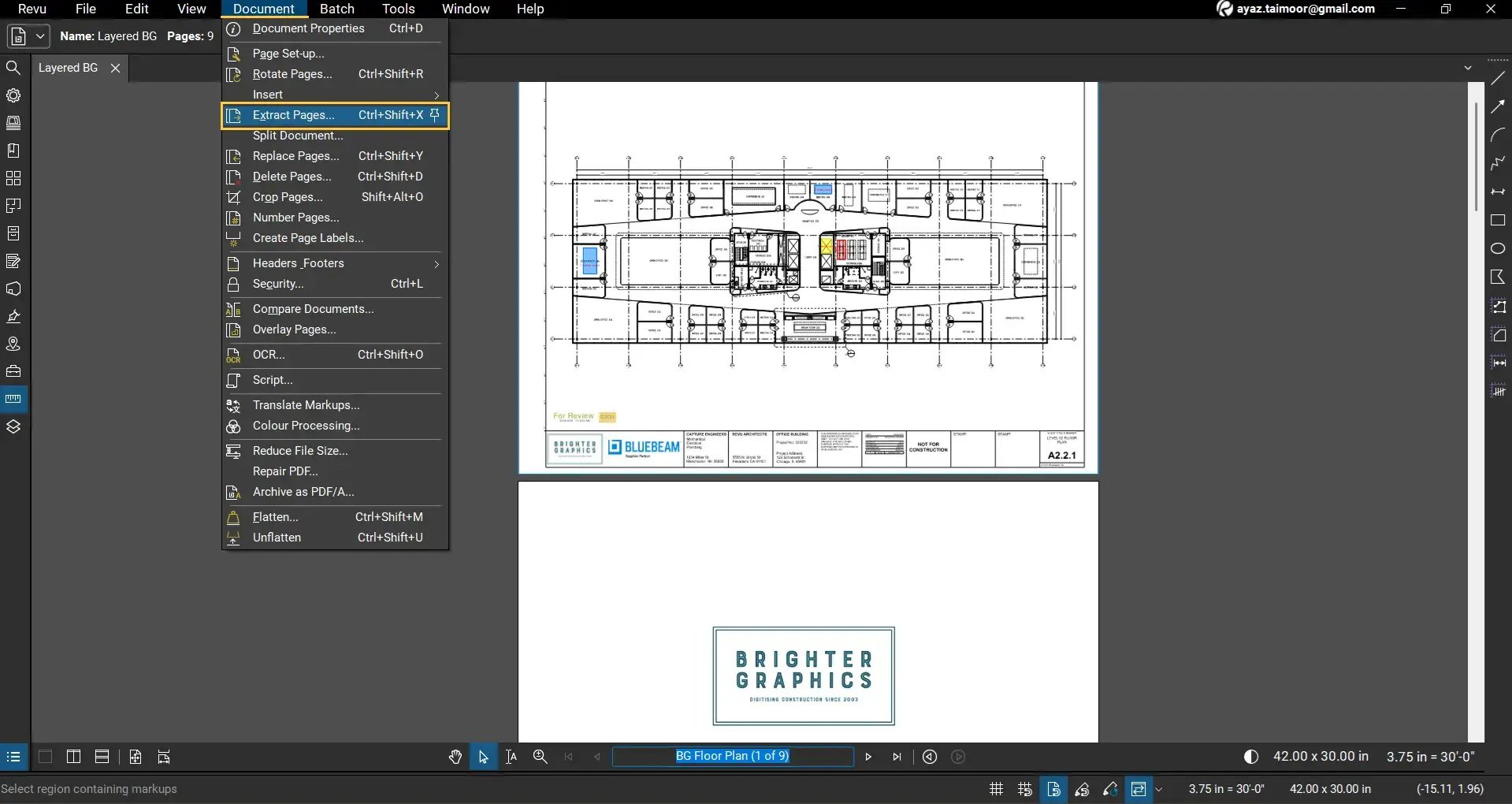
Step 02: Open the Extract Pages tool
02 A: Go to the Document menu in the top menu bar.
02 B: Click Extract Pages.
This will open the Extract Pages dialogue box, where you can configure your extraction settings.
Step 03: Configure extraction options
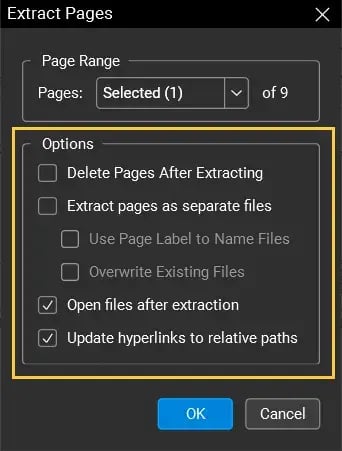
In the Extract Pages dialogue box, you will see several options:
- Delete Pages After Extraction - Removes the selected pages from the original document after extraction
- Extract Pages as Separate Files - Saves each selected page as an individual PDF
- Use Page Labels for File Names - Names extracted files based on page labels
- Overwrite Existing Files - Replaces files if they already exist in the selected location
- Open Extracted Pages Automatically - Opens the new file in Revu after extraction
- Update Hyperlinks to Relative Paths - Maintains working links if files are moved
These options help you control how your extracted pages are saved and managed.
Step 04: Select the pages/ranges to extract
04 A: In the Page Range section at the top, choose how you want to extract pages:
- All Pages
- Current Page
- Selected Pages
- Custom Range
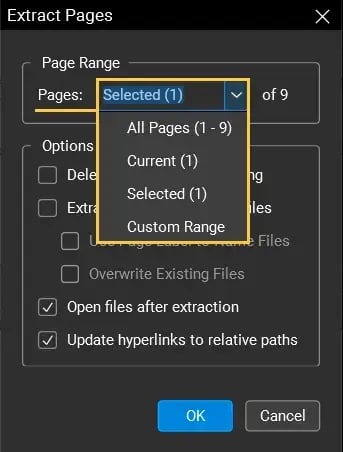
04 B: If you select custom range, enter your desired page range.
Use the following formats:
- Continuous range:
1-3
- Multiple ranges with breaks:
1-3, 5-8, 19
- Single pages:
4, 7, 12
For example, entering:
1, 4, 7-9
will extract pages 1 and 4, and pages 7 to 9 from the document.
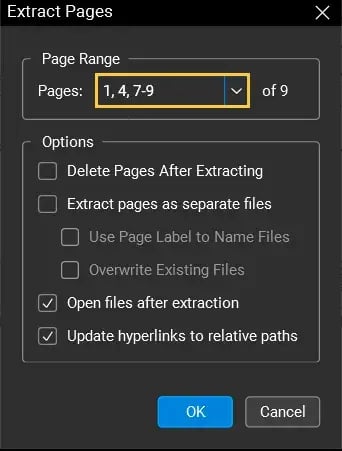
Note: You cannot extract pages beyond the total number of pages.
Step 05: Extract and save the new document
05 A: Once your settings and page ranges are defined, click OK.
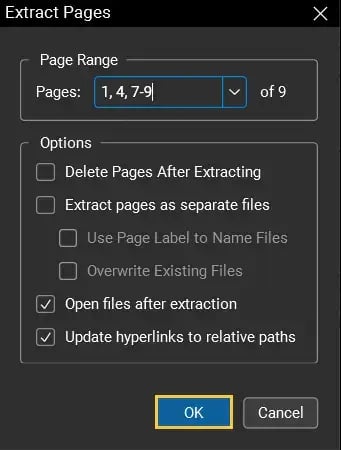
05 B: Choose the location where you want to save the extracted file.
05 C: Click Save.
A new PDF will be created containing only the selected pages.
Review Extracted Pages
As we have extracted 5 pages from the 9-page document, the page count will drop to 5 in the navigation bar below.
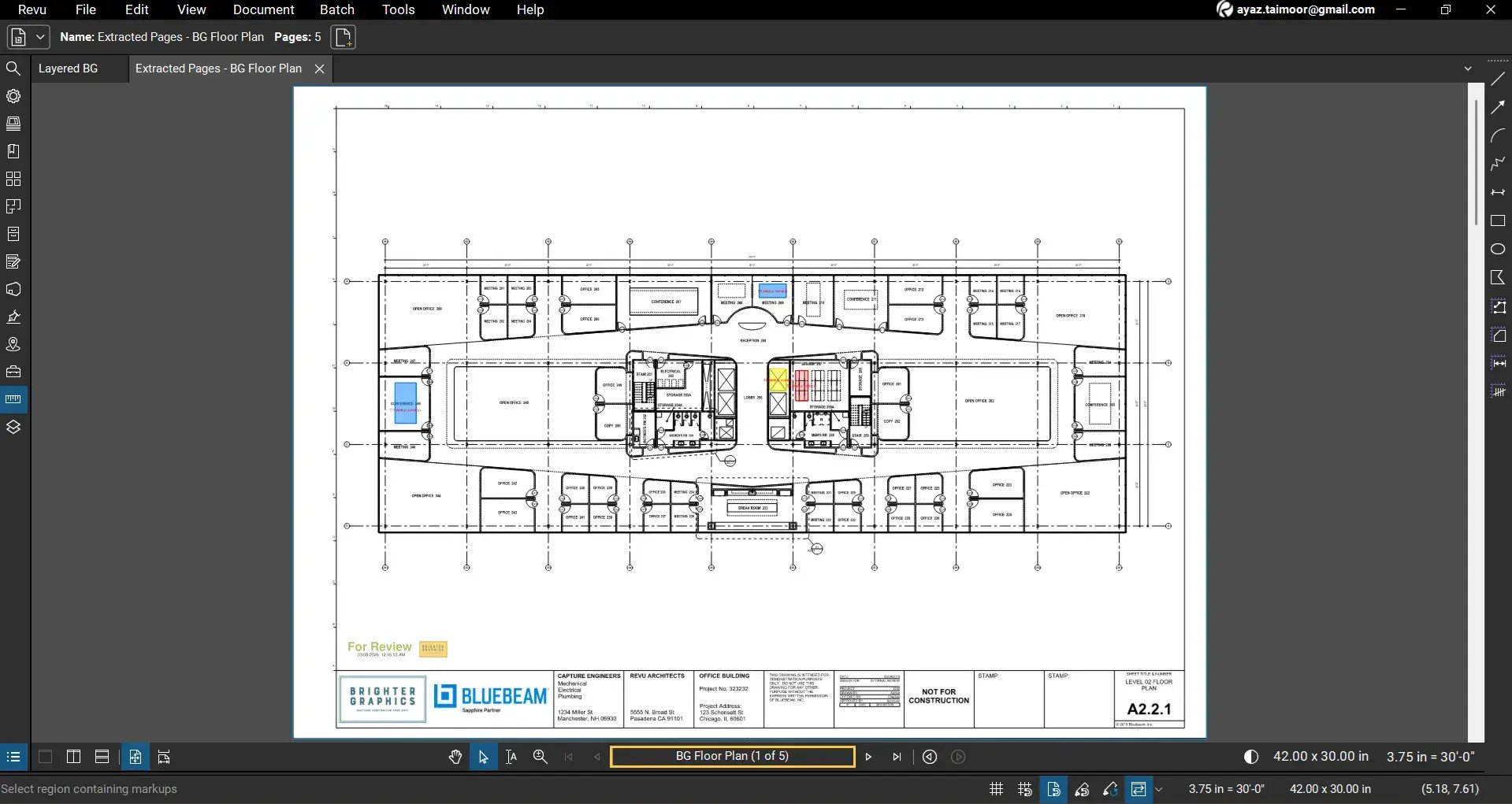
After extraction:
- The new document will include only the selected pages
- The page order will follow the sequence you defined
- The original document will remain unchanged unless deletion is enabled from the option (check step 03 for details)
For example:
Extracted pages: 1, 4, 7, 8, and 9
The new file will contain only these 5 pages.
Level Up Your Bluebeam Experience
This is how you can extract pages from a PDF in Bluebeam Revu 21 using flexible page selection and document management options. By using this feature, you can organise and share your PDF documents more efficiently.
To further improve your document workflows in Revu, explore our other Bluebeam guides and stay connected with Brighter Graphics, your go-to Bluebeam partner in the UK, Europe, and the Middle East.