You can use the Input Box or Text Box tool in Bluebeam Revu 21 as a text editor or PDF markup tool. You can draw a toolbox and format it along with the text inside to create clear, professional markups in your PDFs. By flattening your textbox, you can turn that text into permanent content on your PDF.
Let’s discover how.
Bluebeam Revu Text Box Tool Step-by-Step Guide
Bluebeam Revu Polygon Markup - Video Tutorial
The following step-by-step guide will walk you through a straightforward process of adding and editing text in Bluebeam Revu 21.
Step 01: Open Bluebeam Revu 21 and Access the Text Box Tool
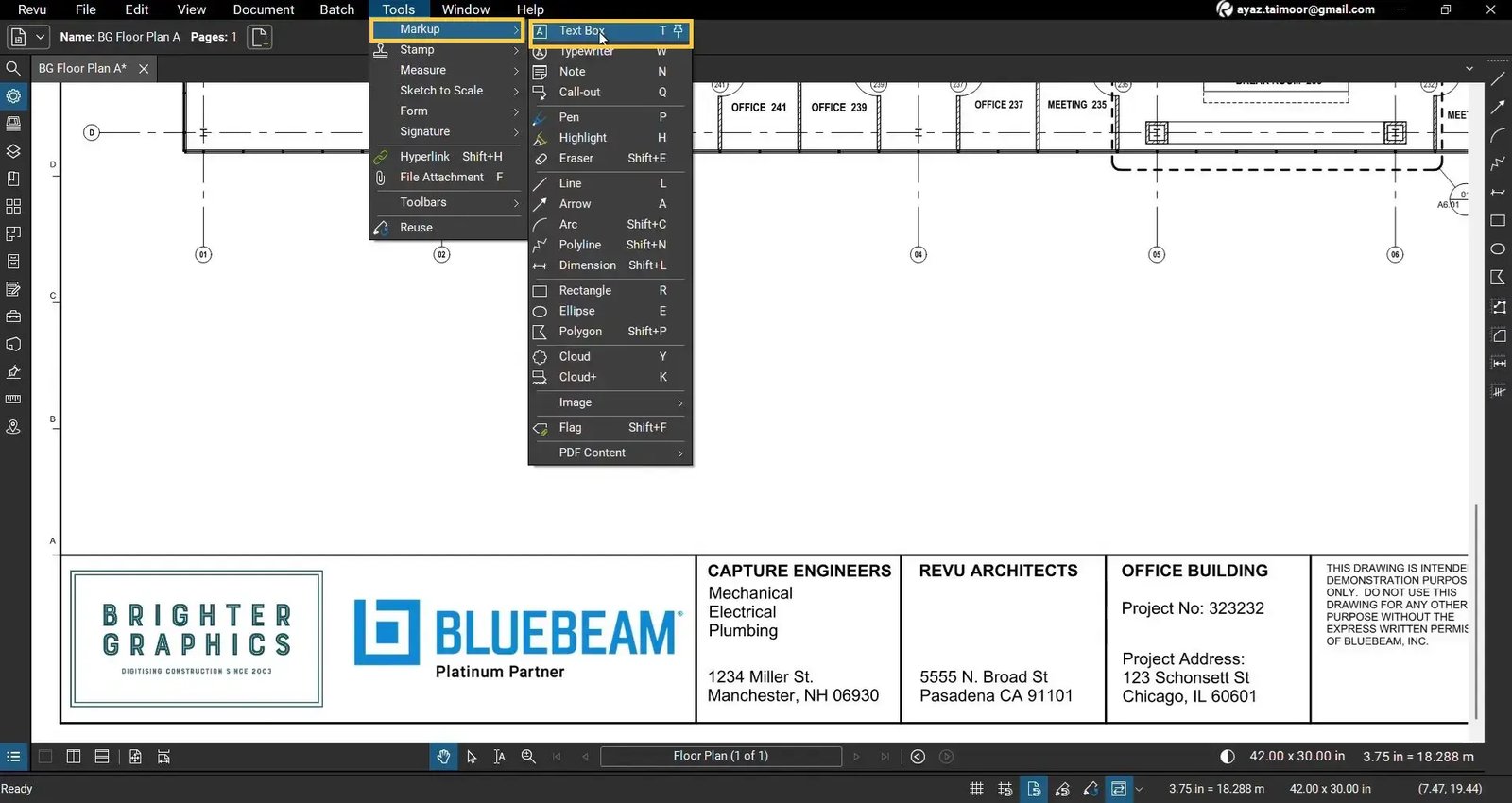
- Open Bluebeam Revu 21 on your desktop.
- Go to the Tools menu on the top bar.
- Navigate to Markups.
- Click the Text Box to activate the Text Box markup/tool.
Step 02: Create a Text Box on Your PDF
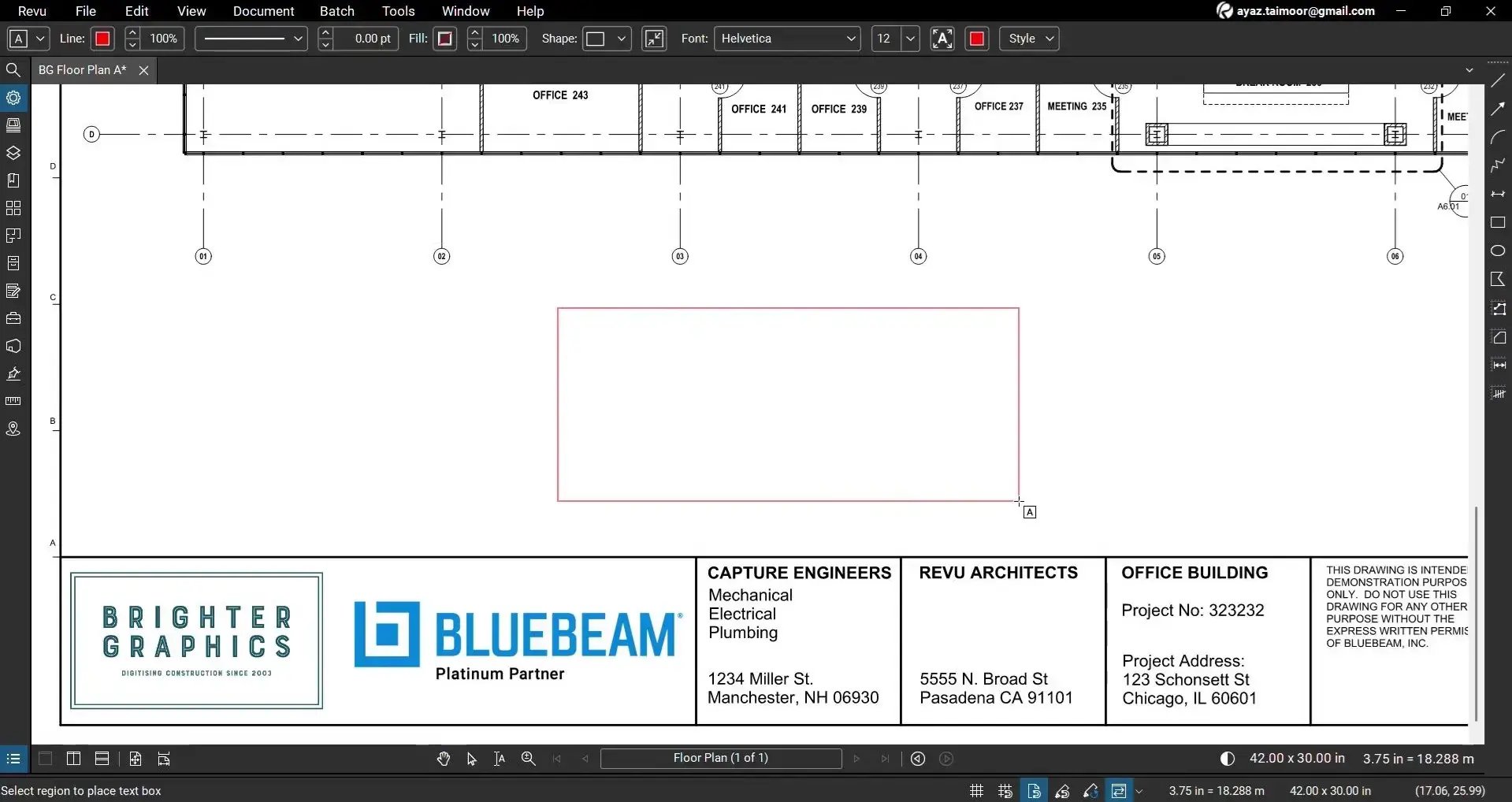
- Move your cursor to the location on the PDF where you want to add text.
- Click and drag to draw a text box of your desired size.
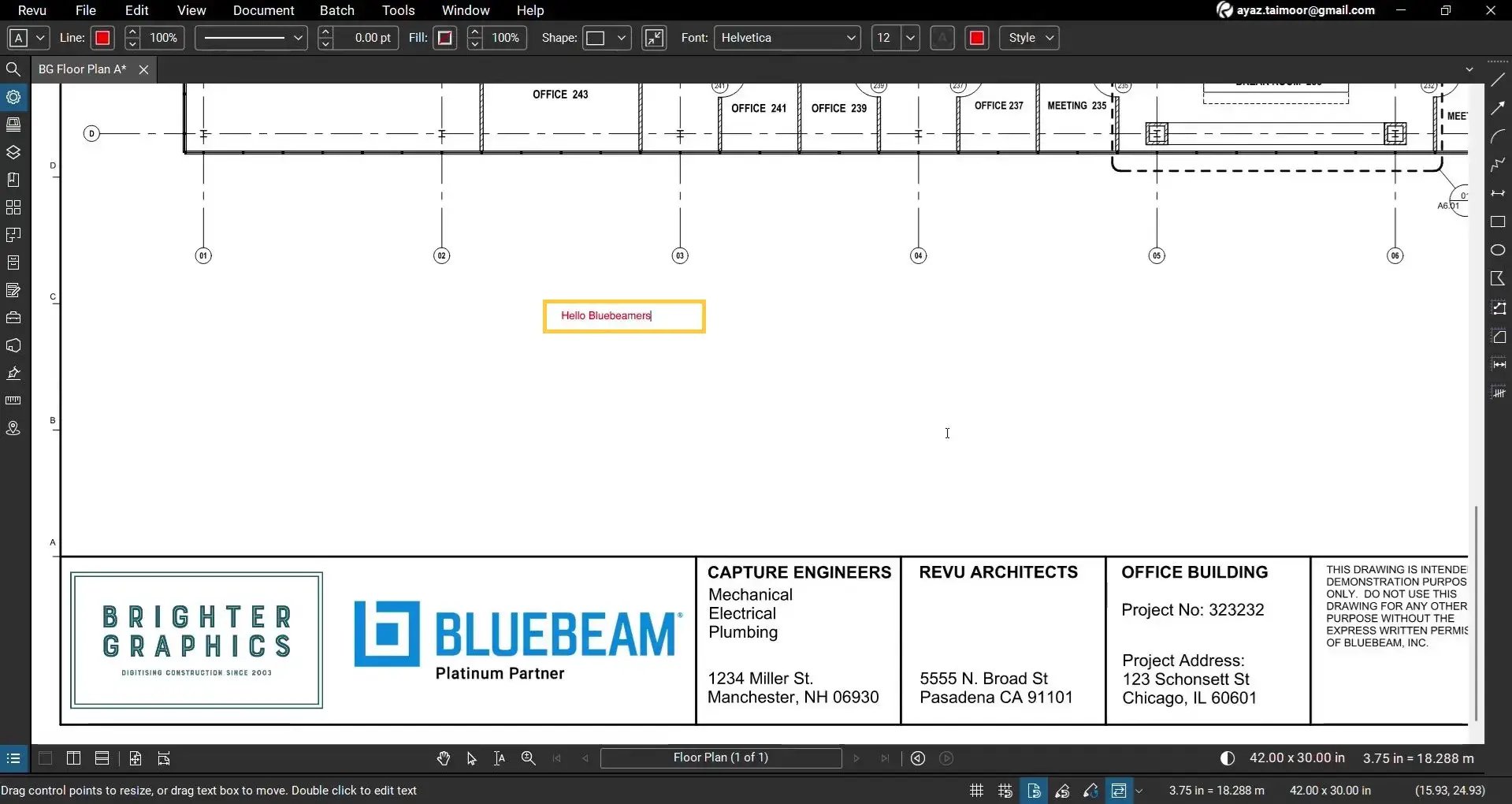
- Once you release the mouse, a blinking cursor will appear inside the text box, prompting you to type.
- Start typing the text you want to add to your PDF.
Step 03: Format All Text in the Text Box
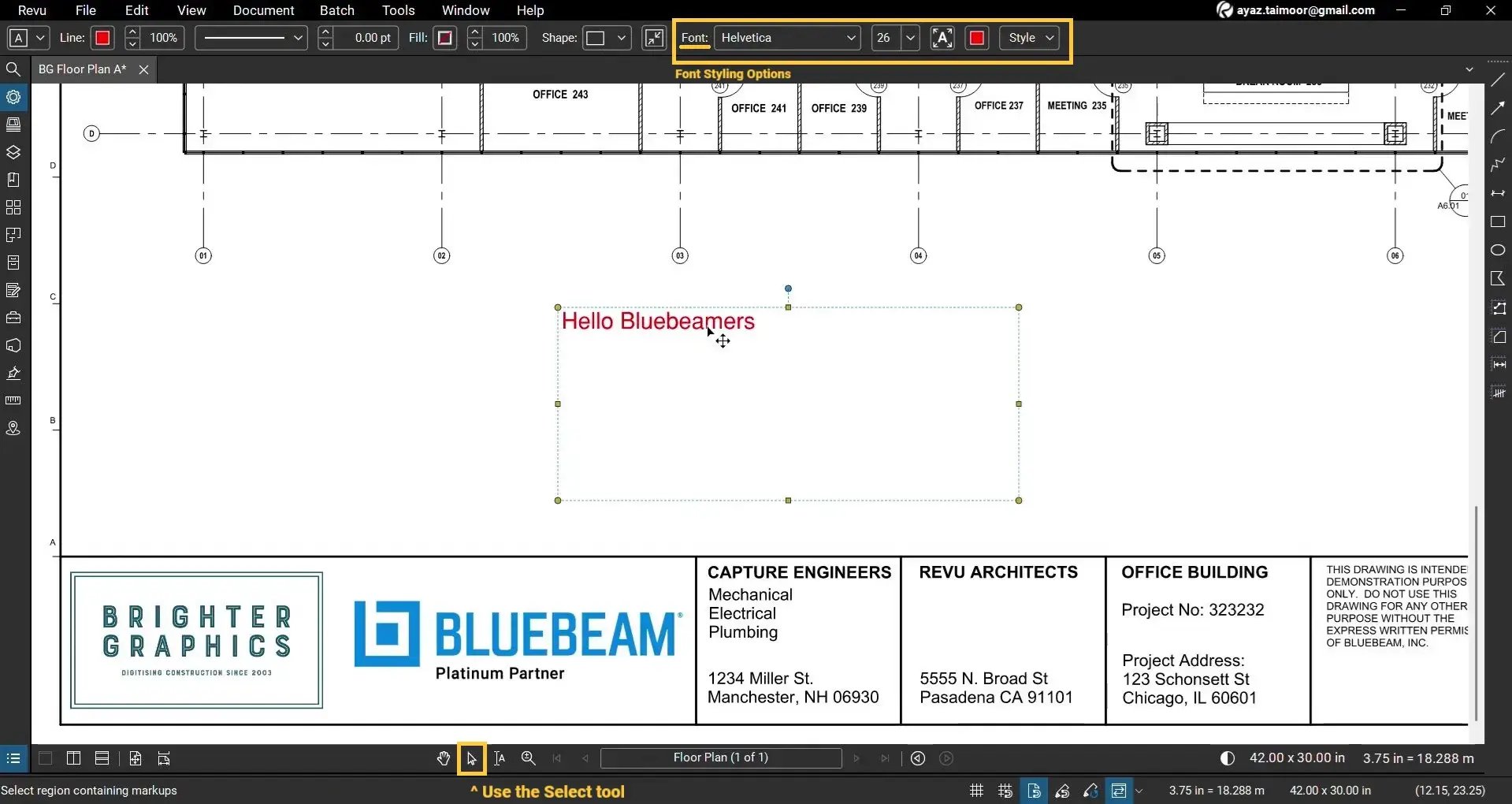
If you're going to format the entire text inside the text box:
- Use the Select tool from the navigation bar (with the cursor icon).
- Click once on the text box border to select the whole text box.
- Go to the Markup editor bar (at the top of your workspace).
- In the Font section of the editor, adjust:
- Font type
- Font size
- Font style (bold, italic, underline, etc.)
- **Other default text properties
All changes will apply to the entire text because the text box is selected as a whole.
Step 04: Edit and Format Specific Text Only
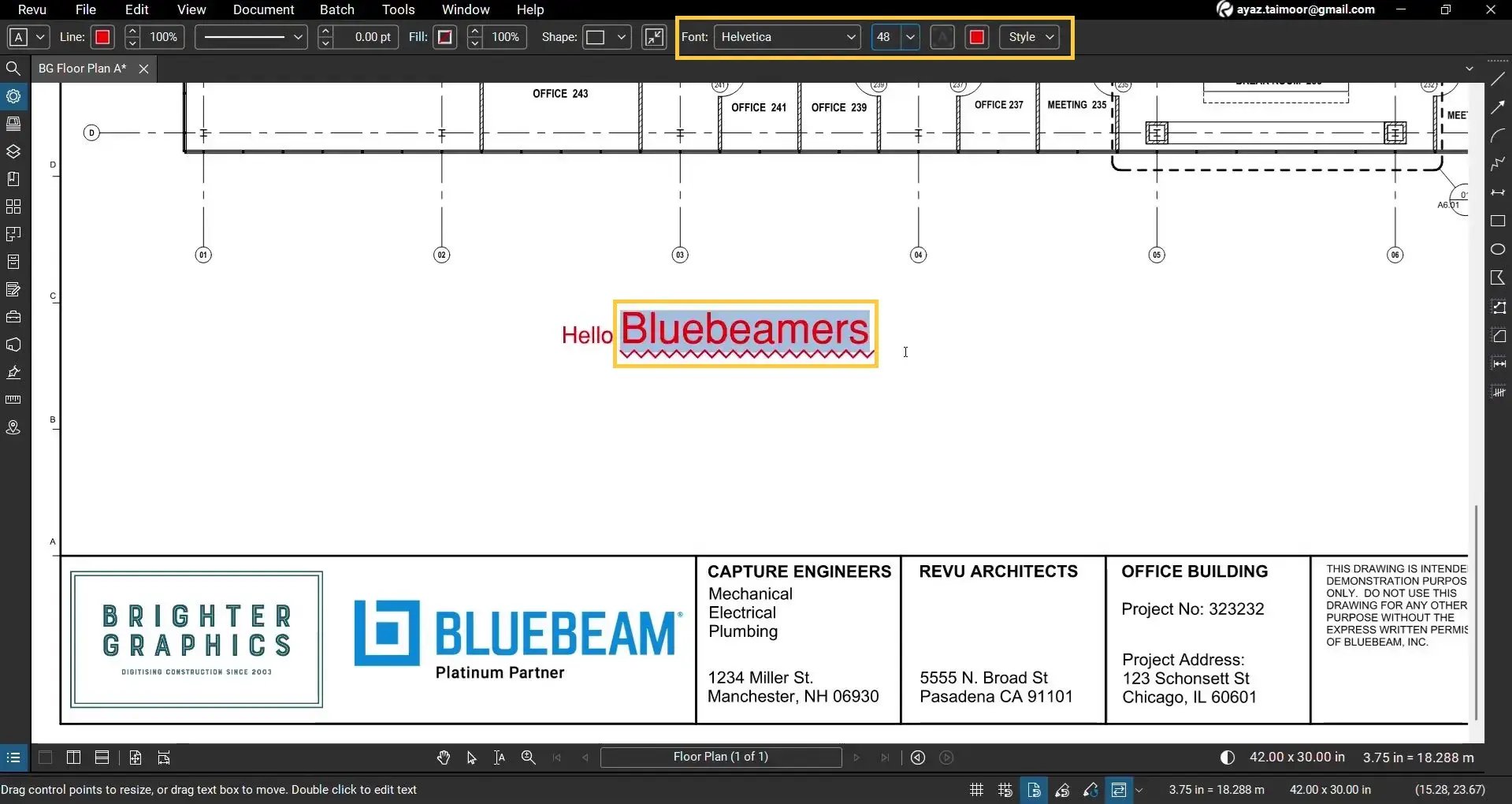
To modify only part of the text inside the text box:
- Double-click inside the text box to enter text edit mode.
- Click and drag to highlight the specific text you want to change.
- Go to the Font section in the Markup editor, update:
- Font type
- Font size
- Font style (bold, italic, underline, etc.)
- **Other default text properties
Only the selected text will be updated, leaving the rest unchanged.
*You can make all these changes in the Properties panel (with settings icon) in the panel bar.
Step 05: Customise the Text Box Border and Line Style
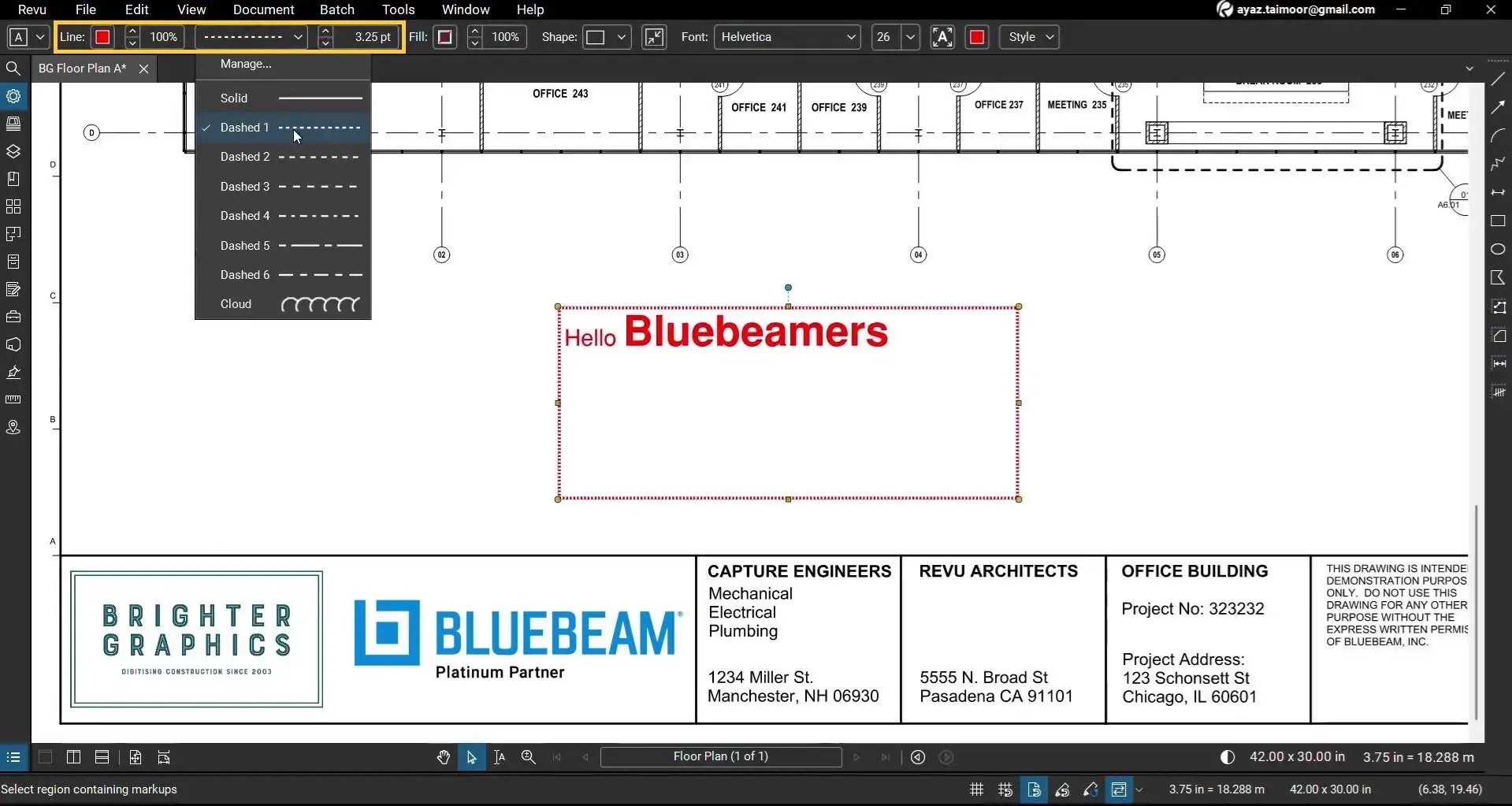
You can make your text box more visible by adjusting its border in the Line section of the editor:
- Select the text box using the Select tool.
- In the Properties or Markup editor, look for Line options.
- Increase the Line Thickness (eg, from 0 to 3.25 Pt) to make the text box border visible.
- Choose a Line Style (solid, dashed, etc.).
- You can also choose Line Colour to match your preferences.
- To create or manage custom line styles:
- Click the Manage option at the top of the line style dropdown.
- From here, you can create and manage custom line styles for your text boxes and other markups.
Step 06: Add Fill Color and Adjust Opacity (Make Text Box Opaque)
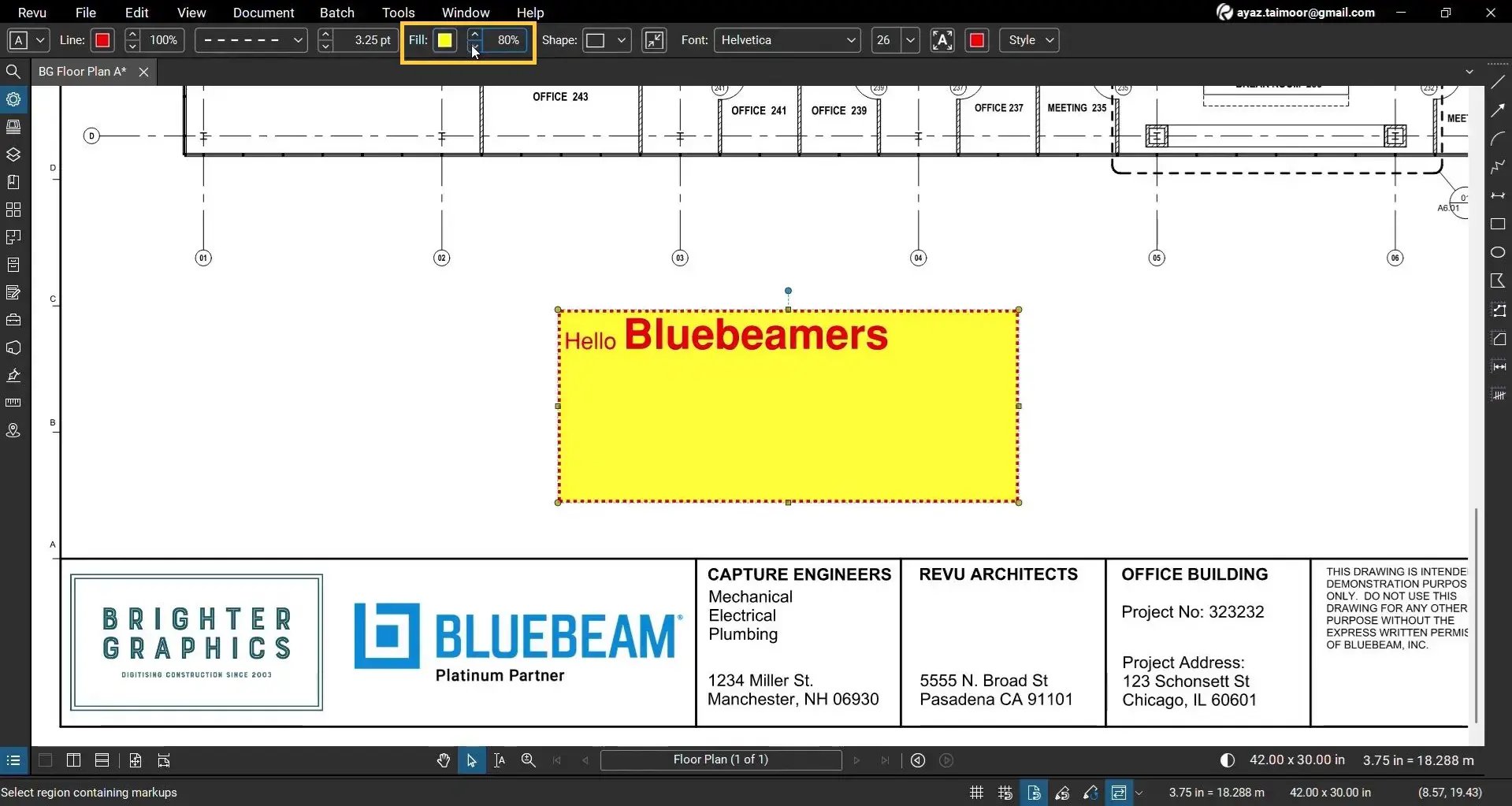
Now, let's explore options in the Fill section of the editor. To control how much of the PDF content behind the text box is visible:
- Select the text box.
- In the Fill section of the Properties panel or the editor, find the Fill Color option.
- Choose a fill color to make your text box stand out.
- Adjust the Opacity slider:
- Lower opacity (more transparent) lets PDF content remain visible behind the text box.
- Higher opacity (more opaque) hides more of the content behind the text box.
This is useful when you want the text box to highlight PDF content without completely blocking what’s underneath.
Read our separate guide on how to use the Snapshot tool as a highlighter in Bluebeam Revu.
Step 07: Change Text Color and Apply Basic Text Styles
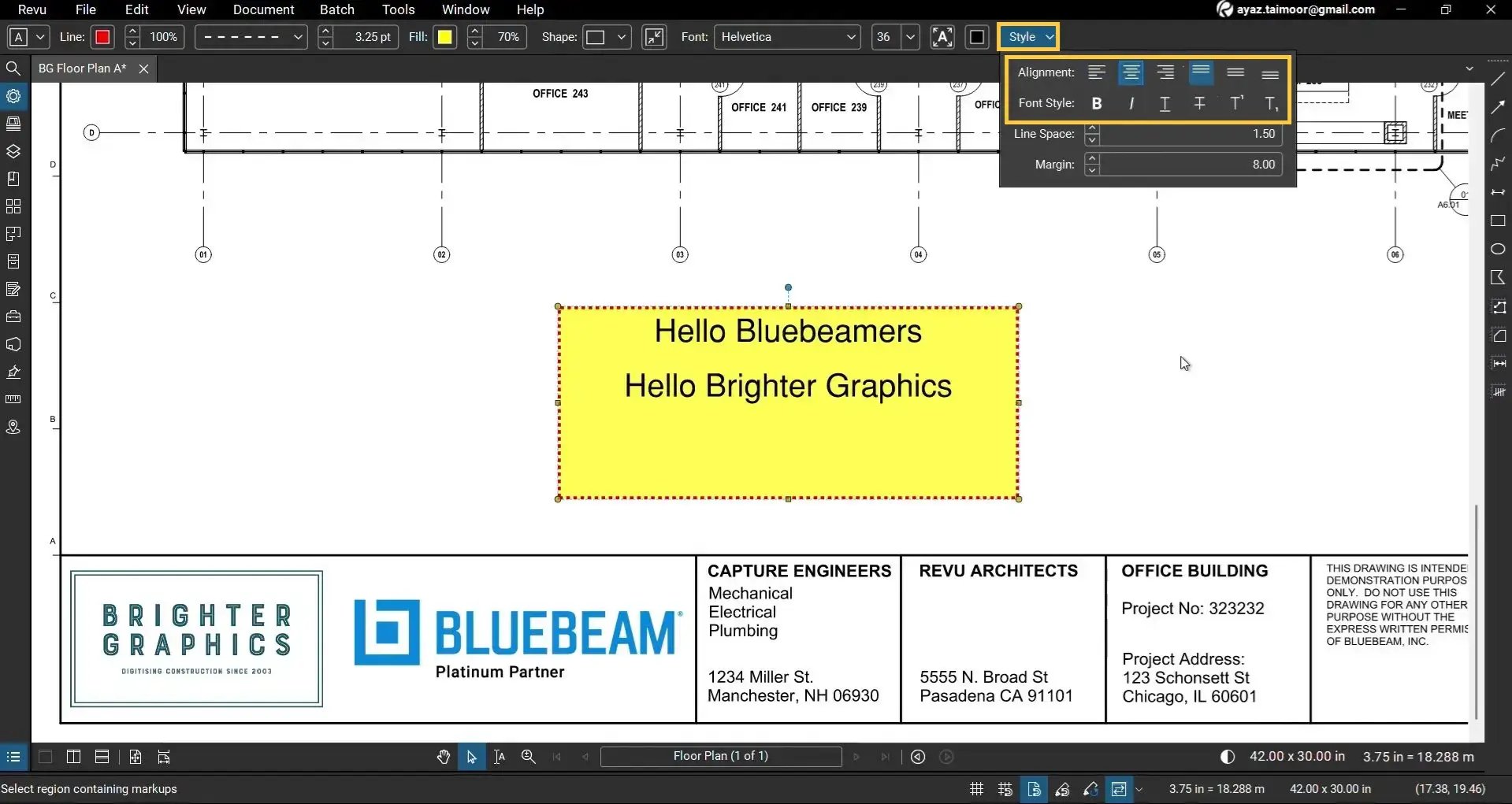
If your text doesn't look visible with the coloured text box, you can go back to the Font section and change the appearance of your text. To adjust how your text looks inside the text box:
- Select the text box or highlight specific text inside it.
- In the Font section of the Markup editor:
- Customise a Font Color, Size, or Style.
- Apply more styling such as Bold, Italic, or Underline (Under the Style dropdown).
You can also use keyboard shortcuts:
- Ctrl + B for Bold
- Ctrl + I for Italic
- Ctrl + U for Underline
*These shortcuts work when you are in text edit mode and have text selected.
Here you also have options for:
- Horizontal Align: Align your text as a paragraph or to the left, right, or centre of the textbox.
- Vertical Align: Align your text to the top, bottom, or middle of the textbox (just like you do in Excel columns).
Step 08: Adjust Line Spacing and Text Margins
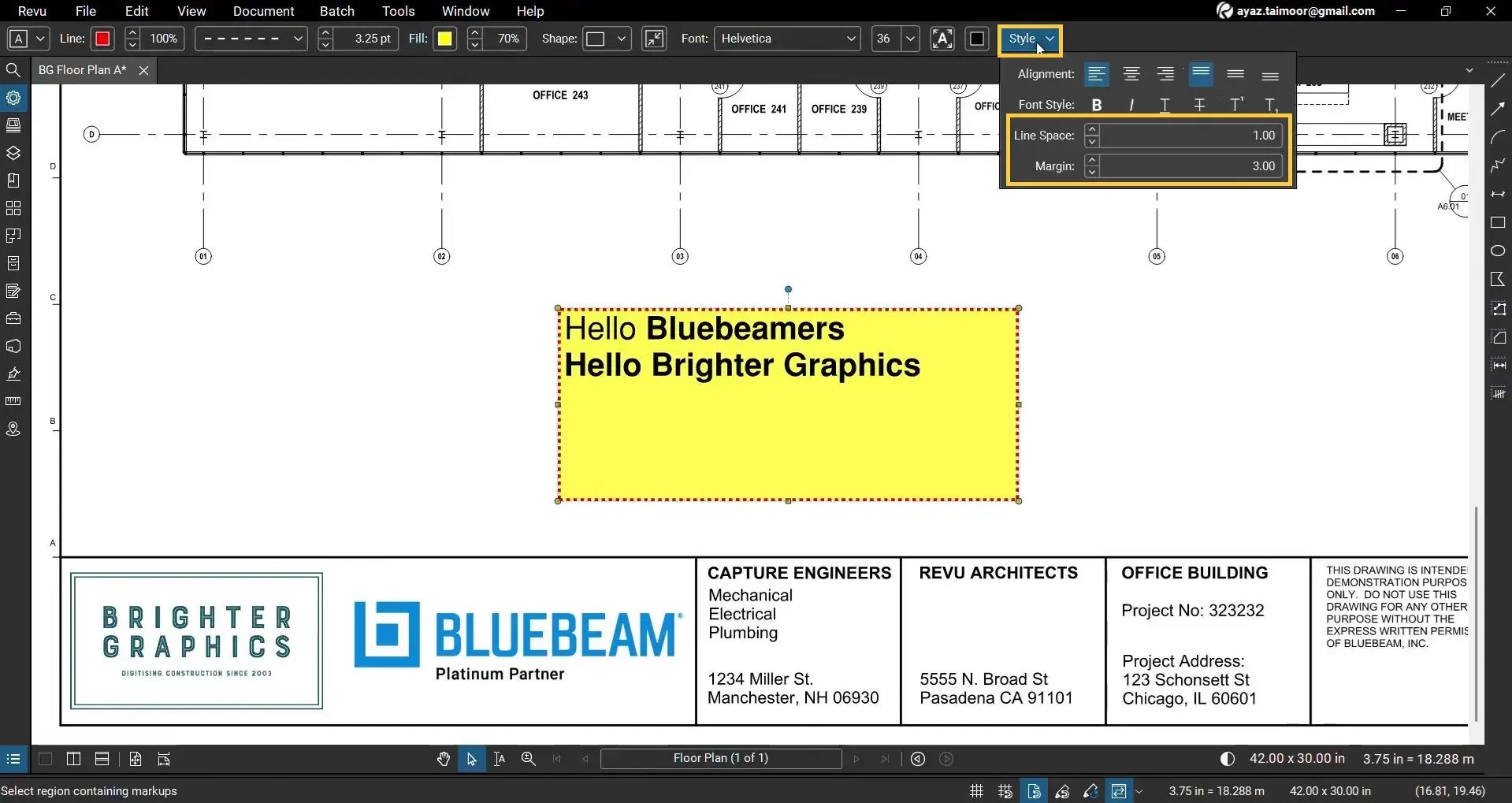
To improve the readability and layout of your text:
- Select the text box or highlight the desired text.
- Go to the Style menu or section in the Markup editor.
- Adjust:
- Line Spacing: control the vertical space between lines of text.
- Margins: set the distance between the edge of the text box and the beginning of the text.
These controls let you format your textbox content to match your document style or project standards.
Change the Shape of the Text Box (Rectangle, Circle, Triangle, Polygon)
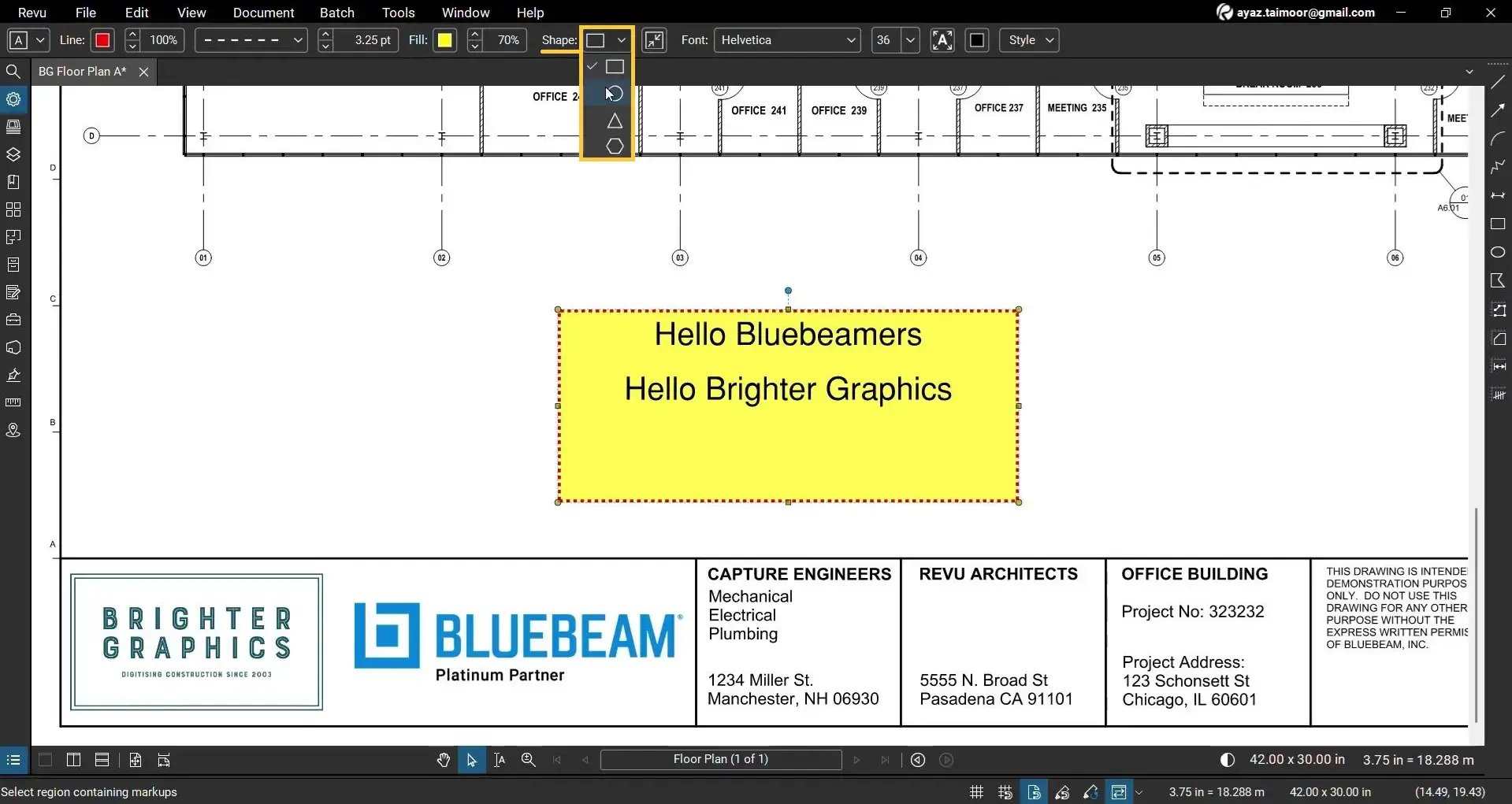
The Text Box in Bluebeam Revu 21 isn’t limited to rectangles:
- Select your text box.
- Go to the Shape section in the editor or Properties panel and click the dropdown.
- Choose from available shapes:
- Rectangle/square
- Circle
- Triangle
- Polygon
Create a Perfect Square Text Box
When drawing a new text box:
- Select the Text Box tool again.
- Hold the Shift key on your keyboard.
- Click and drag to draw the text box.
Holding Shift constrains the text box’s width and height, allowing you to draw a perfect square text box.
More Tips for Using Text Box in Bluebeam Revu 21
Below are some helpful considerations to keep your markup walks consistent and efficient in Bluebeam Revu.
- Use opaque text boxes to hide outdated notes and replace them with updated information.
- Use semi-transparent text boxes to add comments while still showing the content beneath.
- Create custom line styles for different markup types (e.g., comments, instructions, revisions).
- Combine bold, color, and line spacing changes to match your company’s markup standards.
Level Up Your Bluebeam Experience
This is how you can use the Text Box tool in Bluebeam Revu as a text editor, giving you precise control over your PDF markups, formatting, and presentation. From changing fonts and colors to adjusting line styles, margins, and shapes, you can create professional, readable annotations on any PDF.
To improve your skills in PDF markups and measurements in Revu, explore our other Bluebeam guides.
For more Bluebeam Revu tips, tricks, and tutorials, stay connected with Brighter Graphics, your go-to Bluebeam Sapphire Partner in the UK and Europe.