Bluebeam Max brings powerful AI capabilities by integrating with Claude via the Model Context Protocol (MCP). Once connected, Claude can interact directly with PDFs opened in Revu and help automate repetitive workflows using natural language prompts.
You can use Claude to:
- Analyse PDF documents
- Extract project data
- Organise markups
- Generate summaries and reports
- Search and replace text
- Compare documents
- Highlight content in batches
- Calculate measurements
- Reformat or rewrite content
- Assist with takeoffs and estimation workflows
This guide walks you through the complete setup process for connecting Claude with Bluebeam Revu 21 and demonstrates how to start using AI across your PDF workflows.
Requirements Before You Start
The Claude integration currently works with the desktop version of Revu and the Claude desktop app. Before connecting Claude with Revu, ensure the following requirements are met:
- Upgrade to the latest Bluebeam Revu 21.9 or later
- Buy an active Bluebeam Max subscription
- Create a Claude account
- Install the Claude desktop application
- Internet connection enabled
Step-by-Step Guide to Connect Claude with Bluebeam Revu 21
Many users are currently exploring Bluebeam Max and are unsure how to use the new AI features in their existing Revu environment. The biggest change is integration with Claude, which unlocks new ways to work with PDFs opened in Bluebeam Revu.
To use these capabilities, your Revu must be updated to the latest Bluebeam Revu 21.9 or later. This update is required to access all Max subscription features, including AI-powered document interaction through Claude.
Once set up, you can use Claude to analyse PDFs, extract data, generate summaries, manage markups, and support faster decision-making directly from your drawings and documents.
In this guide, we will walk through the complete setup and show how to connect and use Revu with Claude.
Follow the steps below to configure the connection between Revu and Claude.
Step 01: Update Bluebeam Revu to Version 21.9
01 A: Open Bluebeam Revu on your desktop.
01 B: Go to the Help menu.
01 C: Click Check for Updates.
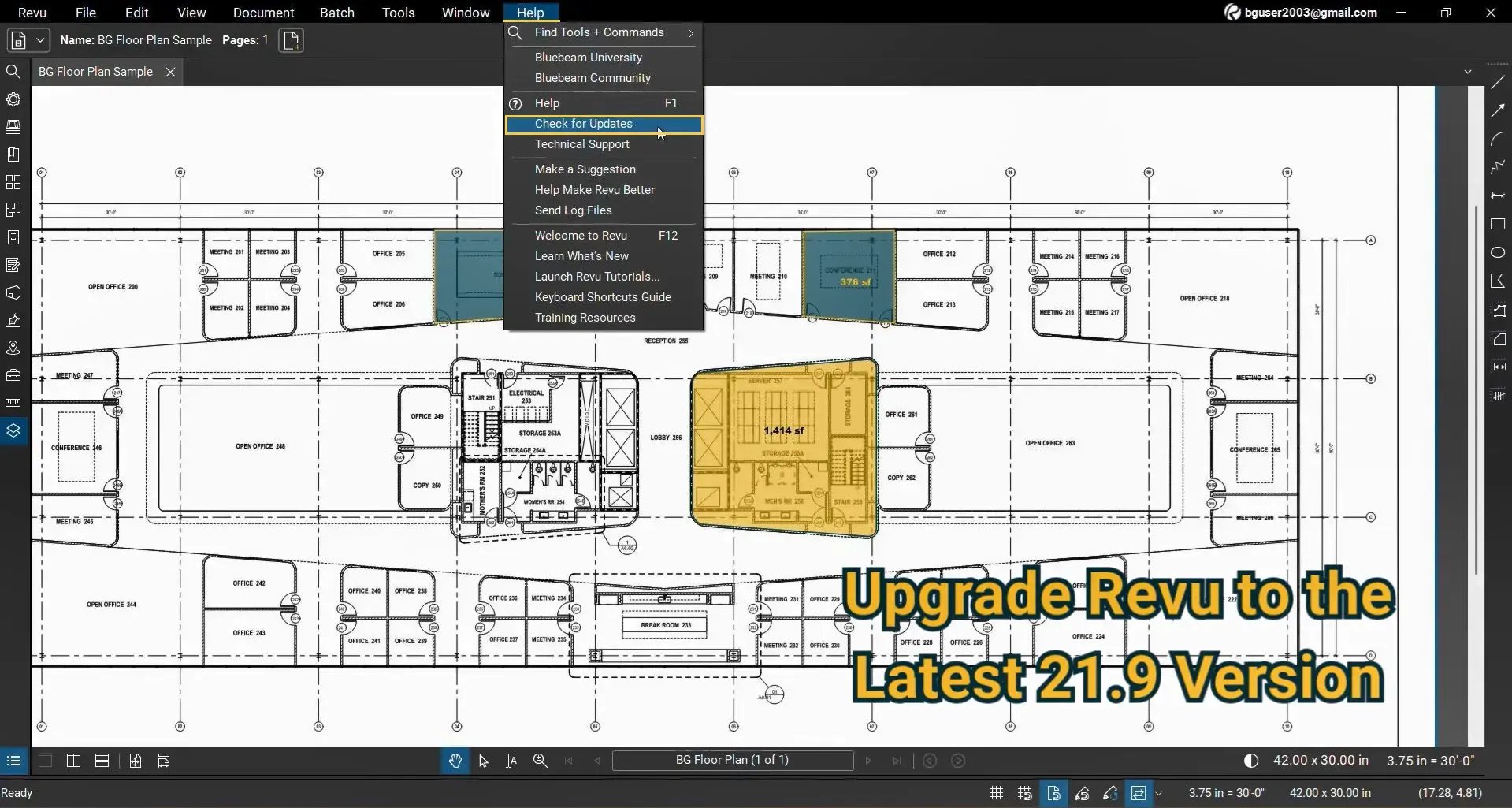
Install the latest Revu update and ensure you are running version 21.9 or later.
The Claude integration features are available in newer Revu releases that support Bluebeam Max.
Step 02: Install the Claude Desktop App
02 A: Create a Claude account.
02 B: Download and install the Claude desktop application for Windows.
Once installed, sign in with your Claude account credentials.
Step 03: Enable MCP in Bluebeam Revu
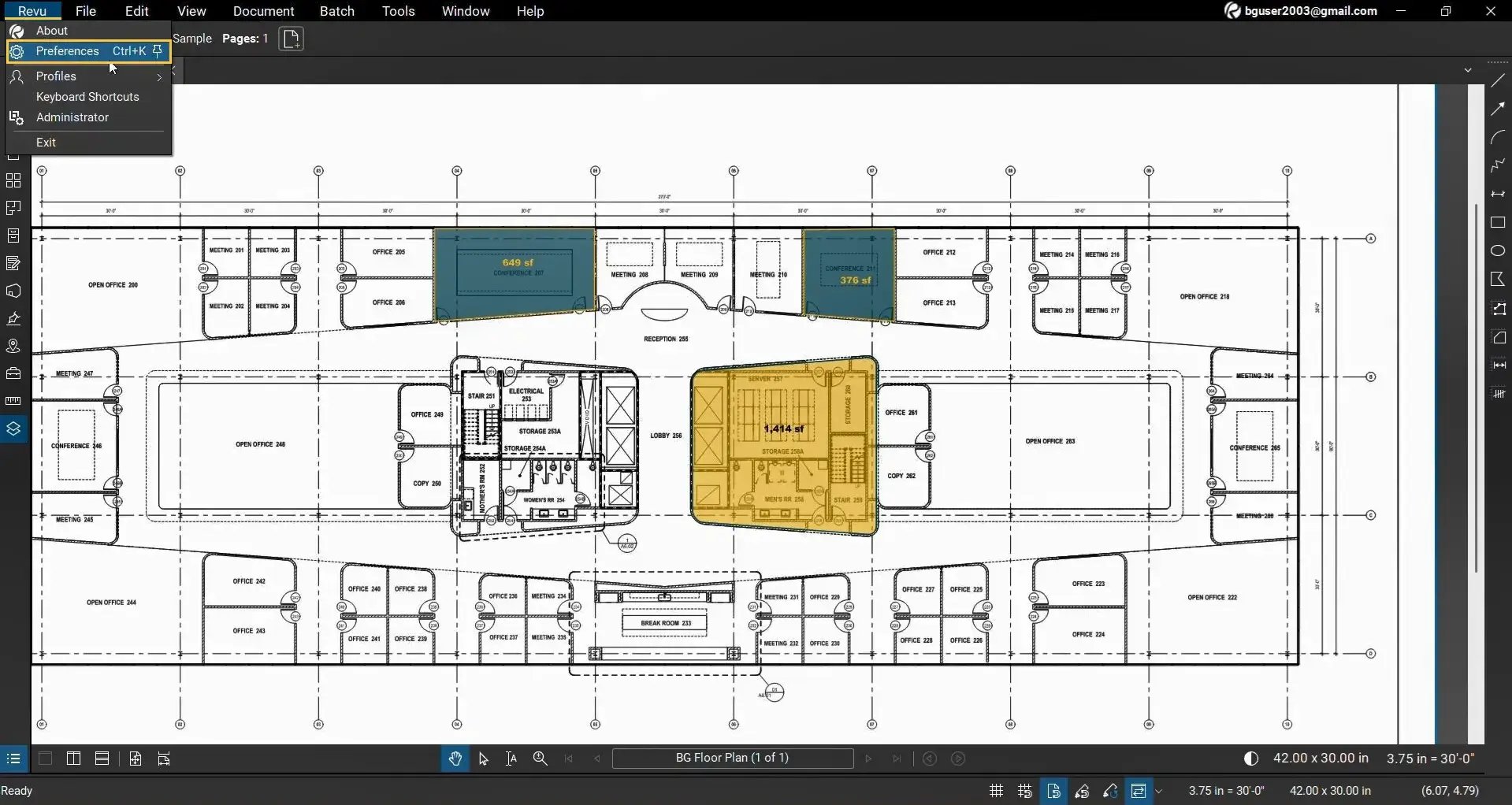
03 A: In Revu, go to the Revu menu and select Preferences.
03 B: In the Preferences dialogue box, open Admin Settings from the left panel.
03 C: Go to the MCP tab.
03 D: Enable these two options:
- MCP Enabled
- Claude for Windows
03 E: Once you are done, click OK.
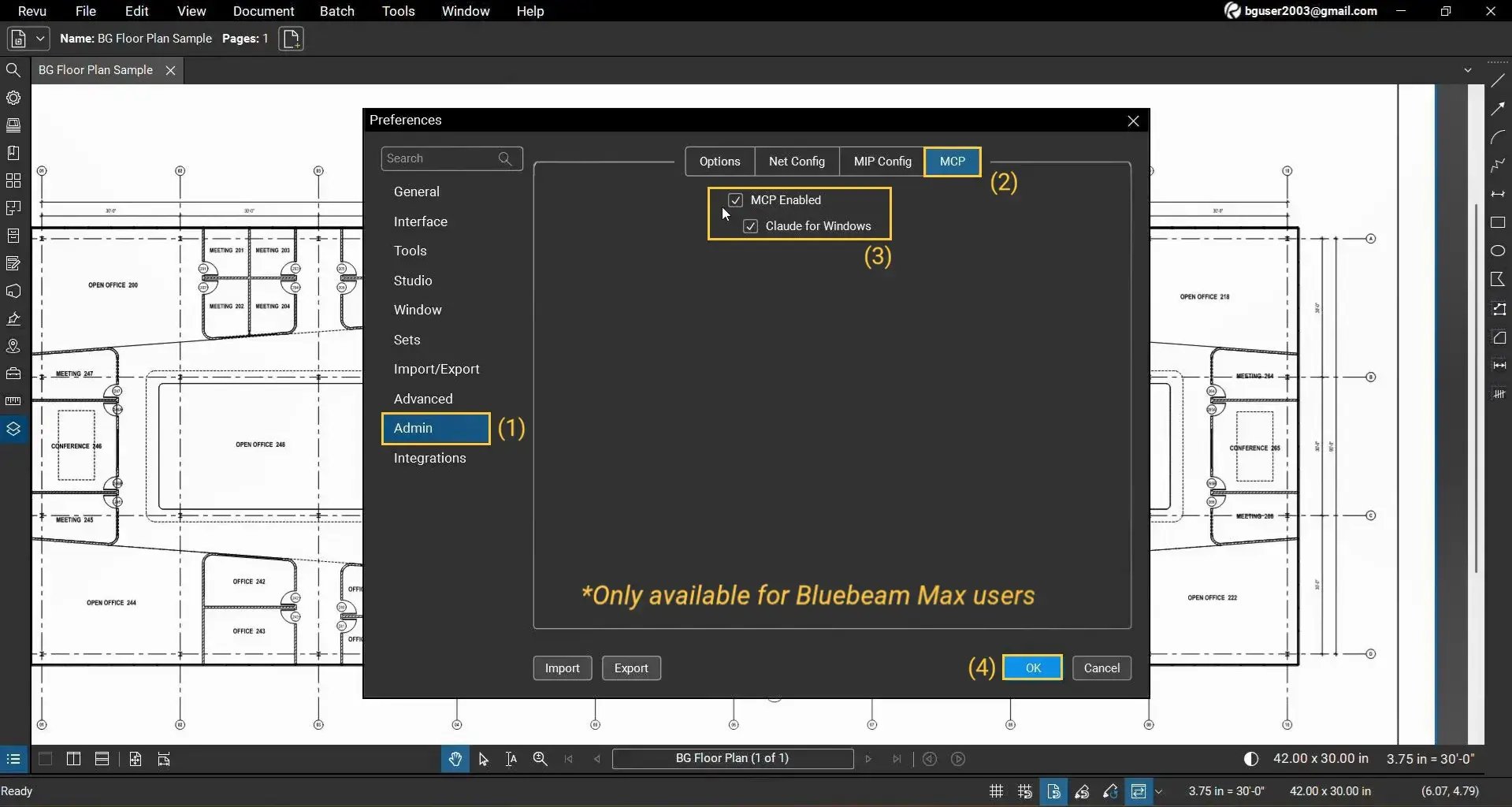
It will allow your Revu app to communicate with the Claude desktop application.
Step 04: Configure the Bluebeam Connector in Claude
04 A: Open the Claude desktop app.
04 B: Click the top-left menu and go to: File > Settings
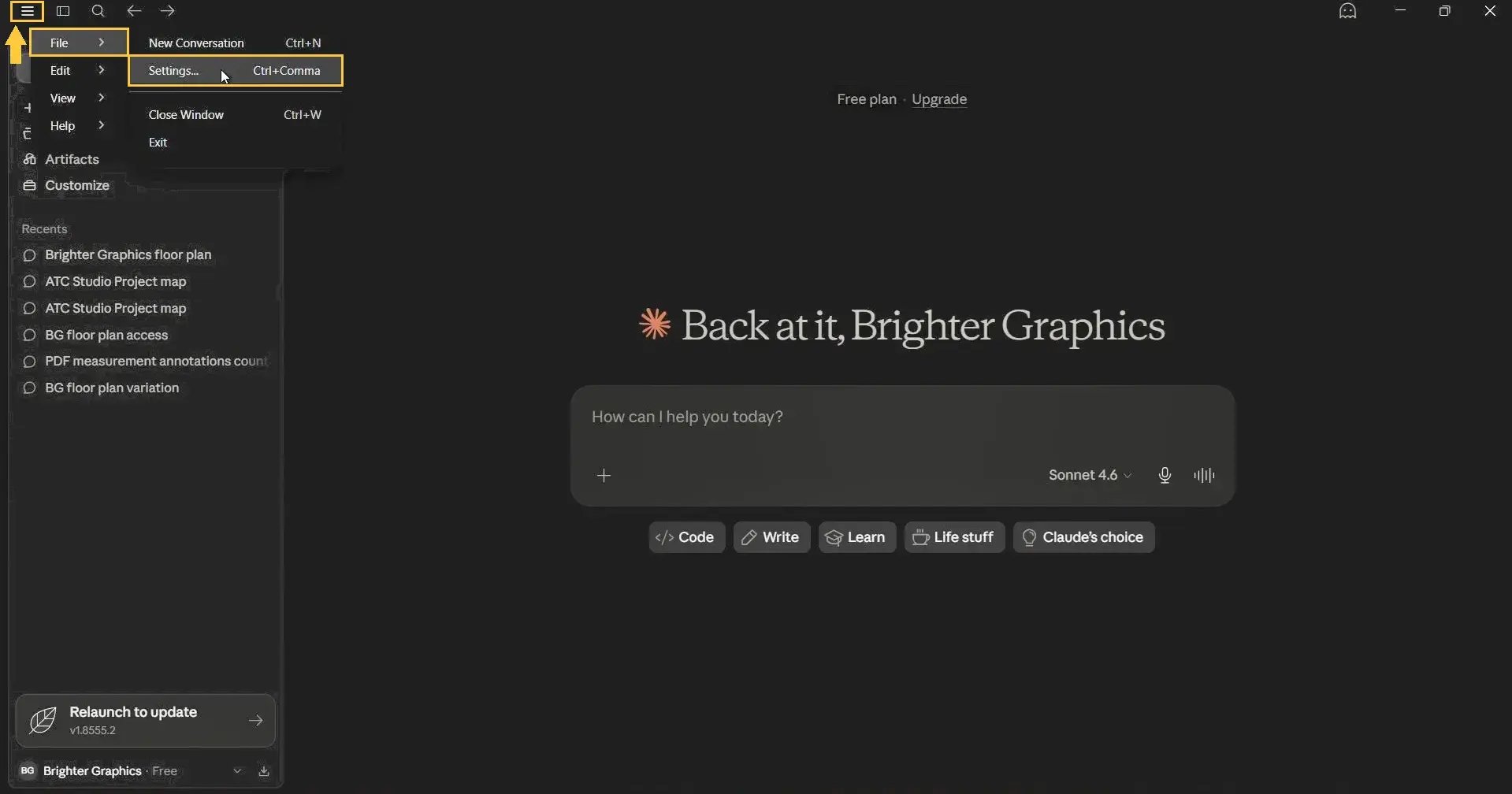
04 C: Then go to the Connectors settings on the left and click Customise (or use shortcut keys Ctrl+Comma)
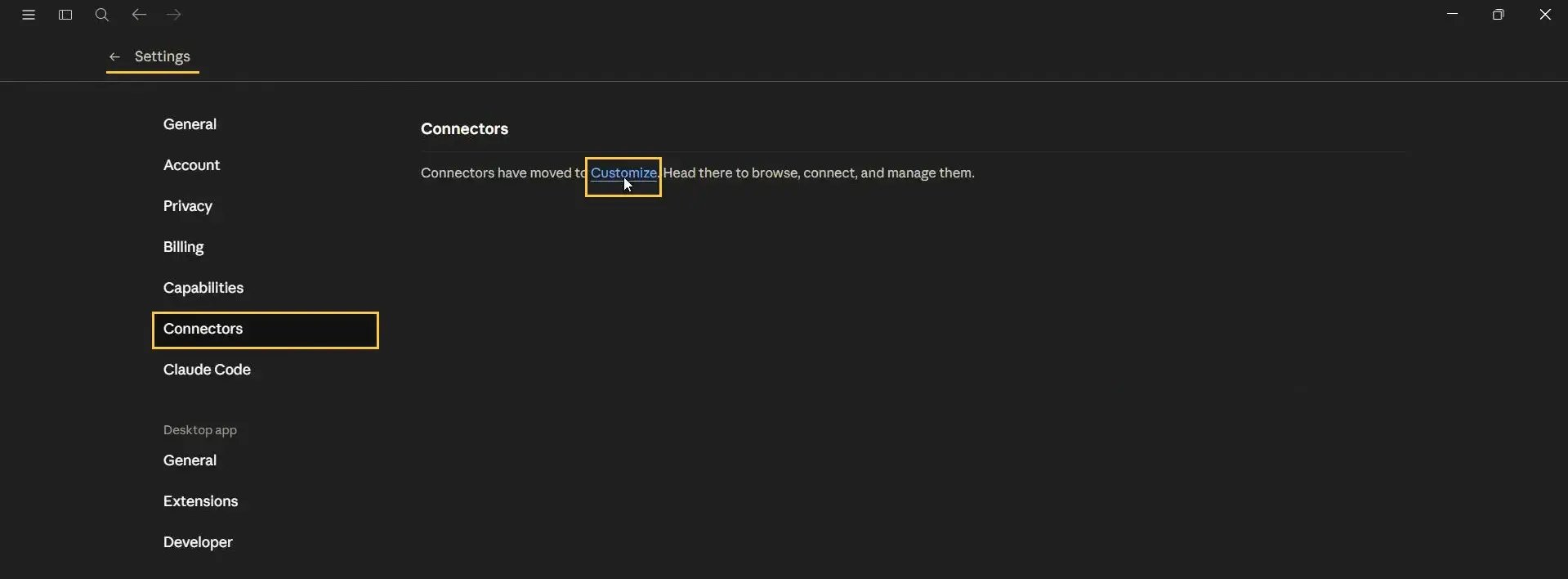
You should now see Bluebeam listed under available Desktop connectors.
Step 05: Configure Connector Permissions
Inside the Bluebeam connector settings, Claude will display available tools and permissions.
At the time of writing this guide, 21 tools are available for interacting with PDF content inside Revu.
You can:
- Go through the available tools and enable only the desired tools one by one
- Or use the Custom dropdown menu at the top to set permissions to Always Allow (for all tools)
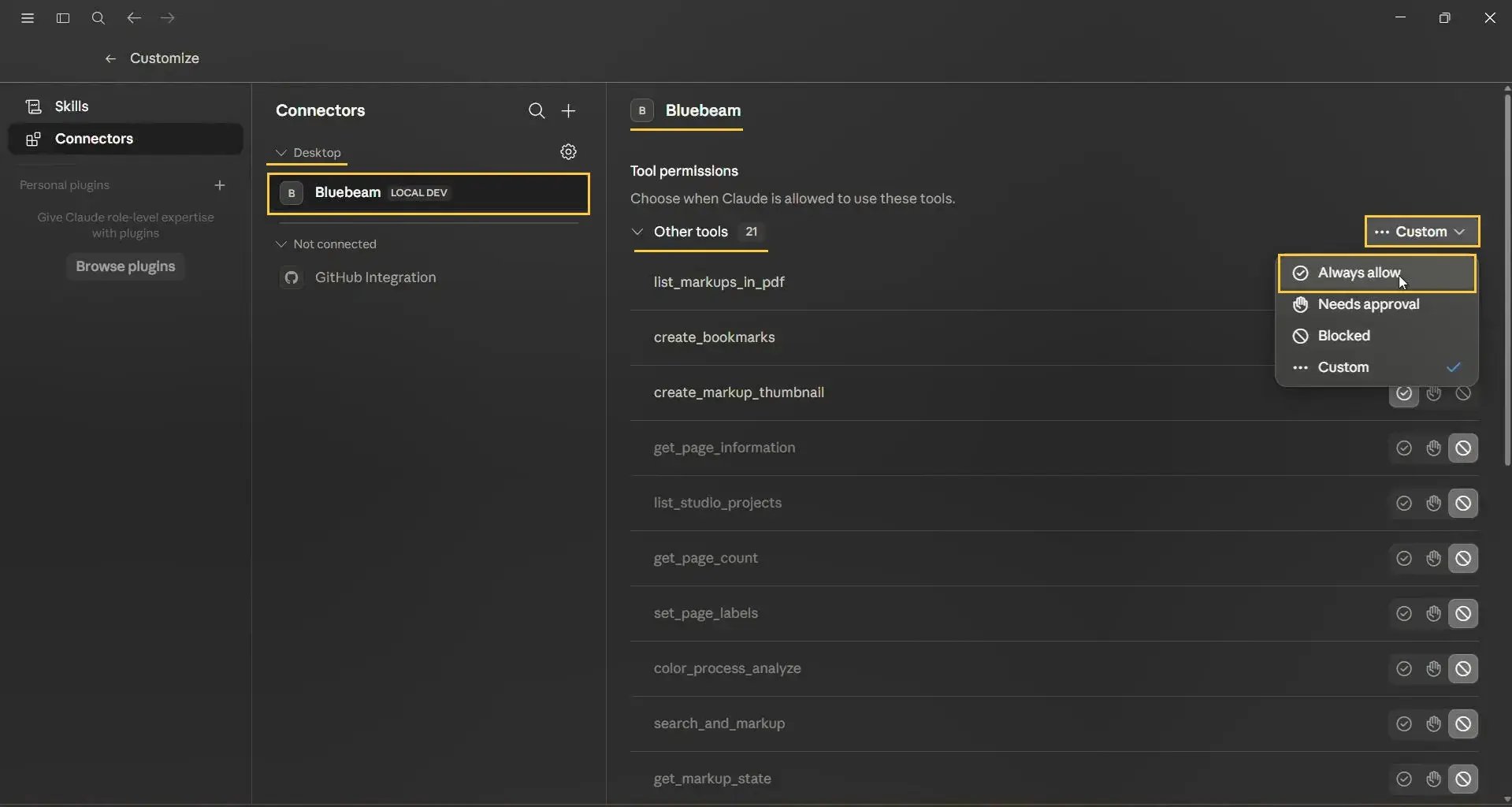
These permissions include how Claude uses the available tools to interact with:
- PDF content
- Measurements
- Markups
- Page data
- Document workflows
Step 06: Test the Connection
Now, to confirm whether the connection is working correctly.
Open a PDF in Revu
In Revu, go to the File menu.
Open any PDF document.
*We are using a single-page PDF drawing in this example.
Test a Simple Prompt in Claude
Inside the Claude desktop app, type:
In the active PDF in Revu, how many pages are there?
Claude will:
- Load the Bluebeam MCP tools
- Access the opened PDF
- Return the page count
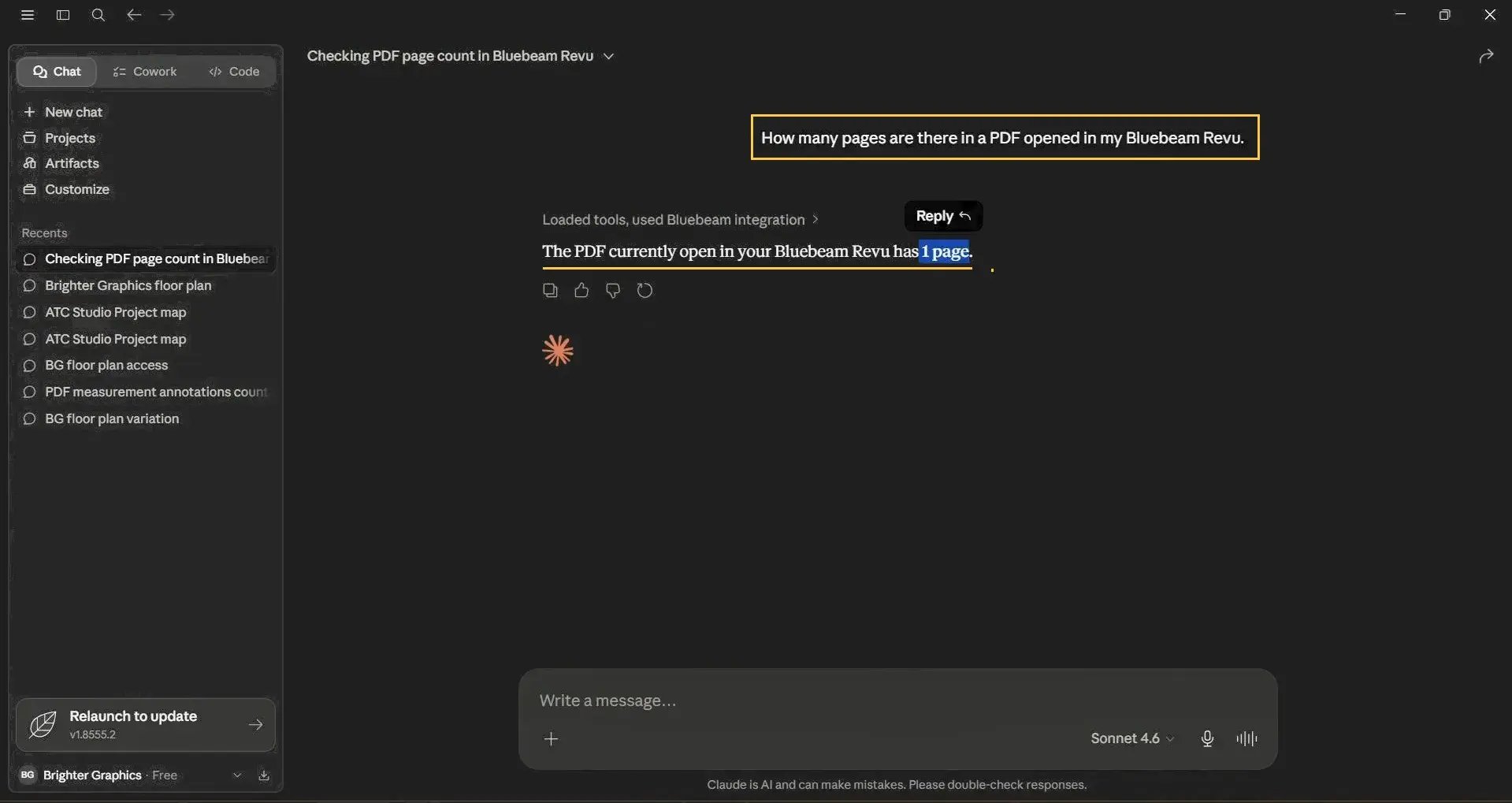
If the PDF contains 1 page, Claude should correctly reply “1 Page.”
This confirms that Claude and Revu are connected successfully.
Example AI Workflows and Prompts in Claude
Once connected, Claude can help automate various Revu workflows. Let's see some of these handy capabilities and prompts in action.
Example 01 - Analyse Measurements Automatically
Suppose your drawing already contains Area measurements.
You can ask Claude:
List all Area measurements and calculate the total area.
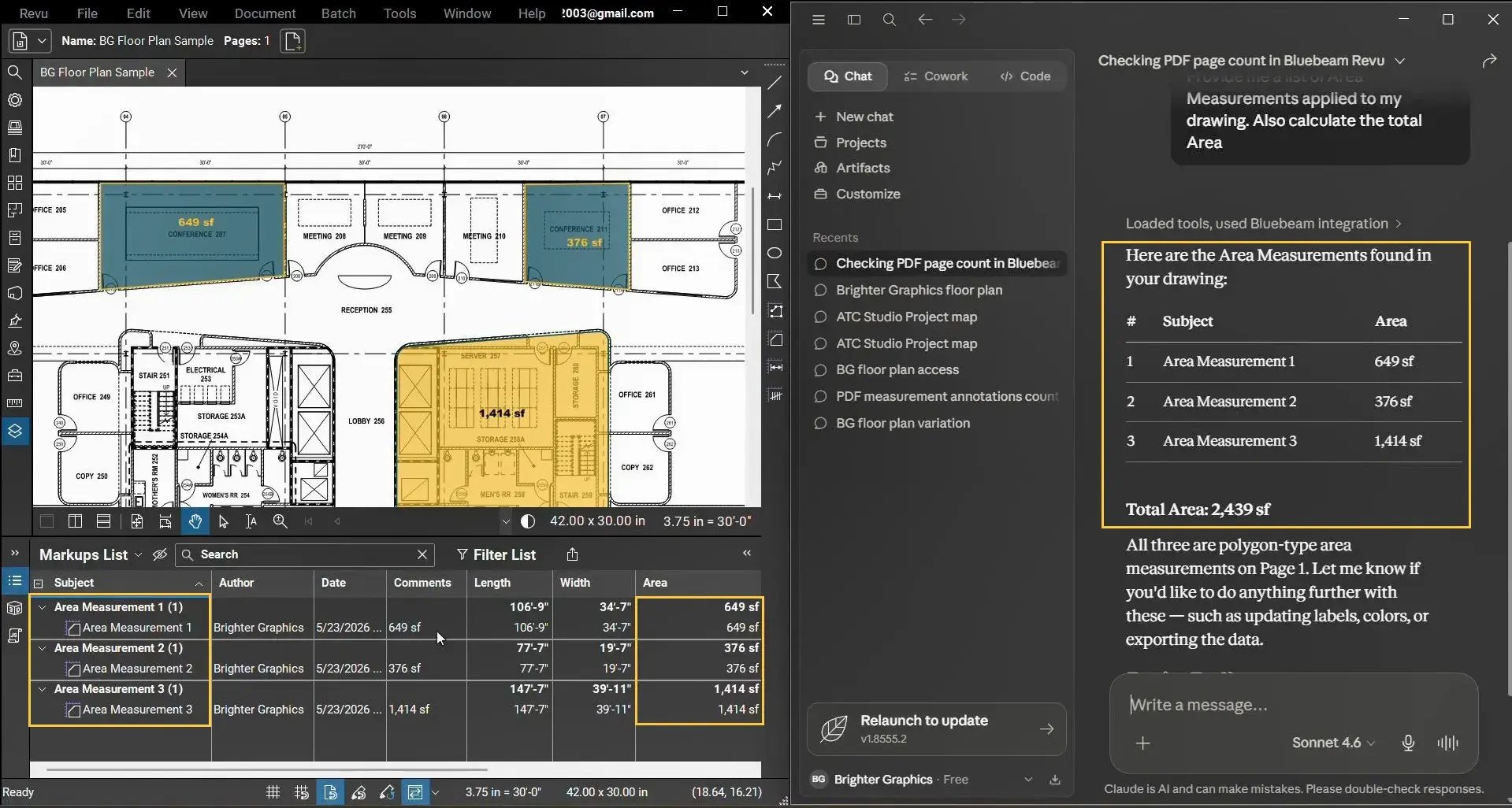
Claude will:
- Read the measurements from the PDF
- Extract their values
- Calculate the total automatically
Example 02 - Edit Markups Using Claude
Claude can also modify existing markups.
For example:
Change the Fill Colour of Area Measurement 3.
*Important: You must specifically mention Fill Colour if you want Claude to change the fill appearance. Otherwise, it may only update the line colour.
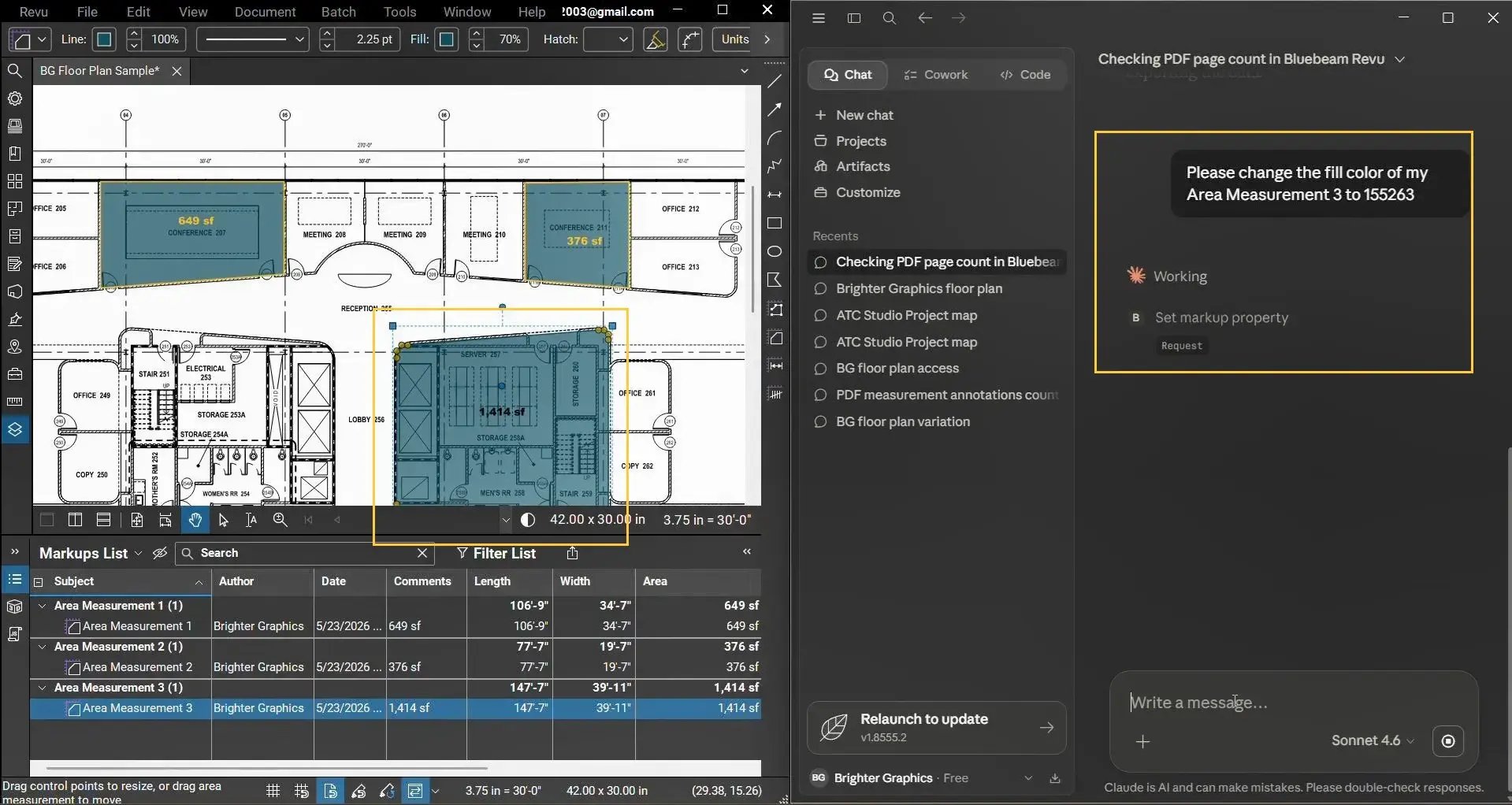
You can also update:
- Line colours
- Text colours
- Labels
- Comments
- Other markup properties
Remember, if you are using a free Claude plan, keep your messages concise, work with smaller documents, and start a fresh chat for each new task to avoid running out of Claude Tokens too soon.
What are Claude Tokens and How to Use Them Effectively?
Tokens are the currency of AI conversations. Every word, punctuation mark, image, and attachment costs tokens in Claude; both when you send a message and when Claude replies.
Simply understand this:
Longer messages and detailed responses spend more tokens than short ones.
Free Claude accounts have a limited token budget, so you can run out quickly with multiple questions, detailed responses, or long documents. When that happens, you'll need to wait for your budget to refresh, which resets on a rolling 5-hour window starting from your first message in a session.
Bluebeam recommends a paid Claude plan with Bluebeam Max to maximise functionality and minimise interruptions. That said, you can still get desired results on the free Claude plan by:
- Keep messages concise: Get straight to the point and avoid unnecessary filler or pleasantries.
- Work with smaller documents: Extract only the relevant pages from a PDF rather than uploading the entire file.
- Start a fresh chat for each task: Claude re-reads the full conversation history with every message, so long chats drain tokens fast.
- Limit the scope: Tell Claude exactly what to look at, for example, "check only the markup list" instead of asking it to review the whole document.
- Avoid back-and-forth: Edit your previous message to refine the prompt rather than sending a new one, which would add to the history.
- Request shorter responses: Ask Claude to be brief or use the Concise style setting in the Claude desktop app.
- Run OCR selectively: For scanned documents, only OCR the specific pages you need analysed, not the whole file.
- Ask for an outline first: Before generating a long report, ask Claude to outline its plan so you can course-correct before it spends tokens on a full response.
Do you need a paid Claude plan with Bluebeam Max? It depends entirely on your usage and conversational style. You can continue with the free Claude plan for now, test your usage limits, optimise your prompts, and understand the workflow. Then decide later whether you want a paid plan.
Understanding Prompts in Claude
Prompts are natural language instructions that tell Claude how to perform a workflow. Instead of manually performing repetitive tasks in your Revu app, you can open Claude and describe the action in a conversational way. Claude will do it for you.
For example, you can ask Claude to:
- Change Measurement Units
"Convert all or specific area measurements in the open PDF from sq ft to sq meters and update the markup labels accordingly."
- Perform Complex Calculations
"Considering the all or [Measurement Subject or Labels], calculate the total area, volume, etc."
- Create Summaries
"Review all markups in the open PDF and create a concise summary of outstanding issues, grouped by trade, markup, measurement, author, subject, etc."
- Organise Markups
"Organise all markups in the current PDF by status and assign a colour to each status category for easy visual identification."
- Identify Inconsistencies
"Review the markup list in the open PDF and flag any items where the label, status, or measurement appears incomplete, mismatched, or inconsistent with similar markups."
- Reformat Content
"Reformat all markup replies in the open PDF to follow this structure: [Issue] > [Location] > [Action Required], and update each reply to match this consistent template."
- Run Searches Across PDFs
"Search across all open PDFs for any markups or text referencing electrical installations and compile the results into a list with the file name and page number for each match."
As you can see, you do not need technical knowledge to automate these workflows. Just use natural language prompts to make complex tasks easier to execute. So you can:
- Process drawings faster
- Generate outputs quicker
- Spare more time for high-value tasks
Troubleshooting the Claude Connector
If Bluebeam does not appear inside Claude Connectors, try the following:
- Completely close Claude from the system tray or Task Manager (Press Ctrl+Alt+Del to open Task Manager)
- Restart the Claude desktop app (Help > Troubleshooting > Clear Cache and Restart)
Then, try again by reopening both Revu and Claude
Make sure:
- MCP is enabled in Revu Admin Preferences
- You are using Revu 21.9 or later
Managing the Bluebeam Connector in Claude
To manage permissions later, inside the Claude desktop app:
- Open the File Settings
- Go to the Connectors option
- Click Customise
For the Bluebeam Connector, you can:
- Enable or disable individual tools
- Adjust permissions
Work Smarter and Faster with AI-Supercharged Bluebeam Max
This is how you connect Claude with Bluebeam and open a new portal for AI-assisted construction and document workflows.
Whether you are interested in faster takeoffs or in organising markups for reporting and PDF analysis, get Bluebeam Max to work faster, more consistently, and more efficiently using natural language prompts.
We will create more guides and tutorials to help you get up and running with the new product. Explore more Bluebeam guides and stay connected with Brighter Graphics, your trusted Bluebeam partner in the UK, Europe, and the Middle East.