Calibrating a drawing's scale is a mandatory prerequisite for reliable measurements, quantity takeoffs, and construction estimates in Bluebeam Revu. Working with incorrectly scaled PDF drawings produces inaccurate measurements and costly calculation errors, especially in a domain where every inch matters and errors can snowball.
In the older Revu subscriptions, calibrating drawings required manually identifying known distances, selecting the Calibrate tool, and matching it with the corresponding real-world measurements. With Bluebeam Max, you can now use Claude to simplify this process with natural-language prompts.
By connecting Claude to Bluebeam Revu, you can ask it to retrieve page information, identify the current drawing scale, and update calibration settings directly within your open PDF. You can also configure different scales for multiple pages or apply separate X- and Y-axis scales.
In this guide, we will walk you through calibrating a PDF drawing using Claude.
Note: Claude integration is available with Bluebeam Max. You need Revu 21.9 or later and an active Bluebeam Max subscription to access these AI-powered workflows. If you have not upgraded yet, request a 14-day free Bluebeam Max trial to explore these features.
Step-by-Step Guide to Calibrating PDF Drawings in Bluebeam Max Using Claude
Before calibrating your PDF, identify two points with a known real-world distance.
For this example, we are using a construction drawing where the actual distance between two known points (for instance, points 5 and 6) is 30 feet.
Follow the steps below to calibrate your PDF drawing using Claude and Bluebeam Max.
Step 01: Check the Existing Drawing Scale Manually
01 A: Open Bluebeam Revu on your desktop.
01 B: Go to File > Open and select your PDF drawing.
01 C: Identify two points on the drawing with a known real-world distance.
01 D: Open the Measurements panel and select the Length measurement tool.
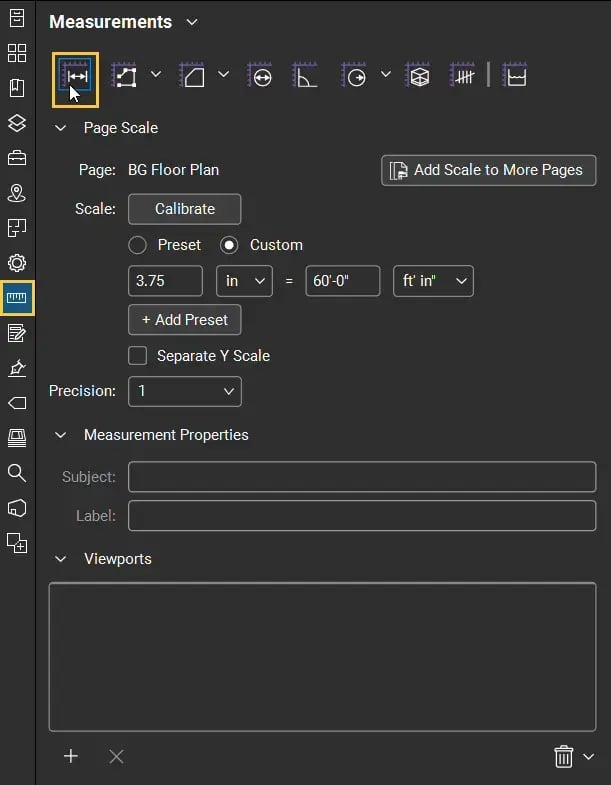
01 E: Measure the distance between the two identified points.
For our example, the Length measurement currently reads 60 feet, even though the actual distance should be 30 feet.
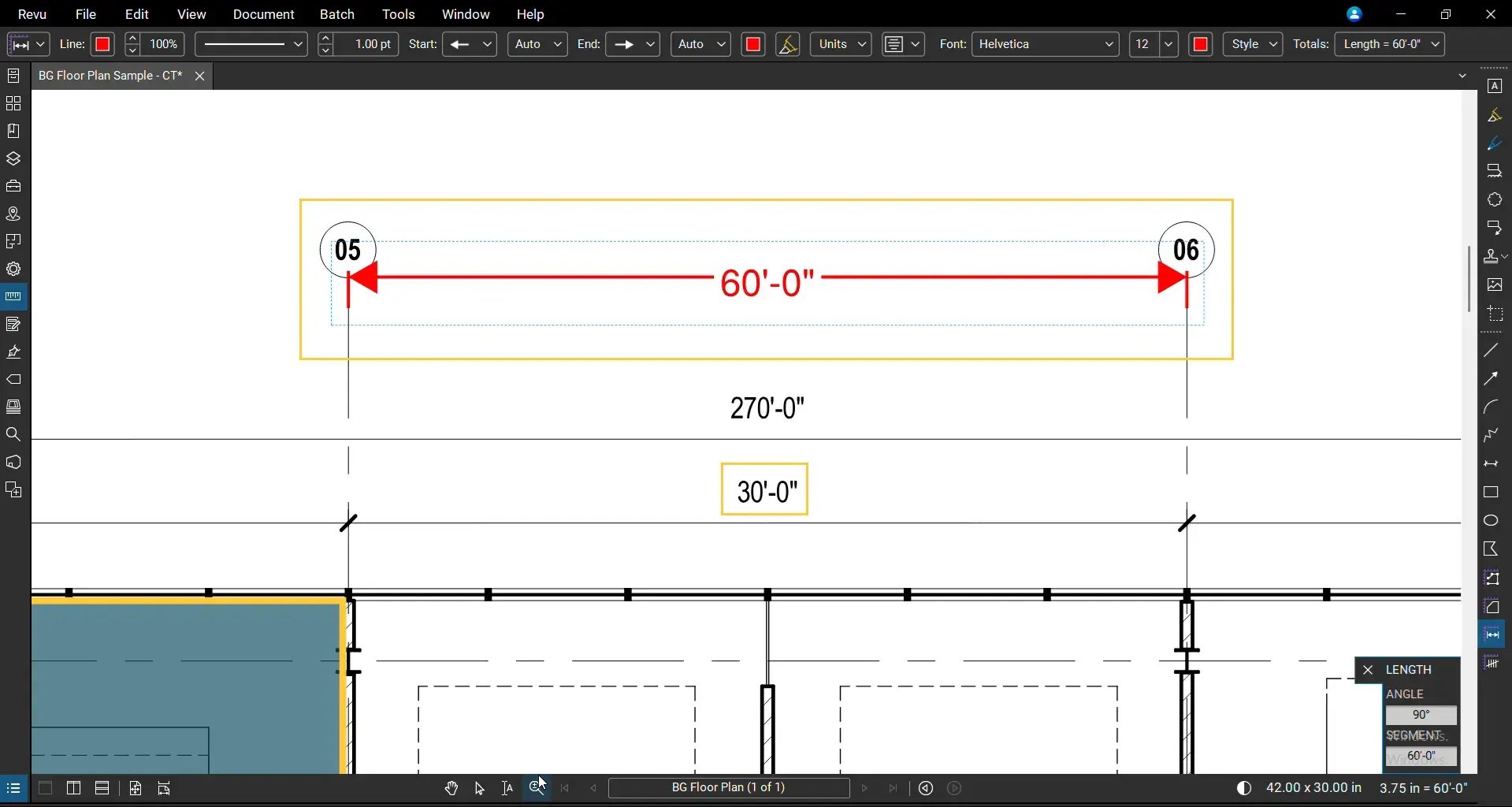
This indicates that the drawing scale is incorrect and needs to be recalibrated.
Step 02: Check the Existing Drawing Scale Using Claude
Before changing the scale, let's ask Claude to retrieve the current page information from the PDF opened in Revu.
02 A: Open the Claude desktop app connected to Bluebeam Revu.
02 B: Enter a prompt asking Claude to retrieve the page information, including the current drawing scale.
02 C: Press Enter and allow Claude to access the necessary Revu tools.
Claude retrieves the relevant page information and displays the existing scale settings.
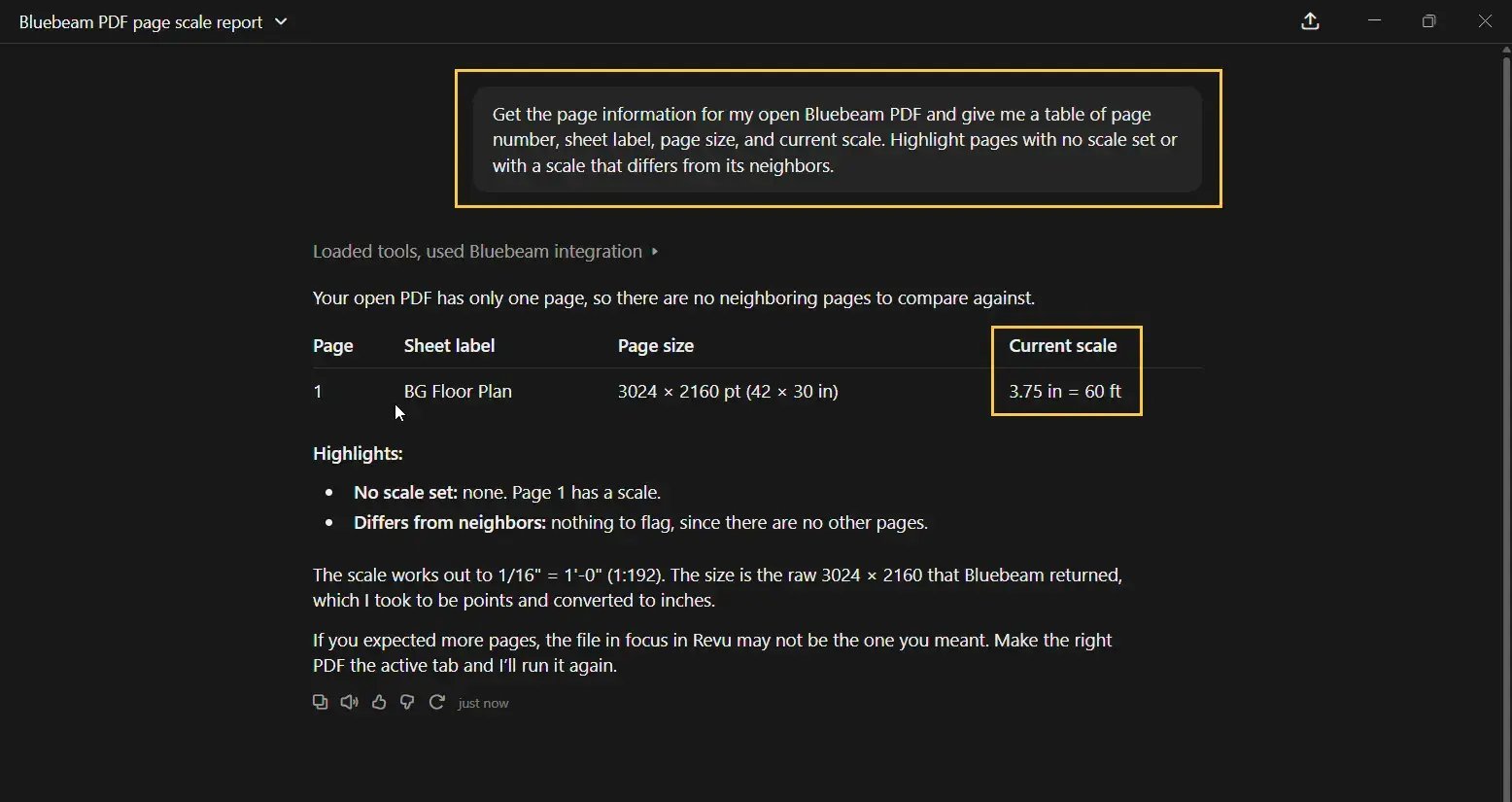
In our example, Claude identifies that an on-paper distance of 3.75 inches is currently set to represent 60 feet in the real world.
This confirms the incorrect calibration we identified earlier using the Length measurement tool.
Step 03: Set the Correct Drawing Scale Using Claude
Now that we know the existing scale, we can ask Claude to update it using our known real-world distance.
For this example, we need to set:
- On-paper distance: 3.75 inches
- Actual distance: 30 feet
- Measurement precision: 1/4
02 A: In the Claude desktop app, enter a prompt asking it to set the page scale for the PDF currently open in Revu (Prompt template added at the end of this guide).
02 B: Specify that 3.75 inches on paper must represent 30 feet in the real world.
02 C: Include your preferred decimal or fractional precision.
02 D: Press Enter and allow Claude to update the drawing scale.
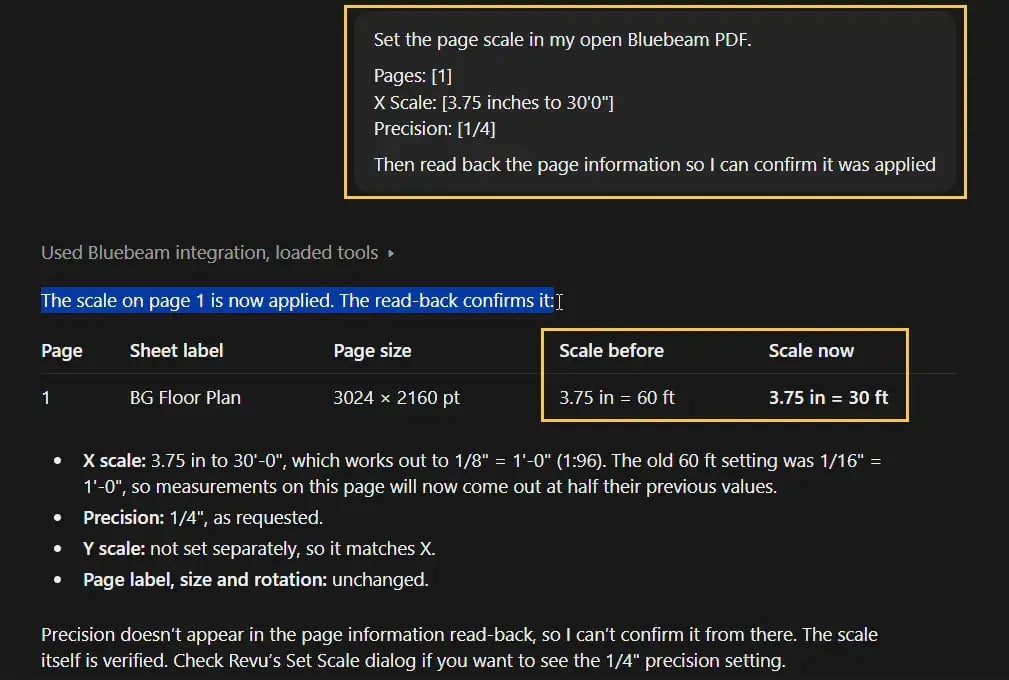
Once the operation is complete, Claude will confirm the updated calibration settings by successfully changing the scale to 3.75 inches = 30 feet.
Step 04: Verify the Updated Drawing Scale in Revu
Once Claude has updated the drawing scale, verify that the new calibration is working correctly.
An existing measurement may still display its previous value because it was created before the scale was updated.
To verify the new scale:
04 A: Switch back to Bluebeam Revu.
04 B: Select the existing Length measurement and delete it.
04 C: Select the Length tool from the Measurements panel.
04 D: Measure the same two points you identified earlier.
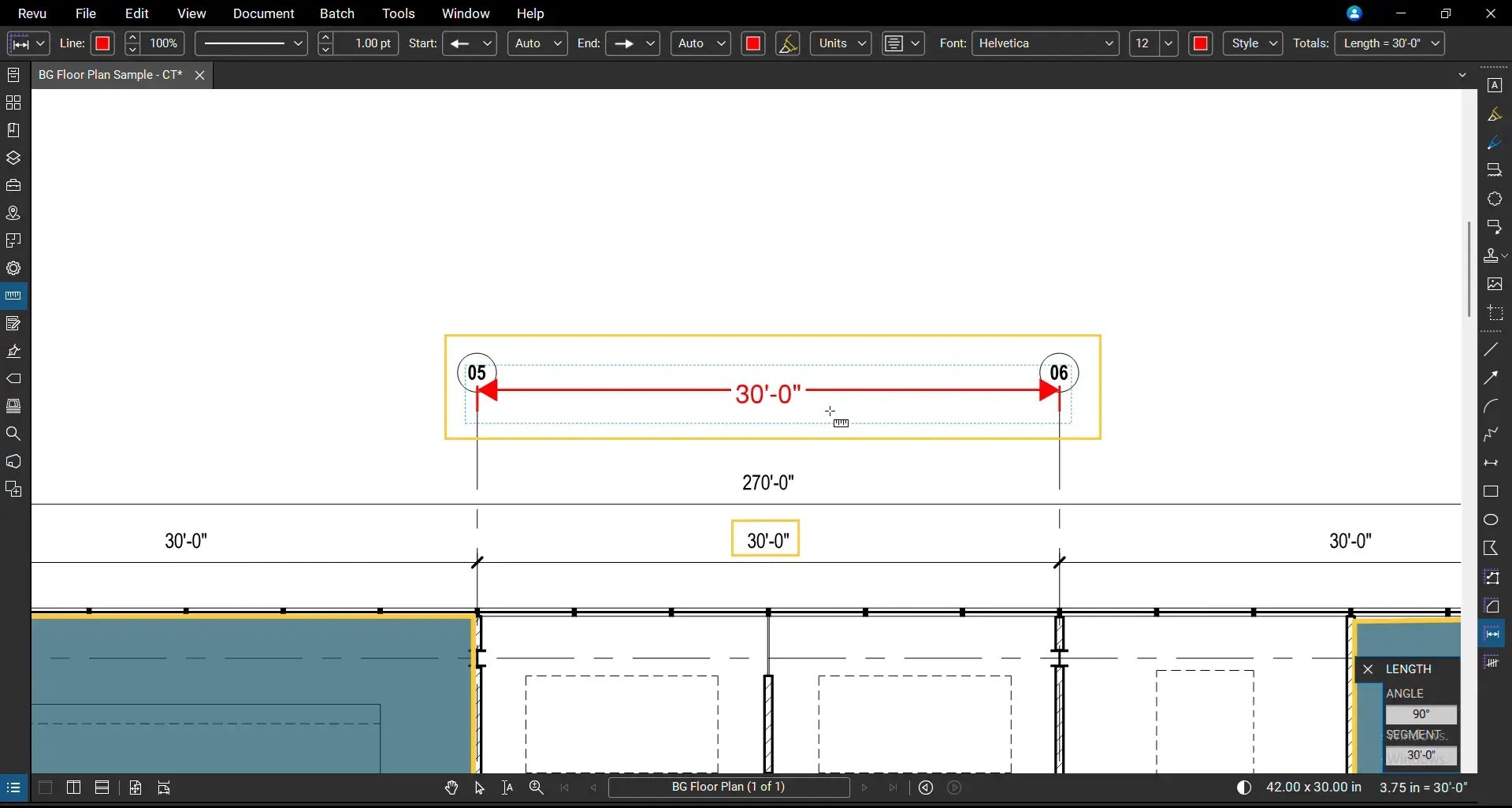
The new measurement should now display 30 feet, matching the actual distance between the two points.
This confirms that Claude has successfully updated the drawing scale.
Step 05: Verify Calibration Using the Calibrate Tool
You can also verify the updated scale manually using Revu's built-in Calibrate tool.
05 A: Open the Measurements panel in Revu.
05 B: Note the Scale value.
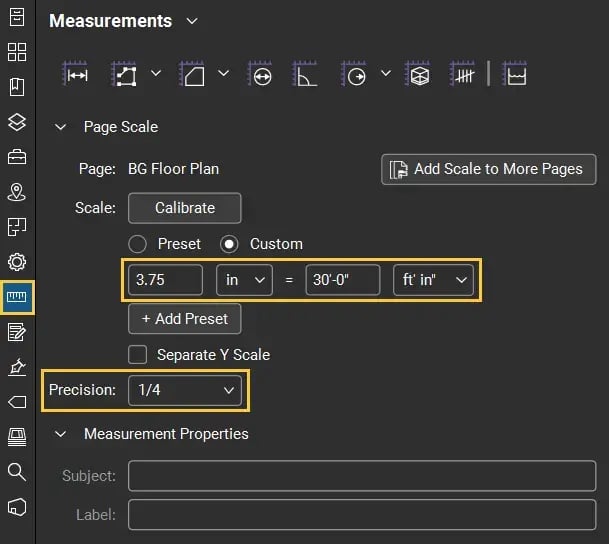
You should now see the updated scale reflected in the calibration settings.
For our example, Revu displays 3.75 inches = 30 feet, with the measurement precision set to 1/4.
This confirms that the scale and precision settings match the instructions provided to Claude.
Advanced Drawing Calibration with Claude
Beyond calibrating a single page, Claude can also help you configure more advanced scale settings for your PDF drawings.
Here are two additional workflows you can use.
01 - Calibrate Multiple PDF Pages Using a Single Prompt
If you are working with multi-page construction drawings, you do not need to calibrate every page individually.
You can ask Claude to apply scale settings across multiple pages using a single prompt.
For example, you can:
- Set the same scale across a specified range of pages.
- Apply different scales to different page ranges.
- Define individual calibration settings for selected pages.
Simply specify the page numbers or ranges and their corresponding scales in your prompt (Prompt template added at the end of this guide).
This is particularly useful when working with drawing sets that include architectural, structural, and MEP sheets at different scales.
02 - Set Different X and Y Axis Scales for a Same Page
Revu also allows you to configure different scales for the horizontal (X) and vertical (Y) axes.
This can be useful when working with drawings that have different scaling factors across their two dimensions.
For example, you can instruct Claude to configure:
|
Axis |
On-paper distance |
Real-world distance |
|
X Axis |
3.75 inches |
30 feet |
|
Y Axis |
3.75 inches |
60 feet |
Simply specify both axis scales in your prompt (Prompt template at the end of this guide).
Important: If you specify only the X-axis scale without providing a separate Y-axis scale, Revu applies the same scale to both axes.
Claude Prompt Template for Drawing Calibration
Use the following prompt for calibrating your PDF drawings in Bluebeam Max.
Prompt 01: Audit what’s currently set:
Get the page information for my open Bluebeam PDF and give me a table of page number, sheet label, page size, and current scale. Highlight pages with no scale set or with a scale that differs from its neighbors.
Prompt 02: Set the Correct Scale
Set the page scale in my open Bluebeam PDF.
Pages: [e.g., 1-5, or "all"]
Scale: [e.g., 3.75 inches = 30'0"]
Precision: [e.g., 1/8]
Then read back the page information so I can confirm it was applied.
Prompt 03: Different scales for different sheets
Set page scales in my open Bluebeam PDF:
- Pages [1-3]: [3.75 inches = 30'0"]
- Pages [4-10]: [3.75 inches = 60'0"]
- Pages [11-12]: [no scale, clear it]
Confirm the result when done.
Prompt 04: Different scales for X and Y Axis
Set page scales in my open Bluebeam PDF:
Pages [1-3]:
For X-axis:
[3.75 Inches = 30'0"]
For Y-axis
[3.75 Inches = 60'0"]
Confirm the result when done.
You can customise these prompts by changing the distances, precision, page ranges, and axis-specific scales according to your project requirements.
Level Up Your Bluebeam Experience
Accurate drawing calibration is essential for reliable measurements and quantity takeoffs. With Claude integration in Bluebeam Max, you can simplify this process by updating drawing scales with natural-language prompts instead of manually configuring every setting.
Bluebeam Max offers much more than that. Explore our other guides on Claude integration, Magic Markups, Smart Review, and Smart Overlay to discover how AI-powered workflows can transform your everyday PDF workflows.
Request your 14-day free Bluebeam Max trial and experience AI-supercharged Revu.
For more Bluebeam tips and tricks, stay connected with Brighter Graphics, your go-to Bluebeam partner in the UK, Europe, and the Middle East.