With Bluebeam Max, you can connect AI assistants like Claude and ChatGPT directly to Revu through an MCP (Model Context Protocol) connection. Once connected, the AI can read the PDF you open, work with your markups or measurements, and return answers without you copying data between applications.
In this guide, you’ll learn how to connect the ChatGPT desktop app to Revu (For Bluebeam Max subscriptions only), verify the connection, and run your first commands, from counting pages to listing Area measurements and calculating their total.
Prefer Claude over ChatGPT?
Read our separate guide on connecting the Claude desktop app with Bluebeam Max.
Getting Started with the Setup
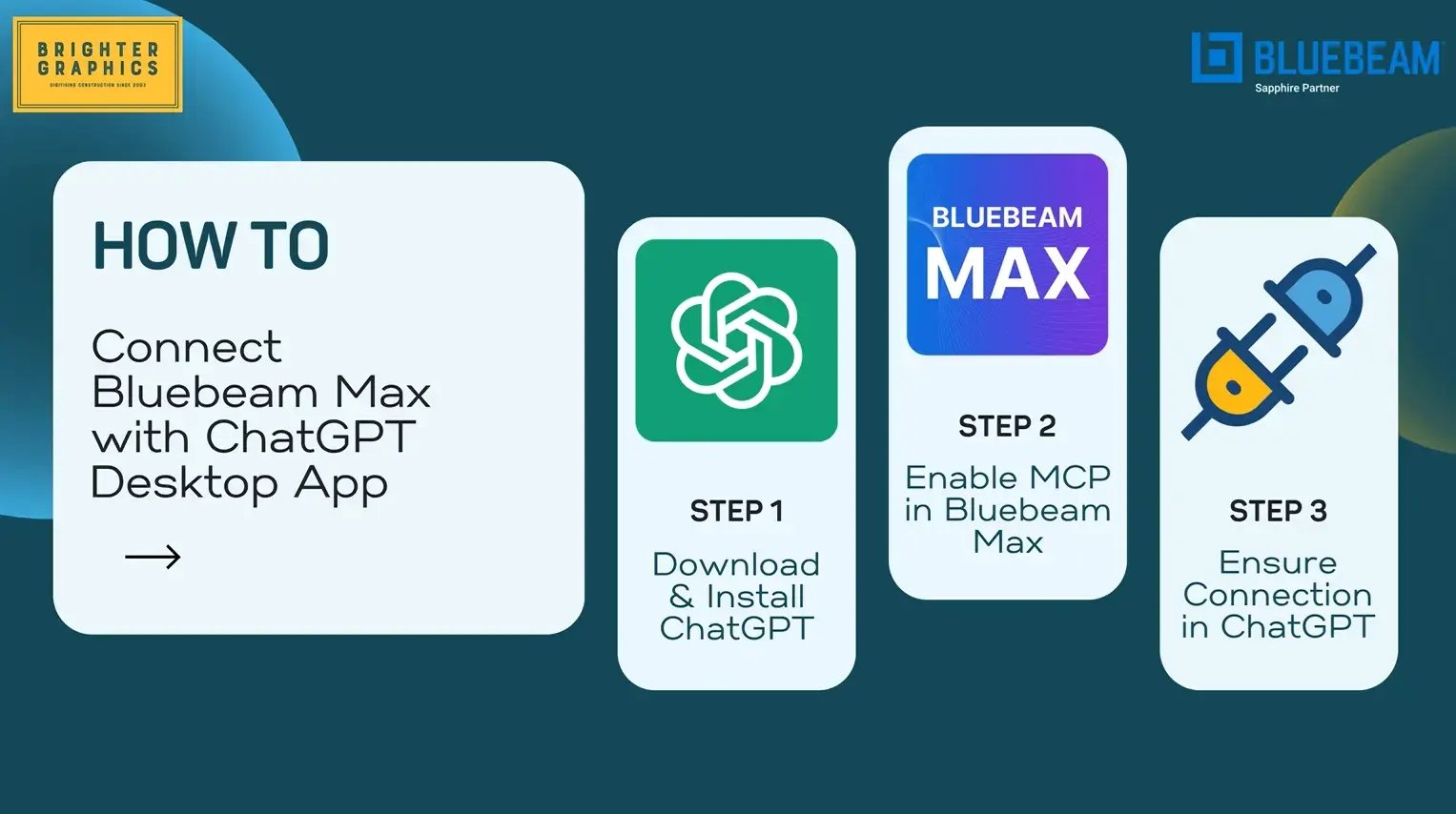
Before you begin, make sure you have the following:
- A ChatGPT account
- The ChatGPT desktop app, downloaded, installed, and signed in
- A Bluebeam Max subscription to access the new AI features
- Revu upgraded to the latest version (this guide uses Revu 21.11)
Don’t have Max yet?
You can request a 14-day free trial to test Max with your own workflows; all AI features enabled.
Step-by-Step Guide to Connecting ChatGPT with Bluebeam Max
Follow the step-by-step process below to connect your ChatGPT app with Bluebeam Max.
Note: The feature is only available to Bluebeam Max users.
Step 01: Open Your PDF in Revu
01 A: Open Bluebeam Revu on your desktop.
01 B: Go to File menu > Click Open and select your PDF to load.
For this example, we are using a one-page drawing that already contains six Area measurements.
Step 02: Update Revu to the Latest Version
The MCP connection for ChatGPT requires an updated version of Revu.
To update Revu to the latest version:
02 A: Go to the Help menu.
02 B: Click Check for Updates.
02 C: Install the update to upgrade Revu to version 21.11 or later.
02 D: Wait for the update to complete.
Step 03: Enable the MCP Connection in Revu
03 A: Open Preferences
- Go to the File menu.
- Click Preferences.
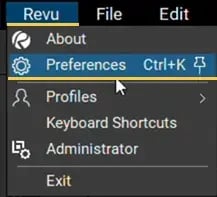
A Preferences dialog box will appear.
03 B: Enable the connection
- In the Preferences dialog box, click Admin Settings in the left panel.
- Open the MCP tab.
- Enable the connection for MCP.
- Enable the connection for ChatGPT (Codex).
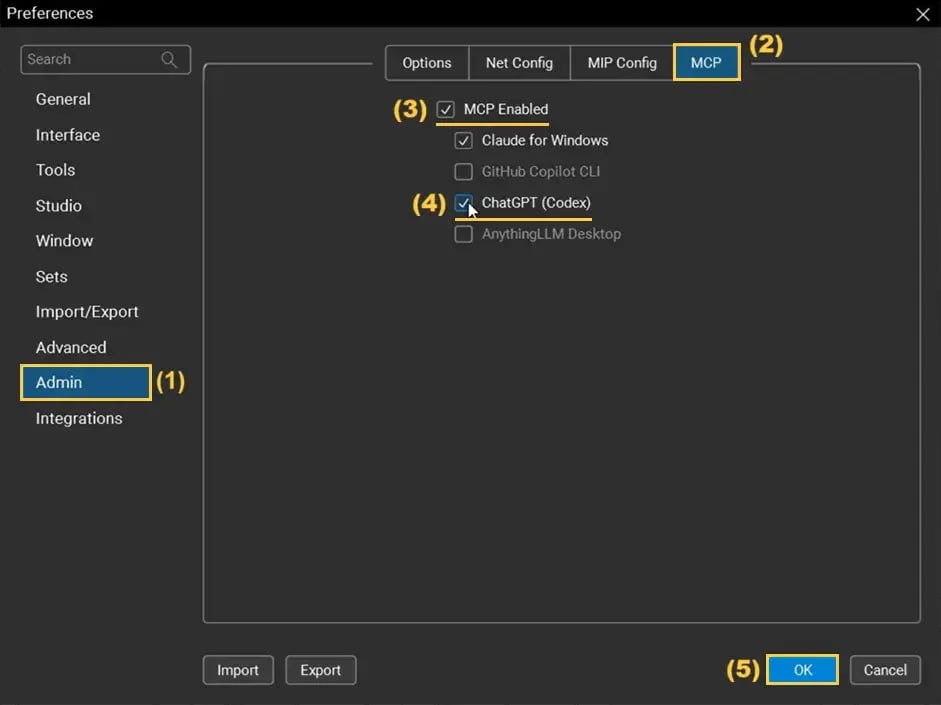
Once you are done, click OK to save the changes.
Step 04: Connect the ChatGPT Desktop App
04 A: Open the app
Open the ChatGPT desktop app and sign in.
04 B: Restart if needed
If ChatGPT was already open when you enabled the MCP connection in Revu, fully quit it from the File menu and restart it (Just closing the window might not work).
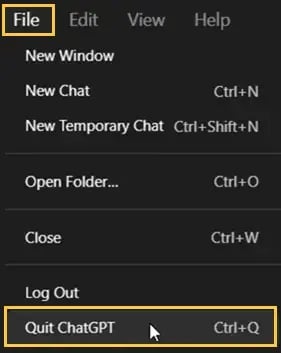
04 C: Confirm the connector
- In the ChatGPT desktop app, open Settings.
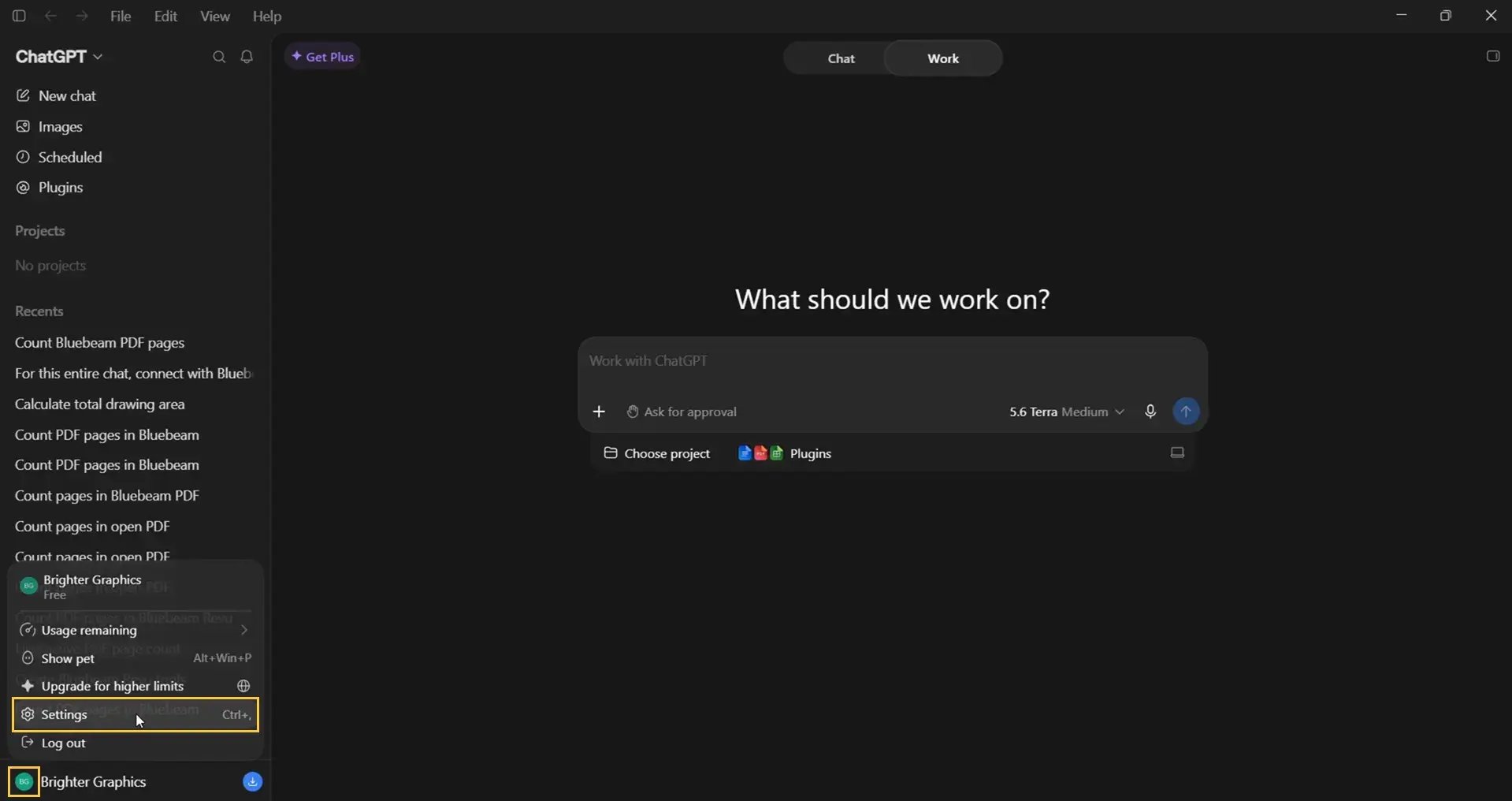
- Go to the Plugins section and select MCP.
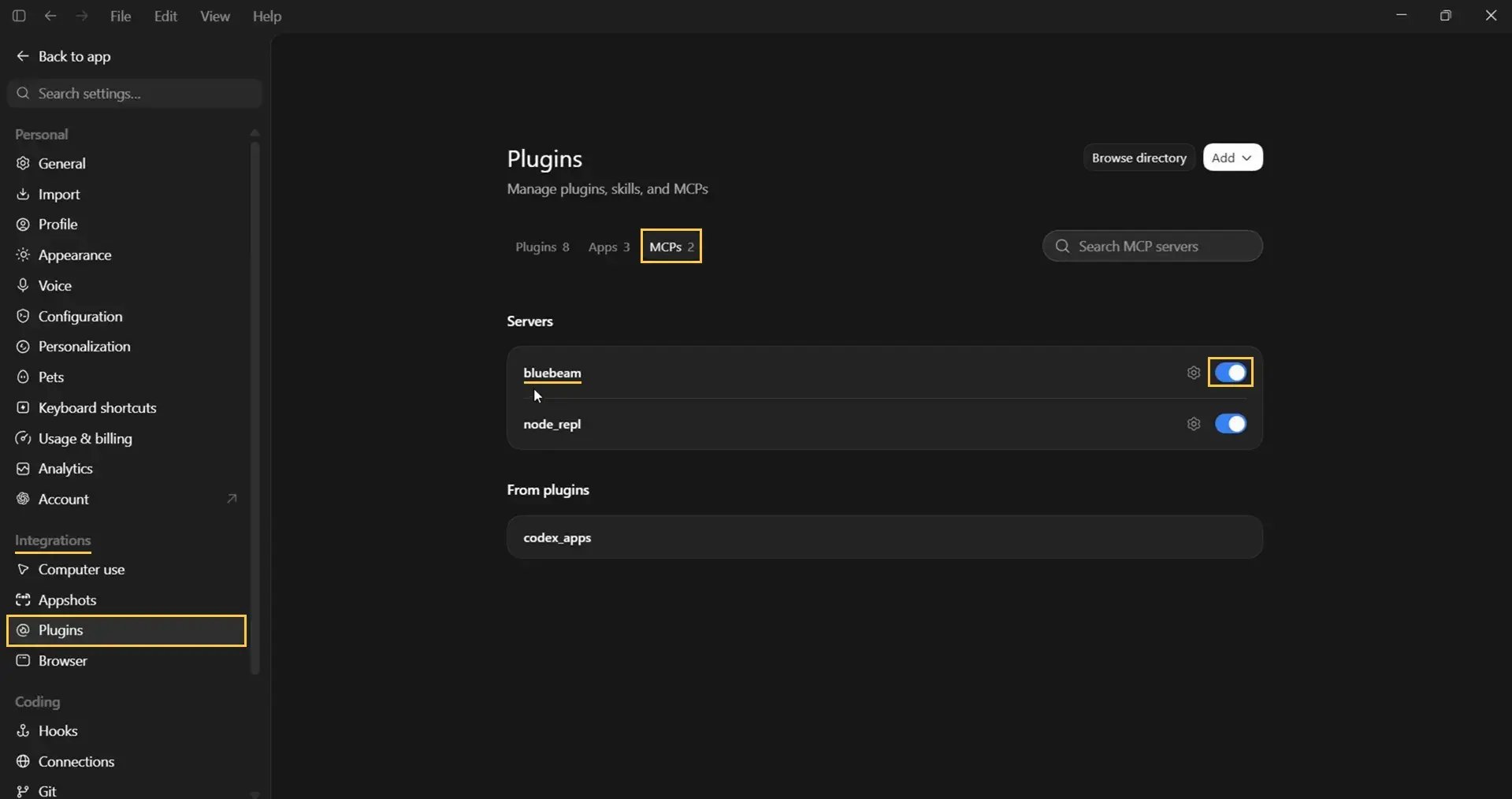
- Confirm that Bluebeam Revu is listed there and is showing Connected status.
Step 05: Test the Connection with a Simple Command
Start with a simple test by asking ChatGPT to get the page count for an open PDF.
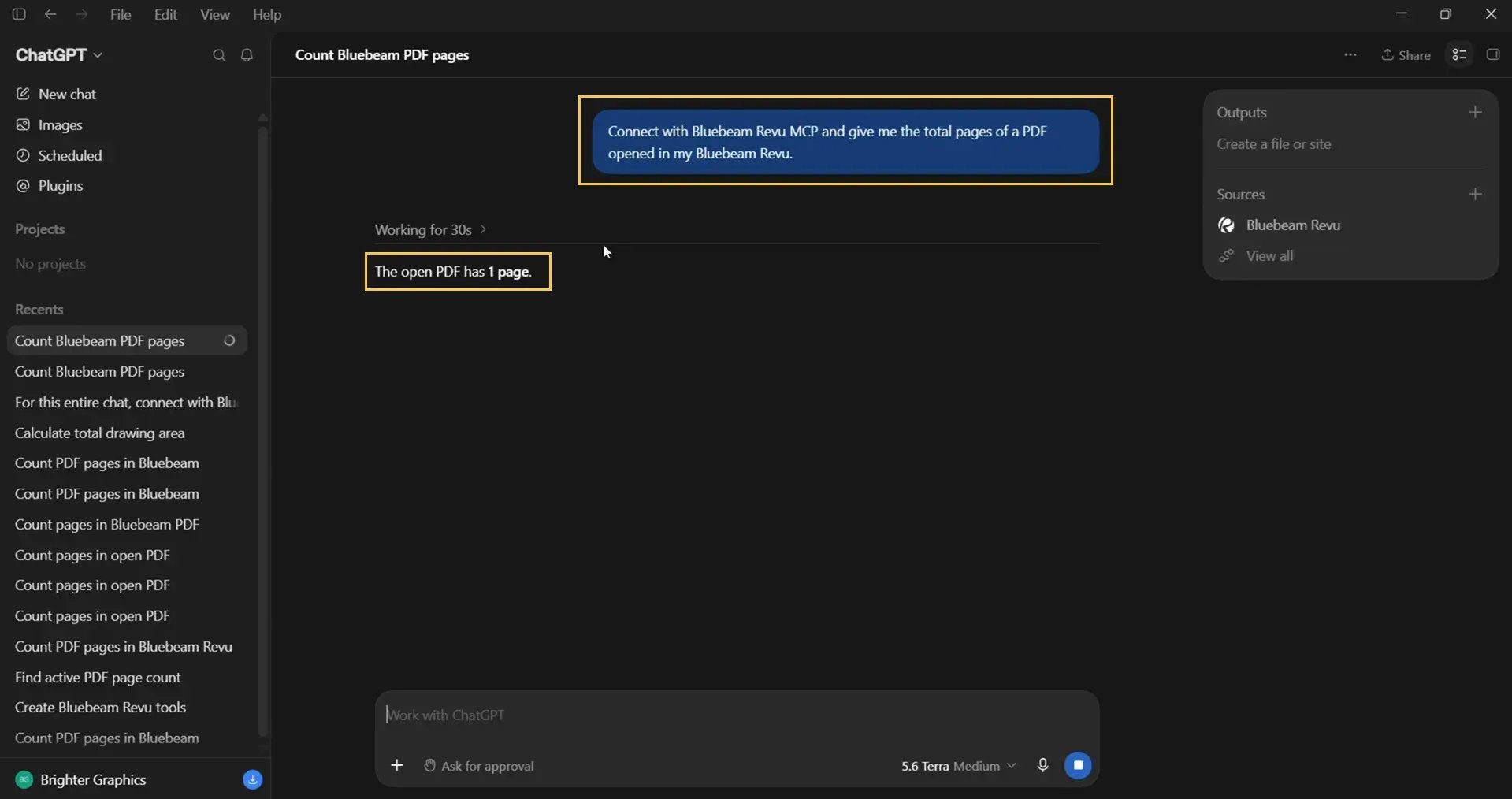
Note: If the prompt fails to connect with Revu MCP, you might need to tell ChatGPT in your prompt to use the Bluebeam Revu MCP for the first time.
05 A: Send the prompt
Type a prompt such as:
Use the Bluebeam Revu MCP to tell me how many pages are in the PDF currently open in Revu.
Press Enter to continue.
05 B: Grant permission
- ChatGPT loads the required Bluebeam tools and uses the Get Page Count job.
- If it asks for permission to use the tool, click Allow Access.
05 C: Verify the result
Compare ChatGPT’s answer with Revu. In this example, it correctly reports one page (the PDF we used in this example contains only 1 page).
Step 06: List Markups/Measurements and Calculate Totals
Now try a task that is more useful for takeoff and estimation.
06 A: Review your measurements in Revu
Confirm the Area measurements on your drawing. In this example, there are six.
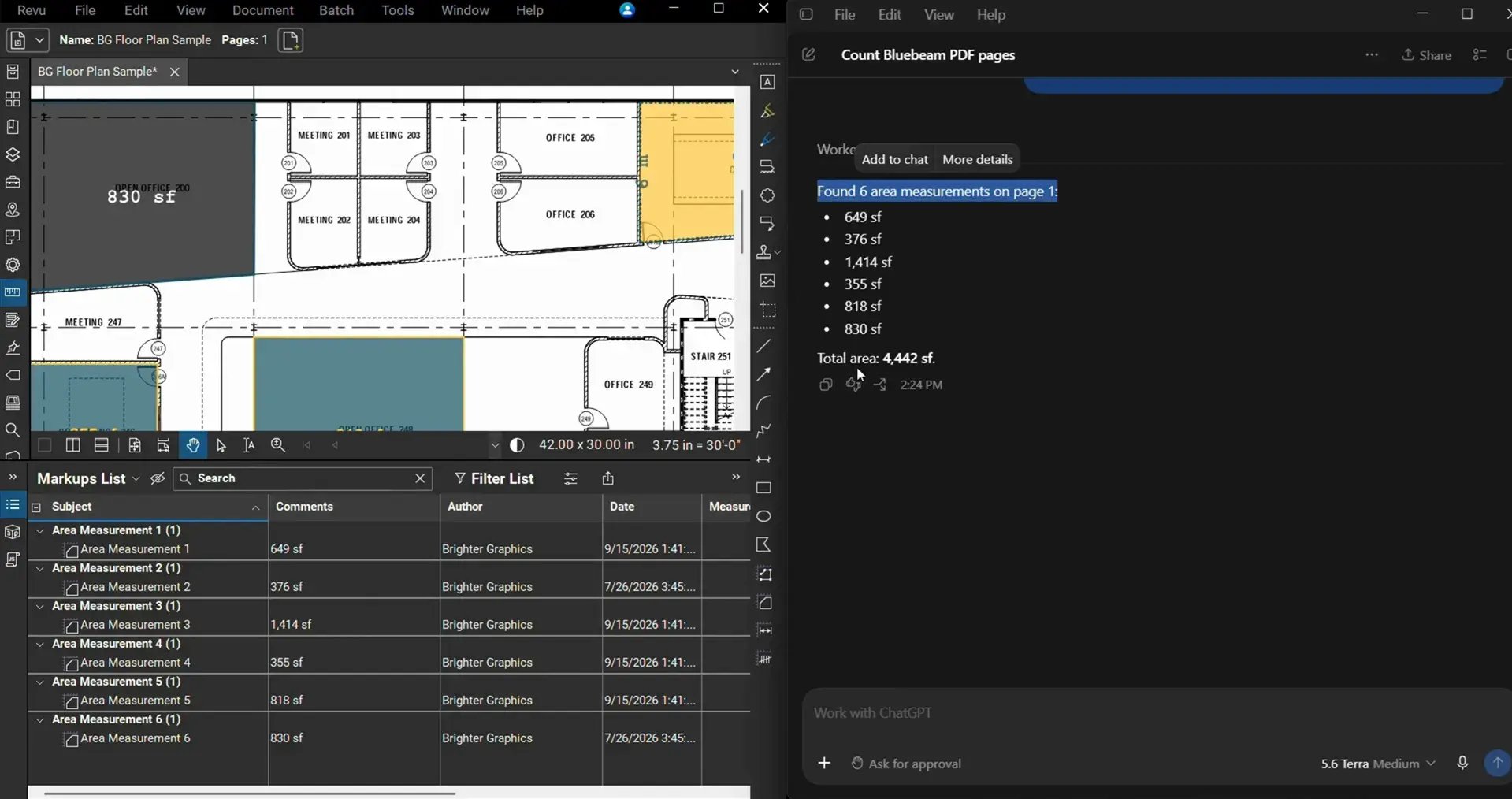
06 B: Send the prompt
Use the following prompt to get the list of Area measurements on your PDF and their total:
List all Area measurements in the PDF currently open in Revu and calculate their total area.
Once you are done, press Enter to continue.
06 C: Allow the tool to run
- When prompted, allow ChatGPT to access the Bluebeam MCP.
- ChatGPT loads the List Markups in the PDF job to pull data from your Markups List.
06 D: Check the output
- Review the list of Area measurements and the calculated total.
- Cross-check the figures against your Markups List in Revu.
This is a small example, but it shows how the connection can support quantity takeoff and estimation workflows. You can ask ChatGPT to do much more inside Revu.
Things to Remember
- Update Revu first – The ChatGPT connection requires the latest Revu version (21.11 or later).
- Fully quit and restart ChatGPT – If your ChatGPT app was open when you enabled the connection, fully quit and restart. Otherwise, the Bluebeam Revu connector may not appear.
- Check the connector under Settings > Plugins > MCP – If Bluebeam Revu isn’t listed, revisit Steps 3 and 4 before testing.
- Approve tool access when prompted – ChatGPT may ask permission each time it uses a Bluebeam tool (you can avoid this by going to Settings > Plugins > MCP > Bluebeam Connector and turning all permissions to Always Allow).
- Verify results against Revu – Always cross-check AI-reported figures, especially calculations, with your Markups List. Avoid relying fully on AI calculations for estimates to avoid potential mistakes.
- Keep the PDF open in Revu – Do not close Revu while using AI. ChatGPT works with the file currently open in your Revu session. Keep the file open in Revu.
Start Using ChatGPT with Revu
Connecting ChatGPT to Revu takes only a few minutes: update Revu, enable MCP in Preferences, and confirm the connector in the ChatGPT desktop app. After that, you can query your open PDF, list markups, and calculate totals through simple prompts.
For more Bluebeam tips and tricks, stay connected with Brighter Graphics, your go-to partner for all things Bluebeam, digitising construction since 2003.
If you’d like to try the AI features with your own workflows, request a 14-day free trial of Bluebeam Max.