If you manually check two versions of the same drawing, it can be time-consuming and error-prone, especially when changes are small or spread across multiple sheets.
The new Bluebeam Max offers Smart Overlay, an AI-powered comparison feature that automatically analyses two versions of a drawing and generates an overlay highlighting the differences between them.
Instead of manually comparing revisions, the new AI Overlay feature quickly identifies additions, removals, and other changes, helping teams review revisions with greater confidence across batches of files.
Smart Overlay is available exclusively with a Bluebeam Max subscription. If you have not upgraded yet, you can request a 14-day free Bluebeam Max trial to experience AI-powered workflows inside the same Revu environment.
In this guide, you will learn how to compare two drawing revisions using Smart Overlay and export the generated overlay comparison for reporting and collaboration.
Step-by-Step Guide to Smart Overlay in Bluebeam Max
Smart Overlay - New AI-Powered Feature in Bluebeam Max for Smart Drawing Version Comparison
Before getting started, ensure you are on a Bluebeam Max subscription and using Revu version 21.9 or later. Now, follow the steps below to compare drawing revisions using Smart Overlay.
Step 01: Prepare the drawing versions
01 A: Open Bluebeam Revu on your desktop.
01 B: Go to the File menu and Open the two versions of the drawing you want to compare.
In this example, we compare two revisions of the same construction drawing. Both versions contain slight differences that would normally require careful manual inspection to identify.
Now we will see how smart this new feature is in detecting the version deviations.
Step 02: Access Smart Overlay in Revu
02 A: Go to the Batch menu.
02 B: Click Smart Overlay.
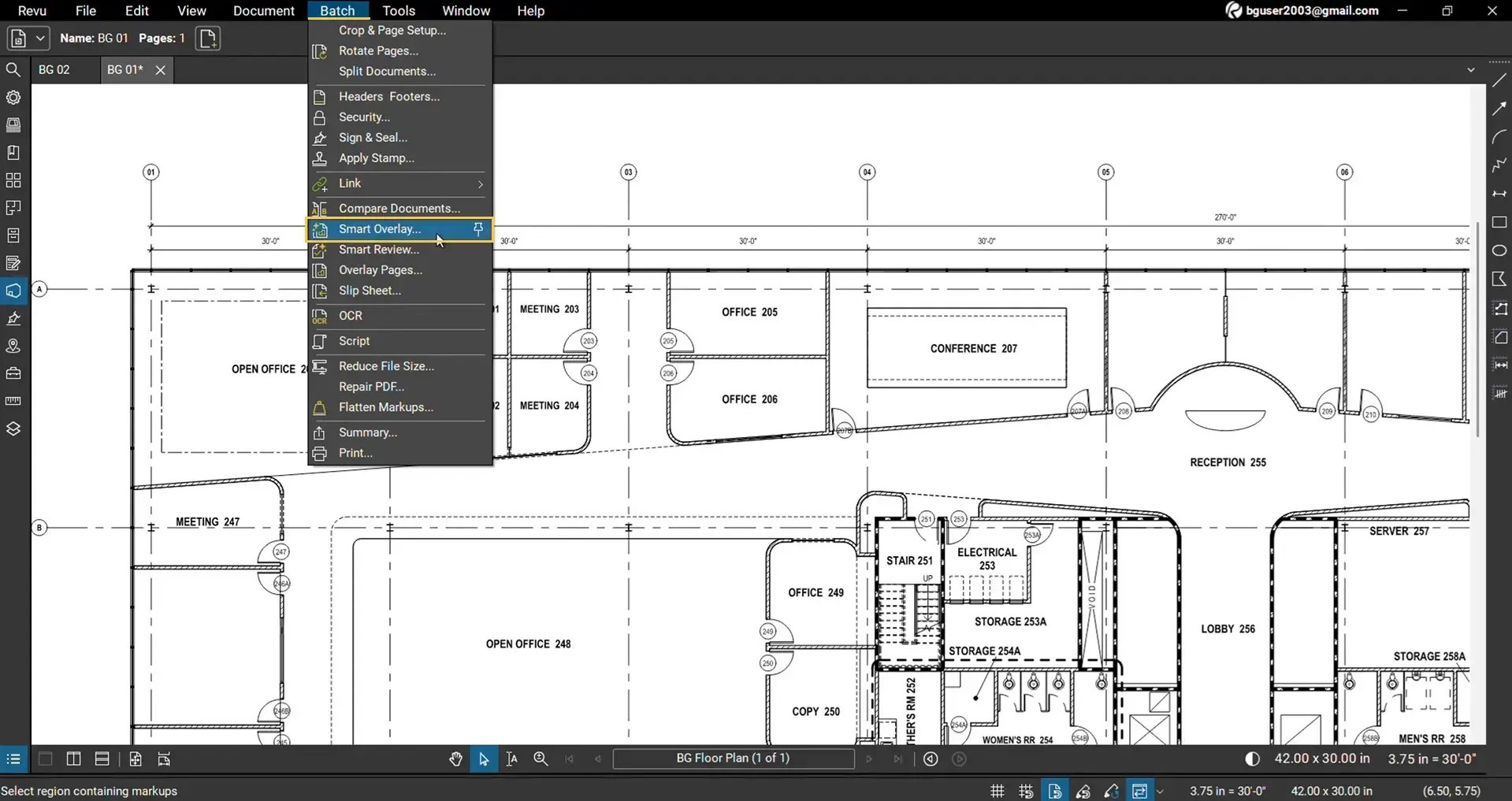
The Smart Overlay dialog box will open.
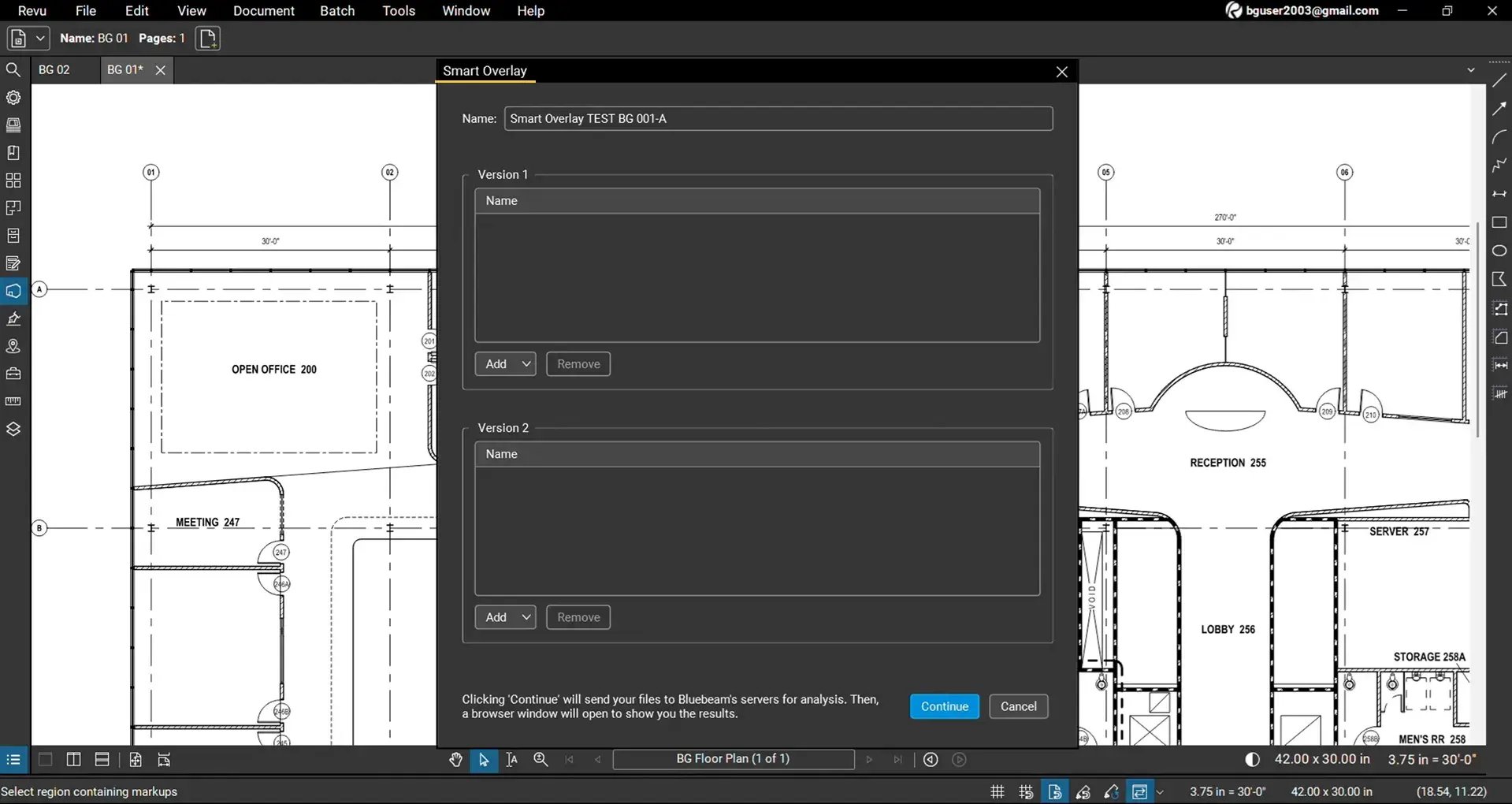
Enter a name for your overlay session.
Step 03: Select Version 1 and Version 2
Now click the Add button to add your drawings. Smart Overlay compares two drawing sets.
- Under Version 1, add the first revision.
- Under Version 2, add the updated revision.
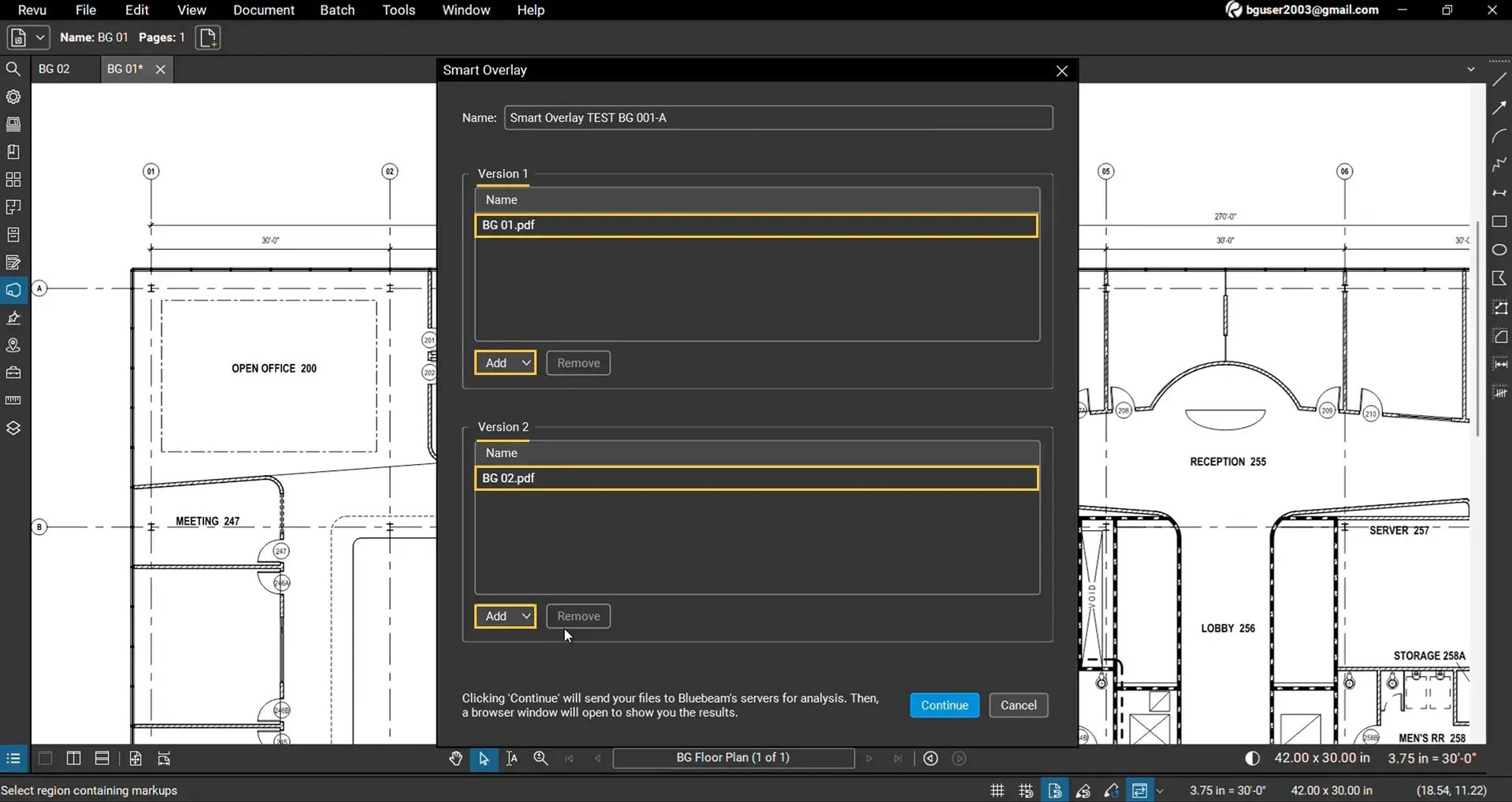
You can add files from:
- Files (Individual PDF files from your device)
- Open files (currently loaded in Revu)
- Open Set (if you have created drawing sets in Revu)
- Folders
- Folders and subfolders (all the files within the folders and their subfolders)
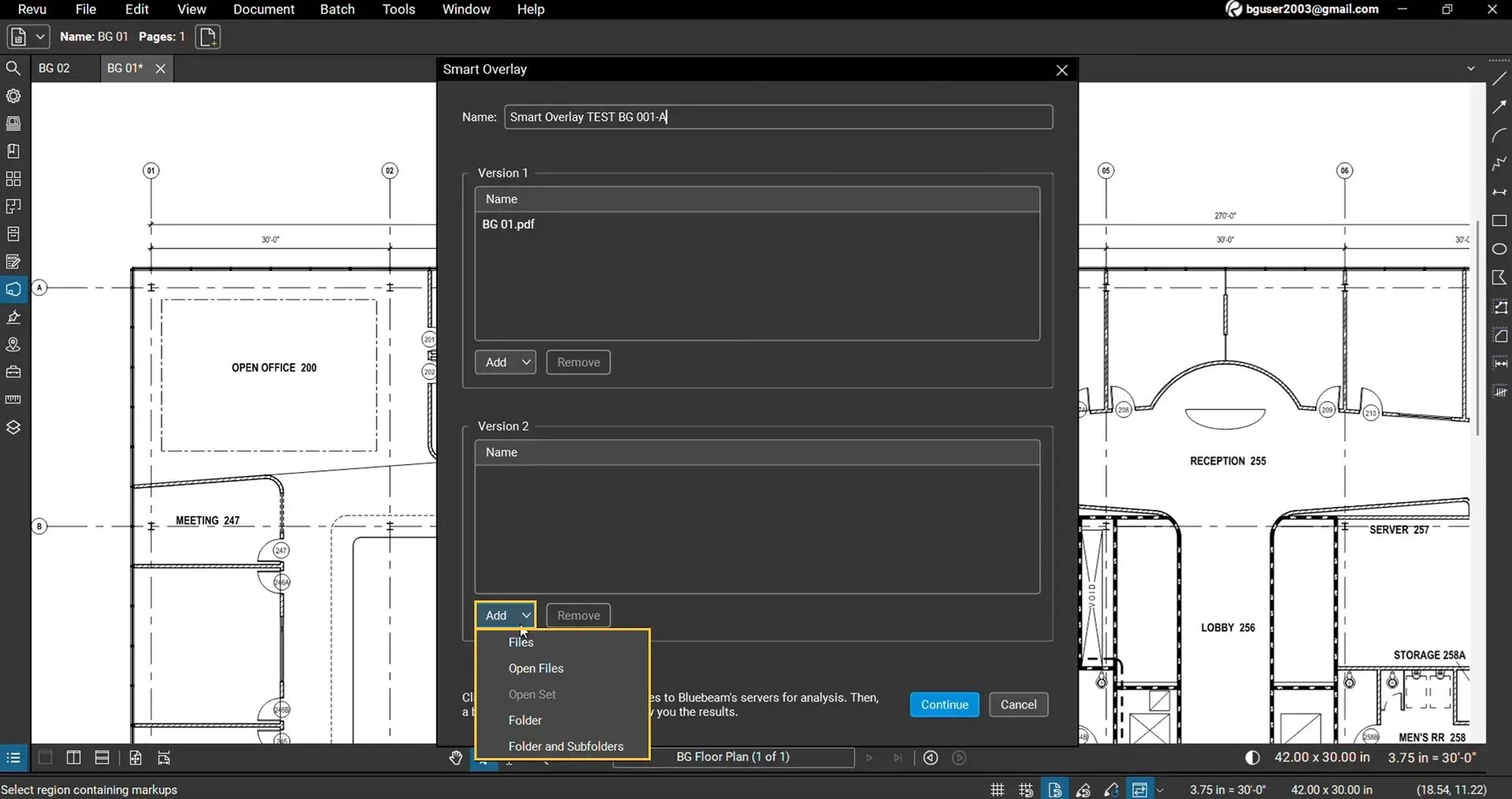
Because Smart Overlay supports batch processing, you can compare multiple drawing pairs within a single submission.
Review your selections and remove any unwanted files before continuing.
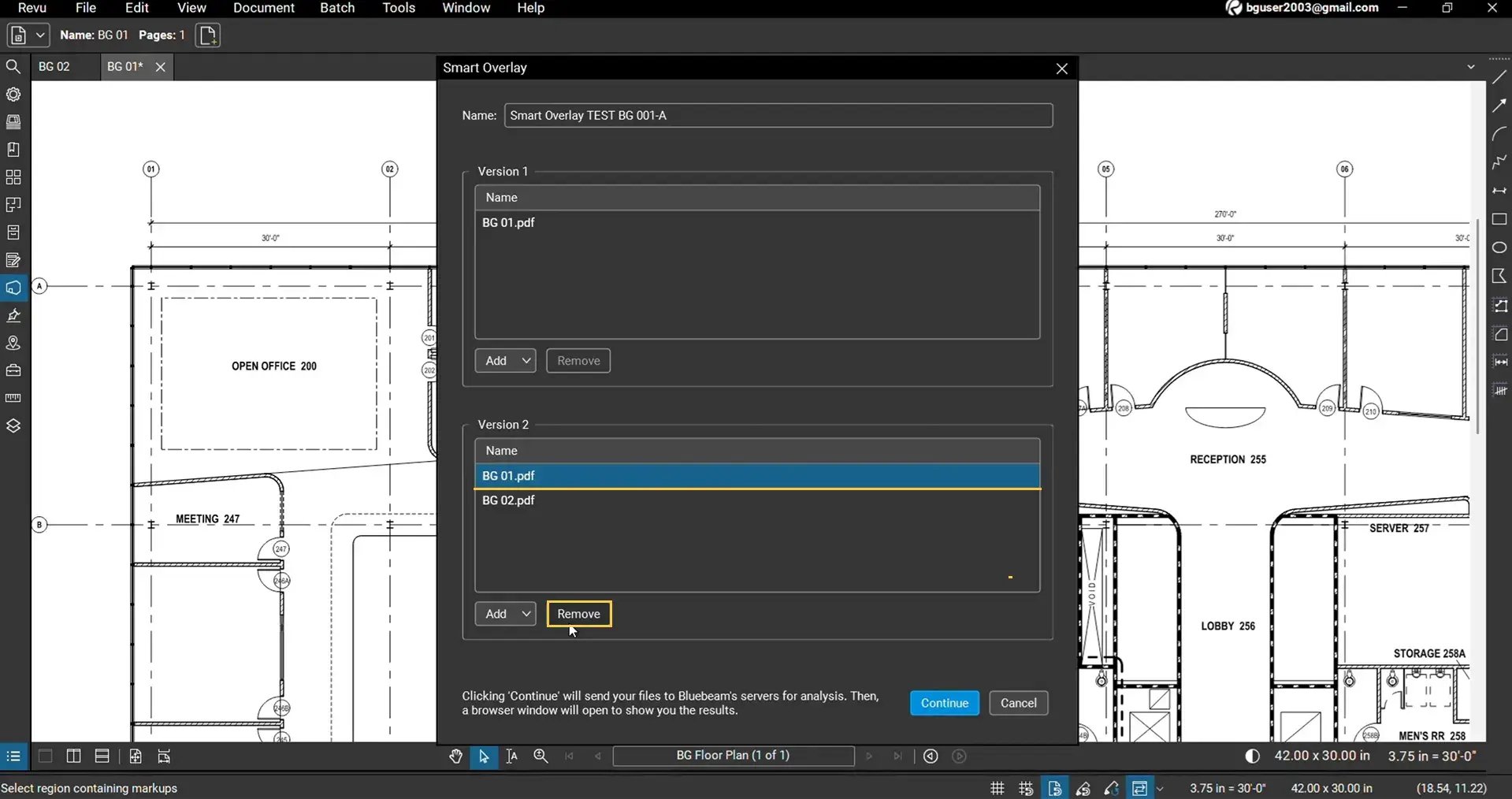
Once everything is ready, click Continue.
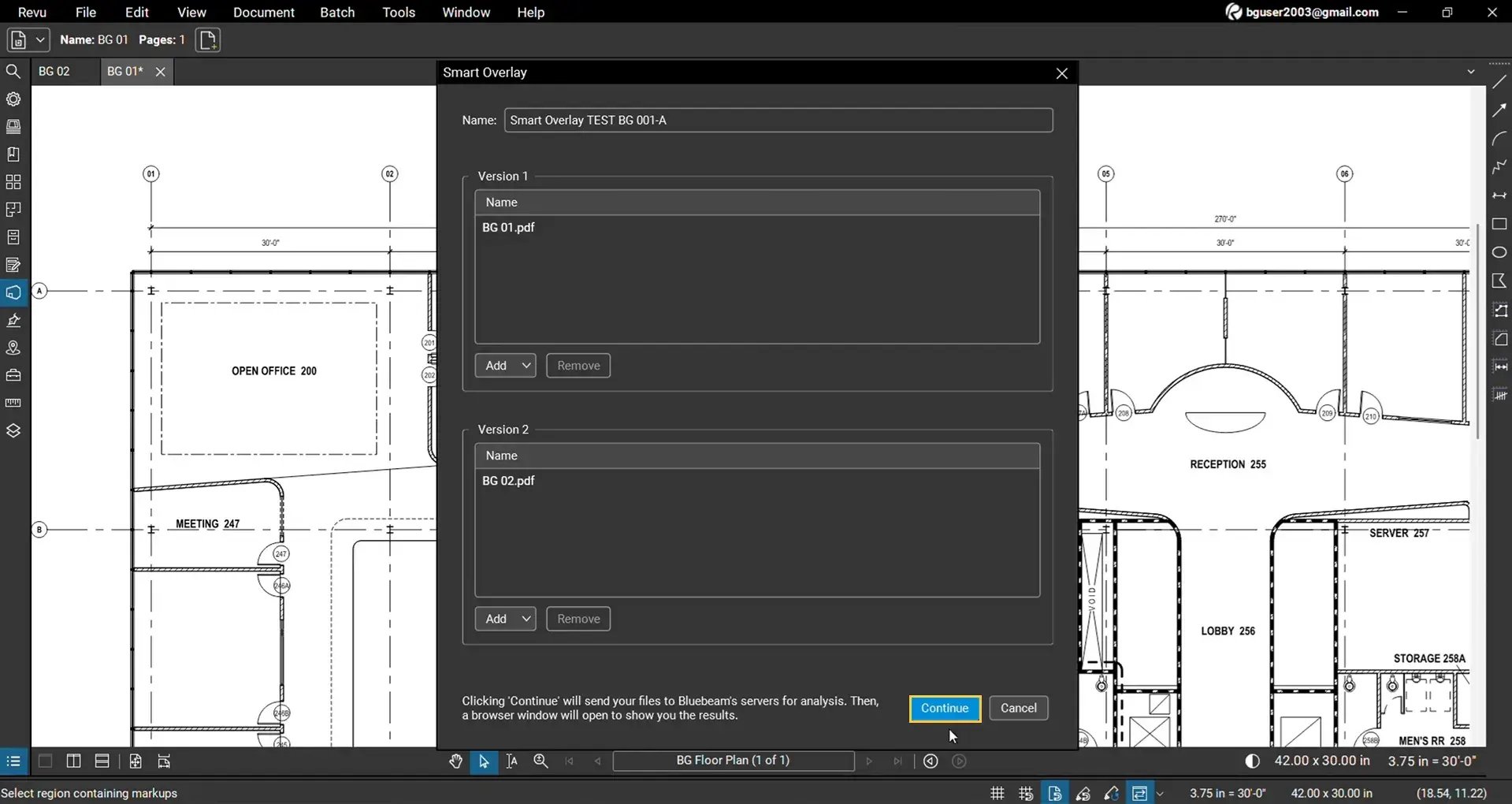
Step 04: Allow Smart Overlay to Process Your Drawings
Bluebeam uploads the selected drawings securely to the cloud for AI processing.
Once submission is complete, your default browser automatically opens the Bluebeam Smart Overlay workspace.
*If you are not signed in, sign in using the same Bluebeam ID and password associated with your Revu desktop application.
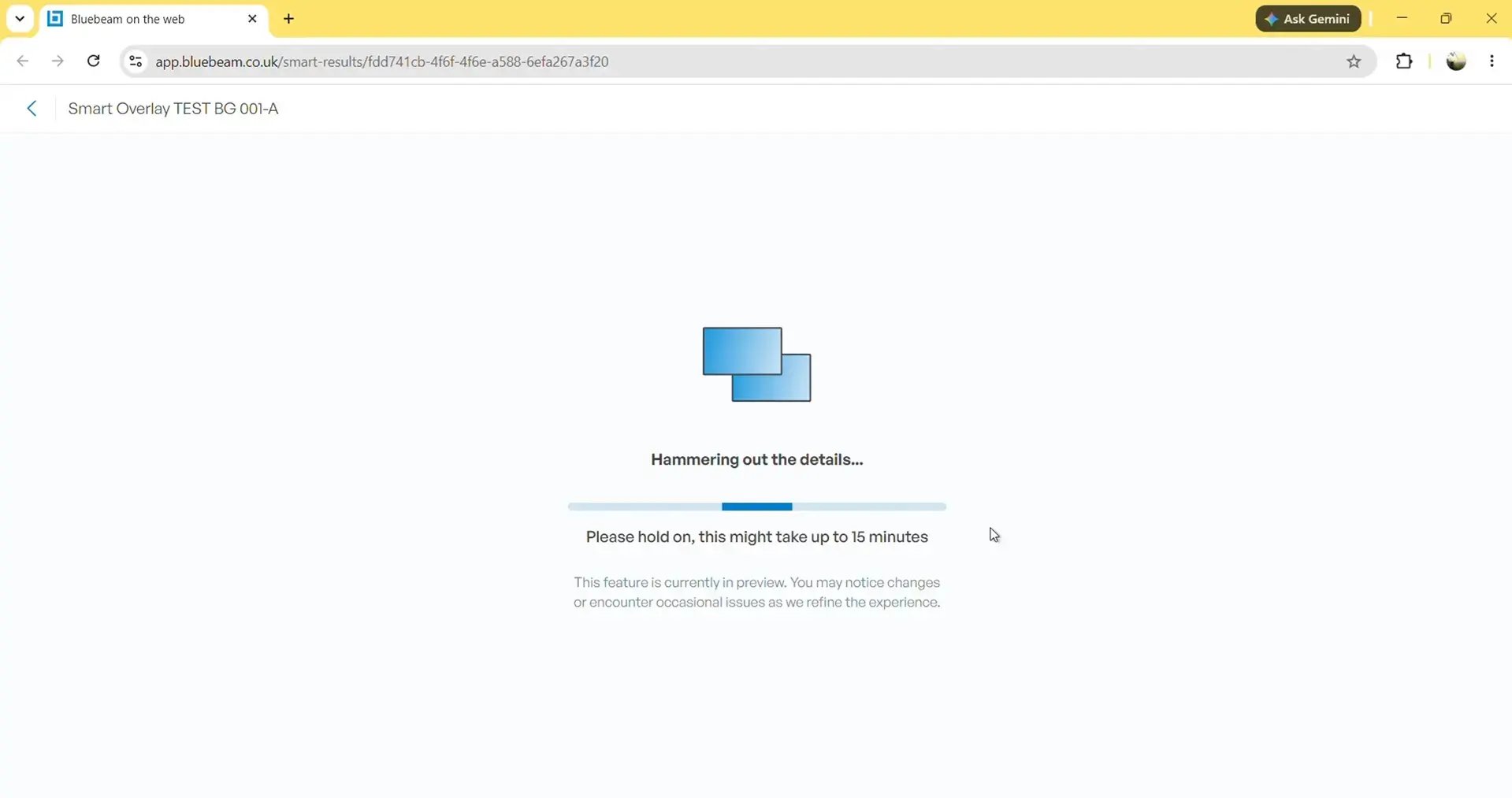
Wait for the comparison to complete and for the overlay drawing to appear. It may take several minutes depending on the number and size of the drawings being analysed.
Step 05: Review the Generated Overlay
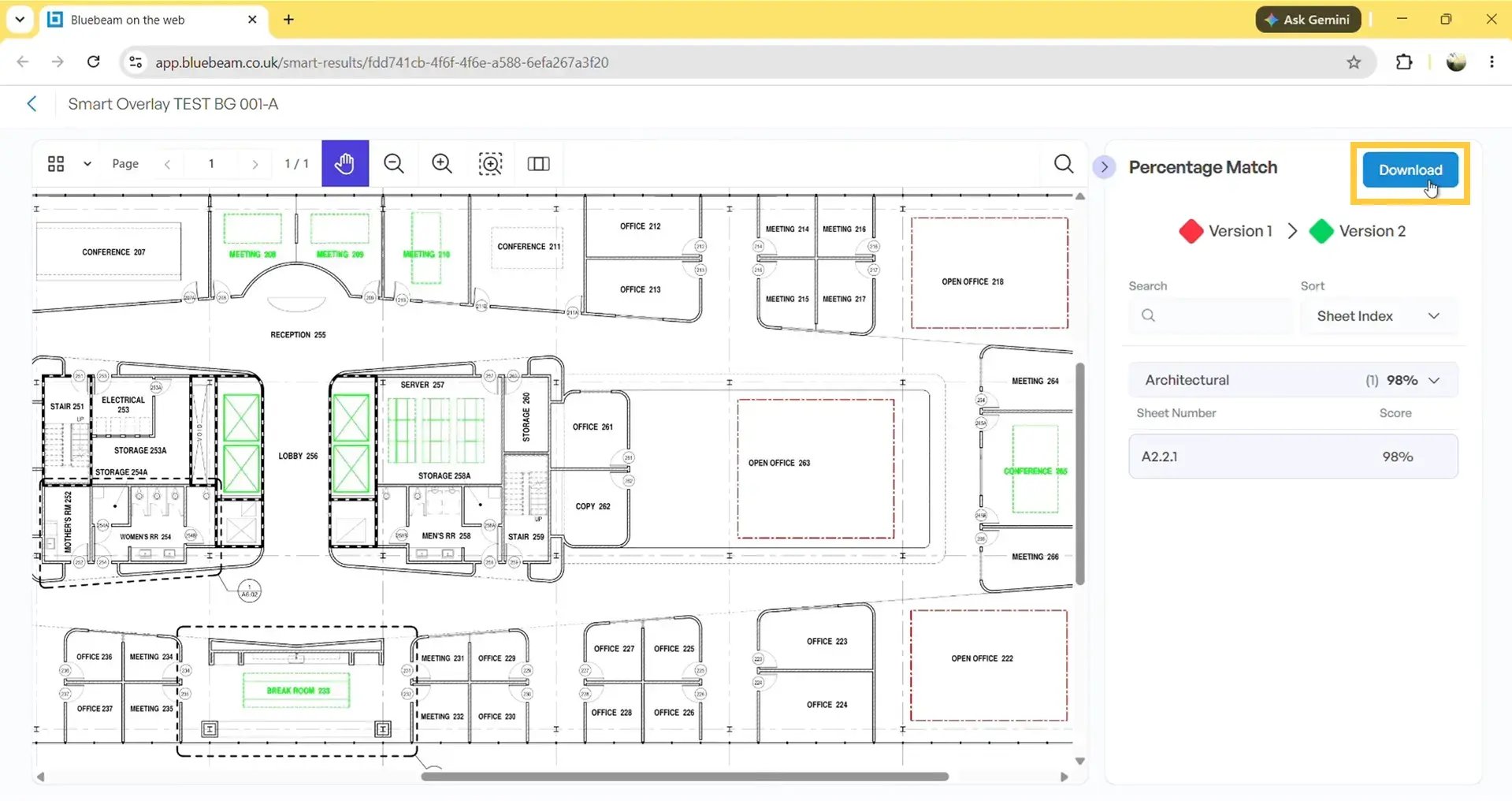
Once processing is complete, Smart Overlay generates a visual overlay comparing both drawing versions.
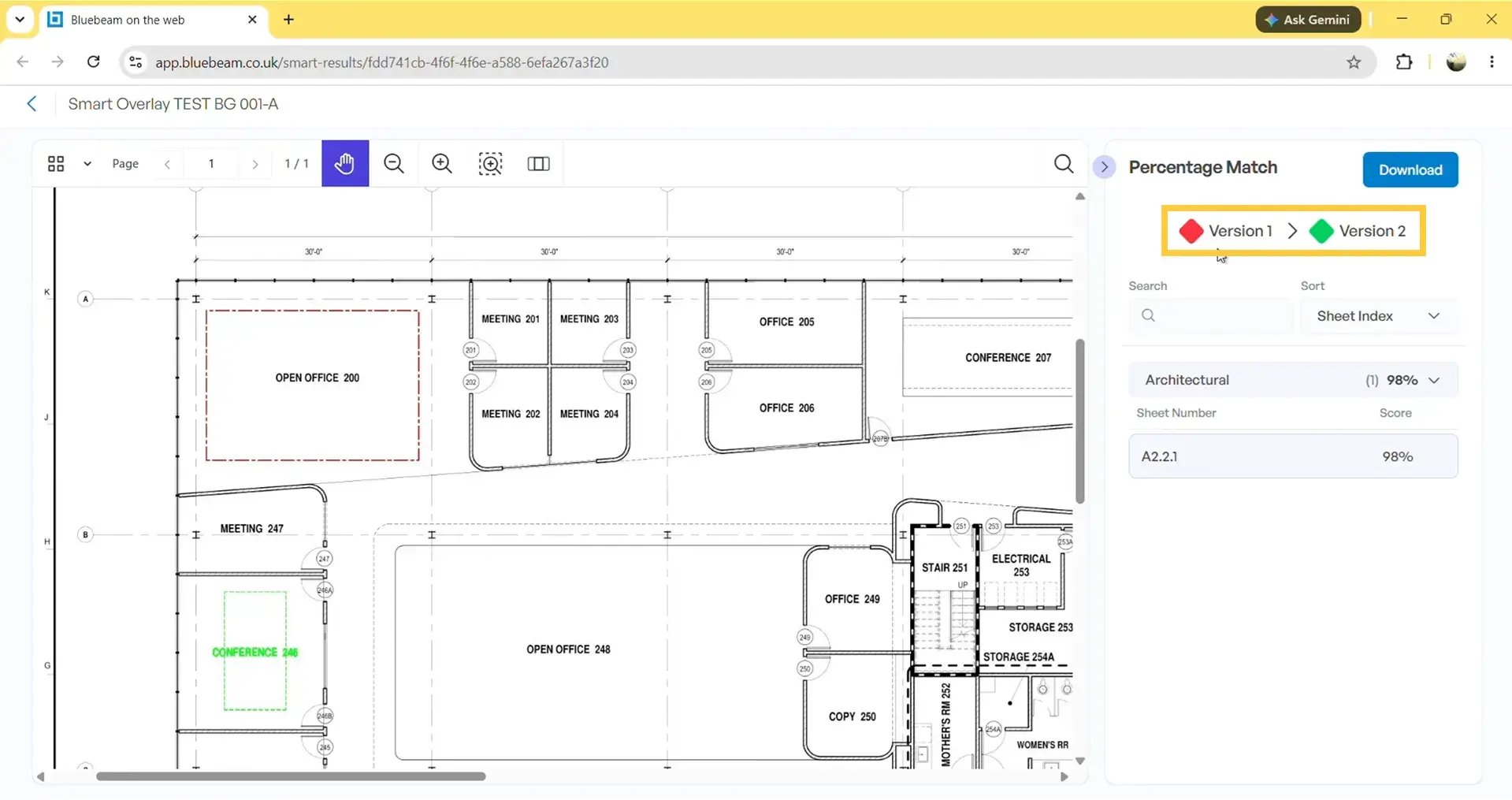
Zoom into different regions of the drawing to inspect the highlighted changes.
The overlay uses colour coding to distinguish differences between the two revisions:
- Red indicates content that exists in Version 1 but not in Version 2.
- Green indicates content that exists in Version 2 but not in Version 1.
This makes even small drawing revisions much easier to identify than comparing drawings manually. If you notice, it caught even the minor changes in the revision.
Understanding Smart Overlay Results
Smart Overlay is designed to detect visual differences between drawing revisions, including:
- Newly added objects or elements on drawings
- Removed objects from either of the version
- Modified drawing elements
- Minor graphical changes
- Revision updates across sheets
Instead of manually switching between drawings, you receive a single visual comparison that immediately highlights the differences.
Download the Overlay PDF
Once you have reviewed the comparison, click Download.
Smart Overlay exports the generated overlay as a PDF.
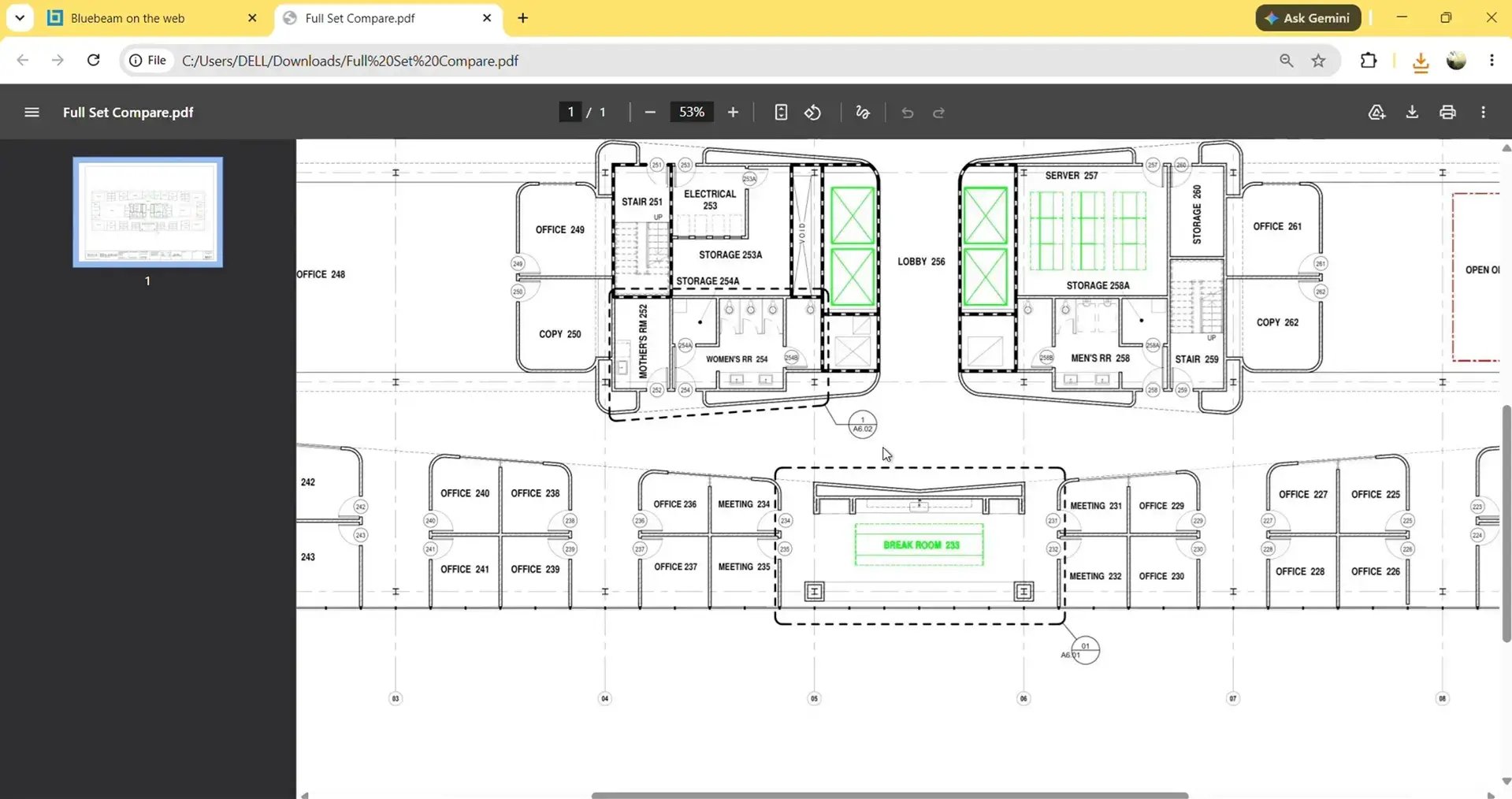
You can use this overlay drawing to:
- Share the comparison with project teams.
- Include it in design review workflows.
- Open the overlay drawing in Studio Session to collaborate.
- Archive revision comparisons for future reference.
- Use it during coordination meetings.
Try Bluebeam Max Free for 14 Days
Smart Overlay is offered as an AI-powered capability and only comes with the new Bluebeam Max plan. If you want to experience AI-assisted drawing reviews, document analysis, and automation inside Revu, request a 14-day free Bluebeam Max trial and explore everything the latest AI-powered workflow has to offer.
Level Up Your Bluebeam Experience
This is how Smart Overlay in Bluebeam Max reduces much of the manual effort of comparing drawing revisions by automatically generating an AI-powered visual comparison. Now you can rely on and trust AI instead of searching through drawings line by line, so you can focus directly on the areas that have changed.
We have already started producing video tutorials and guides to help you get started with the new product, and we will continue to assist you as we discover new AI capabilities of Max.
To learn more about Bluebeam Max, Claude integration, and other AI-powered workflows, explore our related Bluebeam guides and stay connected with Brighter Graphics, your go-to Bluebeam partner in the UK, Europe, and the Middle East.