Do you know? Even experienced professionals can sometimes overlook inconsistencies, missing information, or conflicting details across dozens of sheets while manually reviewing information-rich construction drawings.
Bluebeam Max introduced Smart Review, an AI-powered batch review feature that automatically analyses multiple PDF drawings, identifies potential issues, and presents them in an interactive review dashboard.
Instead of comparing drawings sheet by sheet, you can now use Smart Review to help you focus your attention on areas that may require further investigation.
Smart Review is available exclusively with a Bluebeam Max subscription. If you have not upgraded yet, you can request a 14-day free Bluebeam Max trial to experience AI-powered workflows inside the same Revu environment.
In this guide, you will learn how to batch review multiple drawings using Smart Review, understand the review results, and export your findings for collaboration.
Types of Issues Smart Review Detects
Smart Review currently identifies three primary categories of drawing issues.
Design Conflicts
Highlights locations where information in one drawing conflicts with information found elsewhere in the drawing set.
Scope Gaps
Identifies locations where information appears incomplete or where important design information may be missing.
Drawing Discrepancies
Detects inconsistencies in how similar information is represented
*It also matches Sheet Numbers/Indexes and flags issues if two drawings possess the same sheet number.
Step-by-Step Guide to Smart Review in Bluebeam Max
Smart Review - Review Your Drawings for Errors and Discrepancies Using AI in Bluebeam Max
Before getting started, ensure you are on a Bluebeam Max subscription and using Revu version 21.9 or later. Below is the step-by-step process to review multiple PDF drawings using AI-powered Smart Review in Bluebeam Max.
Step 01: Open the Drawings You Want to Review
01 A: Open Bluebeam Revu on your desktop.
01 B: Go to the File menu and click Open.
01 C: Select and open the PDF drawings you want Smart Review to analyse.
For this example, we have two construction drawings open in Revu. 1 drawing contains intentional discrepancies so we can see how Smart Review identifies them during the review process.
Step 02: Access Smart Review in Revu
02 A: Go to the Batch menu.
02 B: Click Smart Review.
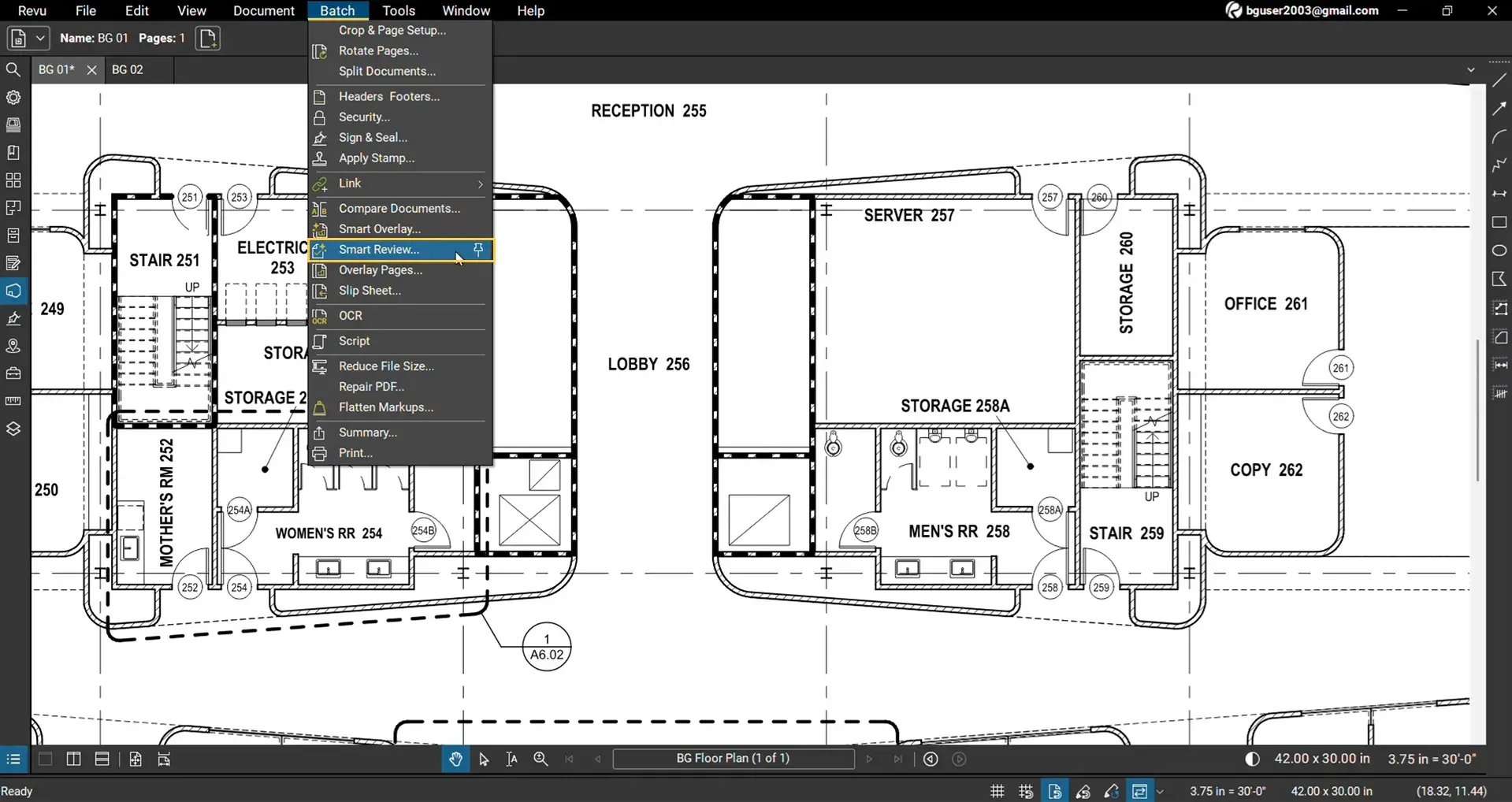
The Smart Review dialog box will open.
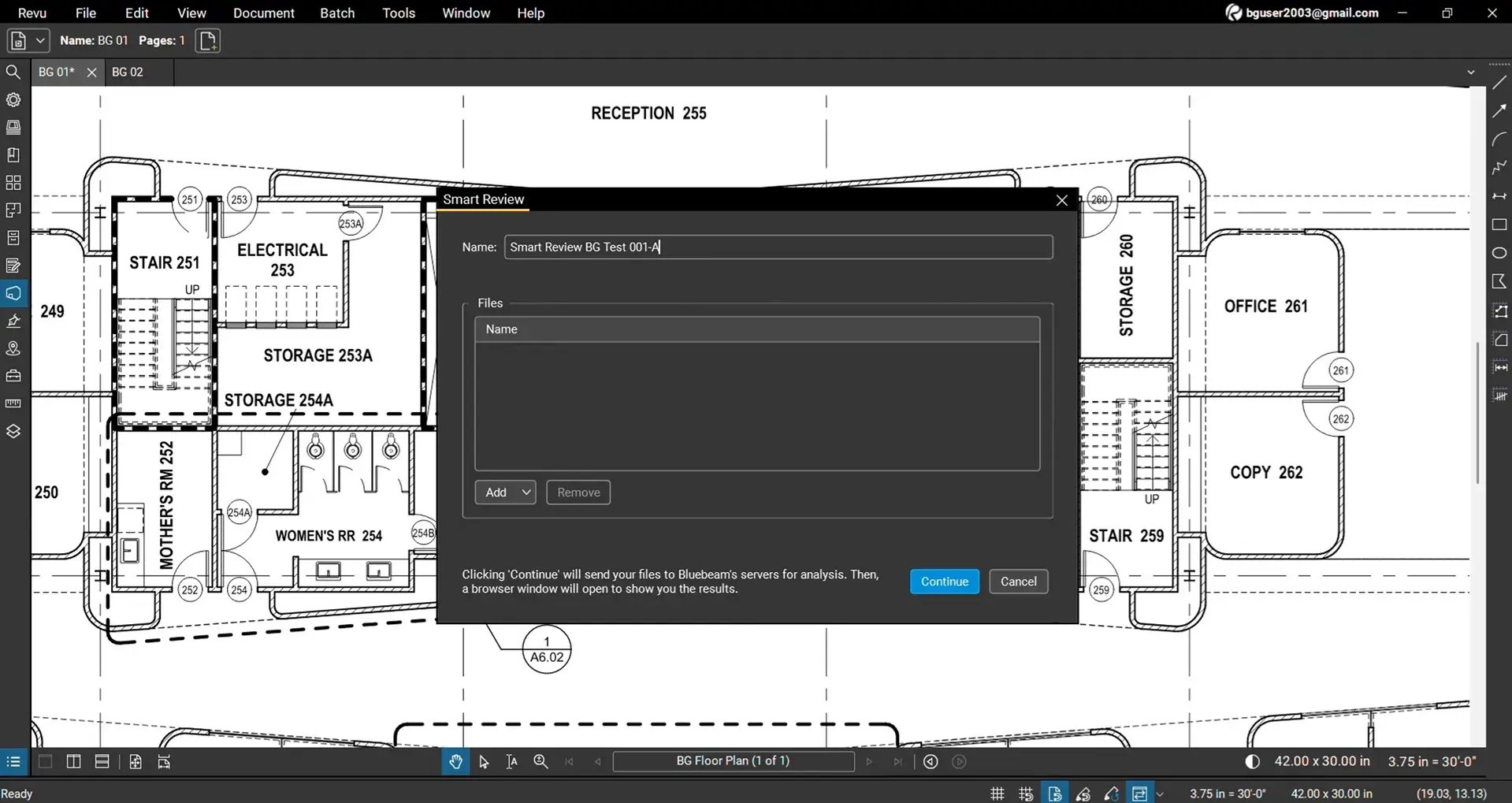
Enter a name for your review project before adding files.
Step 03: Add Files for Smart Review
Since Smart Review supports batch processing, it can analyse large collections of drawings in a single review session.
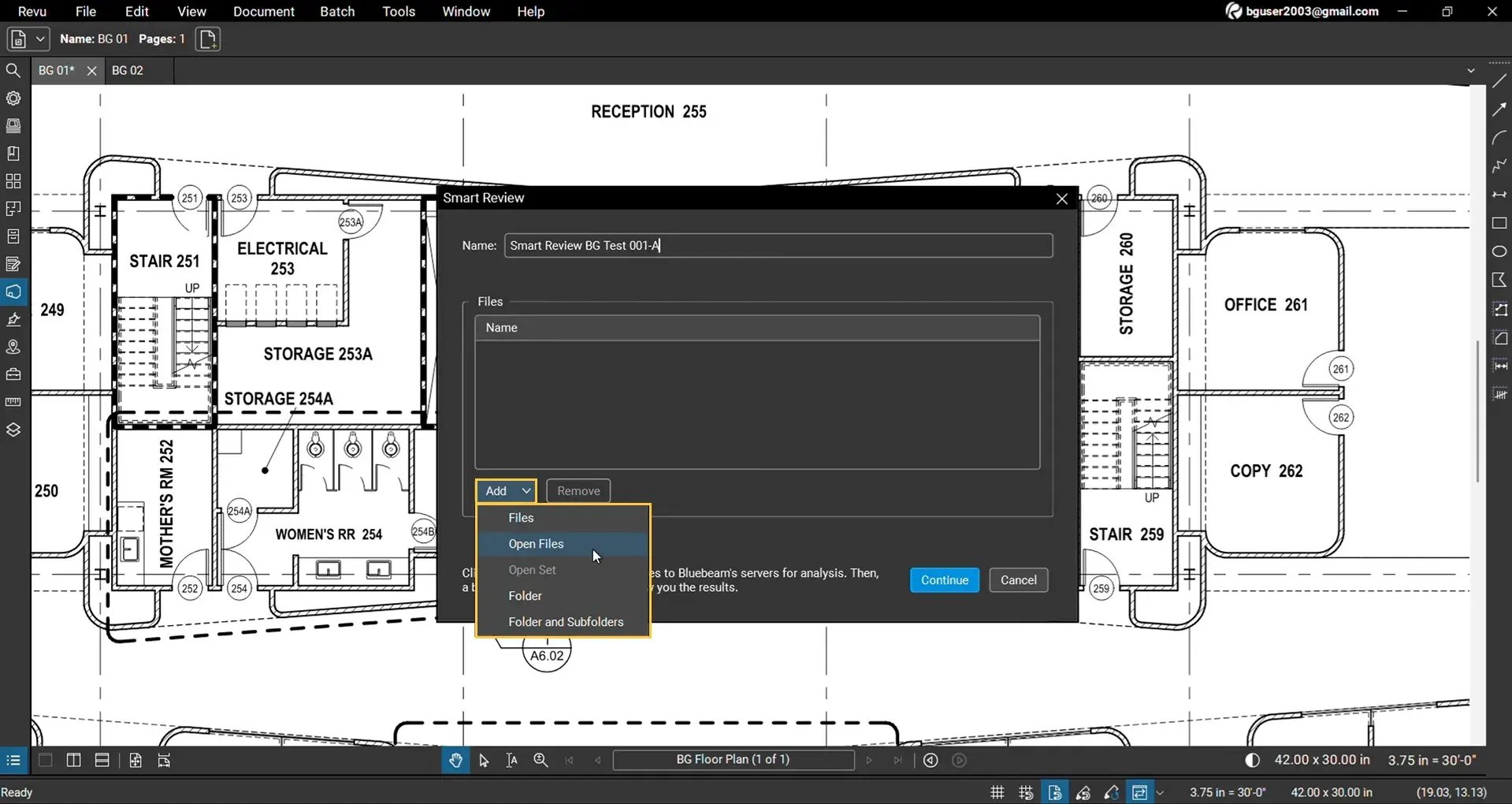
To add files for review:
- Click the Add button.
- You can choose to add:
- Files (Individual PDF files from your device)
- Open files (currently loaded in Revu)
- Open Set (if you have created drawing sets in Revu)
- Folders
- Folders and subfolders (all the files within the folders and their subfolders)
If needed, select any file and click Remove to exclude it from the review batch.
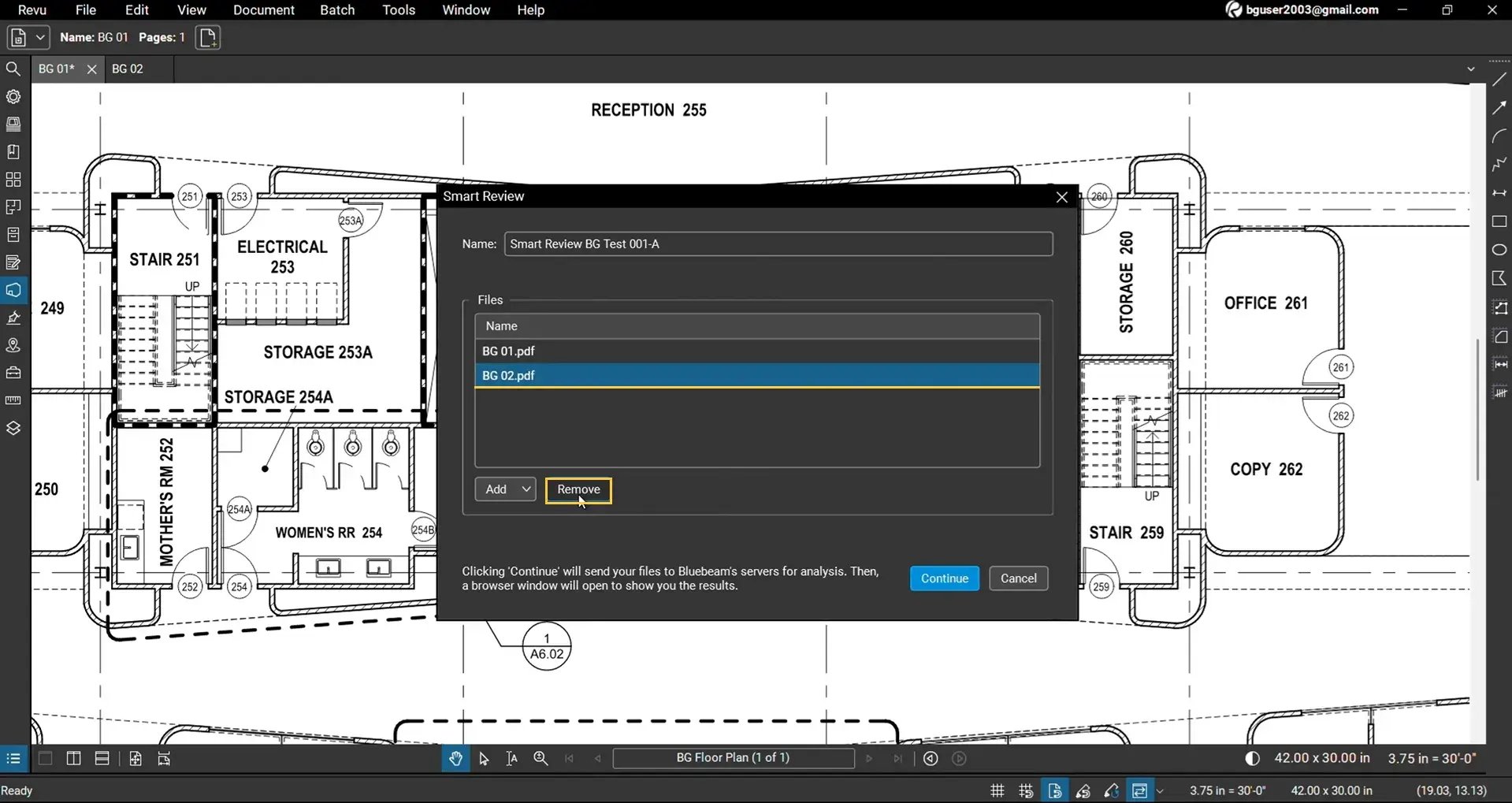
Once your drawing set is complete, click Continue.
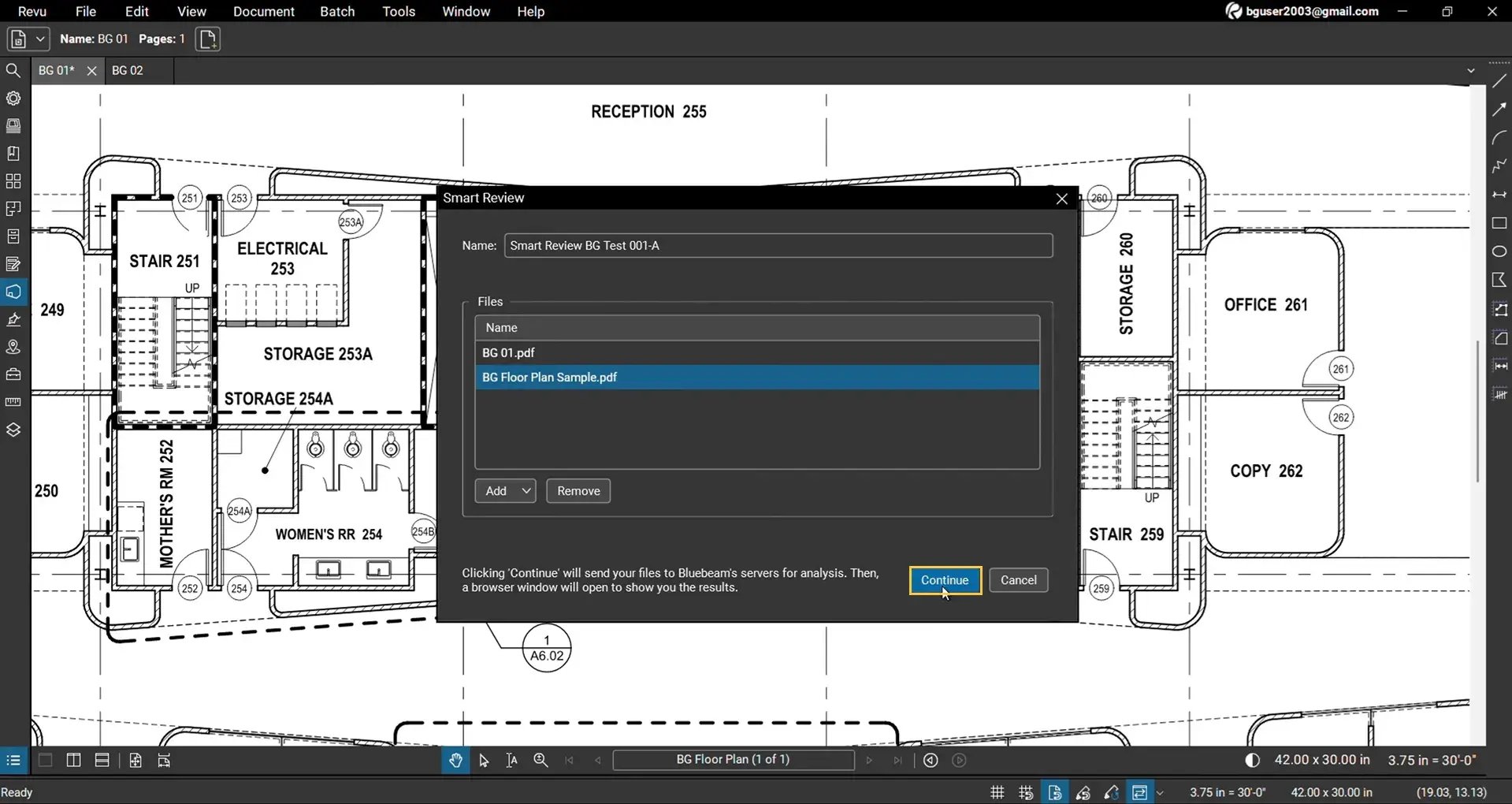
Step 04: Wait for Smart Review to Process Your Drawings
Bluebeam uploads the selected drawings securely to the cloud for AI analysis.
Depending on the number and size of your drawings, processing may take several minutes.
Once the upload is complete, your default web browser will automatically open the Bluebeam Smart Review workspace.
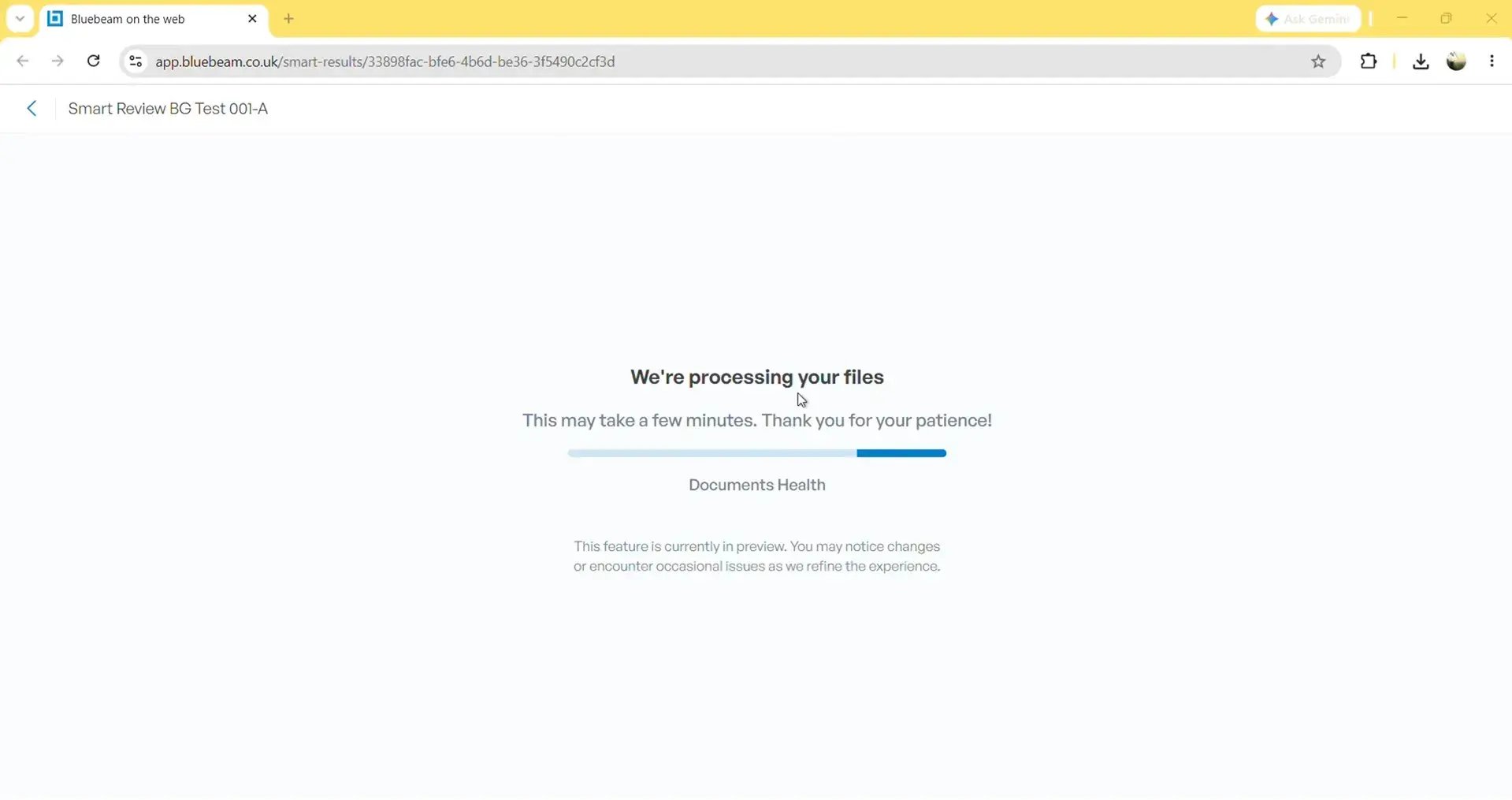
*If prompted, sign in using the same Bluebeam ID and password associated with your Revu desktop application.
Step 05: Review Detected Issues
After processing is complete, Smart Review presents an interactive dashboard containing the issues identified across your drawing set.
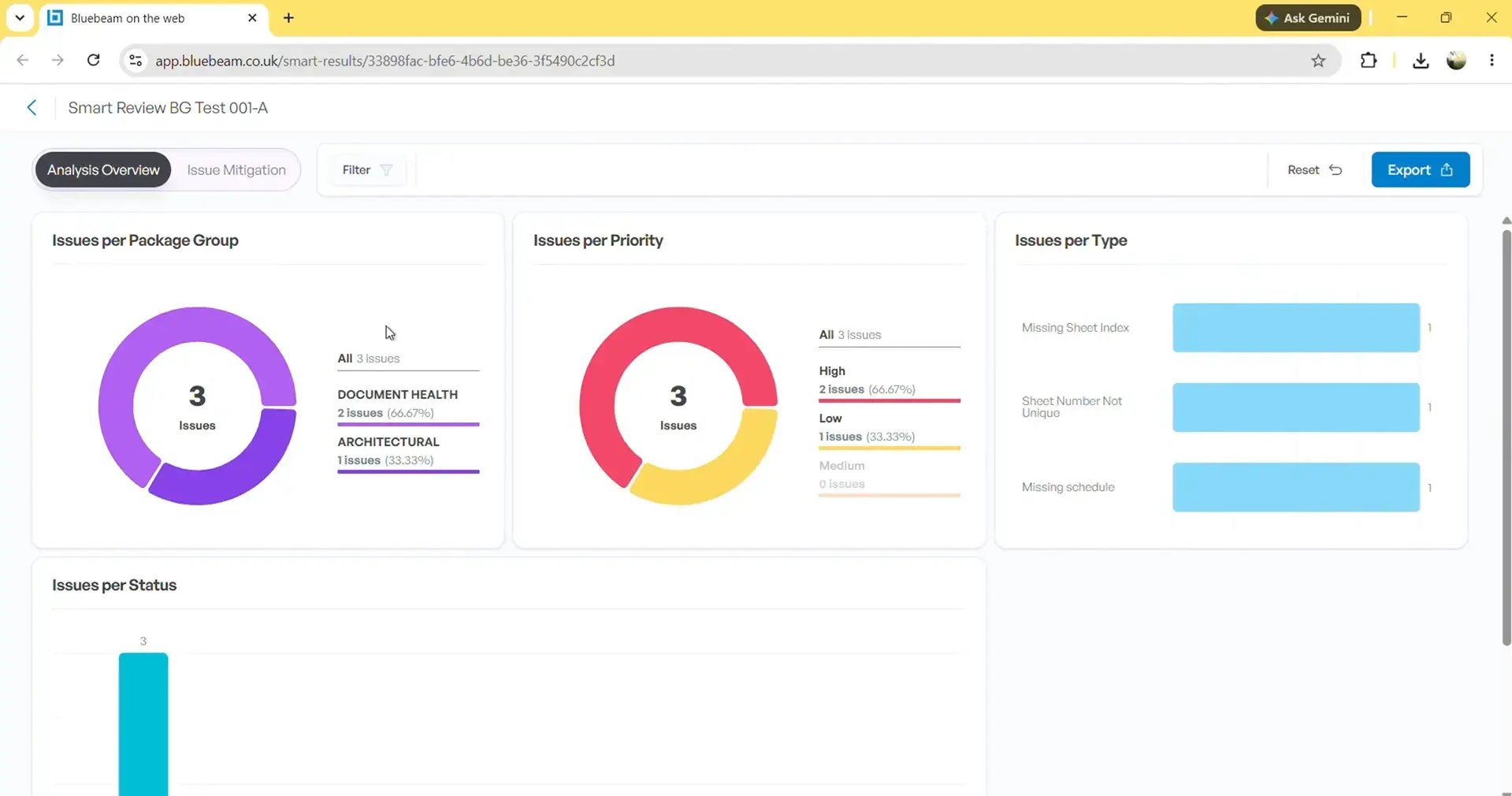
The dashboard allows you to:
- View detected issues
- Filter results by category
- Review issue priorities
- Navigate directly to affected drawings
- Manage review status
The dashboard shows issue priorities as:
- High
- Medium
- Low
Rather than manually searching through every sheet, you can immediately focus on the areas that require attention.
Step 06: Review Issues Directly on Your Drawings
Click the Issue Mitigation tab to open drawings in a workspace to inspect each identified item.
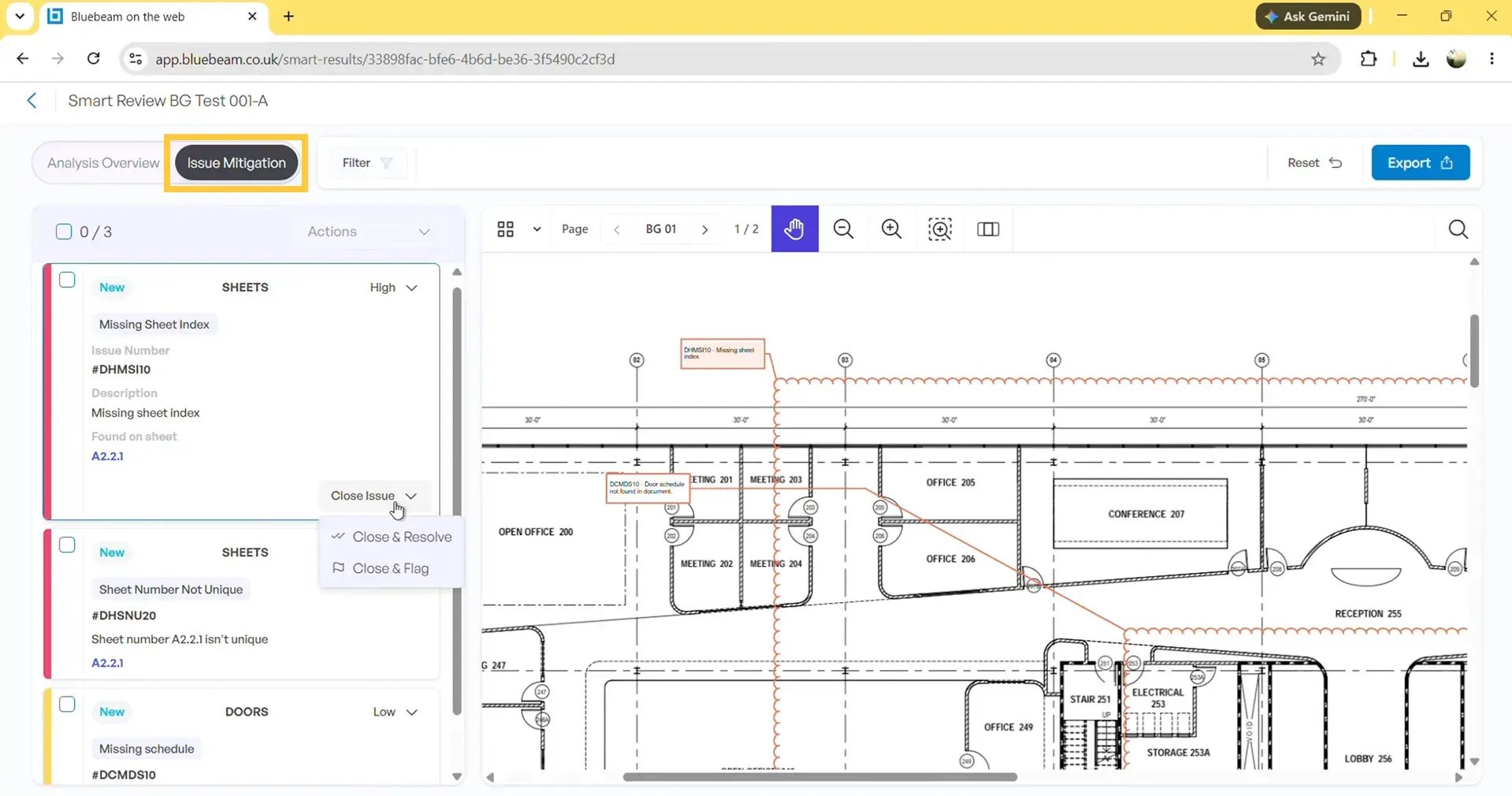
Smart Review automatically places markup callouts onto the affected drawings, allowing you to quickly locate each issue.
For every issue, you can:
- Review the issue description
- Navigate between drawings
- Mark issues as resolved
- Flag issues for further investigation
The workflow is simple and designed to keep the review process organised and maintain a clear audit trail across multiple drawings.
You can also export marked drawings to Revu for a detailed review walkthrough, or open them in Studio for collaboration.
Export Smart Review Results
Once your review is complete, click Export.
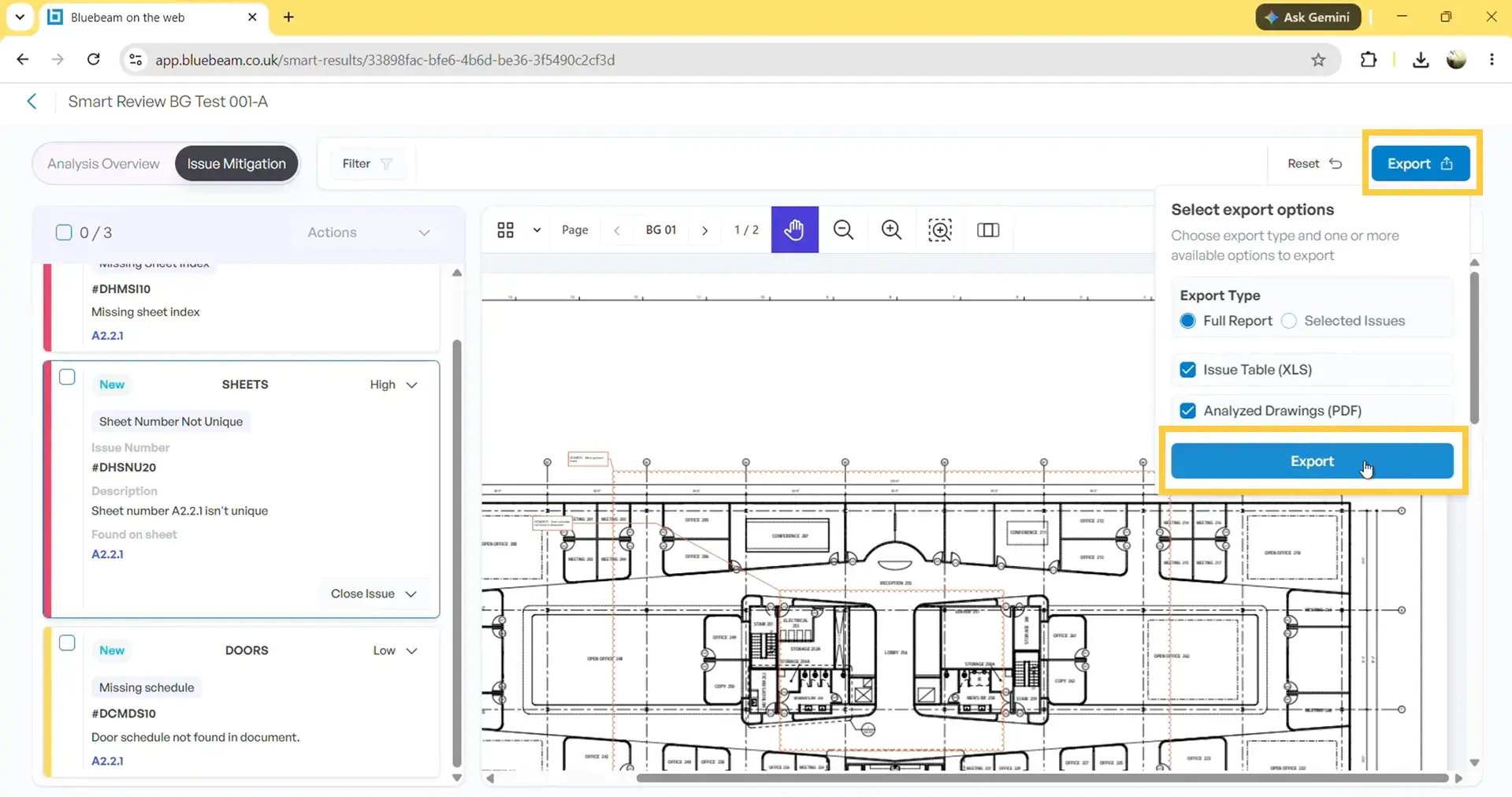
Bluebeam allows you to export:
- Review results as an Excel spreadsheet
- Reviewed PDF drawings with issue markups
- Both Excel and PDF together
The exported PDF drawings contain the same review markups created during Smart Review.
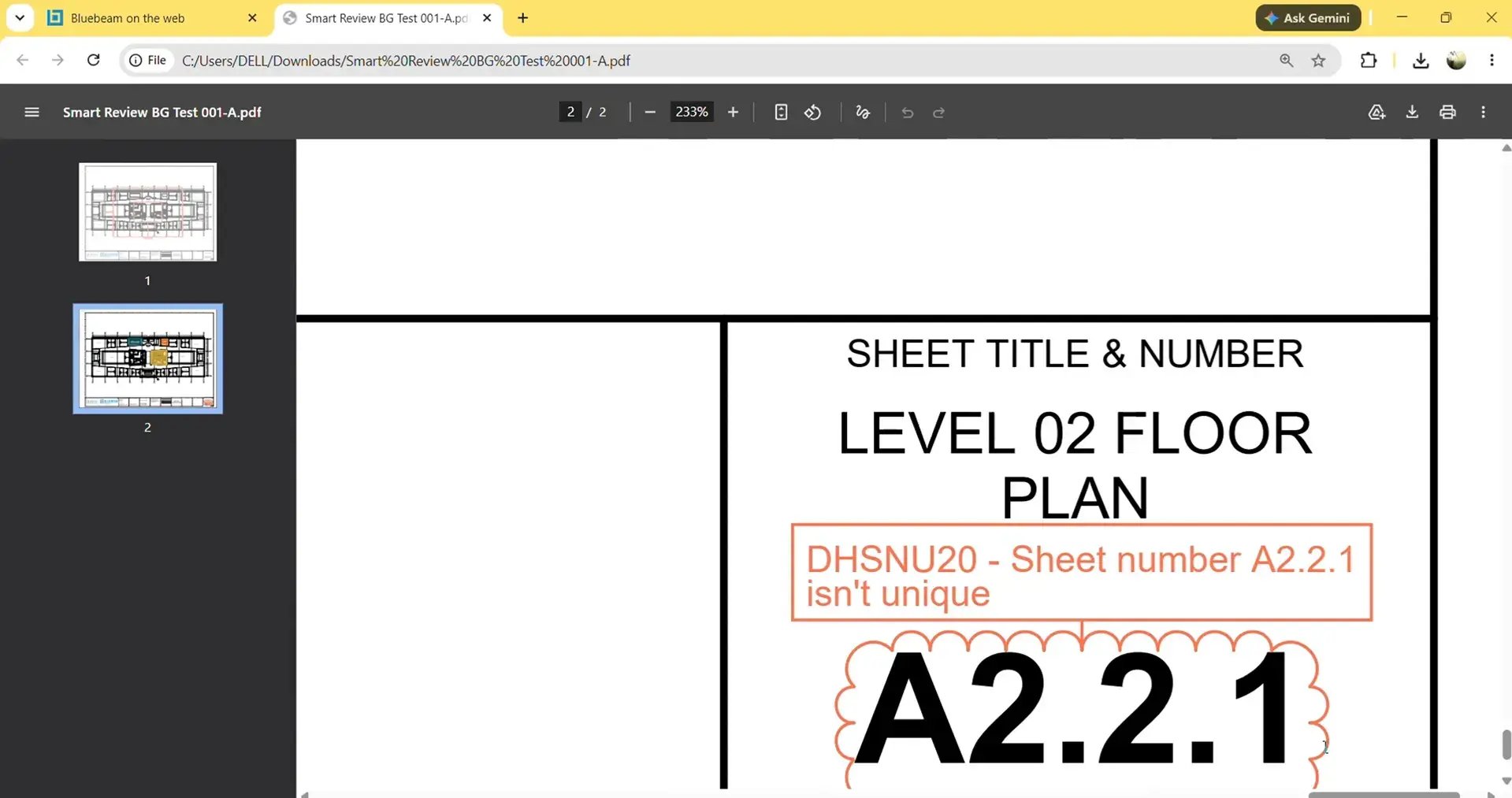
Now you can share the review results and annotated drawings with project teams and stakeholders or open your drawings in Revu to collaborate in Studio sessions.
Try Bluebeam Max Free for 14 Days
Smart Review is offered as an AI-powered capability and only comes with the new Bluebeam Max plan. If you want to experience AI-assisted drawing reviews, document analysis, and automation inside Revu, request a 14-day free Bluebeam Max trial and explore everything the latest AI-powered workflow has to offer.
Level Up Your Bluebeam Experience
Smart Review brings AI-assisted quality control directly into your design review workflow. Instead of spending hours comparing drawings manually, you can let Bluebeam Max identify potential issues across entire drawings.
We have already started producing video tutorials and guides to help you get started with the new product, and we will continue to assist you as we discover new AI capabilities of Max.
To learn more about Bluebeam Max, Claude integration, and other AI-powered workflows, explore our related Bluebeam guides and stay connected with Brighter Graphics, your go-to Bluebeam partner in the UK, Europe, and the Middle East.