Duplicate As is one of the three new Magic Markup tools introduced with Bluebeam Max. It allows you to create a copy of an existing markup or measurement as a different markup or measurement type without redrawing it, while keeping the original parent markup or measurement.
Instead of redrawing the same geometry multiple times, you can duplicate an existing markup into another measurement or markup type while preserving its size, shape, and appearance. This makes it much faster to build related measurements, expand reusable toolsets, and simplify your annotation and estimation workflows.
The new Duplicate As Magic tool is available exclusively for Bluebeam Max users. If you do not have a Max subscription, you can request a 14-day free trial to explore this AI-powered workflow and other new Bluebeam Max features.
In this guide, you will learn how to duplicate markups using the Duplicate As feature, convert Area measurements into other measurement types, customise duplicated markups, and save them for future projects.
Step-by-Step Guide to Using the Duplicate As Magic Markup in Bluebeam Max
Follow the steps below to duplicate existing markups and measurements without affecting the original markup.
Step 01: Open Your PDF Drawing
01 A: Open Bluebeam Revu 21 on your desktop (ensure you are using version 21.9 or later and have an active or trial Bluebeam Max subscription).
01 B: Go to File > Open
01 C: Open the PDF containing the markups or measurements you want to duplicate.
For this example, we are using a drawing that already contains several Area measurements.
Step 02: Accessing the Duplicate As Option
Right-click any markup or measurement and go to the Duplicate As option in the context menu.
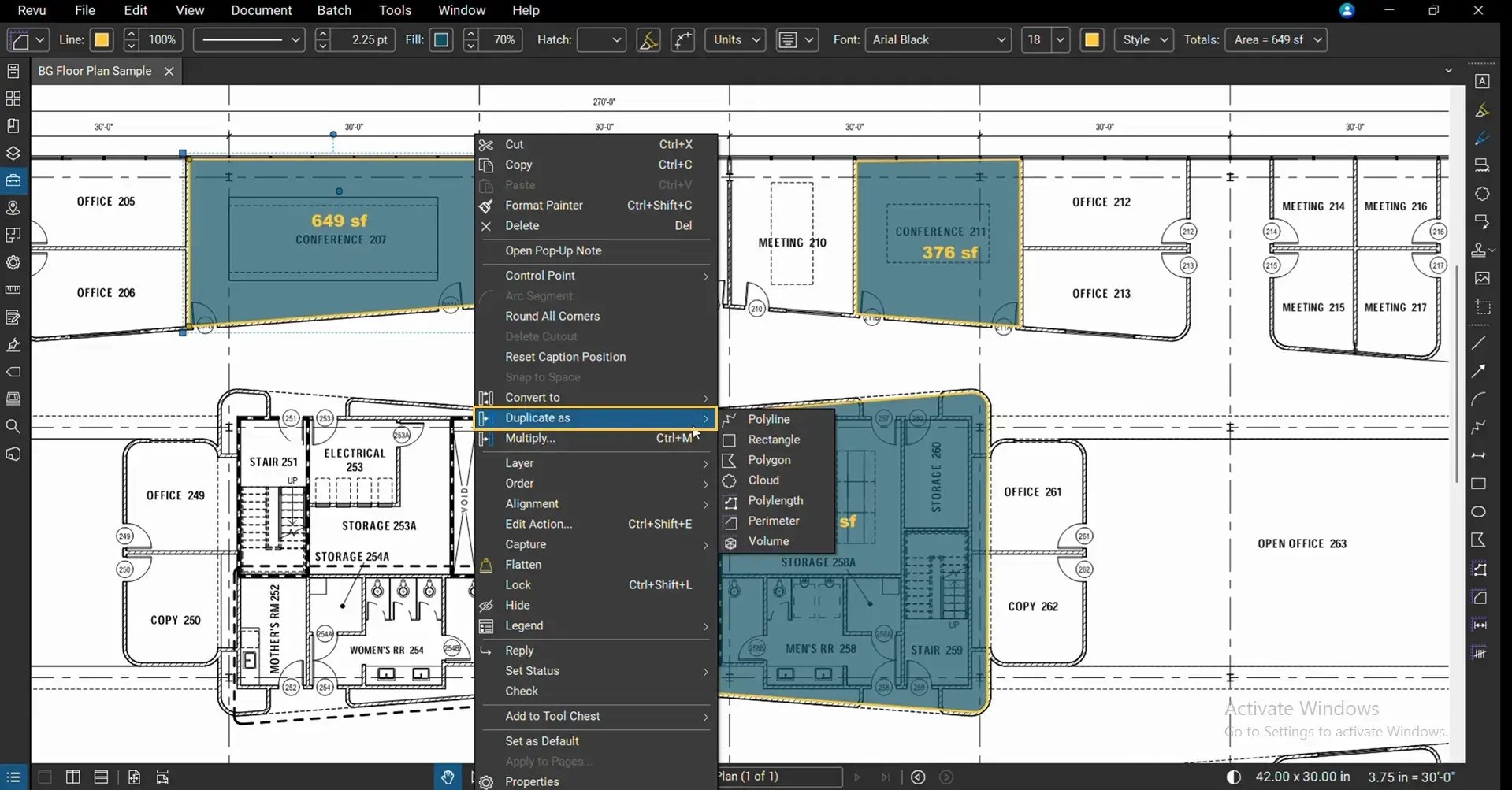
Bluebeam displays several available markup types that you can duplicate to, including:
- Polyline
- Rectangle
- Polygon
- Cloud
- Polylength
- Perimeter
- Area
- Volume
Unlike Convert To Magic Markup, which replaces the selected markup, Duplicate As keeps the original markup and creates a new copy.
Step 03: Duplicating an Area measurement as a Volume
Let's duplicate the Area measurement in this drawing and turn it into a Volume measurement.
03 A: Right-click the Area measurement.
03 B: Go to Duplicate As > Volume.
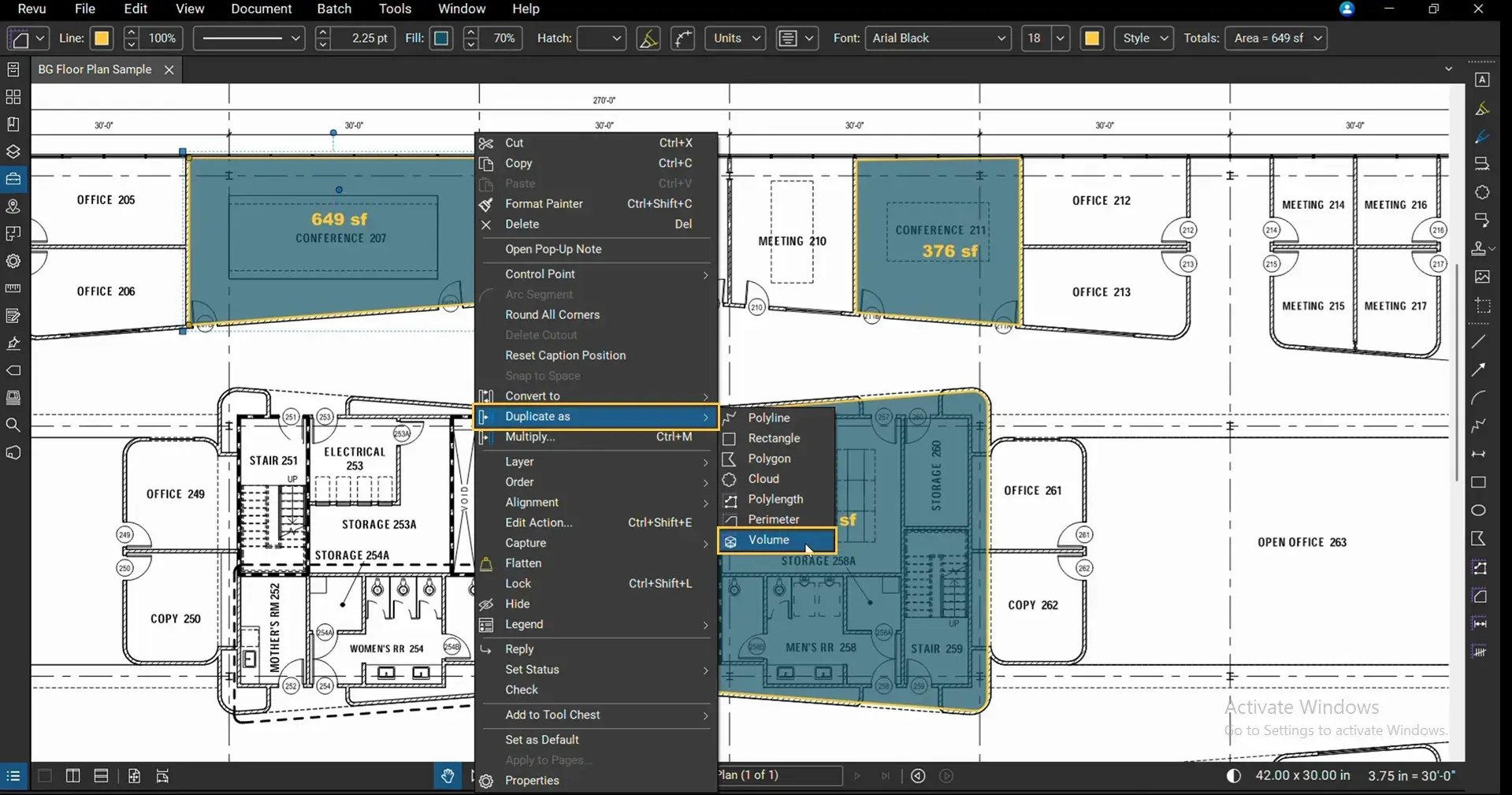
Bluebeam immediately creates a new Volume measurement while leaving the original Area measurement unchanged.
Initially, the new Volume displays 0 cubic units because volume requires a third dimension and our parent markup (Area Measurement) only had 2 dimensions.
A Volume measurement requires both an area and a depth because it's a 3D quantity.
To add a depth value to your volume:
- Select the duplicated Volume measurement.
- Open the Measurements panel.
- Enter a Depth value with your preferred unit.
- Press Enter.
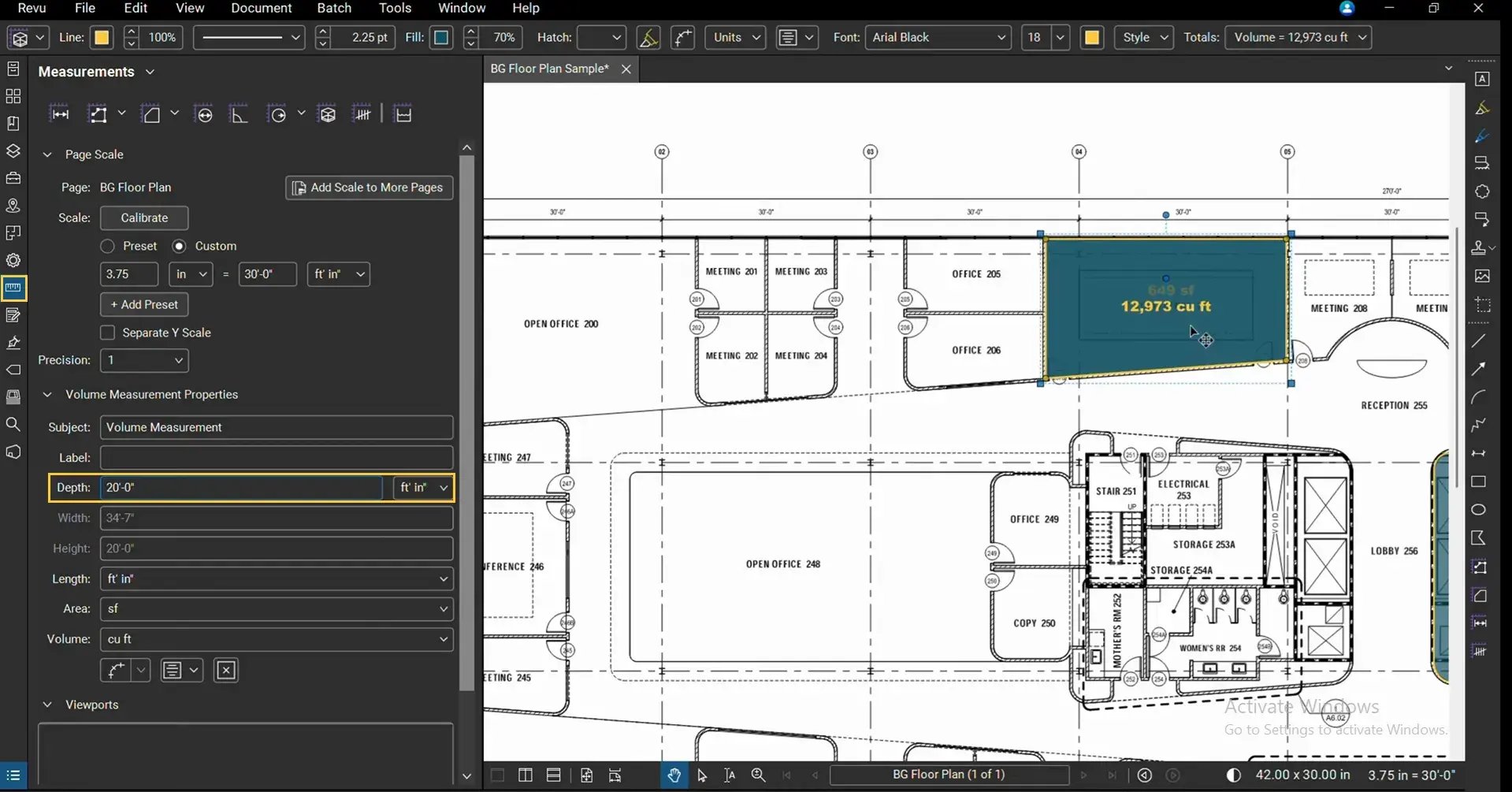
Bluebeam automatically calculates the Volume by multiplying the Area by the Depth you entered.
Reposition the Duplicated Markup
The duplicated markup behaves like any other markup in Revu.
You can:
- Drag it to another location.
- Use it for another region of the drawing.
- Keep both the original and duplicate visible simultaneously.
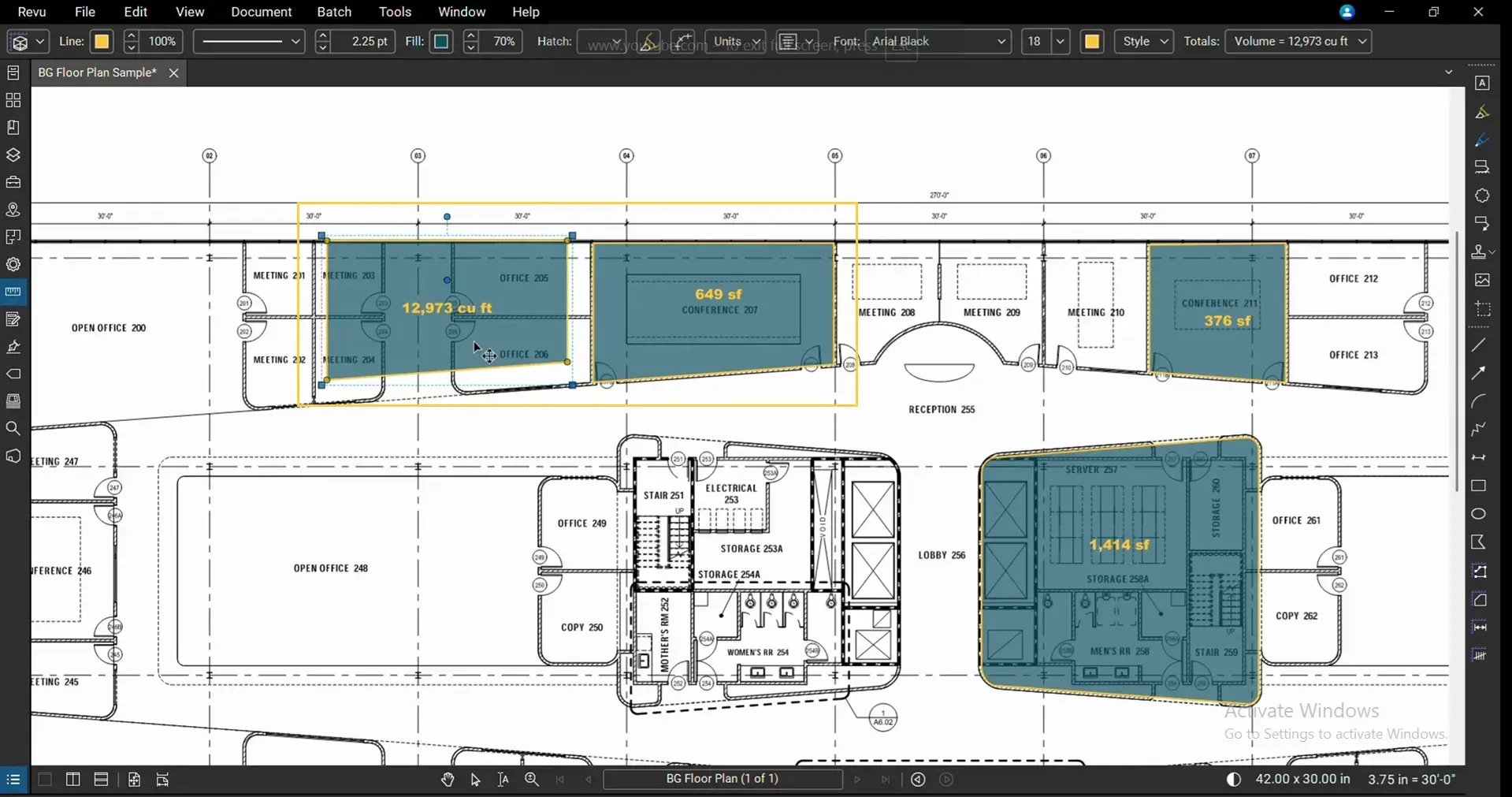
This is the primary advantage of Duplicate As over Convert To: the original markup is not replaced.
View Duplicated Measurements in the Markups List
Every duplicated markup is automatically added to the Markups List.
As with other markups or measurements, you can track, filter, and manage duplicates in your Markups List. Click to open the Markups List to view your:
- The original Area measurement.
- The duplicated Volume measurement.
- Measurement values.
- Comments.
- Other markup properties.
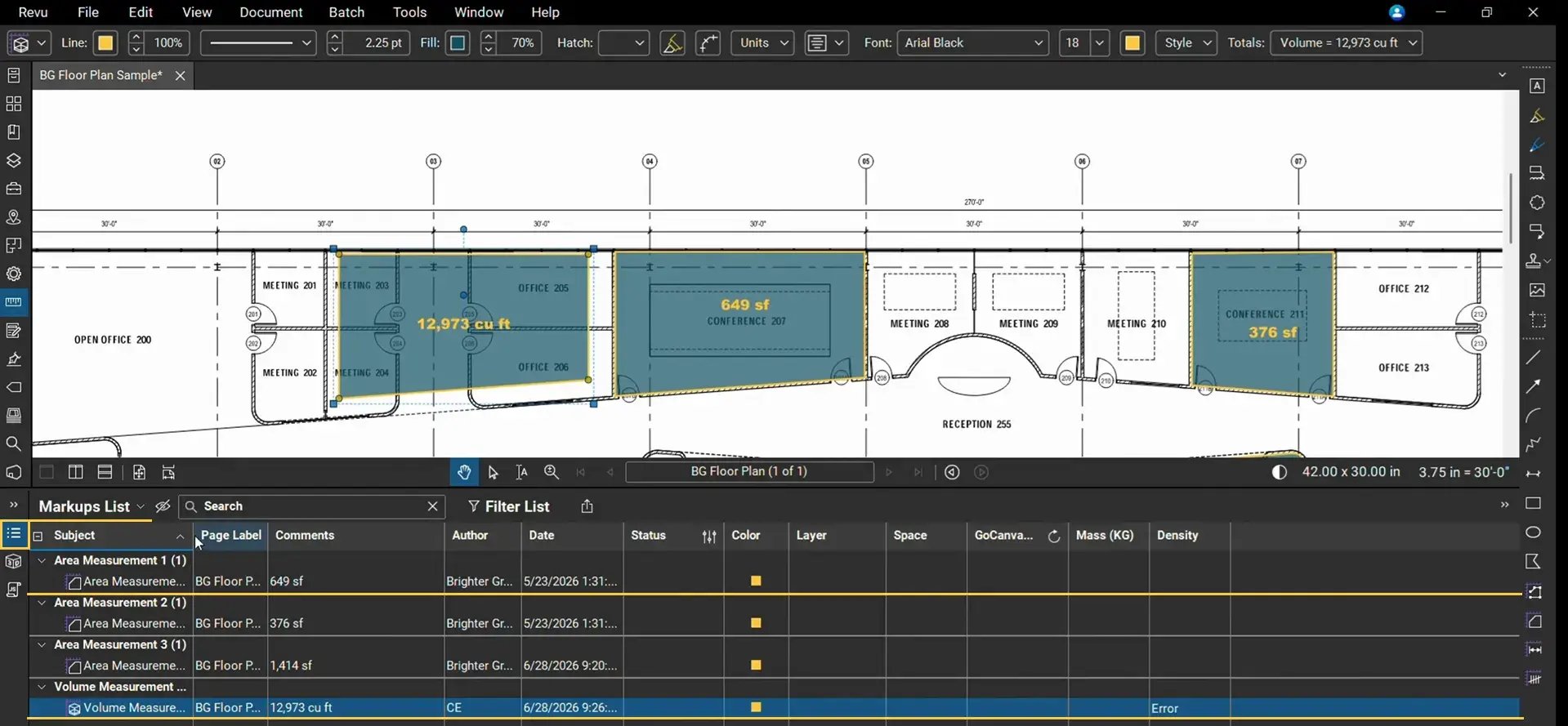
Having both entries available makes it easy to manage and track related measurements throughout your project.
Save Duplicated Markups to the Tool Chest
You can save your duplicated markups in your Tool Chest so they can be reused across future projects.
To do this:
- Right-click the duplicated markup.
- Go to the Add to Tool Chest option.
- Choose your preferred tool set.
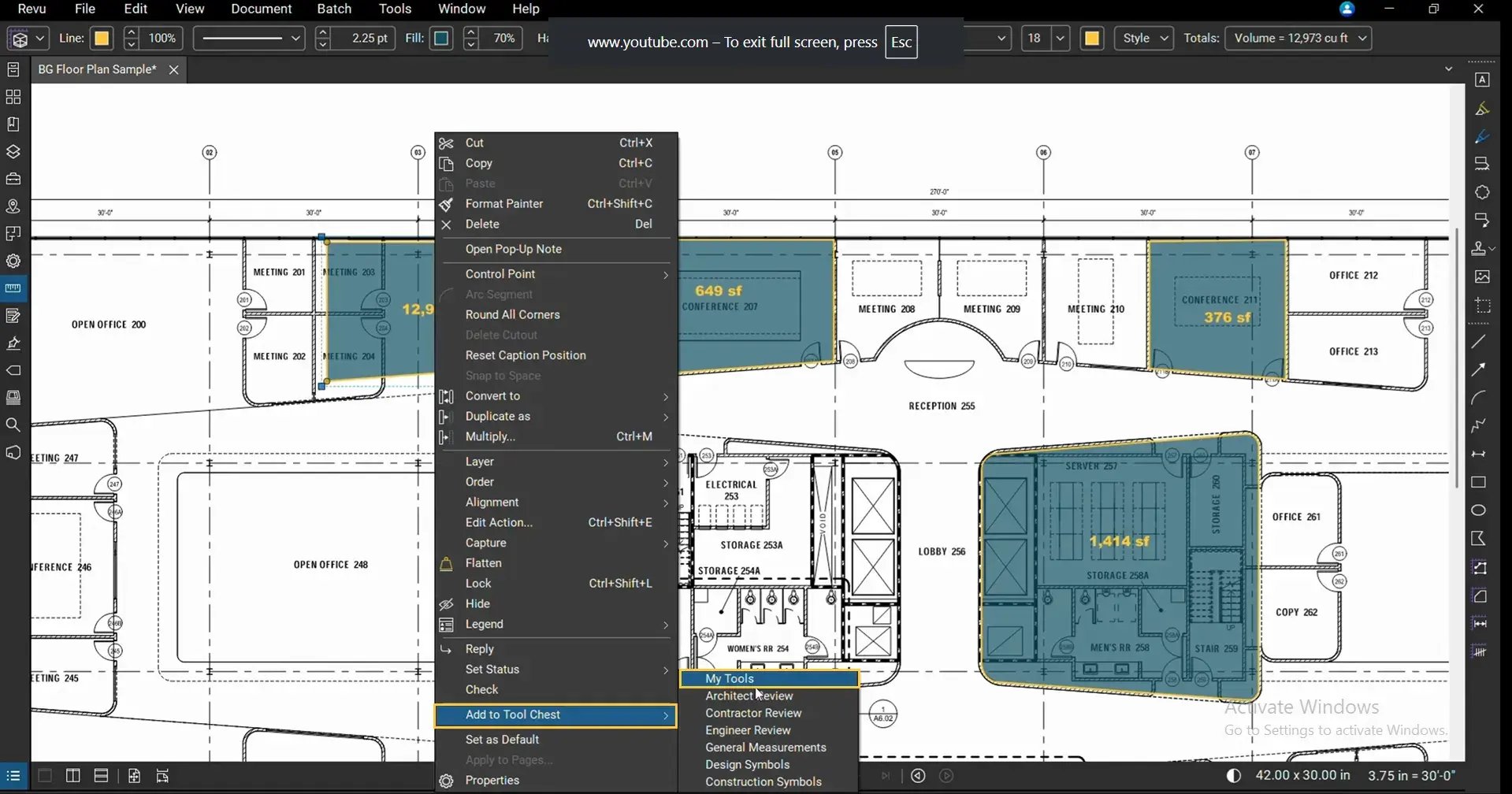
The duplicated markup will be saved and retain its appearance and properties inherited from the parent markup, allowing you to reuse it later in either Drawing Mode or Properties Mode or share it with your team.
Read our separate guide on creating and using custom toolsets in Bluebeam Revu.
Other Duplication Options to Choose From
Duplicate As works with multiple markup types.
For example:
- Duplicate an Area as a Polylength.
- Duplicate a volume as an Area.
- Or use any other available options.
Bluebeam automatically creates the new markup or measurement using the original dimensions. But remember, when converting an irregular quadrilateral (Area, Volume, or Polygon ) into a Rectangle, Bluebeam automatically extends the shortest side to complete the rectangle. If it's not a quadrilateral, it will transform it and keep the overall size as close as possible to the parent markup. You can then adjust the geometry further using the control handles.
Also, when converting measurements that display text, such as Area or Volume, into non-text-based markups like Rectangles or Clouds, the measurement label will be removed because plain markups do not support measurement labels. This is expected behaviour and does not affect the geometry of the duplicated markup.
Duplicate As vs Convert To Magic Markup
Both Duplicate As and Convert To tools belong to the Magic Markups family, but they serve different purposes.
|
Feature |
Duplicate As |
Convert To |
|
Keeps original markup |
Yes |
No |
|
Creates a new markup |
Yes |
No |
|
Replaces existing markup |
No |
Yes |
|
Supports multiple markup types |
Yes |
Yes |
|
Ideal for creating reusable copies |
Yes |
No |
Use Duplicate As to preserve your original markup when creating another version.
Use Convert To when you want to change the existing markup into another type.
Level Up Your Bluebeam Experience
The Duplicate As Magic Markup tool helps you eliminate repetitive work by creating new markups and measurements from existing ones without deleting the original.
Request a 14-day free Bluebeam Max trial to explore other Magic Markups, Smart Review, Smart Overlay, Claude integration, and many more AI-powered workflows designed to speed up your work in Bluebeam Revu.
Bluebeam Max also includes the Convert To and Offset Magic Markup tools. Be sure to explore our related Bluebeam guides and stay connected with Brighter Graphics, your go-to Bluebeam partner in the UK, Europe, and the Middle East.